
Have you ever found yourself locked out of your MySQL database because you forgot the password? It’s a frustrating situation, but don’t worry—you can regain access quickly by resetting your MySQL password.
Whether you’re using Windows or Linux, this guide will walk you through clear, step-by-step instructions to reset your password safely and efficiently. By the end of this article, you’ll have the confidence to solve this common problem without wasting time or risking your data.
Ready to regain control of your MySQL server? Let’s dive in!
Stop Mysql Service
Stopping the MySQL service is the first step to reset the MySQL password. The service must be completely stopped before making any changes. This prevents conflicts and allows safe password recovery. The way to stop MySQL depends on your operating system. It is important to follow the right method to avoid errors or data loss.
After stopping the service, you can start MySQL with special options. These options allow you to bypass the usual password checks. Then, you can update the password securely. Finally, restart the service normally to apply the changes.
Stopping Mysql Service On Windows
Open the Start menu and search for “Services”. Scroll to find “MySQL” or “MySQL57” depending on your version. Right-click the MySQL service and select “Stop”. Wait until the service status changes to stopped. This ensures MySQL is not running during the password reset.
Stopping Mysql Service On Linux
Open a terminal window. Use the command sudo systemctl stop mysql or sudo service mysql stop. The exact command varies by Linux distribution. Confirm the service has stopped by checking its status. Use sudo systemctl status mysql or sudo service mysql status.
Verifying Mysql Service Has Stopped
After stopping, check if MySQL is no longer running. On Windows, the Services panel should show the status as “Stopped”. On Linux, the status command will indicate the service is inactive. This step prevents issues during the password reset.
Create Init File For Password Reset
Creating an init file is a simple way to reset your MySQL password safely. This file contains the command to change the password. MySQL reads this file when starting, applying the new password automatically.
This method avoids starting MySQL with insecure options like --skip-grant-tables. It is especially useful on systems where security is a priority. The init file runs a single SQL command to update the password for the root user.
Create A Text File With The Password Change Command
Open a plain text editor on your system. Write the command to reset the password, such as:
ALTER USER 'root'@'localhost' IDENTIFIED BY 'NewPassword';Replace NewPassword with your desired secure password. Save this file with a simple name like mysql-init.txt.
Set Proper Permissions For The Init File
Ensure only the MySQL user can read this file. Change the file permissions to restrict access:
chmod 600 mysql-init.txtThis step protects your password from unauthorized users during the reset process.
Start Mysql Using The Init File
Stop the MySQL service before starting it again. Use the following command to launch MySQL and run the init file:
mysqld --init-file=/path/to/mysql-init.txtReplace /path/to/mysql-init.txt with the actual path to your init file.
MySQL will execute the password change command during startup. After this, stop the service and restart it normally.
Reset Password On Windows
Resetting the MySQL password on Windows requires careful steps to avoid service disruption. The process involves temporarily disabling the password check, updating the root password, and restoring normal service settings. This guide breaks down the steps into clear tasks to help you reset the password smoothly.
Edit Configuration File
First, locate the MySQL configuration file. It is usually named my.ini or my.cnf. Open it with a text editor like Notepad.
Find the section labeled [mysqld]. Add this line below it:
skip-grant-tablesThis line tells MySQL to start without checking user privileges. Save and close the file after adding the line.
Restart Mysql With Skip Grant Tables
Next, stop the MySQL service using the Windows Services tool. Look for the MySQL service and click Stop.
After stopping, start the service again. This time, it will run without password restrictions because of the skip-grant-tables setting.
Confirm the service is running before moving to the next step.
Update Root Password
Open Command Prompt as an administrator. Navigate to the MySQL bin directory, usually C:Program FilesMySQLMySQL Server X.Ybin.
Run this command to connect to MySQL without a password:
mysql -u rootOnce inside the MySQL shell, update the root password with this command:
ALTER USER 'root'@'localhost' IDENTIFIED BY 'NewPassword';Replace NewPassword with your desired password. Then type:
FLUSH PRIVILEGES;Restore Configuration And Restart
Return to the MySQL configuration file opened earlier. Remove the skip-grant-tables line.
Save the changes and close the file. Go back to Windows Services, stop the MySQL service again, and then start it normally.
Now, MySQL runs with the new root password active. Test by logging in with:
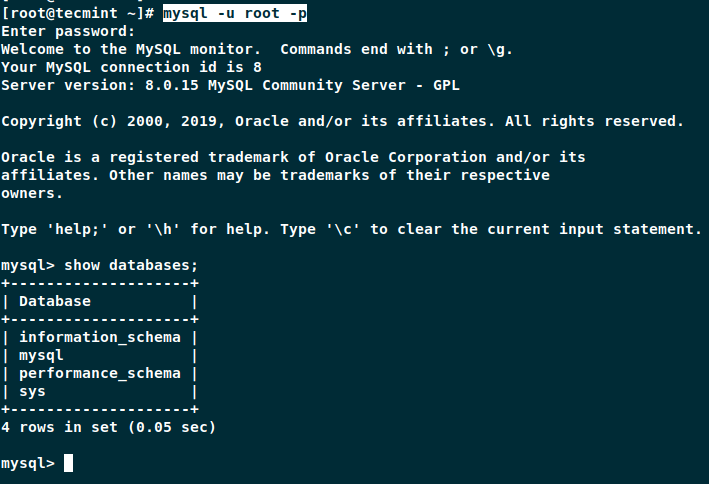
mysql -u root -pEnter the new password to confirm the reset was successful.
Reset Password On Linux
Resetting your MySQL password on Linux is a straightforward process. It involves stopping the MySQL service, starting it without authentication, changing the password, and then restarting the service normally. Each step is simple and can be done using basic terminal commands.
This method helps regain access when you forget your MySQL root password. Follow the steps carefully to avoid any issues.
Open your terminal and stop the MySQL service. Use this command:
sudo systemctl stop mysqlThis command stops MySQL safely, so you can make changes without problems.
Start Mysql Without Authentication
Next, start MySQL without loading the user privileges. Run:
sudo mysqld_safe --skip-grant-tables &This mode allows you to connect to MySQL without a password.
Connect And Change Password
Connect to the MySQL server using the command:
mysql -u rootOnce connected, run this command to change the password:
ALTER USER 'root'@'localhost' IDENTIFIED BY 'new_password';Replace new_password with your desired password.
Restart Mysql Normally
Exit the MySQL prompt with exit. Then, stop the safe mode server:
sudo pkill mysqldFinally, start MySQL normally:
sudo systemctl start mysqlNow, you can log in with your new password.
Commands To Change Password
Changing a MySQL password requires specific commands to update the credentials safely. Using the right SQL commands ensures the database security stays intact. This section covers three main methods to change the password effectively.
Using Alter User
The ALTER USER command is the recommended way to change a MySQL password. It updates the password for a specific user directly.
ALTER USER 'username'@'host' IDENTIFIED BY 'new_password';Replace username, host, and new_password with your details. This command works in MySQL 5.7.6 and later.
Using Update User Table
Older MySQL versions use the UPDATE command on the mysql.user table. This changes the password hash manually.
UPDATE mysql.user SET authentication_string = PASSWORD('new_password') WHERE User = 'username' AND Host = 'host';This method requires caution, as direct table updates can cause issues if done incorrectly.
Flushing Privileges
After changing passwords with either method, run this command to apply changes immediately.
FLUSH PRIVILEGES;This tells MySQL to reload the grant tables and enforce the new password settings.

Tips For Different Mysql Versions
Resetting a MySQL password depends on the version you use. Different MySQL versions handle password reset commands and security settings differently. Knowing these differences helps you avoid errors and speeds up the process.
This section offers practical tips for managing password resets across MySQL versions. It covers older versions and the importance of running commands with admin rights.
Handling Older Versions
Older MySQL versions may not support the ALTER USER command. Instead, use the SET PASSWORD syntax. For example:
SET PASSWORD FOR 'root'@'localhost' = PASSWORD('new_password');Some versions require stopping the MySQL service first. Then start it with --skip-grant-tables to bypass login authentication. This allows you to connect without a password and reset it safely.
Be aware that older versions might store passwords differently. This can affect how you reset or encrypt the new password.
Running Commands With Admin Rights
Admin rights are essential for resetting MySQL passwords. You must run the command line or terminal as an administrator or root user. Without these rights, commands will fail or show permission errors.
On Windows, right-click the Command Prompt and select “Run as administrator”. On Linux, use sudo before commands.
This ensures you can stop and start MySQL services, edit configuration files, and execute password reset commands.
Troubleshooting Common Issues
Resetting a MySQL password can sometimes lead to unexpected problems. Troubleshooting these issues quickly helps restore access without stress.
Common errors often arise from service status, command mistakes, or permission conflicts. Understanding these helps solve the problem efficiently.
Mysql Service Not Stopping Or Starting
Sometimes, MySQL service refuses to stop or start properly. Check for running processes using task manager or system monitor. Kill any lingering MySQL process before restarting the service. Also, verify you have proper admin rights to control the service.
Error Using –skip-grant-tables Option
The –skip-grant-tables option disables password checking. Errors here often come from incorrect command syntax or not stopping the service first. Run the command with full paths to avoid environment issues. Make sure MySQL is fully stopped before starting with this option.
Unable To Connect Without Password
After starting MySQL with skip-grant-tables, connection without password might fail. This happens if the server did not restart properly or if the wrong port is used. Confirm the server logs for errors. Use the correct client command with proper host and port settings.
Permission Denied On Alter User Command
Running ALTER USER to reset password needs correct privileges. If permission is denied, check if MySQL started with skip-grant-tables. If not, the server still enforces grants. Restart with skip-grant-tables and then run ALTER USER as root without password.
Password Not Updating After Restart
Sometimes the new password does not work after restarting normally. This may happen if the password change was not committed properly. Use FLUSH PRIVILEGES after ALTER USER. Also, confirm changes in the mysql.user table and retry the login.

Frequently Asked Questions
What To Do If I Forgot My Mysql Password?
Stop MySQL service. Start it with –skip-grant-tables to bypass authentication. Connect using MySQL client. Run ALTER USER to reset the password. Restart MySQL normally. This method works on Windows and Linux systems.
How To Reset Sql Password If Forgotten?
Stop the SQL service. Start it with skip-grant-tables to bypass authentication. Connect without a password. Run ALTER USER to set a new password. Restart the service normally. Use SQL Server Management Studio or command line depending on your SQL version.
How To Change Mysql Login Password?
Stop the MySQL service. Start it with –skip-grant-tables option. Connect using mysql client. Run ALTER USER ‘root’@’localhost’ IDENTIFIED BY ‘new_password’; Restart the service normally. This resets the MySQL login password securely.
How Do I Know The Username And Password Of Mysql?
Check the MySQL username in the configuration file or ask your database administrator. Default username is often “root. ” Passwords are set during installation or by the admin. If forgotten, reset it using command-line tools by stopping MySQL, bypassing authentication, and updating the password.
How Can I Reset My Mysql Root Password Safely?
Stop MySQL service, start with –skip-grant-tables, then run ALTER USER to set a new password.
Conclusion
Resetting your MySQL password is simple with the right steps. Always stop the MySQL service before making changes. Use commands like –skip-grant-tables or an init file to bypass authentication safely. After resetting, restart MySQL normally to apply the new password.
Follow these instructions carefully to avoid errors. This guide helps you regain access quickly without confusion. Keep your new password secure and easy to remember. Practice these steps to manage MySQL passwords with confidence.