
Have you ever been locked out of your Mac’s keychain because you forgot the password? It’s frustrating when your Mac keeps asking for a keychain password that you no longer remember, blocking access to saved passwords and secure information.
But don’t worry—you can reset your keychain password and regain control quickly. In this guide, you’ll learn simple, step-by-step methods to reset your Mac’s password keychain, so you can stop those annoying pop-ups and get back to what matters. Keep reading to discover easy ways to fix your keychain issues, even if you’ve completely lost your old password.
Locate Keychain Access
To reset your password keychain on Mac, first find the Keychain Access app.
This app manages your saved passwords and secure information.
It stores passwords, certificates, and secure notes in one place.
Locating it is simple and takes only a few clicks.
Open Finder On Your Mac
Start by clicking the Finder icon in the Dock. Finder is the file manager on Mac.
It helps you access files, folders, and applications easily.
Navigate To The Utilities Folder
In the Finder menu, click Go at the top of the screen.
Then select Utilities from the dropdown menu.
This folder contains several useful system apps, including Keychain Access.
Launch Keychain Access
Inside the Utilities folder, find and double-click the Keychain Access icon.
The app opens a window showing your keychains and stored passwords.
You can now proceed to reset or manage your keychain passwords from here.
Reset Default Keychain
Resetting the default keychain on your Mac helps fix password conflicts. It links the keychain password with your current login password. This process deletes old saved passwords but lets you regain access easily. Follow the simple steps below to reset your default keychain and solve password issues quickly.
Open Preferences
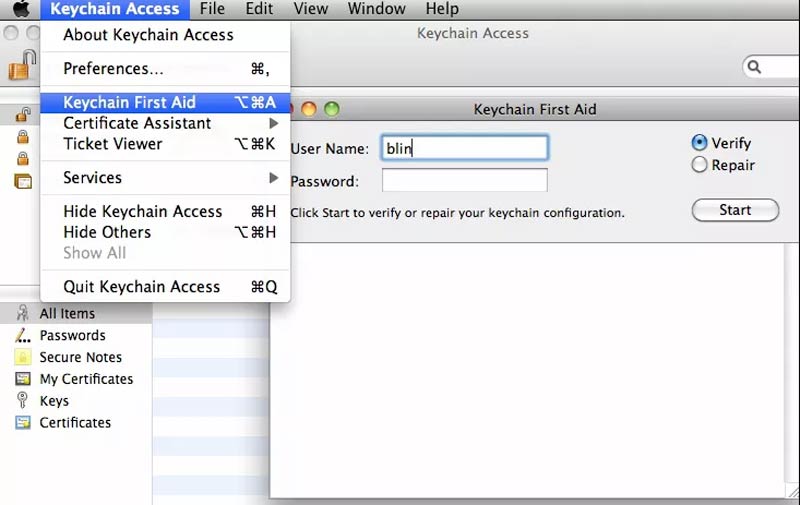
First, open the Finder app on your Mac. Click Go in the menu bar, then select Utilities. Find and double-click Keychain Access. In the Keychain Access window, click Keychain Access in the top menu. Choose Preferences from the dropdown menu to open the settings.
Enter User Credentials
In the Preferences window, look for the Reset My Default Keychain button and click it. A prompt will ask you to enter your current username and password. Type your login details carefully. This step links your keychain to your current password and clears out old keychain data.
Restart Mac
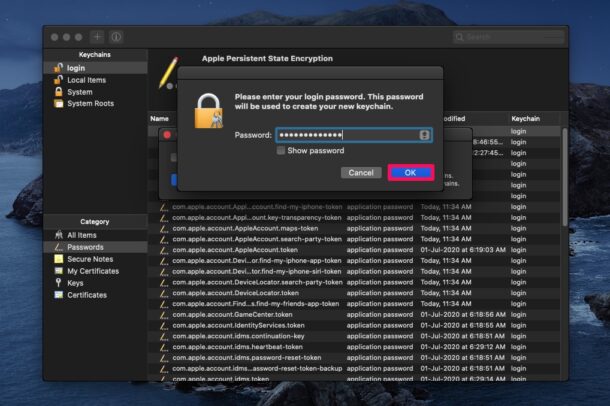
After resetting the keychain, close all open windows. Restart your Mac to apply the changes fully. When your Mac boots up, a new default keychain will be created automatically. You may need to re-enter some passwords, but your keychain will now work with your current login password.
Manually Delete Keychain Files
Manually deleting keychain files is a direct way to reset your Mac’s keychain password. This method helps if you cannot reset the keychain from the Keychain Access app. It removes old keychain data stored on your Mac, forcing the system to create a new, fresh keychain. This process clears saved passwords and certificates, so back up important information first.
Follow the steps below carefully to locate and delete the keychain files. After deletion, your Mac will build a new keychain tied to your current login password.
Access Library Folder
Open Finder on your Mac. Click the “Go” menu on the top bar. Hold the Option key to reveal the “Library” option. Select “Library” to open it.
Inside Library, find the folder named “Keychains.” This folder stores all your keychain files. Keep this window open for the next steps.
Remove Keychain Items
In the Keychains folder, locate files with long string names and the extension “.keychain-db.” These are your keychain files.
Select all keychain files and move them to the Trash. This deletes the old keychain data from your Mac. You may also empty the Trash to free space.
Restart And Create New Keychain
Restart your Mac after deleting the keychain files. When your Mac starts, it will create a new keychain automatically.
Log in with your current user password. Your new keychain will sync with this password, restoring keychain access.
Sync Keychain And Login Passwords
Syncing your keychain password with your login password keeps access smooth. It prevents constant password prompts on your Mac. When these passwords match, your Mac unlocks saved passwords automatically. This saves time and reduces frustration.
Sometimes these passwords get out of sync. This causes your Mac to ask repeatedly for the keychain password. Resetting and syncing them helps fix this issue quickly. It also secures your keychain with your current login password.
Open Keychain Access
First, open the Keychain Access app on your Mac. Click Go in the Finder menu, then select Utilities. Find and double-click Keychain Access to launch it.
In Keychain Access, click the Keychain Access menu at the top. Choose Preferences. Under the General tab, click Reset My Default Keychain. This will reset your keychain password to your current login password.
Restart Your Mac
After resetting, restart your Mac. The system creates a new default keychain synced to your login password. This removes old saved passwords but restores smooth password access.
Troubleshoot Keychain Issues
Troubleshooting keychain issues on your Mac helps fix common password problems. Keychain stores passwords and certificates securely. Sometimes it asks for passwords repeatedly or stops working. These issues can block access to saved passwords and apps. Simple steps can solve most keychain problems quickly.
Follow easy fixes to stop annoying password pop-ups and recover lost keychain passwords. These tips restore normal keychain use and protect your data.
Fix Password Prompt Pop-ups
Frequent password pop-ups often mean your keychain is locked or out of sync. Open the Keychain Access app from Utilities. Click “Keychain Access” in the menu bar, then choose “Preferences.” Select “Reset My Default Keychain.” Enter your current Mac user password. Restart your computer. This resets the keychain and links it to your login password. It stops repeated password requests and fixes syncing errors.
If prompts continue, manually delete old keychain files. Go to the folder ~/Library/Keychains. Move all files inside to the Trash. Then restart your Mac. A new keychain will be created automatically. This clears corrupted files causing pop-ups.
Recover Lost Keychain Password
Forgetting your keychain password can lock you out of saved passwords. The keychain password usually matches your Mac login password. If they differ, reset the default keychain to sync them again. Open Keychain Access, go to Preferences, and click “Reset My Default Keychain.”
If you cannot reset the keychain, create a new one manually. In Keychain Access, choose File > New Keychain. Name it and set a new password. Then set this new keychain as default by selecting it and clicking File > Make Keychain “name” Default.
Remember, resetting or creating a new keychain deletes old saved passwords. You must re-enter passwords for apps and websites afterward.
Save Passwords After Reset
After resetting your Mac’s password keychain, saving important passwords is crucial. Resetting clears old passwords, which can disrupt app and website logins. Restoring passwords ensures smooth access to your accounts and services.
Taking steps to save passwords after a reset helps avoid repeated password entries. It also secures your data and saves time during daily Mac use.
How To Export Passwords Before Reset
Open Keychain Access from Finder under Go > Utilities. Select the keychain you want to save passwords from. Use the File > Export Items option to save passwords as a file. Store this file in a secure place for later use.
Import Saved Passwords Back To Keychain
After resetting, open Keychain Access again. Choose File > Import Items and select your saved password file. This restores your passwords to the new keychain. Confirm passwords appear correctly for your apps and websites.
Use Icloud Keychain For Automatic Sync
Enable iCloud Keychain in System Preferences under Apple ID > iCloud. This syncs passwords across all your Apple devices. It helps recover passwords automatically after a reset. Always keep iCloud Keychain turned on for hassle-free password management.
Frequently Asked Questions
How Do I Reset My Keychain Password On My Mac?
Open Finder and go to Utilities > Keychain Access. Click Keychain Access > Preferences. Select “Reset My Default Keychain,” enter your username and password, then restart your Mac. This resets your keychain password and creates a new keychain linked to your current login password.
Where To Find Keychain Passwords On Mac?
Open Finder, go to Applications > Utilities, and launch Keychain Access. Select your keychain and view saved passwords by double-clicking an item and checking “Show Password” after entering your Mac password.
Why Is My Mac Suddenly Asking For A Keychain Password?
Your Mac asks for a keychain password if the keychain locks automatically or if your login and keychain passwords don’t match. Resetting the default keychain in Keychain Access can fix this by syncing passwords and creating a new keychain.
How Do I Retrieve My Icloud Keychain Password?
Open Keychain Access on your Mac (Finder > Go > Utilities). Select Preferences, then click “Reset Default Keychains. ” Enter your username and current password, then restart your Mac. This resets your keychain password by syncing it with your login password.
How Do I Reset My Mac Keychain Password?
Open Keychain Access from Utilities, select Preferences, then click “Reset My Default Keychain. ” Enter your login info and restart.
Conclusion
Resetting your Mac’s keychain password keeps your data secure and accessible. Follow the steps carefully to avoid issues. This process links your keychain to your current login password. Old saved passwords will be deleted, so note important ones. Restart your Mac to finish the reset.
Now, your keychain should work without repeated password prompts. Keep your login password safe to prevent future problems. Simple and effective.