
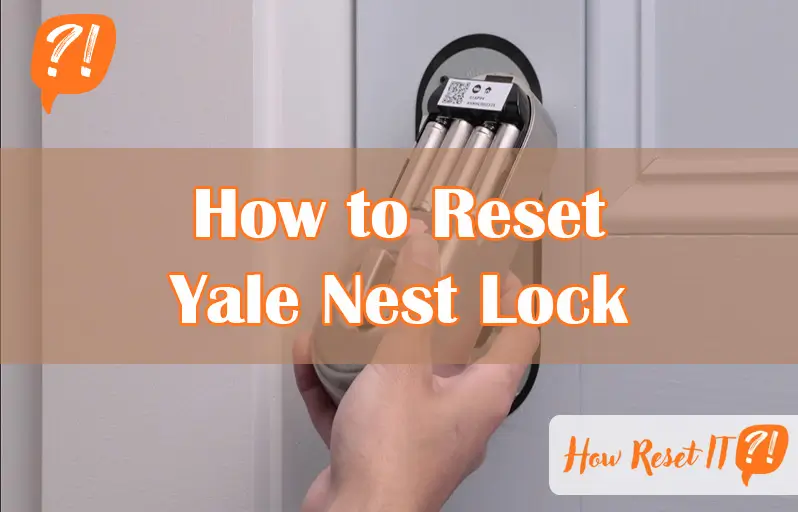
If you’re having trouble with your Yale Nest Lock or just want to start fresh, knowing how to reset it is key. Resetting your lock can solve connectivity issues, erase old codes, and give you full control again.
But don’t worry—this process isn’t complicated. In this guide, you’ll discover simple, step-by-step instructions to reset your Yale Nest Lock quickly and safely. By the end, you’ll be ready to set new codes and enjoy seamless security without any hassle.
Keep reading to unlock the full potential of your smart lock!

Reset Preparation
Resetting your Yale Nest Lock starts with proper preparation. This step ensures the process goes smoothly without damage to your lock. Gather all necessary items before beginning. Locate the battery cover carefully to avoid scratches. Removing batteries safely protects the internal components. Follow these steps to prepare your lock for reset.
Gather Tools And Materials
Collect a small screwdriver or coin to open the battery cover. Have fresh batteries ready for replacement. Keep a clean cloth nearby to place removed parts. A flashlight helps to see small components clearly. Prepare a stable surface to work on your lock.
Locate Battery Cover
Find the battery cover on the inside part of the lock. It usually has a small indentation or slot. Use your fingers or a tool to gently open it. Avoid using excessive force to prevent damage. Keep the cover safe to reattach later.
Remove Batteries Safely
Take out the batteries one by one with care. Avoid touching the terminals to prevent static damage. Place the batteries on the cloth to keep them from rolling away. Inspect the battery compartment for dirt or corrosion. Clean gently if needed before inserting new batteries.
Accessing The Reset Button
Accessing the reset button on your Yale Nest Lock is the first step to restoring factory settings. This process requires removing parts of the lock to reach the internal components. The reset button is hidden for security. You must carefully open the interior lock assembly to find it. Knowing the exact location and features of this button helps avoid damage and ensures a smooth reset.
Remove Interior Lock Assembly
Start by opening the battery cover. Remove all batteries to cut power. Use a screwdriver to unscrew the interior lock assembly from the door. Gently pull the assembly away from the door. This exposes the lock’s circuit board and cables. Handle the lock parts carefully to avoid damage.
Find The Reset Button
Look near the cable connector on the circuit board. The reset button is usually on the left side. It is a small, often white button. Sometimes it is marked with an “R” or “Reset.” Make sure you have good lighting to spot it easily. The button is tiny, so take your time.
Identify Button Features
The reset button is small and recessed. It may require a pin or paperclip to press. Press and hold the button for several seconds to activate the reset. You will hear a beep or tone confirming the reset. Do not release the button too soon. This button clears all codes and settings.
Performing The Factory Reset
Performing a factory reset on your Yale Nest Lock clears all settings and restores the lock to its original state. This process is useful if you want to remove all user codes or fix issues with the lock. Follow the steps carefully to complete the reset successfully.
Press And Hold Reset Button
First, locate the reset button inside the lock. It is usually near the circuit board on the back panel. Press and hold this button firmly. Keep holding it throughout the next steps.
Reinsert Batteries While Holding Button
While still holding the reset button, put the batteries back into the lock. This action powers the lock and starts the reset process. Do not release the button until you hear a sound.
Wait For Confirmation Beep
Listen carefully for a confirmation beep or tone. This sound signals that the factory reset is complete. After the beep, you can release the reset button. The lock is now reset to its factory settings.

Reassembling The Lock
Reassembling the Yale Nest Lock is a key step after completing the reset process. This phase ensures the lock functions properly and maintains its security features. Handle each part with care to avoid damage or misalignment. Follow the steps below to correctly put your lock back together.
Reattach Interior Lock Assembly
Align the interior lock assembly with the door’s mounting plate carefully. Make sure the cable connector fits without bending or twisting. Press the assembly firmly against the door surface. Secure it using the screws you removed earlier. Tighten each screw evenly to keep the assembly stable. Avoid overtightening to prevent stripping the screw holes.
Replace Battery Cover
Slide the battery cover back onto the interior lock assembly. Ensure it fits snugly and clicks into place. The cover protects the batteries and internal components from dust and moisture. Double-check that the cover does not wobble or feel loose. Properly replacing the cover helps maintain the lock’s performance and battery life.
Setting Up After Reset
After resetting your Yale Nest Lock, setting it up correctly is essential for smooth use. This process helps secure your home and ensures the lock works properly. Resetting erases all previous codes and settings. You must create new access codes and verify the lock’s response. Follow these steps to get your lock ready again.
Create New Master Code
Start by creating a new master code. This code controls all other codes and settings. Access the lock’s keypad and press the settings button. Enter your desired master code, usually 4 to 8 digits long. Confirm the code by pressing the settings button again. The lock will beep to confirm the new master code is set.
Add Or Delete User Codes
Next, add new user codes for family or guests. Enter the master code, then press the user code button. Input the new user code and confirm it. To delete a user code, enter the master code and select the delete option. Choose the code to remove and confirm. This keeps your lock secure and easy to manage.
Test Lock Functionality
Finally, test the lock to ensure it works well. Use the new master and user codes to lock and unlock the door. Check the keypad response and battery level. Make sure the lock engages smoothly without delay. Testing helps catch issues early and guarantees your home stays protected.
Troubleshooting Tips
Troubleshooting your Yale Nest Lock can solve common problems quickly. Some issues need simple fixes to get your lock working again. Follow these tips to handle common challenges during reset and setup.
Reset Button Not Responding
Check the batteries first. Weak or dead batteries can stop the reset button from working.
Remove the battery cover and replace old batteries with new ones. Press the reset button again.
Make sure you press and hold the reset button for at least 10 seconds. Hold it firmly.
If the button still does not respond, remove the lock from the door. Look for dirt or damage on the button.
Clean the area gently. Try the reset process again after cleaning.
Lock Won’t Connect To Wi-fi
Confirm your Wi-Fi is working and has a strong signal near the lock.
Restart your router. Turn it off for 30 seconds, then turn it back on.
On the lock, open the app and follow the connection steps carefully. Choose the correct Wi-Fi network.
Ensure the lock’s firmware is up to date. Updates fix bugs and improve connection.
If connection fails, reset the lock and try connecting again with the app.
Lost Primary Code Solutions
If you forget the primary code, a factory reset can help. This erases all codes and settings.
Remove batteries and press the reset button while reinserting batteries. Hold until you hear a beep.
After reset, set a new primary code in the app or on the lock keypad.
Write down your new code and store it somewhere safe to avoid loss.
Contact Yale support if you cannot reset or access the lock after these steps.
Additional Resources
Finding reliable information helps you reset your Yale Nest Lock with ease. Extra resources offer clear instructions and support. They guide you through code changes and troubleshooting. Use these tools to avoid mistakes and save time.
Using The Nest App For Code Changes
The Nest app lets you manage lock codes remotely. You can add, delete, or update user codes quickly. The app shows real-time lock status and notifications. It simplifies controlling access without needing to touch the lock. Follow in-app prompts for smooth code changes.
Video Guides And Tutorials
Watching videos can clarify reset steps visually. Many creators upload simple tutorials for Yale Nest Lock resets. These videos show where buttons are and how long to press them. Seeing the process helps avoid confusion or errors. Search for recent, clear videos for the best help.
Contacting Support
Official support assists with technical or complex issues. Yale and Nest offer customer service via phone or chat. Support teams provide step-by-step help tailored to your lock model. They can troubleshoot problems or confirm reset success. Keep your lock’s serial number ready for faster service.

Frequently Asked Questions
How Do I Reset My Yale Lock From Previous Owner?
Remove batteries and unscrew the interior lock to access the reset button. Hold the reset button, reinsert batteries, and release it when the lock beeps. Reassemble the lock. This factory reset erases all codes; set a new master code afterward.
How Do I Reset The Code On A Yale Door Lock?
Remove batteries from the Yale lock. Hold the reset button on the circuit board. Reinsert batteries while holding the button until a beep sounds. Release the button, reassemble the lock, and set a new master code. This resets all codes and settings to factory defaults.
How Do I Reconnect My Nest Yale Lock To Wi-fi?
Open the Nest app and go to Lock settings. Select Wi-Fi, then choose your network. Enter the password and tap Connect. Ensure your lock is powered and nearby. The lock will reconnect to Wi-Fi automatically.
How Do I Change The Code On A Nest Yale Lock?
To change the code on a Nest Yale lock, perform a factory reset. Remove batteries, press and hold the reset button, then reinsert batteries while holding it. Release when the lock beeps. After reset, set a new master code and user codes via the keypad.
How Do I Perform A Factory Reset On Yale Nest Lock?
Remove batteries and cover. Hold the reset button while reinserting batteries. Release after beep.
Conclusion
Resetting your Yale Nest Lock is simple and quick. Following the steps carefully ensures the lock works properly again. Remember, a factory reset erases all previous codes and settings. Take time to set new codes right after the reset. This process helps keep your home secure and your lock functioning well.
Keep this guide handy for future reference. Your Yale Nest Lock will stay reliable with proper care.