
Is your Honeywell Home thermostat acting up or not responding as it should? Sometimes, a simple reset is all you need to get it back on track quickly.
Whether you want to clear your schedules, fix unresponsive screens, or just start fresh with factory settings, knowing how to reset your thermostat is key. In this guide, you’ll find easy, step-by-step instructions tailored for your Honeywell Home thermostat—no confusing jargon, just clear actions you can follow right now.
Keep reading to regain control of your home’s comfort with confidence!
Reset Options For Honeywell Thermostats
Resetting your Honeywell thermostat can solve many common issues. It helps restore normal function by clearing errors or unwanted settings. Honeywell offers different reset options. Each type targets specific problems without affecting all settings. Understanding these options ensures you choose the right reset method for your device.
Factory Reset Vs Schedule Reset
A factory reset clears all thermostat settings. It erases schedules, Wi-Fi connections, and preferences. This reset returns the device to its original state.
Schedule reset only clears the programmed schedules. It keeps your Wi-Fi and other preferences intact. Use this reset to fix scheduling errors without losing all settings.
When To Use Each Reset Type
Use a factory reset if your thermostat has major issues. Problems like unresponsive screens or Wi-Fi connection failures need a full reset. This reset is also useful before selling or giving away the device.
Use schedule reset to fix timing or program errors. When your temperature settings do not follow the schedule, this reset solves the issue. It saves time by keeping your other settings safe.
Standard Menu Reset Steps
Resetting your Honeywell Home thermostat using the standard menu is a straightforward process. This method helps clear settings or schedules without complex steps. Follow these clear instructions to reset your device safely and correctly.
Accessing The Menu
Start by pressing the Menu button on your thermostat display. This button usually shows an icon or the word “Menu.” It opens the main settings screen where you control your device.
Take your time to find the button carefully. Some models have touchscreens, while others use physical buttons.
Navigating To Reset
Use the arrow keys or touchscreen to scroll through the menu options. Look for “Reset” or “Advanced Setup.” These options may be inside deeper menus.
Select “Reset” to see different reset types. This step guides you to the choice that fits your need.
Choosing And Confirming Reset
Pick the reset type you want. Choose “Factory Reset” to erase all settings and schedules. Or select “Schedule Reset” to clear only the programmed times.
Confirm your selection by pressing the OK or Confirm button. Your thermostat will restart and apply the reset.
Quick Reset Methods
Quick reset methods offer a fast way to restore your Honeywell Home thermostat. These techniques help solve minor glitches and unresponsive screens. They differ based on your thermostat’s power source. Choose the right method for your model to reset it smoothly.
Power Cycle For Wired Models
Turn off the thermostat power at the circuit breaker. Wait for about 30 seconds. Turn the power back on to restart the thermostat. This method clears temporary errors without erasing settings. It works well if the screen is frozen or unresponsive.
Battery Removal For Battery Models
Remove the thermostat from its wall plate gently. Take out the batteries carefully. Wait for at least 30 seconds to let the device reset. Insert the batteries back in the correct order. Place the thermostat back on the wall plate. This method refreshes the system and fixes simple issues.
Button Combination Reset
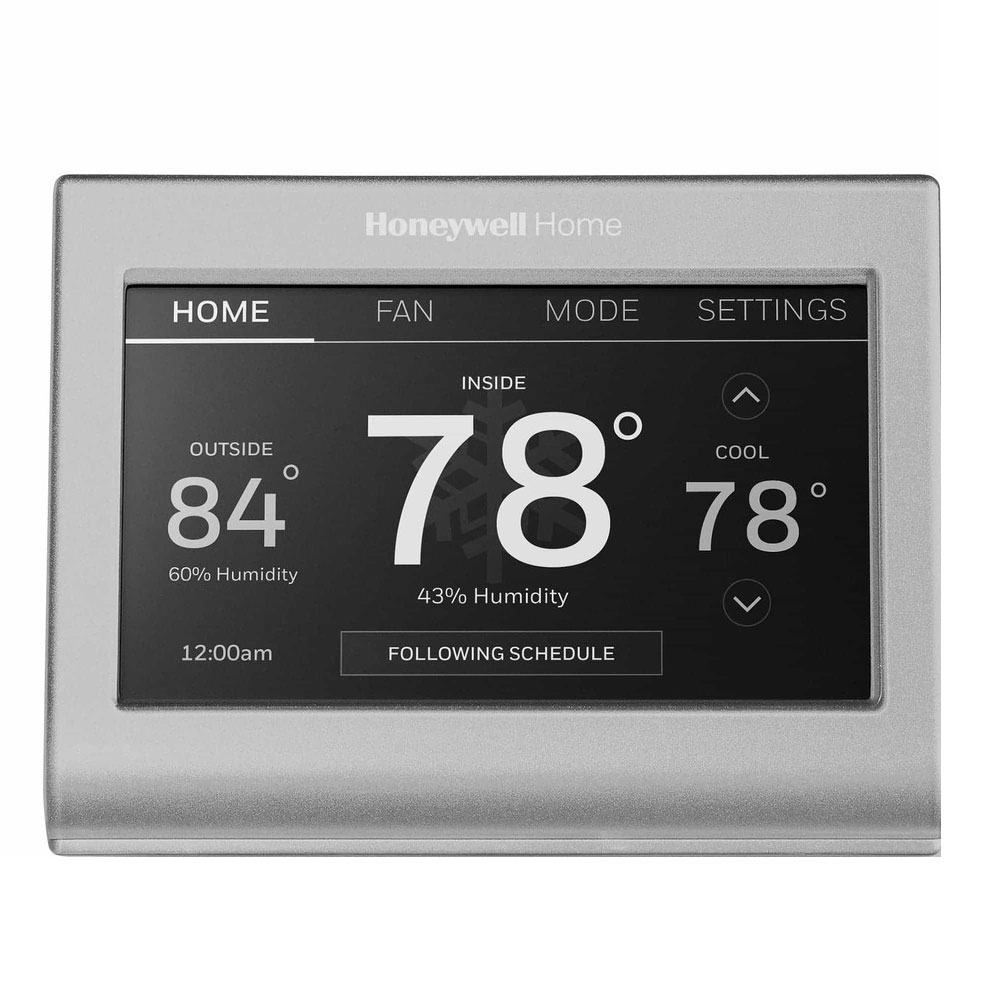
Resetting your Honeywell Home thermostat using button combinations is a quick way to solve many issues. This method works especially well for touchscreen models. It lets you access hidden menus without navigating through the standard settings. Button combination reset can clear errors and restore basic functions fast.
Pressing the right buttons together triggers advanced setup options. These options include factory reset and system diagnostics. It’s a handy solution when the touchscreen is unresponsive or the menu is hard to navigate. Knowing common button combos helps you reset the device safely and effectively.
Common Button Combos
Several Honeywell models use specific button combos to reset or access special menus. For example, holding the Fan button and the Up arrow for 5 seconds often opens the setup menu. Another combo is pressing Menu and Up arrow together to enter advanced options.
Some models require holding the System and Back buttons simultaneously. These combos vary, so check your thermostat’s model number before trying. Using the wrong combo might do nothing or cause unexpected changes.
Accessing Advanced Setup Menus
Once you use the button combination, the screen changes to advanced setup menus. Here, you can find options like Factory Reset, Schedule Reset, and Diagnostics. Use the arrow keys to scroll through the options.
Select the reset option that fits your need. A factory reset clears all settings, including Wi-Fi and schedules. Schedule reset removes only programmed times and keeps other preferences. Confirm your choice by pressing the OK or Select button.
Exiting the menu usually happens automatically after reset. Your thermostat will restart and apply the changes.
Hard Reset Techniques
Hard reset techniques help fix serious issues with your Honeywell Home thermostat. These methods erase all settings and restore factory defaults. Use hard resets only when soft resets do not work.
Below are common ways to perform a hard reset on your thermostat.
Cutting Power At Circuit Breaker
Turn off the thermostat power at the main circuit breaker. Wait for 5 minutes. This allows the device to fully shut down. Turn the breaker back on. The thermostat will reboot and reset.
This method clears temporary glitches and refreshes the system. Use it if the screen is frozen or unresponsive.
Using Recessed Reset Buttons
Some Honeywell models have a small reset button hidden in a pinhole. Use a paperclip or similar tool to press it gently. Hold the button for 5 to 10 seconds. Release it and wait for the thermostat to restart.
This method forces a full reset without removing power. Check your model’s manual to locate the reset button.
Holding Specific Buttons
Certain touchscreen models reset by pressing button combinations. Hold the Menu and Up arrow buttons together for 10 seconds. The screen will show a reset menu. Select “Factory Reset” to clear all settings.
For some models, other buttons like Fan + Up arrow work the same way. This method accesses advanced reset options quickly.

What Reset Erases
Resetting your Honeywell Home thermostat clears certain stored data. Understanding what reset erases helps you prepare for reconfiguration. Not all settings are lost, but key ones will be removed. This guide explains which settings disappear after a reset.
Schedules And Programs
Resetting deletes all your saved schedules and programs. Your daily heating and cooling plans vanish. You must create new schedules after the reset. The thermostat returns to its default, unscheduled state.
Wi-fi And Network Settings
Reset clears all Wi-Fi connections and network settings. Your thermostat forgets your home Wi-Fi name and password. You need to reconnect it to your network manually. This step is necessary for remote control and app use.
Other Configurations
Other customized settings also erase during reset. This includes temperature calibration, display preferences, and system settings. Any adjustments made to suit your home will be lost. You will need to set these preferences again.
Model-specific Tips
Resetting your Honeywell Home thermostat varies by model. Each model has unique features and menus. Following model-specific tips ensures a smooth reset process. Avoid confusion by understanding your device’s specifics. These tips help you reset the thermostat correctly without damage.
Consulting User Manuals
User manuals contain detailed reset instructions for each model. Find the manual for your Honeywell thermostat online or in the packaging. Manuals show button sequences and menu navigation steps. Following these guides avoids common mistakes during reset. Keep your manual handy for troubleshooting and future reference.
Checking For Firmware Updates
Firmware updates can fix bugs and improve reset functions. Check your thermostat’s settings or the Honeywell website for updates. Installing the latest firmware ensures the reset process works properly. Some models may require a reset after updating firmware. Staying updated keeps your thermostat running smoothly and securely.
Troubleshooting Reset Issues
Resetting your Honeywell Home thermostat can solve many issues quickly. Sometimes, the reset process itself faces problems. This section helps you fix common reset troubles. Follow simple steps to get your thermostat working right again.
Thermostat Unresponsive
Sometimes, the thermostat does not respond to any button presses. Start by cutting power to the thermostat. Turn off the circuit breaker or remove batteries. Wait about one minute. Then, restore power and check if it works.
If the screen stays blank, try pressing and holding the Menu and Up buttons together. Hold for 5 to 10 seconds. This action can force the device to enter reset mode on some models.
Still no response? Check if the thermostat wiring is loose or damaged. Secure wires if needed. If problems continue, contact Honeywell support.
Reset Option Missing
Sometimes, the reset option does not appear in the menu. This can happen if the thermostat uses a different menu structure. Look for “Advanced Setup” or “Settings” instead of “Reset.”
Use the arrow keys or touchscreen to explore all menu options carefully. Some models hide the reset option under submenus like “Installer Options.”
If you cannot find it at all, try a button combination reset. Hold the Fan button and Up arrow simultaneously for several seconds. This may bring up the reset menu.
After Reset Setup Steps
After a factory reset, the thermostat returns to default settings. You must set it up again. Start by selecting your language and time zone.
Connect your thermostat to Wi-Fi if it supports smart features. Enter your network name and password carefully.
Set your heating and cooling schedules. Adjust temperature settings to your comfort. Confirm all settings before exiting the menu.
Check the thermostat screen for any error messages. If all looks good, your thermostat is ready to use.
Frequently Asked Questions
How Do I Reset My Honeywell Thermostat Manually?
Press the Menu button on your Honeywell thermostat. Scroll to “Reset” or “Advanced Setup. ” Select “Factory Reset” to erase all settings or “Schedule Reset” to clear programs only. Confirm your choice. For unresponsive units, power cycle by removing batteries or turning off the breaker, then restart.
How To Hard Reset A Thermostat?
To hard reset a thermostat, turn off power at the breaker for one minute. Remove batteries if possible. Restore power and restart the device. For touchscreen models, hold specific buttons like Menu + Up to access reset options. Confirm factory reset to clear all settings.
Why Is My Honeywell Thermostat Not Responding?
Your Honeywell thermostat may not respond due to power issues, dead batteries, or a system glitch. Try resetting or power cycling it. Check wiring and ensure proper installation. If problems persist, consult the user manual or contact Honeywell support for help.
How Do I Remove The Schedule On My Honeywell Thermostat?
Press the Menu button on your Honeywell thermostat. Scroll to “Reset” or “Advanced Setup. ” Select “Schedule Reset” to clear the schedule. Confirm your choice. The thermostat will restart without the programmed schedule.
How Do I Manually Reset My Honeywell Thermostat?
Press the Menu button, find “Reset” or “Advanced Setup,” then select “Factory Reset” or “Schedule Reset. ” Confirm to restart.
Conclusion
Resetting your Honeywell Home thermostat is simple and quick. Follow the steps carefully to avoid mistakes. Remember, a factory reset clears all settings. Save important info before starting. Use menu options or button combos based on your model. Power cycling helps if the screen is unresponsive.
Check your manual if these steps don’t work. Regular resets keep your thermostat working well. Stay comfortable by maintaining your device properly. Keep this guide handy for easy reference anytime.