
Is your SimpliSafe door sensor acting up or showing as offline? You’re not alone.
Sometimes, these sensors need a quick reset to get them back online and working smoothly. If you want to avoid false alarms and keep your home security tight, knowing how to reset your SimpliSafe door sensor is a must. In this guide, you’ll learn simple, step-by-step methods to reset your sensor quickly, troubleshoot common issues, and get your system running like new again.
Keep reading to regain full control of your home security without any hassle.
Resetting Simplisafe Door Sensor
Resetting a SimpliSafe door sensor helps fix common issues like missed alerts or offline status. The process is simple and often restores the sensor’s functionality quickly. Following a few easy steps can save time and avoid frustration.
Below are key methods to reset your SimpliSafe door sensor effectively. Each approach targets a different possible cause of sensor trouble.
Quick Fixes To Try
Start with the quickest fixes before deeper troubleshooting. Check the sensor’s position to ensure it aligns correctly on the door frame. Clean the sensor and magnet to remove dust or debris that may block signals. Press the sensor’s reset button if available. Sometimes, restarting the SimpliSafe base station can also help refresh connections.
Replacing The Battery
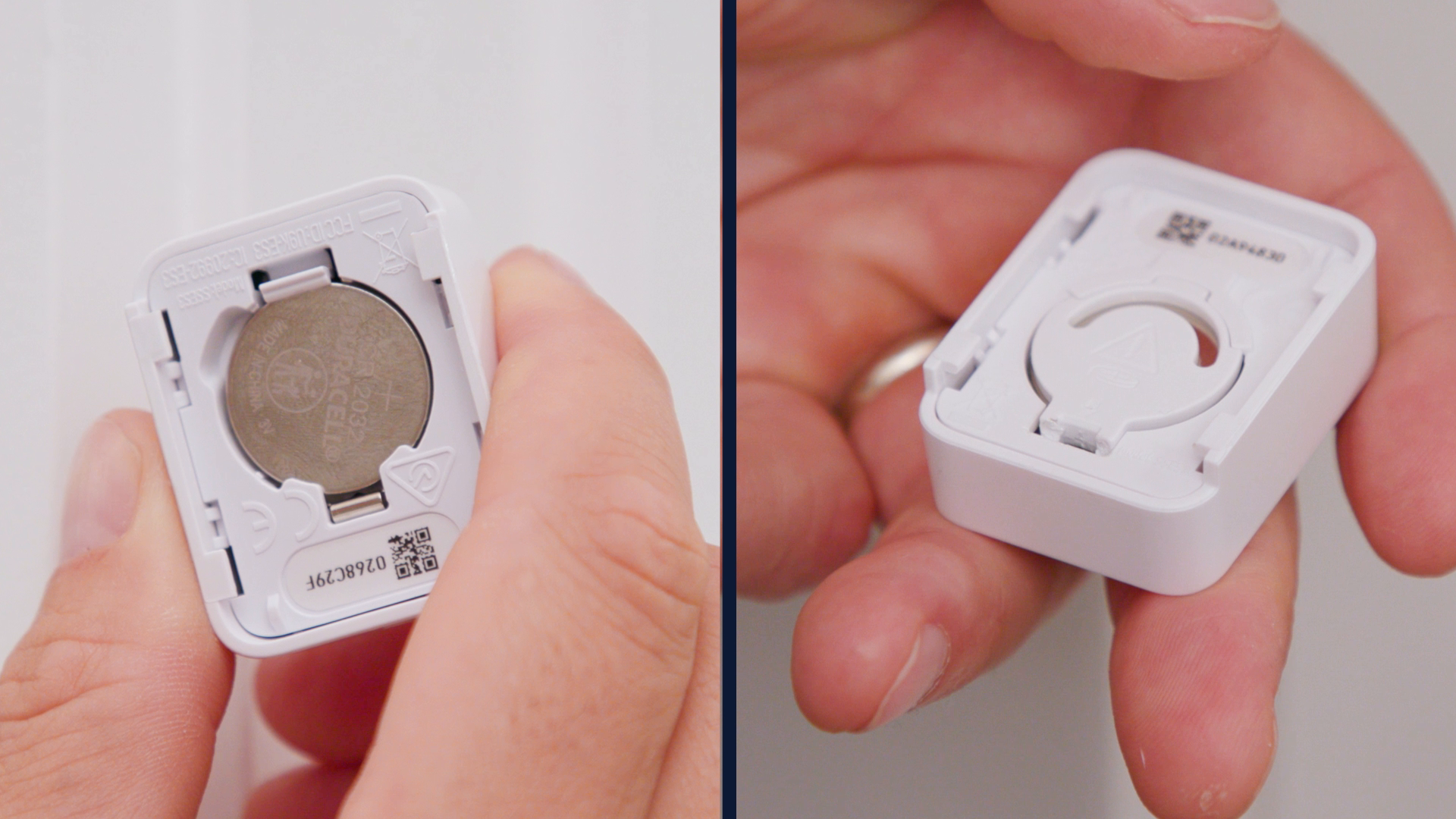
A dead or weak battery often causes sensor problems. Open the sensor casing carefully to access the battery compartment. Replace the old battery with a new one of the same type, usually a CR123A or AA battery. Close the casing securely and test the sensor by opening and closing the door. A fresh battery often restores normal operation.
Refreshing Sensor Settings
Refresh the sensor’s settings through the SimpliSafe app. Open the app and navigate to Menu > My System > Device Settings. Find your door sensor and tap the refresh button. This action updates the sensor’s connection with the base station. Wait a few moments, then check if the sensor responds correctly to door movements.
Using Test Mode
Test Mode helps verify the sensor’s functionality. On the keypad, go to Menu > Test Mode. Activate the mode and open and close the door with the sensor attached. The base station should announce each trigger. If the sensor works in Test Mode, but not normally, it may indicate signal interference or placement issues.
Re-adding The Door Sensor
Re-adding your SimpliSafe door sensor can solve many connection problems. This process removes the sensor from your system and adds it back fresh. It helps your system recognize the sensor again. Follow the simple steps below to re-add your door sensor quickly.
Removing Sensor From App
Open the SimpliSafe app on your phone. Tap the Menu icon to access settings. Choose My System, then select Device Settings. Find the door sensor you want to reset. Tap the sensor name to open its details. Select Remove Device to delete it from your system. Confirm your choice to remove the sensor completely. This step clears any old data linked to the sensor.
Adding Sensor Back
Return to the app’s main menu. Select Add Device or Camera to start. Tap Get Started, then pick Entry Sensor from the list. Follow the on-screen instructions carefully. The app will guide you to place the sensor near the base station. Wait for the app to detect the sensor. When found, name the sensor and finish setup. Your door sensor is now re-added and ready to use.
Advanced Troubleshooting
Advanced troubleshooting helps solve complex problems with your SimpliSafe door sensor. Sometimes, simple fixes do not restore full functionality. At this point, focus on improving system performance and connectivity. These steps address deeper issues related to placement, interference, and device settings.
Optimizing Base Station Placement
Place the base station in a central part of your home. Avoid areas near metal objects or thick walls. High surfaces are better than low or floor-level spots. Keep it away from large electronics like microwaves or TVs. Proper placement strengthens the signal to your door sensor.
Reducing Signal Interference
Wireless signals can be blocked by dense materials such as brick or stone. Move the door sensor or base station away from these barriers. Check for other devices using the same frequency, like baby monitors or Wi-Fi routers. Changing locations reduces interference and improves sensor response.
Resetting The Base Station
Unplug the base station from power for at least 30 seconds. Remove any backup batteries if present. Plug it back in and wait for the startup sounds. This reset can clear temporary glitches affecting all connected sensors. After resetting, test your door sensor to confirm it works properly.

Common Sensor Issues
Door sensors are vital for home security systems like SimpliSafe. They alert you when doors open or close. Sometimes, these sensors face issues that stop them from working correctly. Recognizing common sensor problems helps fix them quickly and keep your home safe.
Sensor Not Responding
Sometimes, the door sensor does not send signals to the system. This can happen due to weak battery power or signal interference. Restarting the system often helps. Check the battery and replace it if needed. Also, ensure the sensor is within range of the base station.
Sensor Showing Offline
A sensor shows offline when it loses connection with the base station. This might occur if the base station is too far or blocked by walls. Move the base station to a central spot in your home. Remove any objects that block the signal between the sensor and base station.
Battery Replacement Problems
Replacing the battery can be tricky. Use the correct battery type suggested by SimpliSafe. Insert the battery carefully to avoid damage. After replacement, reset the sensor to sync it with the system. Always test the sensor to confirm it works before closing the door.

Frequently Asked Questions
How Do You Reset A Simplisafe Door Sensor?
To reset a SimpliSafe door sensor, remove it in the app, then re-add it. Replace the battery if needed. Use Test Mode to verify.
How Do I Get My Simplisafe Door Sensor Back Online?
Replace the door sensor battery first. Refresh settings in the SimpliSafe app. Activate Test Mode and open/close the door. If offline, remove and re-add the sensor via the app. Check base station placement and reset it if needed to restore connection.
Why Does My Door Sensor Say The Door Is Open When It Is Closed?
Your door sensor may misread due to low battery, misalignment, or signal interference. Check battery, align sensor and magnet, and reduce obstructions.
How To Sync Simplisafe Door Sensor?
To sync a SimpliSafe door sensor, open the app and select Menu > Add Device > Entry Sensor. Follow on-screen prompts to complete syncing.
How Do I Reset My Simplisafe Door Sensor?
Press and hold the sensor’s reset button for 10 seconds until the LED blinks.
Conclusion
Resetting your SimpliSafe door sensor is simple with these clear steps. Regularly check the battery to keep the sensor active. Use the app to refresh or re-add the device if problems continue. Test the sensor often to ensure proper function.
Proper placement of your base station improves signal strength. Following these tips helps maintain your home’s security system. Stay patient and careful during the reset process. Your door sensor will work smoothly again in no time.