
If your Bose 700 headphones aren’t working quite right, resetting them could be the quick fix you need. Whether you’re facing connectivity issues, sound glitches, or want to clear all your settings before passing them on, knowing how to reset your headphones is essential.
In this guide, you’ll learn simple, step-by-step methods to reset your Bose 700 headphones effectively. Keep reading to discover how a quick reset can bring your headphones back to peak performance—no tech skills required!
Reset Methods
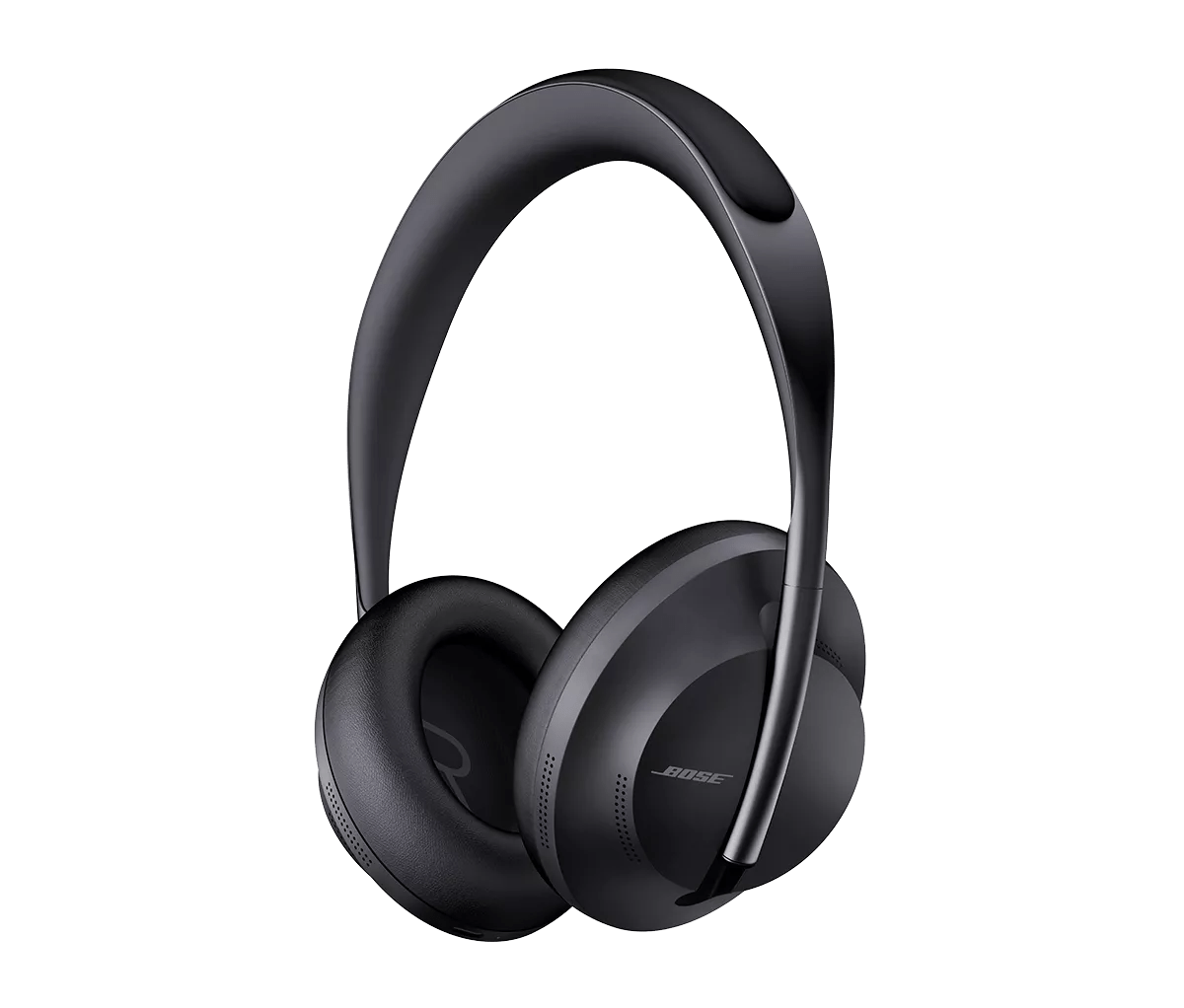
Resetting Bose 700 headphones helps fix glitches and improve performance. Different reset methods serve different purposes. Some resets clear settings while others simply reboot the device. Choose the right method based on your issue. Below are the common ways to reset your Bose 700 headphones.
Common Reset Steps
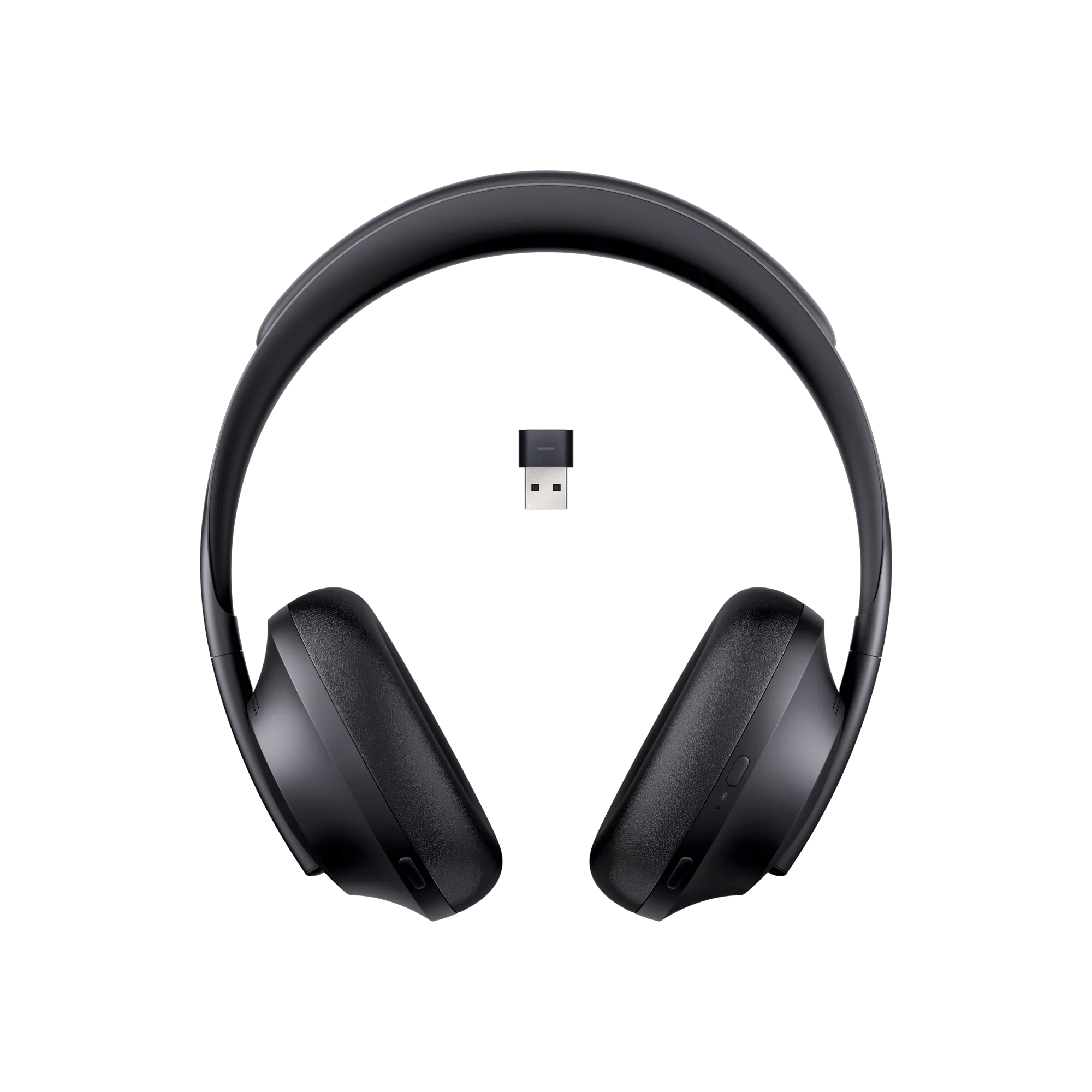
Start by disconnecting any cables or audio connections. Plug a USB cable into a power source like a wall charger or computer. Press and hold the Power/Bluetooth button on the headphones. While holding the button, connect the USB cable to the right earcup. Keep holding until the light blinks twice. Release the button to complete the reset. This method reboots the headphones without deleting your settings.
Factory Reset Process
Factory reset clears all saved settings, including paired devices. First, disconnect the headphones from all Bluetooth devices and the Bose Music app. Press and hold the Power/Bluetooth button for about 10 seconds until the light flashes rapidly. This will restore the headphones to original factory settings. Use this option if you want to start fresh or plan to sell the headphones.
Reboot Vs Factory Reset
Rebooting fixes minor issues without losing your preferences. It is quick and safe for everyday problems. Factory reset removes all custom settings and paired devices. Use factory reset only when a reboot does not solve the problem. Remember to disconnect devices before performing a factory reset. Choose reboot first to keep your data intact.

Preparation Steps
Before resetting your Bose 700 headphones, some preparation is essential. These steps help avoid connection issues and data loss. Follow each carefully to ensure a smooth reset process.
Preparation clears old settings and helps the headphones start fresh. It also protects your paired devices from accidental disconnection problems.
Disconnect Bluetooth Devices
Start by disconnecting your headphones from all Bluetooth devices. Open the Bluetooth settings on each device and select “Forget” or “Remove” the Bose 700 headphones. This step prevents automatic reconnection after the reset. It also ensures the headphones do not try to link to old devices during setup.
Remove From Bose App
Next, open the Bose Music app on your phone or tablet. Find your Bose 700 headphones in the app’s device list. Remove or delete the headphones from the app. This helps clear saved settings and profiles tied to your account. It also prepares the headphones for a clean setup after resetting.
Charge Headphones
Ensure your Bose 700 headphones have enough battery before resetting. Plug them into a power source using the original charging cable. Wait until the battery is at least 50% charged. Low battery can cause issues during the reset process. Fully charged headphones reset more reliably and restart without problems.
Resetting Bose 700
Resetting Bose 700 headphones helps fix issues like connection problems or sound glitches. This process can refresh the device and restore smooth performance quickly. It involves simple steps using the power button and USB cable. Watching LED signals also guides you during the reset.
Power Button Technique
First, turn off your Bose 700 headphones. Press and hold the Power/Bluetooth button for about 10 seconds. Wait until you see the LED light blink twice. This signals the headphones are rebooting. Release the button and wait for them to turn on automatically. This method resets minor errors without deleting settings.
Usb Cable Connection
Connect a USB cable to a power source like a wall charger or computer. Plug the other end into the right earcup of the headphones. Press and hold the Power/Bluetooth button while connecting the cable. Keep holding it until the LED blinks twice. This reset clears some stored settings and refreshes the device.
Led Indicator Signals
The LED light shows the headphones’ status during reset. A quick double blink means reset started successfully. A steady white light means the headphones are on and working. If the light does not blink or stays red, try the reset steps again. These signals help confirm the reset process progress.
Model-specific Tips
Resetting Bose 700 headphones can vary by model. Some models share similar steps. Others require unique actions. Knowing these differences helps avoid errors. It ensures a smooth reset process. This section highlights model-specific tips. Follow them closely for best results.
Differences For Bose Qc Ultra
Bose QC Ultra headphones need a slightly different reset method. Disconnect all cables first. Connect a USB cable to a power source. Press and hold the Power/Bluetooth button on the right earcup. While holding the button, plug the USB cable into the right earcup. Keep holding until the light blinks twice. Then, release the button. This process reboots the headphones without deleting saved settings.
For a full factory reset, use the Bose Music app. Navigate to device settings and choose “Factory Reset.” This clears all paired devices and custom settings. It is useful before selling or troubleshooting serious issues.
Earbuds Reset Instructions
Bose earbuds have their own reset steps. Place the earbuds inside the charging case. Close the lid and wait for 30 seconds. Open the case lid. Press and hold the Bluetooth button on the case for about 10 seconds. The LED indicator will flash, signaling a reset. Release the button.
This reset removes all Bluetooth connections but keeps firmware intact. After this, pair the earbuds again with your devices. Resetting earbuds helps fix connection and sound problems quickly.
Troubleshooting
Troubleshooting your Bose 700 headphones often involves resetting them. A reset can fix many problems fast. It reboots the device or clears stored settings. This helps restore normal function without needing extra tools or apps. Understanding when and how to reset your headphones improves your experience.
When To Reset
Reset your Bose 700 headphones if they stop responding. Use reset when sound cuts out or skips. Try reset if Bluetooth won’t connect or drops often. Reset also helps if buttons do not work well. Avoid reset for minor issues; try turning off and on first.
Common Issues Fixed
Reset solves many common Bose headphone problems. It fixes sound distortion or no sound at all. Reset clears Bluetooth pairing errors and connection failures. It also helps if noise cancellation stops working. Other fixes include charging issues and unresponsive controls.
After Reset Steps
After reset, pair your headphones with your device again. Open Bluetooth settings and select Bose 700 from the list. Adjust sound and noise settings to your preference. Check firmware updates using the Bose Music app. Test headphones to make sure all features work well.
Additional Resources
Finding reliable resources can help you reset your Bose 700 headphones with ease. These resources offer clear instructions and support. They guide you through troubleshooting and resetting steps. Keep these tools handy for quick reference.
Official Bose Support
The official Bose website has detailed guides for your headphones. It explains how to reset and fix common problems. You can find FAQs, manuals, and updates there. This is the best place for accurate and trusted information.
Helpful Videos
Video tutorials show step-by-step reset processes. They make following instructions simple and clear. Channels like Sound Tribe and HowToDevices offer easy-to-understand videos. Watching these can save time and reduce errors during reset.
Contacting Customer Service
If you face issues beyond the reset, customer service can help. Bose provides support via phone, email, and chat. They answer questions and guide you through solutions. Reach out to them for personalized assistance and advice.
Frequently Asked Questions
Can You Factory Reset Bose Headphones?
Yes, you can factory reset Bose headphones. Disconnect Bluetooth, power off, then hold the Power/Bluetooth button while connecting USB to the right earcup. Release when the light blinks twice. This clears settings and paired devices to default.
How Do I Clear The Bluetooth On My Bose 700?
To clear Bluetooth on Bose 700, remove headphones from Bluetooth settings and Bose app. Then, power off the headphones. Press and hold the Power/Bluetooth button while connecting the USB cable to the right earcup. Release when the light blinks twice to reset paired devices.
How To Factory Reset Bose Bass Module 700 Without Remote?
To factory reset Bose Bass Module 700 without remote, unplug power, press and hold the Power button for 10 seconds until the light blinks. Release the button and reconnect power. This resets settings to factory defaults.
How To Do A Hard Reset On A Bose?
To hard reset a Bose headphone, disconnect Bluetooth, power off, then hold the Power button. While holding, connect the USB cable to the right earcup. Release the button when the light blinks twice. This clears settings and reboots the device.
How Do I Reset Bose 700 Headphones?
To reset, connect the USB cable to the right earcup, hold the Power button until the light blinks twice.
Conclusion
Resetting your Bose 700 headphones can quickly fix many common issues. Follow the steps carefully to avoid losing important settings. A simple reset often restores sound and connectivity smoothly. Remember to disconnect your headphones from apps and devices before a full factory reset.
This process helps maintain your headphones’ performance over time. Keep these tips in mind for easy troubleshooting. Now, enjoy clear sound and a better listening experience with your Bose 700 headphones.