
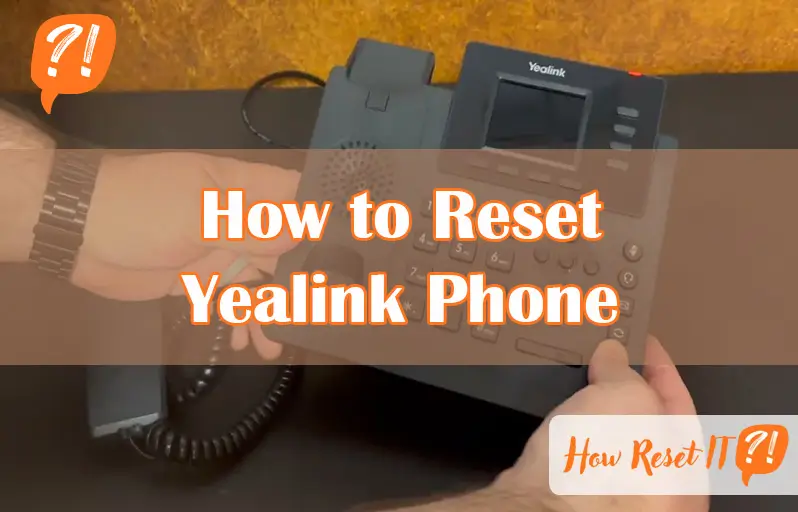
Struggling with your Yealink phone not working right? Sometimes, the simplest fix is to reset it back to factory settings.
Whether your phone is frozen, acting sluggish, or you just want to clear out old settings, knowing how to reset your Yealink phone can save you time and frustration. In this guide, you’ll find clear, step-by-step instructions that anyone can follow—no tech expertise needed.
Keep reading, and you’ll have your Yealink phone refreshed and running smoothly in no time.

Reset From Phone Menu
Resetting your Yealink phone from the phone menu is a quick way to restore default settings. This method works without needing a computer or special software. You can fix many problems by simply navigating through the phone’s options.
The steps are simple and clear. Follow the on-screen instructions to complete the reset safely. Make sure to save any important information before starting.
Navigate To Settings
Start at the home screen of your Yealink phone. Press the “Menu” button or touch the screen if it is a touchscreen model. Find the “Settings” option and select it. This section contains all the phone’s configuration options.
Select Backup And Reset
Inside the Settings menu, scroll down to find “Backup and Reset.” Choose this option carefully. It allows you to save your data or reset the phone to factory defaults. Select “Factory Reset” to continue with the reset process.
Confirm Factory Reset
The phone will ask you to confirm the factory reset. Read the message carefully. Confirm your choice by pressing “OK” or “Yes.” The phone will erase all data and restart. After rebooting, it will have the original factory settings.
Reset Using Hardware Buttons
Resetting a Yealink phone using hardware buttons is a simple way to restore its factory settings. This method is useful when the phone is unresponsive or you cannot access the menu. It involves a few easy steps that anyone can follow.
Using hardware buttons to reset your Yealink phone can quickly fix many issues. Make sure to follow the steps carefully for a successful reset.
Unplug Power Or Poe Cable
Start by unplugging the power cable or PoE cable from the phone. This cuts off the power supply and prepares the device for a reset. Wait a few seconds to ensure the phone is completely off before moving to the next step.
Hold Speaker Button
Press and hold the speaker button on the phone. Keep it pressed while you reconnect the power. Holding the speaker button tells the phone to enter reset mode during startup.
Reconnect Power And Wait For Blue Screen
Plug the power or PoE cable back into the phone while still holding the speaker button. Wait until the screen turns blue, then release the button. The phone will begin the reset process and restore factory settings automatically.
Reset Via Web Interface
Resetting your Yealink phone through the web interface offers a simple and direct way to restore factory settings. This method helps fix issues without needing physical interaction with the device. The process takes only a few minutes. Follow these steps carefully to complete the reset.
Find Phone Ip Address
First, find the IP address of your Yealink phone. Press the “OK” button on the phone. The screen will display the current IP address. Note it down for the next step.
Access Web Gui
Open a web browser on your computer. Enter the phone’s IP address into the address bar. Press “Enter” to load the web interface. This page controls your Yealink phone’s settings.
Log In With Credentials
Log in using the admin username and password. The default username is usually “admin.” The default password is often “admin” or “0000.” Change these later for security.
Navigate To Reset Settings
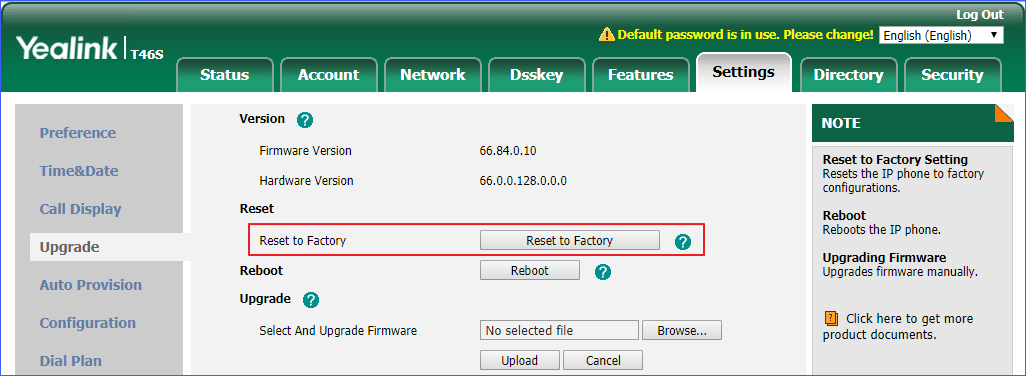
Once logged in, find the “Settings” or “Maintenance” tab. Look for the option labeled “Reset” or “Factory Reset.” This section lets you restore the phone’s original settings.
Execute Factory Reset
Click the “Factory Reset” button. Confirm your choice when prompted. The phone will reboot and erase all custom settings. Wait for the phone to restart fully.

Resetting Cordless Yealink Phones
Resetting cordless Yealink phones helps fix issues quickly. It clears settings and restores factory defaults. This process is simple and does not require special tools. Follow these steps carefully to reset your cordless Yealink phone safely.
Locate Base Unit
Find the base unit of your cordless Yealink phone. It is usually near your desk or phone line connection. The base unit controls the handset and network connection. Ensure you have clear access to it before starting the reset.
Unplug Network And Power
Disconnect the network cable from the base unit first. Then unplug the power adapter to turn off the device. Wait about 10 seconds. This step ensures the phone resets correctly without any stored data.
Hold Connect Button During Reconnection
Press and hold the connect button on the base unit. While holding it, plug the power adapter back in. Keep the button pressed until the phone starts to reboot. Release the button once the indicator light flashes or changes color.
Reprovision After Reset
After resetting your Yealink phone, reprovisioning is essential to restore its functionality. This process re-establishes the phone’s connection to your network and updates its configuration. Without reprovisioning, the device may not work correctly or display the right settings. Follow simple steps to ensure your phone is ready for use again.
Have Mac Address Ready
The MAC address is a unique identifier for your Yealink phone. You will need it to reprovision the device on your network. Find the MAC address on a sticker under the phone or in the settings menu. Keep this information handy before starting the reprovision process. It helps your server recognize the phone and send the correct configuration.
Restore Custom Settings
Reprovisioning allows you to restore custom settings saved before the reset. These settings include phone extensions, voicemail, and network preferences. Upload your backup file or enter the settings manually through your provisioning server. This step ensures your phone works as it did before the reset. It saves time and prevents the need to reconfigure everything from scratch.
Tips To Remember
Resetting your Yealink phone can solve many issues quickly. Before starting, keep some key tips in mind. These tips help avoid data loss and confusion. They ensure the reset process goes smoothly. Follow these simple guidelines to prepare and act wisely.
Backup Important Data
Save your contacts and settings before resetting. Use the phone’s export or backup feature. Store backup files on a computer or USB drive. This keeps important information safe and easy to restore. Skipping this step may cause permanent data loss.
Understand Reset Consequences
Resetting erases all user data and custom settings. The phone returns to factory defaults. Saved contacts, call logs, and configurations will be deleted. The process cannot be undone. Know what will be lost to avoid surprises. This helps you decide if reset is the right choice.
When To Perform A Reset
Use reset only if the phone has serious problems. Examples include frozen screens, network issues, or wrong settings. Try restarting the device first to fix minor bugs. Resetting is a last resort when other fixes fail. It can save time but requires preparation.
Frequently Asked Questions
How Do I Manually Reset My Yealink Phone?
To manually reset your Yealink phone, unplug power, hold the Speaker button, reconnect power, and release when the screen turns blue. The phone will restart with factory settings.
How Do I Reset My Yealink Team Phone?
To reset your Yealink team phone, go to Settings > Device Settings > Debug > Reset to Factory Settings. Confirm by tapping OK. The phone restarts and restores default settings. Alternatively, long-press the Speaker button while reconnecting power until the screen turns blue, then release to reset.
How Do I Manually Reset My Phone?
To manually reset your phone, go to Settings > Backup & Reset > Factory Data Reset. Confirm and enter your unlock pattern. The phone will erase data and restart automatically.
How To Restart Yealink Handset Phone?
To restart a Yealink handset, unplug its power or PoE cable. Wait 10 seconds, then reconnect the cable. The phone will reboot automatically.
How Do I Factory Reset My Yealink Phone?
Go to Settings > Device Settings > Reset to Factory Settings. Confirm to reset and restart the phone.
Conclusion
Resetting your Yealink phone helps fix many common issues quickly. Follow the steps carefully for best results. A simple factory reset clears old settings and restores default functions. Always back up important data before starting the reset. After resetting, your phone will work like new again.
This process saves time and avoids extra technical help. Keep these instructions handy for future use. Now, you can confidently reset your Yealink phone whenever needed.