
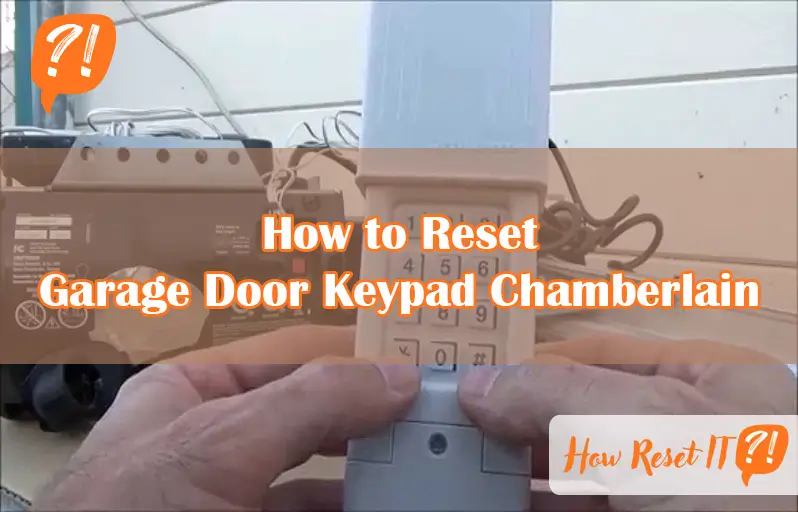
If you’ve ever found yourself locked out or simply want to update the security of your garage, knowing how to reset your Chamberlain garage door keypad is a must. Whether you’ve forgotten your current code or just moved into a new home, resetting the keypad gives you full control over who can access your garage.
In this guide, you’ll discover simple, step-by-step instructions to reset and reprogram your Chamberlain keypad quickly and easily. Keep reading—once you master this process, you’ll never have to worry about keypad troubles again.
Locate The Learn Button
Locating the Learn button is the first step to reset your Chamberlain garage door keypad. This button activates the programming mode on your garage door opener. Without finding it, you cannot sync your keypad with the opener. The Learn button is usually small but clearly marked. It is essential to find it on your garage door opener unit before proceeding with any reset or programming.
Find The Opener Motor
The opener motor is mounted on the garage ceiling. It is a rectangular box connected to your garage door. This unit powers the door’s movement. To locate the Learn button, first find this motor. It holds the control panel and wiring. The Learn button is part of this motor unit.
Identify The Learn Button Color
The Learn button comes in several colors. Common colors include yellow, purple, red, orange, or green. The color helps identify the button easily. Check your motor unit for a small button with one of these colors. The label “Learn” is usually printed near it. This button triggers the programming mode.
Check Near Antenna Or Light Cover
The Learn button often sits near the antenna wire. This wire looks like a thin, hanging cable. The button might also be under the light cover on the motor unit. Remove the light cover gently to look inside. The button is on the back or side panel near these parts. Finding the Learn button here is common and straightforward.
Enter Learn Mode
Entering Learn Mode is the first step to reset your Chamberlain garage door keypad. This mode allows the system to accept new codes or reset existing ones. It connects the keypad with the garage door opener motor. Follow simple steps to activate Learn Mode safely.
Press The Learn Button Briefly
Locate the Learn button on your garage door opener motor. It is usually colored yellow, red, orange, green, or purple. Press the button once for about one second. Do not hold it down. This brief press puts the opener in Learn Mode. You have about 30 seconds to enter a new code on the keypad.
Observe Indicator Light Or Sound
After pressing the Learn button, watch the indicator light near it. The light may blink or stay solid for a few seconds. Some models also beep once. This confirms the opener is in Learn Mode. If no light or sound occurs, try pressing the button again. The indicator confirms the system is ready for the next step.
Set A New Pin
Setting a new PIN for your Chamberlain garage door keypad is simple and quick. This step is important to keep your garage secure and ensure only you can access it. Choose a code that is easy for you to remember but hard for others to guess.
Input Desired Code On Keypad
Start by pressing the keys for your new PIN on the keypad. Most keypads allow 4 to 8 digits. Enter each number carefully to avoid mistakes. Do not press Enter yet.
Confirm By Pressing Enter
After entering your chosen code, press the Enter button. This action saves the new PIN. The garage door opener will often show a light or sound to confirm the code is set. Test the code by closing and opening the door using the keypad.
Sync Keypad With Opener
Syncing your Chamberlain garage door keypad with the opener is essential for smooth operation. This process links the keypad to your garage door motor. It ensures your entered code will activate the door.
Follow clear steps to complete the sync. The main tasks involve holding the keypad’s Enter button and listening for a confirmation beep. Each step guarantees your keypad and opener communicate properly.
Hold Enter Until Lights Blink
Start by pressing the Enter button on your keypad. Keep holding it down. Watch the garage door opener’s lights closely. When the lights start blinking, release the Enter button. This blinking signals that the keypad is syncing with the opener.
Listen For Confirmation Beep
After the lights blink, listen carefully for a beep sound. This beep confirms the keypad and opener are connected. If you hear the beep, the sync was successful. Now, your garage door will respond to the keypad commands.
Test The Keypad
Testing the keypad after resetting ensures your new code works correctly. This step confirms the keypad communicates well with the garage door opener. A properly tested keypad avoids future access issues and keeps your garage secure.
Enter New Pin
Type your new PIN carefully on the keypad. Use a code that is easy to remember but hard to guess. Press the Enter button after typing the PIN. The keypad should respond with a light or sound confirming the entry.
Open Or Close The Garage Door
Press the Enter button again after entering your new PIN. The garage door should start to open or close. Watch for any delay or failure to respond. If the door moves smoothly, the keypad reset is successful. Repeat the test a few times to be sure.
Clear All Codes
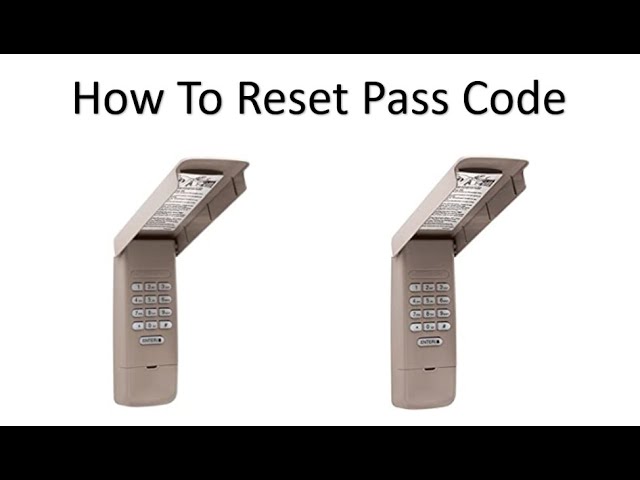
Clearing all codes from your Chamberlain garage door keypad is essential when you want to remove old access codes. This process deletes every stored remote and keypad code. It ensures no one else can use previous codes to open your garage. The procedure is simple and quick, requiring just a few steps directly on the garage door opener unit.
Press And Hold Learn Button
Locate the Learn button on your garage door opener motor. It is usually on the back or side panel. Press and hold the Learn button firmly. Keep holding it for about 6 seconds or until the LED light changes.
Wait For Led To Turn Off
Watch the LED light on the opener while holding the Learn button. The light will stay on for a moment and then turn off. This signals that all stored codes have been erased from the system.
Erase All Remotes And Keypads
Once the LED light turns off, all remotes and keypads are deleted. None of the previous codes will work anymore. You must reprogram each remote or keypad with new codes to regain access to your garage.
Reprogram After Reset
After resetting your Chamberlain garage door keypad, you must reprogram it. Resetting clears all previous codes and settings. The keypad won’t work until reprogrammed. Follow simple steps carefully to restore access and security.
Reprogramming reconnects the keypad to your garage door opener. It sets a new PIN and syncs the device. Without this step, the keypad remains inactive and cannot control the door. Reprogramming also lets you add extra remotes if needed.
Repeat Programming Steps
First, find the Learn button on the garage door opener motor. It is usually colored and located near the antenna wire.
Press the Learn button once to activate the programming mode. The indicator light will turn on.
Next, enter your desired PIN on the keypad. Press the Enter button and hold it until the opener’s light blinks or you hear a click.
This confirms the keypad is now synced with the opener. Test the keypad by entering the PIN and pressing Enter. The door should respond immediately.
Add Remotes If Needed
Resetting removes all programmed devices from the opener’s memory. Add remotes by pressing the Learn button again.
Press the button on each remote while the opener is in Learn mode. The opener’s light will flash to confirm each remote is added.
Repeat for all remotes you want to use with your garage door. This keeps your system secure and convenient.
Remember to test each remote after programming to ensure proper function.

Battery Tips
Resetting a Chamberlain garage door keypad clears old codes and sets new ones easily. Locate the Learn button on the opener, then enter a new PIN on the keypad. Hold Enter until the opener’s light blinks to confirm the reset.
Check Keypad Battery Level
The keypad may stop working if the battery is low. Check the battery level regularly. A weak battery causes slow or no response from the keypad. Use a small screwdriver to open the battery cover. Remove the battery carefully and inspect it. If the battery looks old or corroded, it needs replacement. A fresh battery ensures the keypad works smoothly. Keep spare batteries handy for quick changes.
Replace Old Batteries
Use the correct battery type for your Chamberlain keypad. Most models use a 9-volt or AA battery. Remove the old battery and dispose of it properly. Insert the new battery with the positive and negative ends in the right direction. Close the battery cover securely. Test the keypad by entering your code. The door should respond immediately. Replace batteries every 6 to 12 months for best results.
Model Variations
Chamberlain garage door keypads come in various models. Each model has unique features and reset steps. Understanding these differences helps avoid errors during resetting. Some models use buttons inside the keypad, while others need interaction with the garage door opener unit.
Knowing your specific model ensures a smooth reset process. It also saves time and prevents damage to the device. This section explains key points about model variations for Chamberlain keypads.
Consult Your User Manual
The user manual provides important details for your keypad model. It includes step-by-step reset instructions. Manuals often highlight special buttons or lights to watch for during reset. Checking it first avoids confusion and trial-and-error attempts.
If you lost the manual, visit Chamberlain’s official website. They offer downloadable PDFs for most models. Enter your model number to find the correct guide. Follow the manual carefully to reset your keypad successfully.
Note Differences By Model
Some Chamberlain keypads have a “Learn” button on the unit itself. Others require pressing specific keypad buttons in a certain order. The location of the “Learn” button varies by model. It can be behind the light cover or on the side panel of the opener motor.
Older models may need a longer press of the reset button. Newer models might use a combination of keypad keys to clear codes. Pay attention to LED light signals during reset. These signals confirm if the process works or if it needs repeating.

Troubleshooting
Troubleshooting your Chamberlain garage door keypad can solve common problems fast. This section covers simple fixes for frequent keypad issues. Follow these steps carefully to restore your keypad’s function.
No Response From Keypad
Check the keypad battery first. Replace it if the battery is low or dead. Ensure the battery contacts are clean and properly aligned. If the keypad still does not respond, reset it by removing the battery for a few minutes. Reinsert the battery and test again. Also, confirm the keypad is within range of the garage door opener.
Opener Not Syncing
Press the Learn button on the garage door opener motor. Then, enter your PIN on the keypad and press Enter. The opener’s lights should blink or you will hear a click, signaling a successful sync. If syncing fails, repeat the process after waiting 30 seconds. Ensure no other remotes are interfering during programming.
Verify Code Entry Accuracy
Make sure you enter the correct PIN code on the keypad. Check each digit carefully. Avoid pressing buttons too quickly or too slowly. If unsure, reset the code and program a new one. Keep the code simple but secure to avoid entry errors. Try reprogramming if the door does not respond to the code.
Frequently Asked Questions
How Do I Reprogram My Chamberlain Garage Door Opener Keypad?
Press the “Learn” button on the opener motor. Enter a new PIN on the keypad. Hold “Enter” until lights blink. Test the new code to confirm programming.
How Do I Reset My Garage Door Keypad Code?
Locate the “Learn” button on the garage door opener motor. Press and release it. Enter your new code on the keypad, then press “Enter” until lights blink. Test the new code. To erase all codes, hold the “Learn” button until the LED turns off, then reprogram.
How Do I Reset My Chamberlain Garage Door Opener?
Press and hold the Learn button on the opener until the LED turns off to erase all codes. Then, press the Learn button once and enter your new PIN on the keypad. Hold Enter until lights blink or you hear a click.
Test the new code to confirm.
How Do I Reset My Chamberlain Garage Door Keypad Without The Enter Button?
Press and hold the “Learn” button on the garage door opener until the LED turns off. Enter your new code on the keypad. Without an Enter button, press and hold the desired PIN until the opener’s lights blink, confirming the reset.
Test the new code to ensure it works.
How Do I Reset My Chamberlain Garage Door Keypad?
Press and hold the Learn button on the opener until the light turns off. Then reprogram your keypad.
Conclusion
Resetting your Chamberlain garage door keypad keeps your home secure. Follow the steps carefully for easy programming. Remember to test your new code to ensure it works. Clearing old codes helps prevent unauthorized access. Keep your instructions handy for future reference.
This simple process saves time and avoids frustration. Stay safe with a properly set garage door keypad.