
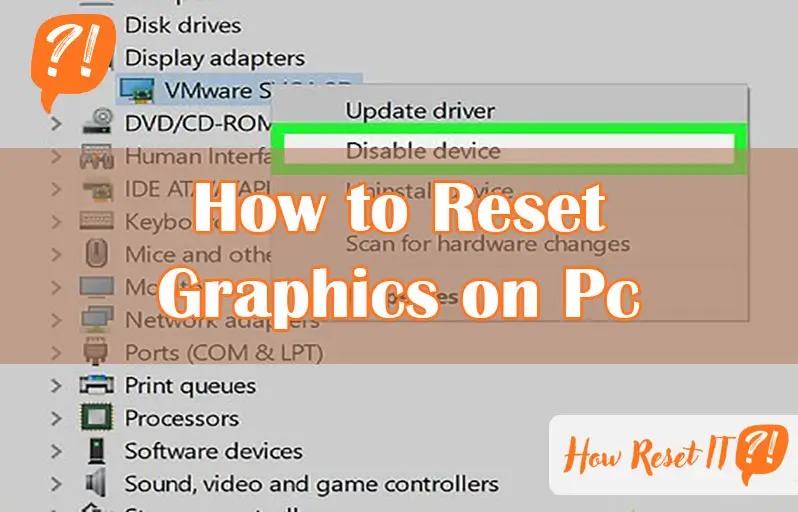
Are you facing sudden screen freezes, flickering, or sluggish graphics on your PC? Sometimes, your graphics driver just needs a quick reset to get everything running smoothly again.
Luckily, resetting your graphics on a PC is easier than you might think—and it can save you from frustrating interruptions. In this guide, you’ll discover simple, step-by-step ways to reset your graphics driver using handy keyboard shortcuts, Windows settings, and even your GPU’s control panel.
Keep reading, and you’ll learn how to fix common display problems fast, so your PC looks and performs its best without complicated tech jargon or long waits.
Quick Graphics Driver Restart
Resetting your graphics driver quickly can fix screen glitches and driver crashes. It avoids full system restarts and saves time. Two simple methods let you restart the graphics driver fast. Both are easy and do not need extra software.
Use these steps to refresh your graphics without interrupting your work. This helps keep your PC running smoothly and avoids display problems.
Keyboard Shortcut Method
Press the keys Win + Ctrl + Shift + B together. The screen will flicker or go black for a moment. This signals that Windows is restarting the graphics driver.
This shortcut works instantly and fixes many common graphics issues. It is the fastest way to reset your graphics on a Windows PC.
Using Task Manager
Press Ctrl + Shift + Esc to open Task Manager. Click on the Processes tab.
Find Windows Explorer in the list. Right-click it and choose Restart.
This restarts the graphics shell and can solve display problems. It is useful if the keyboard shortcut does not work.
Adjust Display Settings
Adjusting display settings is a key step in resetting graphics on your PC. It helps fix blurry images, wrong colors, or screen flickering. Changing resolution and scale can improve how things look on your screen. Restoring display defaults brings back original settings. This section guides you through simple ways to adjust these settings effectively.
Reset Resolution And Scale
Resolution controls the number of pixels on your screen. A higher resolution shows more detail. Scale changes the size of text and apps. To reset, open Settings and go to System > Display. Find the “Display resolution” option. Choose the recommended resolution from the list.
Next, look for the “Scale and layout” section. Set the scale to the recommended value. This ensures text and items appear clear and the right size. Your screen might flicker briefly while these changes apply. These steps often solve common display problems quickly.
Restore Display Defaults
Restoring display defaults resets all settings to original factory values. This helps if custom changes cause issues. Open Settings and select System > Display. Scroll down and click “Advanced display settings.”
Look for a button or link that says “Restore defaults” or similar. Click it to reset all display settings. Your PC may restart or the screen may flash. This resets color profiles, refresh rates, and other display options.
After restoring, check if the display works better. These simple resets fix many graphics glitches without complex tools or software.

Reset Gpu Preferences For Apps
Resetting GPU preferences for apps can solve many graphics issues. It ensures each app uses the right graphics processor. Some apps may slow down or crash if they use the wrong GPU. Resetting these preferences can improve app performance and stability. This section explains how to reset GPU settings for apps in Windows.
Windows Graphics Settings
Windows allows users to control GPU use per app. Go to Settings > System > Display > Graphics. This page shows the list of apps using GPU preferences.
Select the app you want to reset, then click Options. Choose “Let Windows decide” to clear any custom GPU setting. Click Reset to confirm. This returns the app to default GPU use.
This method helps fix apps stuck on the wrong graphics processor. It also helps if an app crashes or lags due to GPU conflicts.
App-specific Gpu Selection
Some graphics cards have their own control panels. NVIDIA and AMD let you set GPU preferences per app.
Open the NVIDIA Control Panel or AMD Radeon Settings. Find the section for managing 3D settings or GPU preferences. Locate the app you want to reset.
Set the GPU option to “Auto-select” or “Use default.” Save changes and restart the app. This resets the app’s GPU choice to system default.
This step is useful if Windows settings don’t fix GPU issues. It ensures apps use the correct GPU and improves graphics performance.
Use Gpu Control Panel
The GPU control panel offers a simple way to reset your graphics settings. It helps fix issues by restoring default configurations. You can adjust performance, colors, and resolution with a few clicks. Both NVIDIA and AMD provide control panels for their graphics cards. Resetting through the GPU control panel ensures settings are optimized for your hardware.
Access Nvidia Or Amd Control Panel
Right-click on your desktop to open the context menu. Select “NVIDIA Control Panel” or “AMD Radeon Settings.” If the option is missing, update your graphics driver first. The control panel lets you manage all graphics-related settings. Explore the menus to find display and performance options.
Load Optimized Defaults
Inside the control panel, look for a section named “Manage 3D settings” or “Preferences.” Find the button labeled “Restore Defaults” or “Load Optimized Defaults.” Click this button to reset all settings to factory defaults. This action can solve display problems or graphic glitches. After restoring, apply the changes and close the panel.
Reset Graphics Via Bios
Resetting your PC’s graphics settings through the BIOS is a powerful way to fix persistent display issues. The BIOS controls your hardware at the most basic level. Changing graphics settings here can restore defaults if software methods fail. This method resets hardware configurations tied to your graphics card or integrated GPU. It helps resolve driver conflicts and incorrect hardware settings.
Enter Bios Setup
Start by restarting your PC. During the boot process, press the BIOS key repeatedly. Common keys include Delete, F2, or Esc, depending on your motherboard. A message on the screen often shows which key to press. Once in BIOS, navigate using your keyboard. Use arrow keys to move through menus. Avoid using the mouse as BIOS may not support it.
Restore Hardware Defaults
Look for an option labeled “Load Setup Defaults” or “Restore Defaults.” This option resets all BIOS settings, including graphics, to factory defaults. Confirm your choice and save changes before exiting BIOS. Your PC will restart with default hardware settings. This step can clear corrupted graphics settings and fix display problems at the hardware level.
Troubleshooting Common Issues
Troubleshooting common graphics issues is essential for smooth PC performance. Display problems can interrupt work or entertainment. Understanding simple fixes helps you solve problems fast. This section covers ways to fix display glitches and handle freezes or black screens.
Fixing Display Glitches
Display glitches often appear as flickering or distorted colors. Restart your graphics driver using the shortcut Win + Ctrl + Shift + B. The screen flickers briefly, showing the driver reset.
Check your display resolution and scale settings. Go to Settings > System > Display. Set Scale and Resolution to recommended values. Incorrect settings cause blurry or uneven images.
Update your graphics drivers from the manufacturer’s website. Outdated drivers may cause glitches. Use official software like NVIDIA GeForce Experience or AMD Radeon Software for updates.
Handling Freezes And Black Screens
Freezes and black screens often result from graphics driver errors. Press Win + Ctrl + Shift + B to restart the driver quickly. This resets the graphics system without rebooting your PC.
If problems persist, check for overheating. Clean your PC’s fans and vents. Overheating can cause the graphics card to stop working temporarily.
Try lowering your display resolution or graphics settings. High settings may overload older hardware. Reducing settings helps stabilize your system.
Run a system scan for corrupted files. Use sfc /scannow in Command Prompt to fix errors affecting graphics performance.
Frequently Asked Questions
How Do I Reset My Graphics Settings?
Press Windows + Ctrl + Shift + B to quickly reset your graphics driver. Adjust settings via Windows Settings > System > Display or your GPU’s control panel for deeper resets. Use BIOS only if problems persist.
How Do I Restart Graphics On My Computer?
Press Windows + Ctrl + Shift + B keys together to instantly restart your graphics driver. The screen will flicker briefly, confirming the reset. For deeper resets, adjust display settings via Settings > System > Display or use your GPU’s control panel to restore default graphics configurations.
Is It Safe To Reset Your Graphics Card?
Yes, resetting your graphics card is safe and can fix display issues. Use Win + Ctrl + Shift + B to restart the driver quickly. For deeper resets, adjust settings via Windows Display or your GPU’s control panel. Avoid frequent resets to prevent hardware strain.
How Do I Reset My Graphics Drivers On My Pc?
Press Windows + Ctrl + Shift + B to restart your graphics driver instantly. Adjust display settings via Settings > System > Display. Use your GPU’s control panel to reset graphics preferences to default.
How Do I Quickly Reset My Graphics Driver On Windows?
Press Win + Ctrl + Shift + B keys together to restart the graphics driver. The screen may flicker or go black briefly. This method refreshes the driver without rebooting the PC.
Conclusion
Resetting your graphics on a PC can fix many display problems quickly. Use the shortcut Win + Ctrl + Shift + B to restart the driver fast. Adjust display settings in Windows or your GPU’s control panel for deeper fixes.
Always choose recommended options to keep your screen clear and sharp. Simple steps help keep your graphics running smoothly every day. Try these methods to improve your PC’s visual performance with ease.