
If your Bose QuietComfort headphones aren’t working quite right, a reset might be just what you need. Whether you’re dealing with connection problems, sound glitches, or unresponsive buttons, resetting your Bose QC can quickly bring them back to life.
You might be wondering how to do this without losing all your settings or having to go through complicated steps. Don’t worry—this guide walks you through easy methods to reset your Bose QC headphones, from a simple reboot that keeps your preferences intact to a full factory reset that clears everything.
Keep reading, and you’ll have your headphones working perfectly again in no time.
Quick Reset For Minor Glitches
Minor glitches can disrupt your Bose QC headphones’ performance. A quick reset often resolves these issues fast. This reset keeps your settings and paired devices intact. It’s a simple process that refreshes the headphones without a full factory reset.
Disconnect Cables And Power Up
Start by unplugging all cables from the headphones. Ensure no USB or audio cables are connected. Next, connect the USB cable to a power source like a wall charger. This step powers the headphones during the reset process.
Button Combination For Reboot
Press and hold the Power/Bluetooth button on the headphones. While holding the button, plug the USB-C cable into the left earcup. Keep holding the button for about two seconds after plugging it in. Then release the button. The power light will blink twice, showing the reset is in progress.
Indicators Of Successful Reset
Watch for the power light blinking twice; this confirms the reset worked. After this, power on the headphones normally. The minor glitches should now be fixed. Your Bluetooth connections and settings stay saved after this quick reset.
Credit: www.headphonesty.com
Factory Reset To Clear Settings
Factory reset clears all saved settings on your Bose QC headphones. It returns the device to its original state. This step helps fix persistent issues and prepares the headphones for new connections. The process removes all paired devices and custom settings. Follow these simple methods to perform a factory reset effectively.
Remove Headphones From Bluetooth List
Start by opening Bluetooth settings on your phone or computer. Find your Bose QC headphones in the device list. Select the option to “Forget” or “Remove” the headphones. This deletes the connection record from your device. Removing it prevents automatic reconnection after the reset.
Use Bose Music App To Forget Device
Open the Bose Music app on your smartphone. Choose your QC headphones from the device list. Go to the settings or device info section. Tap on “Forget Device” or “Remove Device.” This action clears the headphones from the app’s memory. It ensures the app will not try to reconnect automatically.
Power Off And Button Hold Method
Turn off your Bose QC headphones completely. Press and hold the Power button for about 10 seconds. Wait until you see the indicator light blink or hear a sound. This signals the factory reset is complete. Release the button and turn the headphones back on. Your device is now reset to factory settings.
Re-pairing After Factory Reset
Turn on your headphones after the reset. Enable Bluetooth on your phone or computer. Search for available devices and select your Bose QC headphones. Follow the on-screen prompts to pair the device. Your headphones are ready to use with fresh settings.
Resetting Different Bose Models
Resetting Bose products can solve many issues like connection problems or unresponsive controls. Each model has a unique reset process. Knowing the right steps saves time and avoids frustration. Follow these simple instructions to reset your Bose device correctly.
Quietcomfort Earbuds Steps
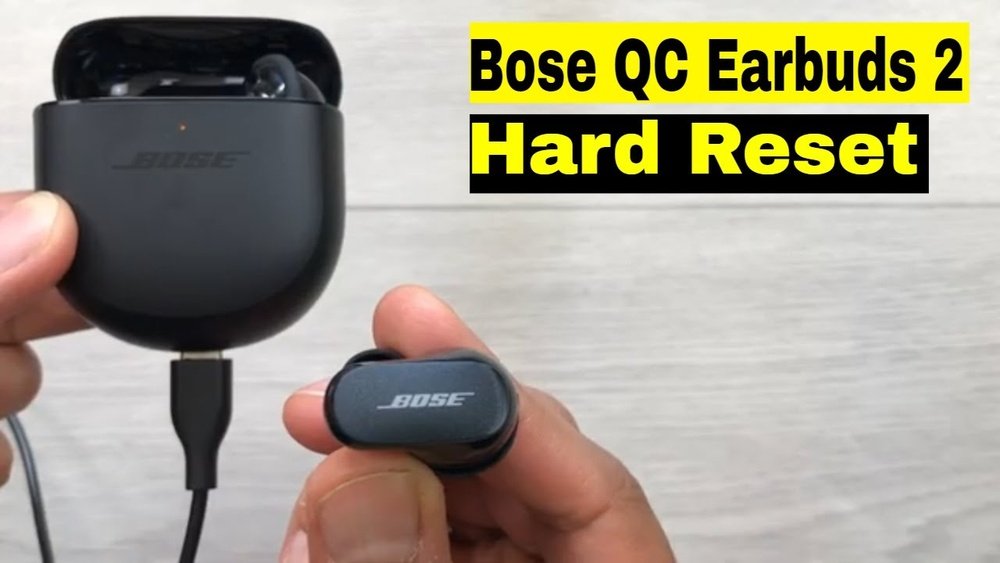
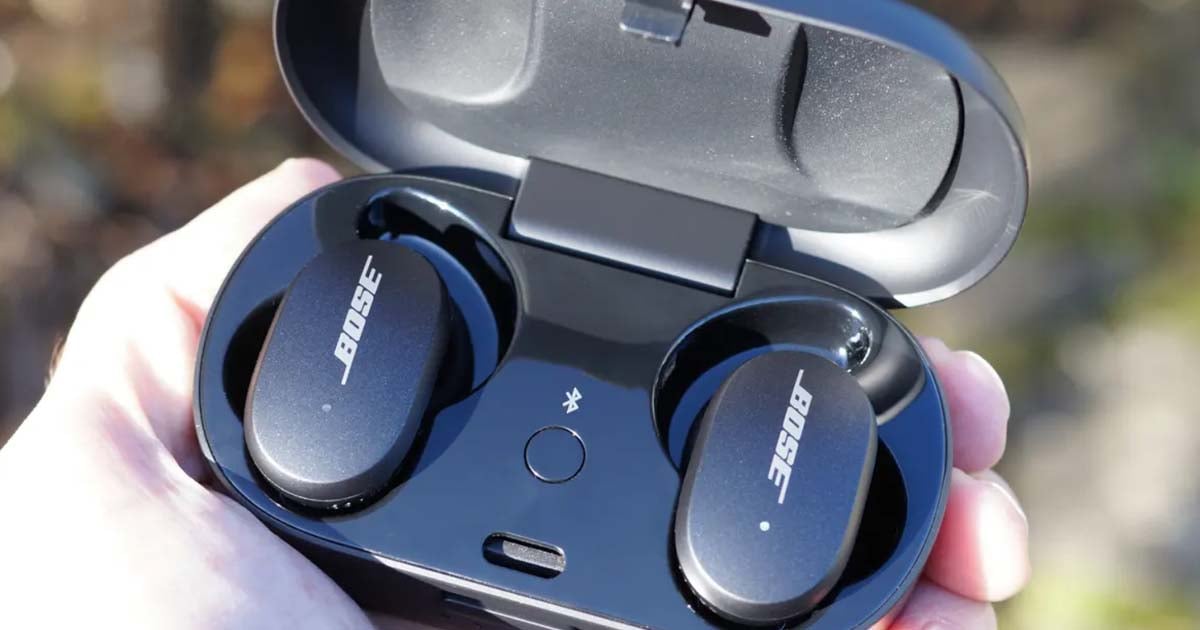
Place both earbuds in the charging case and keep the lid open. Press and hold the Bluetooth button on the case for about 10 seconds. Release the button when the light flashes white. Close the lid, then reopen it. This resets the earbuds and clears any pairing issues. Reconnect your earbuds to your device after the reset.
Soundlink Portable Speaker Reset
Turn on your SoundLink speaker. Press and hold the Power button for 10 seconds until the speaker turns off. Release the button and wait a few seconds. Turn the speaker on again by pressing the Power button. This quick reset clears minor errors but does not erase paired devices. For a full factory reset, follow the user manual for your specific model.
Older Soundlink Models Approach
Power off the speaker first. Press and hold the Bluetooth and Volume Up buttons together for 10 seconds. The speaker will power back on automatically. This factory reset deletes all paired devices and settings. You will need to pair your devices again after this reset. This method works for older models like SoundLink Mini and SoundLink Micro.
Credit: support.bose.com
Tips To Avoid Reset Issues
Resetting your Bose QC headphones can solve many problems. Doing it right prevents new issues. Follow these tips for a smooth reset experience.
They help protect your settings and avoid errors during the process. Small steps make a big difference.
Charge Before Reset
Make sure your headphones have enough battery. Low power can stop the reset from finishing. Charge them fully before starting. This avoids interruptions and errors.
Backup Settings If Possible
Some Bose models save settings in the app. Backup your preferences before resetting. This saves time after the reset. You can restore your custom settings easily.
Follow Model-specific Instructions
Different Bose QC models reset in different ways. Use the exact steps for your model. Check the manual or official site for details. This prevents damage and makes reset effective.
Troubleshooting Post-reset
After resetting your Bose QC headphones, some issues might persist. Troubleshooting post-reset helps ensure your device works properly. Use these steps to fix problems and get your headphones ready to use again.
Reconfiguring In Bose App
Open the Bose app on your smartphone or tablet. Find your headphones in the device list. Follow the app instructions to reconnect and set up your headphones. Adjust sound settings and preferences as needed. This helps restore your favorite features and customizations.
Checking Firmware Updates
Keep your headphones updated for best performance. In the Bose app, check for any available firmware updates. Download and install updates if found. Firmware updates can fix bugs and improve sound quality. Make sure your headphones are charged during this process.
Contacting Bose Support
If problems continue after reset and updates, contact Bose support. Visit the official Bose website or call their help center. Provide details about your issue and the reset steps you tried. Support staff can offer advice or arrange repairs if needed. Don’t hesitate to ask for help to keep your headphones working well.

Credit: www.youtube.com
Frequently Asked Questions
How Do I Reset My Bose Qc Headphones?
To reset Bose QC headphones, first remove them from your device’s Bluetooth list. Then, power off the headphones. Press and hold the Power button for about 10 seconds until the LED blinks. Release the button, and the headphones will reset to factory settings.
Re-pair to use.
How Do I Reset My Bose To Factory Settings?
To reset your Bose device to factory settings, first remove it from your Bluetooth list. Power off the device. Then, press and hold the Power and Volume Down buttons for about 10 seconds until the indicator light flashes. Finally, reconfigure it via the Bose app.
How To Hard Reset Bose Qc 35 Ii?
To hard reset Bose QC 35 II, power off headphones. Press and hold Power and Volume Down buttons for 10 seconds until lights blink. Release buttons and power on headphones. This clears settings and paired devices, restoring factory defaults. Re-pair your device afterward.
How Do I Hard Reset My Headphones?
To hard reset your headphones, power them off first. Then, press and hold the power and volume down buttons for 10 seconds until lights flash. Release the buttons, and the headphones reset to factory settings, erasing all paired devices and preferences.
How Do I Perform A Quick Reset On Bose Qc Headphones?
Press and hold the Power/Bluetooth button, then plug in a USB-C cable. Release after two light blinks.
Conclusion
Resetting your Bose QC headphones can solve many common issues. A quick reboot fixes small glitches without losing settings. For deeper problems, a factory reset restores original settings but erases saved devices. Always remove the headphones from your device’s Bluetooth list first.
After resetting, reconnect and set up your headphones again. Following these simple steps keeps your Bose QC working smoothly. Easy to do and worth trying before seeking help. Your headphones will sound better and respond faster after a reset.