
Power outages can throw off the smooth operation of your Chamberlain garage door opener, leaving you stuck wondering how to get it working again. If you’ve experienced a blackout and now your garage door won’t respond, don’t worry—you’re not alone.
Resetting your Chamberlain opener after a power outage is easier than you think, and with the right steps, you can have it back to normal in no time. In this guide, you’ll learn exactly what to do to reset your garage door opener, reprogram your remotes, and ensure everything syncs perfectly again.
Keep reading, and you’ll regain control of your garage door quickly and effortlessly.
Power Outage Effects
Locating the Learn button is the first step in resetting your Chamberlain garage door opener after a power outage. This button plays a key role in programming and resetting the opener’s memory. Finding it quickly helps you restore your garage door’s normal operation without hassle.
The Learn button is usually easy to spot once you know where to look. It is important to identify it correctly to avoid confusion with other buttons or parts inside the motor unit. Below are details to help you find and recognize the Learn button on your device.
Where To Find It
The Learn button is on the back or side of the motor unit. It often sits near the antenna wire. You may need a ladder to reach it safely. Look under the light cover or near the control panel of the opener. The button is designed to be visible but protected from accidental presses.
Identifying The Button Color
The Learn button can be different colors depending on your model. Common colors include yellow, red, orange, or purple. The color helps identify the type of security system your opener uses. Check your manual if unsure, but yellow is the most common color found on many models.
Locate Learn Button
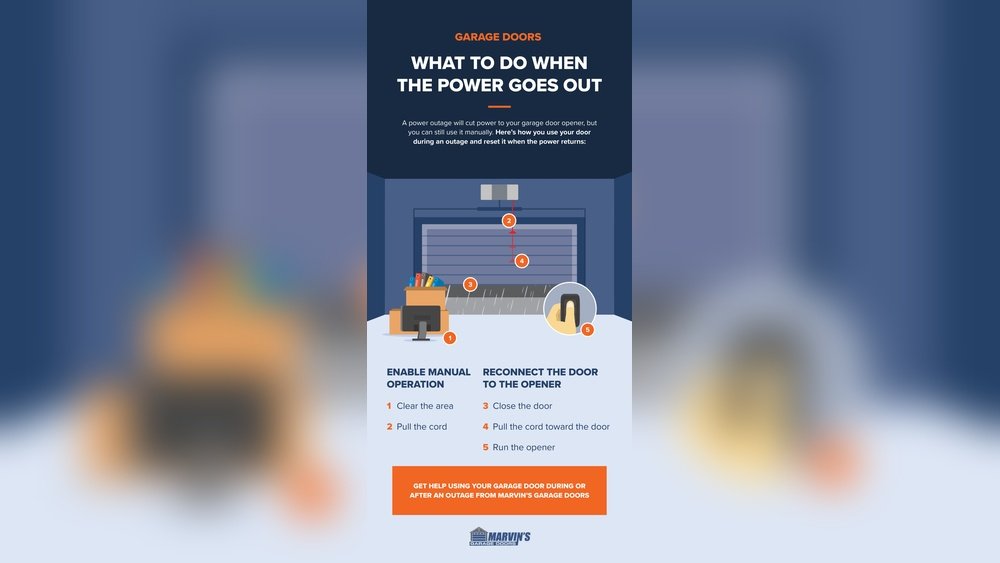
Manual door operation allows you to open or close your garage door during a power outage. This process lets you control the door without using the electric opener. It is important to follow each step carefully to avoid damage or injury.
Disengage Trolley
Locate the emergency release cord hanging from the trolley. This cord usually has a red handle for easy identification. Pull the cord down firmly to disconnect the trolley from the door arm. Once disengaged, the door can move freely by hand. Do not force the door if it feels stuck.
Move Door Manually
Lift the garage door slowly and with both hands. The door should move smoothly along the tracks. If the door is heavy, ask for help to avoid injury. Move the door only as far as needed to access or exit the garage. Avoid sudden movements to protect the door’s mechanism.
Re-engage Trolley
To reconnect the trolley, pull the emergency release cord toward the door. You will hear a click when it locks back in place. Test the door by pressing the opener button once power returns. The door should operate automatically again. If it does not, repeat the steps carefully.
Manual Door Operation
Resetting your Chamberlain garage door opener after a power outage is simple. This process helps restore normal function and clears any glitches caused by the outage. Follow these steps carefully to get your opener working again.
Check Power Supply
First, verify the garage door opener is receiving power. Check if the outlet is working by plugging in another device. Inspect the power cord for damage or loose connections. Ensure the circuit breaker has not tripped. Without power, the opener cannot reset properly.
Run Door Cycle
Next, run a complete door cycle manually or with the remote. Open the garage door fully, then close it. This action helps the opener recalibrate its sensors and motor. Observe the door movement to confirm it runs smoothly. If the door stops or reverses, the reset may not be complete.
Press And Hold Learn Button
Locate the yellow “Learn” button on the motor unit, usually under the light cover. Press and hold this button for about 6 seconds until the indicator light turns off. This step clears all previous remote codes and resets the opener’s memory. After releasing the button, reprogram your remotes to regain control.
Reset Garage Door Opener
Performing a full factory reset on your Chamberlain Wi-Fi garage door opener clears all saved settings. This step is essential after a power outage to restore proper function. It removes all programmed remotes and Wi-Fi connections, allowing you to start fresh. Follow the simple steps below to complete the reset quickly and safely.
Triple Learn Button Press
Locate the yellow “Learn” button on the motor unit. It is usually behind a light cover on the side or back. Press the “Learn” button three times in a row. Pause briefly between each press. This action triggers the full factory reset mode. You will hear a series of beeps confirming the reset process has started.
Confirm Reset Beeps
After pressing the Learn button three times, listen carefully for the beeps. Three quick beeps mean the opener has erased all previous settings. This sound confirms the reset was successful. The garage door opener is now ready for new programming. You can reconnect your Wi-Fi and remotes as needed.
Reprogram Remotes And Keypads
Power outages can disrupt your Chamberlain garage door opener’s settings. Troubleshooting helps restore normal function quickly. These tips solve common problems after a power loss. Follow these steps to check and fix issues.
Remote Not Working
Start by checking the remote’s battery. Replace it if the battery is weak or dead. Next, ensure the remote is within range of the garage door opener. Signal interference can block communication.
Try reprogramming the remote. Press the “Learn” button on the opener motor unit briefly. Then press and hold the remote button until the opener’s light blinks. This confirms the remote is paired again.
Clean the remote’s buttons to remove dirt or debris. Dirt can prevent proper contact inside the remote. Finally, test with another remote if available. This helps identify if the remote is faulty.
Opener Not Responding
Check the power supply to the opener. Ensure the outlet has power and the opener is plugged in securely. Reset the circuit breaker if needed. Sometimes power surges cause the breaker to trip.
Locate the “Learn” button on the motor unit and press it to reset the opener’s memory. Hold the button for about 6 seconds until the indicator light turns off. This erases all programmed remotes and keypads.
After resetting, reprogram your remotes and keypads. Inspect the opener’s sensors near the floor on each side of the door. Clean the lenses and make sure they align properly. Misaligned sensors stop the door from moving.
If the door still doesn’t respond, check for mechanical issues. Look for obstructions on the door tracks or damage to the opener’s components. Fix any visible problems before testing the opener again.
Full Factory Reset For Wi-fi Models
Power outages can disrupt your Chamberlain garage door opener’s normal function. Taking preventive measures helps avoid frequent resets and keeps your garage door working smoothly. Simple steps ensure your system stays reliable and secure even during power interruptions.
Regular Maintenance
Check the garage door opener regularly for dust and debris. Clean the sensors and tracks to prevent blockages. Tighten loose bolts and screws to avoid mechanical issues. Lubricate moving parts to reduce wear and noise. Test the safety features to ensure proper operation. Regular upkeep minimizes the risk of malfunctions after power returns.
Backup Power Options
Consider installing a battery backup for your garage door opener. It keeps the system running during power outages. Some models have built-in battery backups or support external batteries. A backup power source allows you to open and close the door safely. Uninterruptible power supplies (UPS) can protect the opener’s electronics. Backup options provide peace of mind and continuous access.
Frequently Asked Questions
Is There A Reset Button On Chamberlain Garage Door Openers?
Chamberlain garage door openers do not have a dedicated reset button. Use the yellow “Learn” button to erase remotes or reprogram devices. Press and hold the Learn button to clear all codes. For Wi-Fi models, press it three times for a full factory reset.
Do You Have To Reset The Garage Door Opener After A Power Outage?
Yes, you often must reset the garage door opener after a power outage. Pull the emergency release, cycle the door manually, then reconnect and reprogram remotes using the Learn button on the motor unit. This ensures proper operation and remote syncing.
How Do I Resync My Chamberlain Garage Door Opener?
To resync your Chamberlain garage door opener, press the yellow “Learn” button on the motor unit. Then, press your remote button until the opener light blinks. This confirms successful syncing. For Wi-Fi models, press “Learn” three times until you hear three beeps to reset fully.
How To Resync Garage Opener?
Locate the “Learn” button on the motor unit. Press and hold it until the indicator light turns off. Release the button. Reprogram remotes by pressing the “Learn” button briefly and activating each remote. This resyncs your garage door opener effectively.
How Do I Reset Chamberlain Garage Door Opener After Outage?
Locate the “Learn” button on the motor unit and press it for 6 seconds until the LED turns off.
Conclusion
Resetting your Chamberlain garage door opener after a power outage is simple. Locate the Learn button and follow the steps carefully. This process clears old codes and helps you reprogram remotes easily. Doing this ensures your garage door works smoothly again.
Remember to test the door after resetting to confirm everything works well. Regularly checking your opener keeps it reliable and safe. Now, you can handle power outages without worry or delay.