
Is your Cox remote control acting up, refusing to respond, or simply not working as it should? Before you get frustrated or consider buying a new one, there’s a simple fix you might not have tried yet: resetting your Cox remote control.
In this guide, you’ll learn exactly how to reset your remote quickly and easily, so you can get back to watching your favorite shows without any hassle. Follow along, and you’ll discover the exact steps to troubleshoot and restore your remote’s functionality—no tech expertise needed.
Ready to take control again? Let’s dive in!
Check Remote Batteries
Checking the remote batteries is the first step to fix your Cox remote control. Weak or dead batteries cause most remote problems. Before trying complicated resets, always start with the power source. This simple check saves time and effort.
Replace Old Batteries
Remove the old batteries from the remote. Use new batteries of the same type. Avoid mixing old and new batteries. Fresh batteries provide strong and steady power. This helps the remote work smoothly without interruptions.
Insert Batteries Correctly
Look at the battery compartment for polarity signs. Place the batteries with the plus (+) and minus (-) ends matching the markings. Wrong placement stops the remote from working. Ensure the batteries fit snugly to maintain good contact.
Test Battery Life
Use a battery tester or a multimeter to check battery strength. A weak battery may show low voltage. If you do not have a tester, try the batteries in another device. Replace any batteries that show signs of weakness or leakage.
Clear Remote Obstructions
Clearing obstructions from your Cox remote control is a simple but important step to ensure it works properly. Dirt, dust, or physical blockages can stop signals from reaching your cable box. Small problems like stuck buttons or grime can also prevent the remote from responding.
Taking time to clean and remove blockages often fixes many issues without needing a reset. Follow these easy steps to clear any obstructions and improve your remote’s performance.
Remove Line Of Sight Blockages
The remote sends signals through infrared light. Any object between the remote and the cable box can block this signal. Remove items like books, papers, or decorations that sit in front of the box. Make sure you point the remote directly at the sensor on the box. Keep the path clear for the best connection.
Clean Remote Buttons
Dust and dirt can stick to the buttons and affect their function. Use a soft, dry cloth to wipe the remote’s surface. For deeper cleaning, lightly dampen the cloth with water or rubbing alcohol. Avoid using too much liquid to prevent damage. Cleaning will help buttons register presses correctly.
Dislodge Stuck Buttons
Buttons can get stuck due to dirt or wear. Gently press and release each button several times to loosen it. Use a small brush or toothpick to remove any debris around the edges. Do not force the buttons too hard to avoid breaking them. Properly moving buttons can restore full remote control.
Reset Cox Remote
Resetting your Cox remote control can resolve many common issues. It helps restore the remote’s connection with your cable box. A reset can fix unresponsive buttons or control problems. The process is simple and takes only a few minutes.
There are two main ways to reset your Cox remote. A soft reset refreshes the remote without erasing settings. A factory reset restores the remote to its original state, deleting all custom settings. Choose the method based on your needs and the issue you face.
Soft Reset Steps
Remove the batteries from your Cox remote. Wait at least 10 seconds before reinserting them. Press and hold the power button for 5 seconds. Release the button and wait for the remote to restart. Test the remote by pressing any button. This process often clears minor glitches.
Factory Reset Process
Press and hold the “Setup” button until the LED light blinks twice. Enter the code “9-8-1” using the number buttons. The LED light will blink four times to confirm. The remote resets to factory settings. You must reprogram the remote to your TV or cable box after this.
When To Reset
Reset your remote if it stops working or responds slowly. Try a soft reset first to fix small issues. Use a factory reset if problems persist or settings are corrupted. Reset before contacting Cox support to save time. It often solves common remote control problems quickly.
Reboot Receiver Box
Rebooting the receiver box helps fix many remote control issues. It clears temporary glitches and refreshes the connection between your remote and receiver. This step is simple and can save time before trying more complex fixes.
Power Cycle Receiver
Unplug the receiver box from the power outlet. Wait for about 30 seconds. Plug it back in and turn it on. This process resets the receiver’s internal system. It often restores normal remote control function quickly.
Check Receiver Connection
Make sure all cables are firmly connected to the receiver. Inspect the HDMI or coaxial cables for damage. A loose or damaged connection can stop the remote from working. Secure all cables and test the remote again.
Program And Pair Remote
Programming and pairing your Cox remote control ensures smooth operation with your Cox cable box and TV. It helps the remote recognize the devices it controls. This step is crucial after resetting the remote or changing batteries. Follow the simple methods below to program and pair your Cox remote correctly.
Pairing Contour Remote
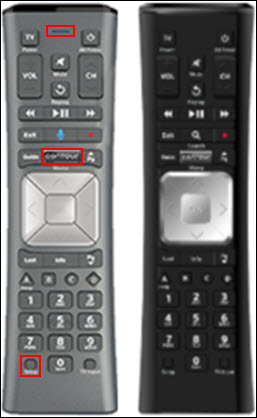
To pair your Contour remote, first point it at the Cox receiver. Press and hold the Setup button until the LED light blinks twice. Next, press and hold the OK button. The LED will blink rapidly, showing it is in pairing mode. Release the buttons and wait for the remote to connect. The light will blink slowly during this process. Once the blinking stops, the remote is paired and ready to use.
Reprogram Remote Codes
Sometimes, the remote needs reprogramming to control other devices like your TV. Press and hold the Setup button until the LED blinks twice. Enter the device code using the number keys. The LED will blink twice if the code is correct. Test the remote by pressing the power button on the device. Repeat with other codes if the first does not work. This method helps the remote control your TV or sound system.
Using Microphone Button For Battery Check
The Contour remote has a microphone button to check battery status. Press and hold the Microphone button and say “Battery.” The remote will show the battery level on-screen. This feature helps you know when to replace batteries. Low batteries can cause the remote to work poorly. Using this quick check saves time and avoids frustration.
Troubleshoot Common Issues
Troubleshooting common issues with your Cox remote control helps restore smooth operation quickly. Many problems stem from simple causes like low batteries or signal interference. Identifying the exact issue saves time and effort.
Follow these steps to fix frequent problems without needing expert help. Understanding each symptom guides you to the right solution.
Remote Only Controls Volume
When the remote changes volume but not channels, it may be stuck in volume mode. Press the TV or Cable button to switch control modes.
Low batteries can cause this issue. Replace them with fresh ones. Also, check for any dirt or debris under buttons that might cause sticking.
Resetting the remote can help. Remove batteries, press all buttons for 5 seconds, then reinsert batteries.
Remote Not Changing Channels
Remote not changing channels often means it lost connection with the receiver. Point the remote directly at the box and remove obstacles blocking the signal.
Try rebooting your cable box by unplugging it for 30 seconds, then plug it back in. This refreshes the connection.
Reprogram the remote if necessary. Follow the pairing instructions for your Cox remote model to restore channel control.
Guide And Contour Button Problems
Guide or Contour buttons may stop working due to software glitches. Restart the receiver to fix this.
Check if the remote’s firmware needs updating. Some Cox remotes update automatically when connected to the network.
Press each button firmly to ensure no dirt or residue blocks their function. Clean the remote gently if needed.
Use Online Support
Using online support simplifies the process of resetting your Cox remote control. It offers quick access to detailed guides and real-time help. Online tools guide you step-by-step to fix common remote issues. This saves time and avoids frustration.
Visit Cox Support Website
The Cox support website hosts valuable resources for remote control problems. Find clear instructions and troubleshooting tips tailored for your remote model. The site updates regularly, ensuring solutions match the latest devices. You can download manuals and watch helpful videos easily.
Access Smarthelp Feature
SmartHelp is an interactive tool on the Cox website. It helps diagnose remote issues automatically. Answer simple questions and get personalized reset steps instantly. SmartHelp makes complex problems easy to solve without waiting for support calls.
Chat With Cox Support
Live chat connects you with Cox experts ready to assist. Explain your remote problem and get immediate advice. The support team can guide you through reset procedures or arrange further help. Chat support is available on the Cox website for quick, friendly service.
Contact Cox Customer Service
Contacting Cox customer service can solve many remote control issues quickly. Their support team helps with problems beyond simple resets. They offer options to replace or repair your remote. Getting expert help saves time and effort. Here are ways to reach out and get assistance.
Visit Cox Store
Visit a nearby Cox store for hands-on help. Staff can test your remote and suggest fixes. You may get a replacement remote on the spot. This option works well if you want immediate support. Find your closest store by using the Cox website.
Order Replacement Remote
Order a replacement remote directly from Cox customer service. They provide exact models compatible with your system. Ordering online or by phone is simple and fast. A new remote arrives at your home within days. This solution fits if your remote is broken or lost.
Schedule Technician Visit
Schedule a technician visit if issues persist after resets. A professional will check your remote and cable box. Technicians can fix hardware problems or replace devices if needed. This service ensures your system works correctly again. Use the Cox website or call to book a visit.
Frequently Asked Questions
How Do I Reset My Cox Remote?
To reset your Cox remote, remove batteries, press and hold the Setup button until it blinks, enter 9-8-1, then test it.
Why Is My Cox Remote Not Working?
Your Cox remote may not work due to dead batteries, blocked signal, or lost pairing. Replace batteries, clear obstacles, and re-pair the remote. Reset the remote or reboot the receiver if problems persist. Contact Cox support for further assistance or replacement.
How Do I Reset A Remote Control?
To reset a remote control, remove the batteries, press all buttons for 10 seconds, then reinsert fresh batteries. This clears temporary glitches. For specific models, follow the manufacturer’s reset instructions or perform a factory reset if available.
How Do I Fix An Unresponsive Remote?
Replace the batteries with fresh ones and ensure correct placement. Remove any obstructions between remote and device. Press all buttons firmly to clear stuck keys. Restart your cable box. If issues persist, reset or reprogram the remote following manufacturer instructions.
Contact support if needed.
How Do I Reset My Cox Remote Control?
Hold the Power and Mute buttons together for 5 seconds until the remote restarts.
Conclusion
Resetting your Cox remote control is quick and simple. Follow the steps carefully for best results. Always check the batteries first and remove any obstacles. Reprogram or pair the remote if needed to restore full function. Visit Cox support online or in-store for extra help.
Staying patient and methodical saves time and frustration. Your remote will work smoothly again with these easy fixes.