
Is your computer acting up with frozen screens or glitchy visuals? You don’t always need to restart your entire system to fix these issues.
There’s a quick and simple shortcut that can reset your graphics driver instantly, getting your display back to normal in seconds. You’ll learn exactly how to reset your drivers shortcut, why it works, and when to use it to save time and frustration.
Keep reading and discover the easy fix that every Windows user should know!
Reset Graphics Driver Shortcut
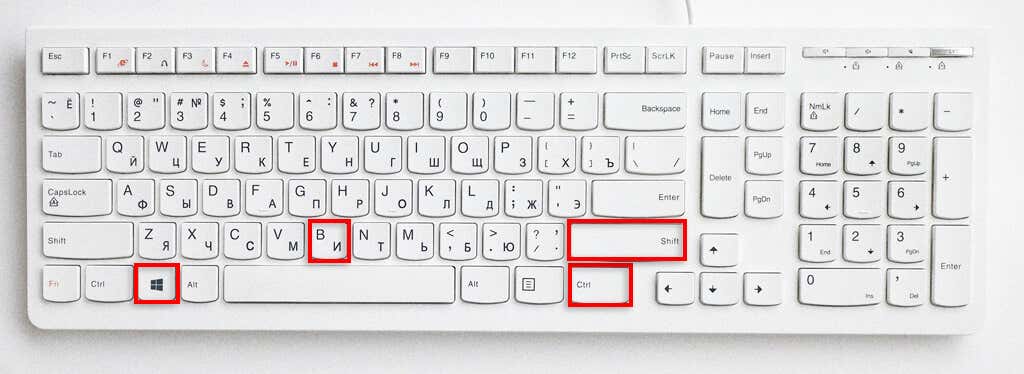
Resetting your graphics driver quickly can solve many display issues without restarting your PC. The reset graphics driver shortcut is a handy tool that refreshes your display driver instantly. This shortcut works on Windows systems and helps fix screen freezes, glitches, and black screens fast.
Using this shortcut saves time and avoids a full reboot. It is simple and effective for most common graphics problems. Let’s explore how to use it and what happens when you press the keys.
Shortcut Keys To Use
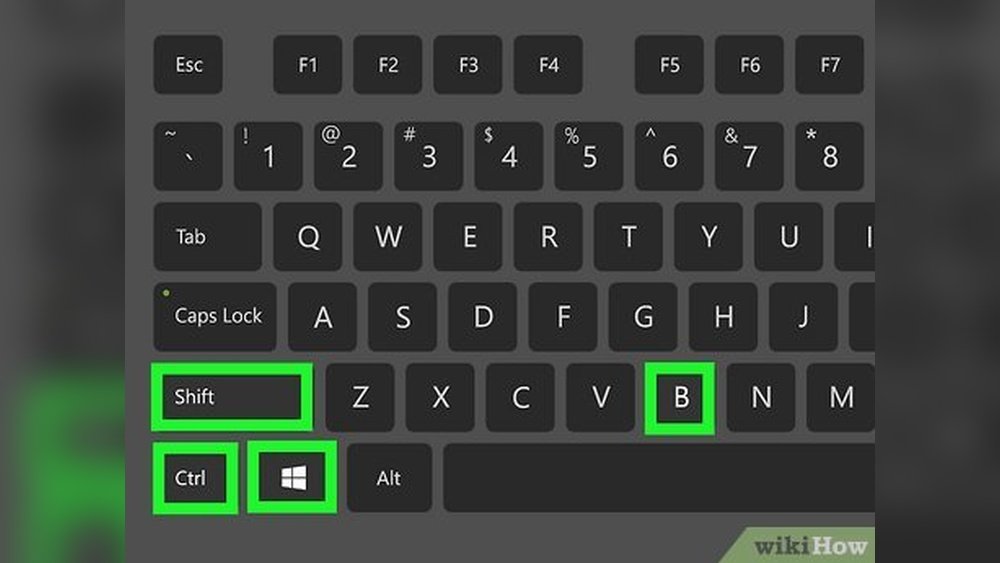
Press the Windows key, Ctrl, Shift, and B keys together. Hold them down for about one second. Release all keys at the same time. This combination triggers the graphics driver reset immediately.
Visual And Audio Cues
The screen will flicker or go black briefly. This shows the driver is restarting. If your sound is on, you may hear a short beep. These signals confirm the reset is working.
Immediate Effects
The display returns to normal within seconds. Any glitches or freezes should disappear. The shortcut refreshes the display driver without closing apps. Your work stays safe while fixing the graphics issue.
When To Reset Graphics Driver
Knowing when to reset your graphics driver can save time and avoid full system restarts. The graphics driver manages how your computer shows images on the screen. Sometimes, this driver stops working properly. Resetting it can fix many common display problems fast. Below are common signs that indicate a reset is needed.
Screen Freezes
The screen stops responding but the computer is still on. The mouse and keyboard may not work. Resetting the graphics driver can unfreeze the display quickly. It helps restore normal function without closing programs.
Visual Glitches
Strange lines, colors, or shapes appear on the screen. Text may look scrambled or blurry. These glitches happen when the driver misbehaves. Resetting the driver often clears these visual errors fast.
Black Screen Issues
The screen goes completely black but the computer is running. This can occur after waking from sleep or during use. Resetting the graphics driver can restore the picture without rebooting the PC.
External Monitor Problems
The external monitor does not show any image or flickers. Connection issues or driver errors may cause this. Resetting the graphics driver can fix the display on the second screen quickly.
How The Shortcut Works
The shortcut to reset drivers works by quickly restarting your graphics driver. This process refreshes the driver without needing to reboot your whole system. You press a specific combination of keys. The screen may flicker or go black for a moment. Then, your display returns to normal. This method helps fix common display problems fast and easy.
Driver Restart Process
Press the Windows key + Ctrl + Shift + B at the same time. The system sends a command to restart the graphics driver. This stops and then restarts the driver service. The screen briefly flickers or goes black. After a few seconds, the driver reloads, and the display returns. This quick reset can solve freezes, glitches, and black screen issues.
Benefits Over Full Reboot
This shortcut saves time by avoiding a full system reboot. It keeps all your programs running while fixing display issues. You do not lose your open files or work. The quick reset reduces frustration and downtime. It is an easy fix for many common graphics problems. No need to wait for Windows to shut down and start up again.

Reset Keyboard Drivers
Resetting keyboard drivers can fix many keyboard problems fast. This process helps if keys stop working or the keyboard acts strange. Resetting reloads the driver software that controls your keyboard. It can clear errors and restore normal function without extra tools.
Here are easy ways to reset your keyboard drivers on a Windows computer.
Using Device Manager
Device Manager is a built-in tool to manage hardware drivers. To reset keyboard drivers, open Device Manager from the Start menu. Find the “Keyboards” section and click it. Right-click your keyboard device and select “Update driver.” Choose “Search automatically” to reinstall the driver. This refreshes the driver and may fix the issue quickly.
Uninstall And Reinstall Steps
This method removes the keyboard driver and adds it again. Open Device Manager and find your keyboard under “Keyboards.” Right-click and select “Uninstall device.” Confirm the uninstall. Restart your computer after this. Windows will detect the keyboard and install the driver again. This clean reinstall often solves driver conflicts or errors.
Alternative Troubleshooting Tools
Windows offers extra tools for driver problems. Use the “Troubleshoot” option in Settings under “Update & Security.” Select “Keyboard” troubleshooter to scan for issues. Follow the steps it suggests. Another tool is “System Restore,” which can undo recent changes that caused problems. These tools help if resetting drivers does not fix the keyboard.
Common Driver Reset Tips
Resetting drivers can solve many common computer issues fast. Simple steps often fix problems without complex tools or software. Use these common driver reset tips to keep your system running smoothly.
Checking For Third-party Software
Third-party software can interfere with drivers and cause errors. Check if any new programs were installed before the issue started. Temporarily disable or uninstall these apps. This helps identify if they affect your drivers.
Antivirus or system utilities sometimes block driver functions. Make sure these programs are not causing conflicts. Update or adjust their settings to allow driver operations.
Running System File Checks
System file corruption may disrupt drivers. Use built-in tools like SFC (System File Checker) to scan and repair files. Open Command Prompt as an administrator and run sfc /scannow. This process finds damaged files and fixes them automatically.
Running this check helps restore essential system components. It ensures drivers work with a stable system environment.
Using Hardware Troubleshooter
Windows includes a hardware troubleshooter to detect driver issues. Go to Settings > Update & Security > Troubleshoot. Run the troubleshooter for hardware and devices. It scans for problems and suggests fixes.
This tool can automatically reset or update problematic drivers. It is useful for users who prefer guided troubleshooting steps.
Frequently Asked Questions
How To Reset Drivers Quickly?
Press Windows + Ctrl + Shift + B simultaneously to quickly reset your graphics driver. The screen flickers briefly, fixing display glitches without rebooting. For keyboard drivers, uninstall via Device Manager and restart to reinstall automatically. This method resolves common driver issues fast and effectively.
How To Reset Driver Shortcut?
Press Windows + Ctrl + Shift + B simultaneously to reset your graphics driver. The screen will flicker briefly, fixing display glitches instantly.
How To Reset Keyboard Drivers?
Open Device Manager, find your keyboard under “Keyboards,” right-click and select “Uninstall device. ” Restart your PC to reinstall drivers automatically. Alternatively, click “Scan for hardware changes” to reinstall the keyboard driver manually. This resets your keyboard drivers quickly without extra software.
How To Refresh Drivers In Windows 11 Shortcut Key?
Press Windows + Ctrl + Shift + B simultaneously to refresh drivers in Windows 11. The screen flickers briefly, resetting the graphics driver instantly.
What Is The Shortcut To Reset Drivers On Windows?
Press Windows + Ctrl + Shift + B keys together to reset your graphics driver instantly.
Conclusion
Resetting your drivers shortcut is a quick way to fix display issues. Press the Windows, Ctrl, Shift, and B keys together. Your screen may flicker or go black briefly. This action restarts the graphics driver without rebooting your computer. Use this method when your screen freezes or shows glitches.
It saves time and avoids interruptions. Remember this simple shortcut for easy troubleshooting. It helps keep your computer running smoothly. Give it a try next time display problems occur.