
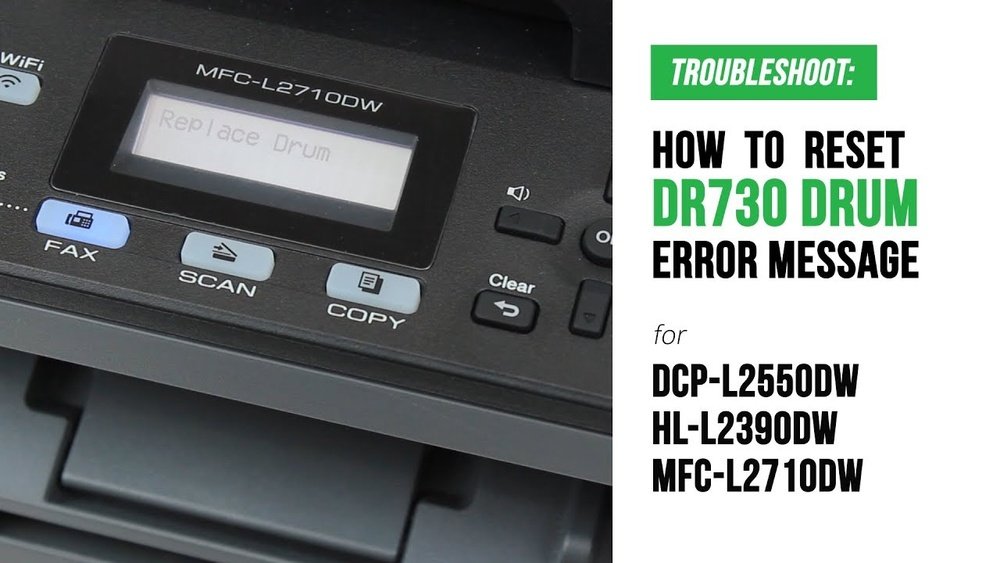
If you’re seeing the “Replace Drum” message on your Brother MFC L2710DW, it can be frustrating and stop your printing tasks dead in their tracks. But don’t worry—resetting the drum counter is easier than you think.
By following a few simple steps, you can clear that warning and get your printer working smoothly again. This guide walks you through the process clearly and quickly, so you can save time and avoid unnecessary service calls. Ready to fix your printer and keep your workflow moving?
Let’s dive in!

Credit: support.ldproducts.com
Prepare The Printer
Preparing the Brother MFC L2710DW printer is the first step in resetting the drum. This process ensures the printer is ready to accept the reset command. Follow these simple steps carefully to avoid any errors during the reset.
Power On And Close Cover
Make sure the printer is turned on. Check the power button and wait until the display lights up. Close the front cover securely. The printer will not allow reset if the cover is open. A closed cover signals the machine is ready for the next step.
Open Front Cover
Gently open the front cover of the printer. This gives access to the drum unit inside. Handle the cover with care to avoid damage. Opening the cover is necessary to reset the drum counter. After opening, you can proceed with the reset instructions.
Credit: ybtoner.com
Initiate Drum Reset
Resetting the drum on your Brother MFC L2710DW clears the “Replace Drum” message. This step helps the printer recognize the new drum unit. The process is quick and simple. Follow the exact steps to avoid errors.
Begin by making sure your printer is powered on. The front cover must be closed before starting the reset. These conditions allow the reset sequence to work correctly.
Press Ok And Up Arrow Together
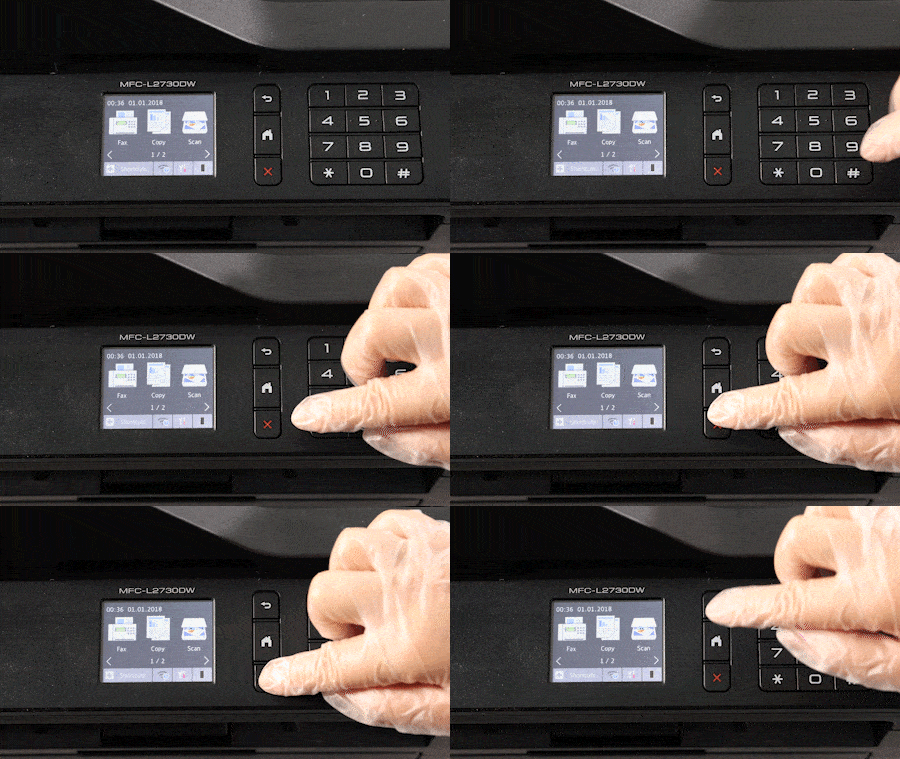
Locate the OK button on the printer’s control panel. At the same time, press and hold the Up Arrow key. Hold both buttons for a few seconds. This action starts the drum reset menu on the screen.
Do not release the buttons too soon. Wait until the menu appears. This ensures the printer is ready for the next step.
Select Drum Option
After the menu appears, press the OK button again. This selects the “Drum” option from the list. Use the Up Arrow key to confirm your choice. The printer will reset the drum counter now.
Wait for the message “Accepted” on the display. This confirms the reset is successful. The “Replace Drum” message should disappear afterward.
Confirm Reset
Confirming the reset is a key step to clear the “Replace Drum” message on your Brother MFC L2710DW. This step tells the printer to update its drum counter after you replace the drum unit. Without confirmation, the printer keeps showing the error. Follow the simple actions below to confirm the reset and get your printer back to work.
Press Up Arrow To Reset
After selecting the “Drum” option on the printer screen, press the Up Arrow (▲) button. This action tells the printer to reset the drum counter. The Up Arrow is your confirmation key. Press it firmly but gently to avoid mistakes.
Wait For Accepted Message
Once you press the Up Arrow, watch the display. The screen will show the word “Accepted.” This message means the reset is successful. The drum error message will disappear after this. Wait a few seconds to ensure the printer processes the reset fully.
Troubleshoot Common Issues
Troubleshooting common issues with the Brother MFC L2710DW drum reset helps keep your printer running smoothly. Some problems occur even after resetting the drum counter. These issues often stem from incorrect replacement or error messages that won’t clear. Checking these simple points can save time and prevent damage.
Verify Drum Unit Replacement
Confirm you replaced the drum unit, not just the toner cartridge. The drum and toner are different parts. The printer tracks the drum’s usage separately. If the drum is old, the reset will not stop the error. Always install a new drum unit before resetting the counter.
Open the front cover and remove the toner cartridge. Check the drum unit below it. If the drum looks worn or has error labels, replace it. After installing the new drum unit, close the cover fully. This ensures the printer detects the change properly.
Clear Persistent Error Messages
Sometimes error messages stay even after the reset. Turn off the printer and open the front cover. Wait a few seconds, then close the cover and turn the printer back on. This can clear stuck error signals.
Use the control panel to reset the drum counter again. Press and hold the OK button and the Up arrow key simultaneously. Select “Drum” from the menu, then confirm the reset by pressing the Up arrow key. The display should show “Accepted.”
If errors persist, check for any paper jams or loose parts. Clean the inside gently to remove dust. Persistent errors may mean the drum sensor needs attention or replacement.
Tips For Maintenance
Proper maintenance extends the life of your Brother MFC L2710DW drum unit. It keeps print quality sharp and prevents errors. Follow simple care tips to avoid frequent drum resets and replacements. These tips help you understand your printer better and save money.
Distinguish Drum From Toner Cartridge
Know the difference between the drum unit and toner cartridge. The drum transfers the image to paper. The toner cartridge holds the ink powder. Confusing them can cause wrong replacements. The drum usually lasts longer than the toner cartridge. Always check which part needs service before resetting.
Regularly Check Drum Status
Check your drum’s status often to spot problems early. Your printer shows messages when the drum needs attention. Look for print defects like streaks or smudges. Clean the drum gently with a soft cloth if needed. Replace the drum unit when print quality drops. Regular checks keep printing smooth and prevent damage.

Credit: www.youtube.com
Frequently Asked Questions
How Do I Reset The Drum On My Brother Mfc L2710dw?
Turn on your Brother MFC-L2710DW and close the front cover. Press and hold the OK button and Up arrow together. Select “Drum” by pressing OK, then press Up arrow to reset. The display will show “Accepted” confirming the drum reset.
How To Reset Drum Brother Mfc L2700dw?
To reset the drum on Brother MFC L2700DW, turn on the printer and close the front cover. Press and hold the OK button and Up arrow together. Select “Drum” by pressing OK. Press the Up arrow to confirm. The display will show “Accepted,” clearing the drum error.
How To Reset Drum On Mfc Brother Printer?
Turn on the printer and close the front cover. Press and hold OK and Up arrow keys together. Select “Drum” and press OK. Press the Up arrow to reset. Wait for “Accepted” to confirm the drum reset.
How To Reset Drum On Brother Printer Mfc L2720dw?
To reset the drum on Brother MFC-L2720DW, turn on the printer and close the front cover. Press and hold OK and the Up arrow simultaneously. Select “Drum” by pressing OK, then press the Up arrow to confirm. The display will show “Accepted,” clearing the error message.
How Do I Reset The Drum On Brother Mfc L2710dw?
Turn on the printer and close the front cover. Press and hold OK and Up arrow together. Select “Drum” and press Up arrow to reset.
Conclusion
Resetting the drum on your Brother MFC L2710Dw is simple and quick. Just follow the steps carefully to clear the “Replace Drum” message. This helps your printer work smoothly again without errors. Remember to replace the drum unit, not just the toner cartridge.
Regular maintenance keeps your printer in good shape. Now you can print with confidence and avoid downtime. Keep this guide handy for future resets.