
Are you wondering how to reset your i-Ready Diagnostic test? Maybe your first attempt didn’t go as planned because you were feeling rushed, unwell, or distracted.
The good news is that you can retake the diagnostic—but there’s a catch: only your teacher or school administrator can reset it for you. You can’t simply hit a “retake” button yourself. This process ensures your results accurately reflect your skills, helping you and your educators tailor your learning path effectively.
You’ll learn exactly what steps to take, how your teacher manages the reset, and what you need to know before requesting a retake. Keep reading to take control of your i-Ready experience and get the most out of your diagnostic test!
Resetting Iready Diagnostic
Resetting the iReady Diagnostic is an important process for accurate student assessment. Sometimes students need to retake the test due to distractions, illness, or rushing through questions. Resetting allows a fresh start and better results. This guide explains who can reset the test, when to reset it, and how teachers can cancel a diagnostic.
Who Can Reset The Test
Only teachers or school administrators can reset the iReady Diagnostic. Students cannot reset or retake the test on their own. The decision to reset depends on the teacher’s judgment. They review if the first attempt was valid or if it needs to be canceled for accuracy.
When To Reset The Diagnostic
Resetting is done when the test results do not reflect the student’s true level. Common reasons include illness during testing, rushing, or guessing answers. It is also used if technical problems happen during the test. Resetting should happen only if there is a clear reason to do so.
Steps For Teachers To Cancel
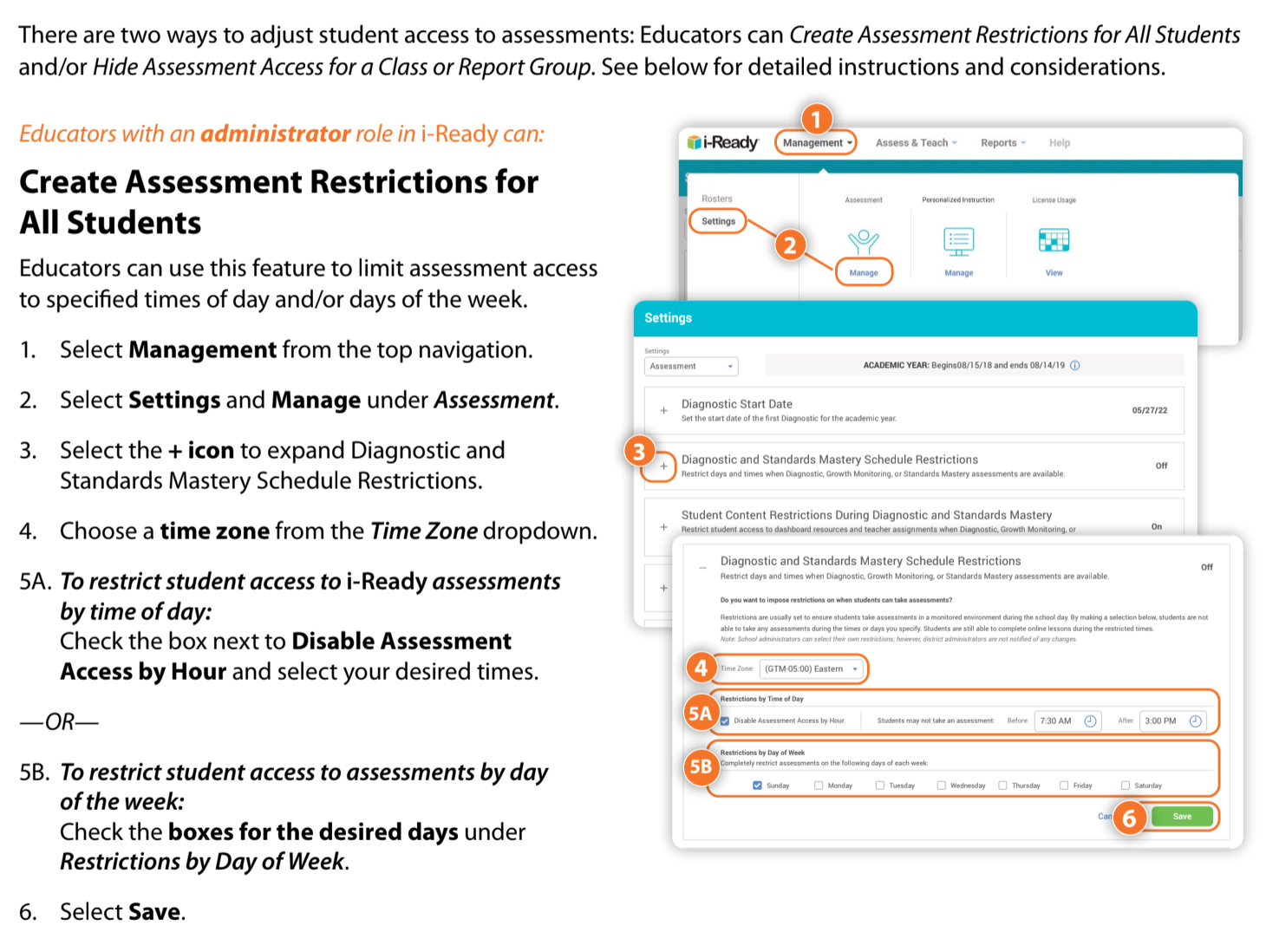
Teachers start by logging into their iReady account. They go to the “Assess & Teach” or “Diagnostic Status” area. Then they find the student’s name and check the test status. Next, they select “Cancel Diagnostic” or “Reset Test” to erase the old result. Finally, the teacher reassigns the diagnostic so the student can start fresh.
Credit: dsst.zendesk.com
Retaking The Diagnostic
Retaking the i-Ready Diagnostic can help students get a more accurate measure of their skills. Sometimes, the first test does not reflect a student’s true ability. This can happen if a student was sick, rushed, or distracted. Retaking allows students to start fresh and improve their learning path. The process requires support from teachers or school administrators.
Requesting A Retake
Students cannot reset the diagnostic on their own. They must ask their teacher or school staff to help. It is important to explain why a retake is needed. Common reasons include illness, rushing, or technical problems during the test. Clear communication helps teachers understand the request.
Teacher’s Role In Reassignment
Teachers log into their i-Ready account to manage tests. They find the student’s diagnostic status in the system. Teachers can cancel the current test if it is incomplete or inaccurate. After canceling, they assign a new diagnostic test. This process removes old data and allows a clean start.
Starting The New Test
Once the teacher assigns the new test, the student can begin it anytime. It is important to focus and take the test seriously. The new diagnostic will provide better results if the student is calm and ready. Completing the test fully helps create a better learning plan.
Common Errors And Fixes
Errors can occur during the iReady Diagnostic test. These common issues affect test accuracy and completion. Knowing how to fix them helps ensure reliable results.
Below are frequent errors and simple fixes for each problem. This guide assists teachers and students in managing diagnostic tests smoothly.
Technical Glitches
Technical problems often stop the test from working properly. Students may face slow loading or freezing screens. Refreshing the browser or restarting the device can help.
Using a stable internet connection reduces these glitches. Clearing the browser cache also improves performance. Contact technical support if issues continue.
Incorrect Scores
Sometimes scores appear lower or higher than expected. This can happen if the student rushes or guesses answers. Teachers can reset the test to allow a retake.
Resetting removes old results and starts fresh. Students should take the test seriously to get accurate scores. Teachers must approve any reset requests.
Incomplete Tests
Students may not finish the diagnostic in one sitting. Tests left unfinished can affect progress tracking. Teachers can cancel the incomplete test to reset it.
Once canceled, the test can be reassigned. Students should plan to complete the test without interruptions. This ensures full and accurate assessment data.
Data Management
Managing data effectively is crucial when resetting the iReady Diagnostic. Schools must handle student information carefully to maintain accuracy and fairness. Data management ensures that resetting does not cause confusion or loss of important records. Understanding the impact on previous data, handling tests in progress, and the role of administrators helps maintain a smooth process.
Effect Of Reset On Previous Data
Resetting the iReady Diagnostic deletes all previous results for that test. This means all scores, progress, and responses are removed from the system. Teachers lose access to prior diagnostic data for that student. This action clears the way for a fresh start but removes historical information permanently. Schools should reset only when necessary to avoid losing valuable data.
Handling In-progress Tests
Tests currently in progress require special attention before resetting. Canceling an active diagnostic stops the test immediately. Students cannot continue or finish a canceled test. Teachers must check test status before resetting to avoid disrupting valid attempts. Proper handling prevents data errors and confusion for both students and teachers.
Administrator Controls
Only teachers or administrators have the authority to reset the diagnostic. They access specific tools in the iReady platform to cancel or reassign tests. Students cannot reset or retake diagnostics on their own. Administrators ensure resets happen only for valid reasons, such as illness or rushed attempts. This control protects the integrity of testing data and student records.
Tips For Accurate Testing
Accurate testing in i-Ready Diagnostic is key for understanding student needs. Proper preparation and environment help produce reliable results. Follow these tips to ensure students show their true skills during the test.
Preparing Students
Explain the test purpose clearly. Encourage students to try their best without stress. Remind them to answer honestly, not guess. Practice sample questions to build confidence. Check that students understand instructions well before starting.
Proctoring Best Practices
Monitor students closely during the test. Avoid giving hints or extra help. Keep distractions to a minimum. Ensure students stay focused and on task. Record any issues that arise for review later.
Timing And Environment
Choose a quiet, comfortable room for testing. Schedule tests when students are alert and rested. Limit interruptions by turning off phones and notifications. Provide enough time to finish without rushing. A good environment supports honest and accurate answers.

Credit: www.youtube.com

Credit: resources.finalsite.net
Frequently Asked Questions
Can You Retake The Iready Diagnostic?
Yes, you can retake the i-Ready Diagnostic only if your teacher or administrator resets and reassigns it. Students cannot retake it independently.
Can You Delete Diagnostic Results On Iready?
You cannot delete completed i-Ready diagnostic results yourself. Only teachers or administrators can reset or cancel them. They must cancel the old test and reassign a new diagnostic for you to retake it. This process erases previous scores and allows a fresh start.
What Score Is 666 In An Iready Diagnostic?
A score of 666 in an i-Ready diagnostic indicates a high performance level. It reflects strong skills in the tested subject.
Why Did My Iready Diagnostic Restart?
Your iReady diagnostic restarted because your teacher or administrator reset it. They do this if results seem inaccurate or incomplete. Only educators can cancel and reassign the test, allowing you to start fresh. This ensures accurate assessment and valid data.
Can Students Reset The Iready Diagnostic Test Themselves?
No, only teachers or school administrators can reset the iReady Diagnostic test.
Conclusion
Resetting the iReady Diagnostic helps ensure accurate learning results. Teachers hold the key to reset or reassign tests. Clear communication with your teacher is important before requesting a retake. Remember, resetting deletes previous test data completely. This process allows students a fresh start when needed.
Stay patient and follow your school’s guidelines closely. Doing so supports better learning and fair assessment.