
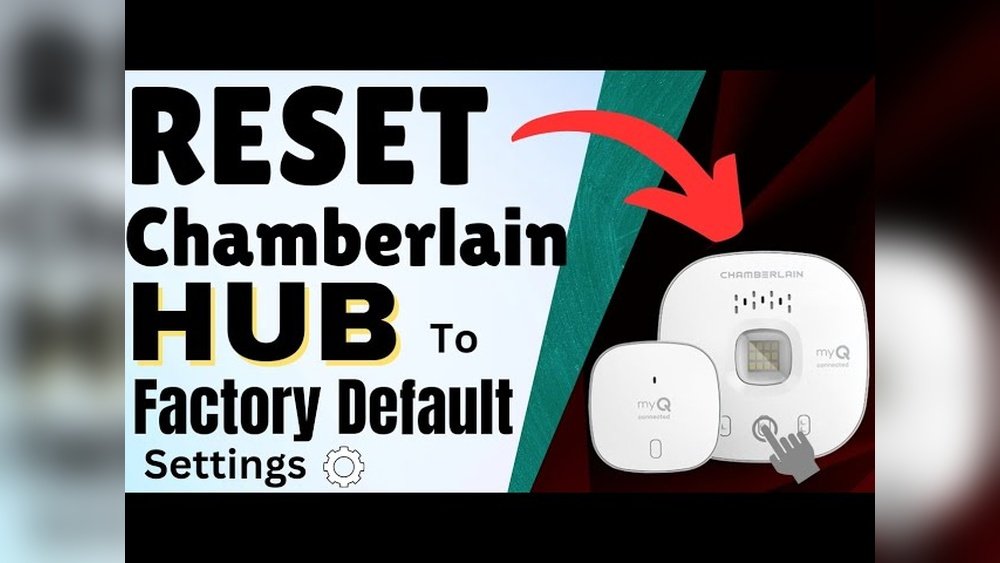
Is your myQ garage door acting up or refusing to connect? You’re not alone, and the good news is that resetting your myQ garage door opener can often fix these frustrating issues quickly.
Whether you’re dealing with connectivity problems, unresponsive controls, or just want to start fresh, knowing how to reset your myQ device puts you back in control. In this guide, you’ll find simple, step-by-step instructions to reset your myQ garage door opener and get it working smoothly again.
Keep reading to discover easy tips and tricks that will save you time and stress—so you can enjoy the convenience of your smart garage door without a hitch.

Credit: support.chamberlaingroup.com
Preparing To Reset Myq
Preparing to reset your MyQ garage door is an important first step. Proper preparation makes the reset process smooth and quick. It helps avoid errors and saves time. Before starting, check your device’s current condition and settings. Gather all necessary information like Wi-Fi details. Also, adjust your phone’s settings to help the MyQ app connect without problems. This section guides you through these key preparations.
Check Device Status
Start by checking your MyQ device status. Open the MyQ app on your phone. Look for any error messages or offline alerts. Confirm the device is powered on and within Wi-Fi range. If it shows offline, this means the device lost connection. Knowing this helps you understand if a reset is needed. Also, note any unusual behavior like blinking lights or no response to commands.
Gather Wi-fi Credentials
Next, prepare your Wi-Fi network information. You will need the exact network name (SSID) and password. Check your router or ask your internet provider if unsure. Keep these details handy before starting the reset. Accurate credentials ensure the device reconnects successfully. Write them down or save them on your phone. This step prevents delays during the setup process.
Enable Phone Settings
Enable important phone settings to help the MyQ app connect. Turn on Bluetooth to allow device detection. Enable Location Services because some phones require it for Wi-Fi scanning. Check your phone’s Wi-Fi is active and connected to your home network. These settings improve communication between your phone and the MyQ device. Double-check them before starting the reset process.
Resetting Myq Hub
Resetting the MyQ Hub helps fix connection issues and restore smooth operation. This process clears old settings and prepares the hub for new configurations. Follow these simple steps to reset your MyQ Hub quickly and safely.
Locate Reset Button
Find the reset button on the back of your MyQ Hub. It is a small, round button, often recessed to avoid accidental presses. Use a paperclip or similar tool to access it easily.
Press And Hold Reset
Press and hold the reset button for about 10 seconds. Watch the LED lights carefully while holding the button. Release the button once the LED changes its behavior, such as blinking or turning solid.
Identify Led Indicators
The LED lights show the hub’s status during reset. A solid blue light means the hub is ready to connect. Blinking lights indicate the hub is resetting or searching for a network. Use these signals to confirm the reset process is complete.
Resetting Garage Door Opener
Resetting your garage door opener can solve many issues like connectivity problems or unresponsive controls. The process refreshes the system and clears old settings. This helps your MyQ garage door opener work smoothly again.
Follow these simple steps to reset your garage door opener. Each step is easy and quick to do, even if you are new to the device.
Find The Learn Button
The Learn button is usually on the back or side of the garage door motor unit. It is often a small, round button and may be yellow, purple, or orange. This button controls programming and resetting functions.
Locate this button before you start. It is essential for the reset process.
Press Learn Button Once
Press and release the Learn button one time. Do not hold it down for too long. A short press puts the opener into reset mode.
This action prepares the garage door opener to accept new commands or settings. Wait for the next signal.
Recognize Beep And Light Signals
After pressing the Learn button, listen for a beep sound. Also, watch for a blinking light near the button. These signals confirm the opener is in reset mode.
The beep and light flash usually last a few seconds. This means the opener is ready for the next step or to reconnect with the app.
.jpeg)
Credit: help.fluenthome.com
Reconnecting To Wi-fi
Reconnecting your MyQ garage door to Wi-Fi restores its smart features. This process ensures your device communicates properly with the app. Follow clear steps to join the temporary network and enter your home Wi-Fi details. Confirming the connection in the app completes the setup.
Join Temporary Myq Network
Start by opening your phone’s Wi-Fi settings. Look for a network named “MyQ-” followed by some numbers. This temporary network appears when the MyQ device is in setup mode. Connect to this network to allow your phone to communicate directly with the device. Without joining this network, the next steps cannot proceed.
Enter Home Wi-fi Details
After connecting to the MyQ network, the app will prompt you to enter your home Wi-Fi name and password. Type these carefully to avoid errors. This step lets your garage door opener connect to your home internet. Use a secure and stable Wi-Fi network for best results. Make sure your phone stays connected during this step.
Confirm Connection In App
Once you enter your Wi-Fi details, the app will attempt to connect your device. Watch for a confirmation message that shows success. Name your device in the app for easier control later. Test the connection by opening or closing the garage door remotely. If the connection fails, repeat the steps or check your Wi-Fi signal.
Testing And Naming Device
After resetting your myQ garage door device, the next crucial step is testing and naming it. This process ensures your device works correctly and is easy to identify in the app. Proper testing avoids future control issues and keeps your system organized. Naming the device clearly helps you manage multiple garage doors if you have more than one. Follow the simple steps below to complete this important phase smoothly.
Name Your Device
Open the myQ app and go to your device list. Select the newly reset garage door device. Tap the option to rename it. Choose a clear and simple name, like “Garage Door Front” or “Main Garage.” This makes it easier to spot in the app later. Confirm the name to save your changes.
Test Door Operation
Now, test the garage door to check if it responds properly. Use the app to open and close the door. Watch the door move smoothly without stopping or jerking. Listen for unusual sounds during operation. If the door does not move correctly, retry the reset process or check your Wi-Fi connection.
Verify App Controls
Make sure all app controls work as expected. Try opening, closing, and stopping the door from the app. Check if the app shows the door’s real-time status. Test remote alerts and notifications if available. Confirm the device responds quickly to your commands. This step guarantees your garage door is fully connected and functional.

Credit: kingdoor.com
Troubleshooting Tips
Encountering issues with your myQ garage door can be frustrating. Troubleshooting helps fix common problems quickly. Follow these simple tips to reset your myQ device and restore smooth operation.
Restart Router And Opener
Start by restarting your Wi-Fi router. Unplug it for 30 seconds, then plug it back in. This refreshes your internet connection and clears minor glitches.
Next, power cycle your myQ garage door opener. Disconnect its power source for 10 seconds, then reconnect. This resets the opener’s internal system and can resolve connectivity issues.
Toggle Bluetooth And Location
Ensure your phone’s Bluetooth is turned off, then turn it back on. This can help your device detect the garage opener properly.
Do the same with Location Services. Disable and re-enable location on your phone. The myQ app needs these settings enabled for setup and communication.
These simple toggles refresh the connection between your phone and myQ device.
Perform Factory Reset If Needed
If problems persist, perform a factory reset on your myQ device. Locate the reset button on your hub or opener.
Press and hold the reset button for about 10 seconds until the LED light changes. This restores the device to its original settings.
After resetting, use the myQ app to reconnect your device to Wi-Fi and complete setup.
Reset After Router Changes
Resetting your myQ garage door after changing your router is essential. The device loses its Wi-Fi connection and stops working properly. Reconnecting ensures your garage door opener syncs with your new network. This process is simple and can be done through the myQ app in a few steps.
Follow the steps below to reset your myQ device after router changes. This will restore your garage door’s smart functions quickly and securely.
Access Device Settings
Open the myQ app on your smartphone. Sign in with your account if needed. Locate the device showing as offline or disconnected. Tap on the device to open its settings and management options.
Select Reconnect Option
Within the device settings, find the option labeled “Reconnect” or “Reconnect Device.” Tap this to start the setup process. The app will guide you to prepare your myQ hub or opener for Wi-Fi pairing.
Follow Setup Prompts
Press the Learn or Reset button on your myQ device when the app instructs. This puts the device in pairing mode. Your phone connects to a temporary myQ network. Enter your new Wi-Fi name and password as prompted. Wait for the device to confirm connection. Test your garage door to ensure the reset was successful.
Frequently Asked Questions
How To Reconnect Myq Garage Door?
Open the myQ app, tap the offline device, and select “Reconnect. ” Press the yellow Learn button on the opener. Connect to your Wi-Fi using the app, enter your network password, and complete setup. Ensure Bluetooth and Location Services are enabled on your phone for smooth reconnection.
How Do I Manually Reset My Garage Door Opener?
Press and release the Learn button on the opener until the light flashes. Use the myQ app to reconnect by following on-screen Wi-Fi setup instructions. Ensure Bluetooth and Location Services are enabled on your phone during setup.
How To Resync Garage Opener?
To resync your garage opener, press the Learn button on the motor unit. Then, use the app to connect to Wi-Fi. Follow on-screen prompts to complete setup and test the opener. Ensure Bluetooth and Location Services are enabled on your phone for smooth syncing.
How Do I Resync My Chamberlain Garage Door Opener?
Open the myQ app and select your offline device. Tap “Reconnect,” press the yellow Learn button on the opener, then follow prompts to connect to Wi-Fi. Enter your network name and password, enable Bluetooth and Location Services on your phone, and complete setup in the app.
How Do I Reset Myq Garage Door Opener?
Press and hold the Reset button on the hub until LED changes, or press the Learn button on the opener.
Conclusion
Resetting your myQ garage door is simple with the right steps. Use the myQ app to guide you through reconnecting the device. Press the Learn or Reset button on your opener or hub as needed. Connect to your home Wi-Fi by following the app’s instructions carefully.
Check that Bluetooth and Location Services are on for smooth setup. Restart your router or device if problems occur. A full factory reset may help if reconnecting fails. With patience, your garage door will work like new again.