
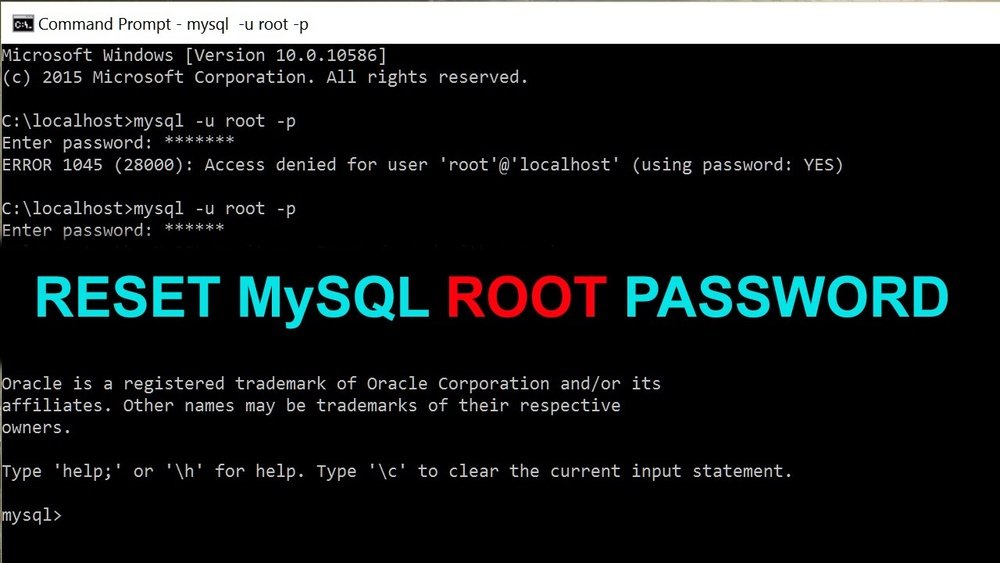
Have you ever found yourself locked out of your MySQL database because you forgot the root password? It’s a frustrating situation, but don’t worry—you’re not alone, and the solution is simpler than you might think.
Whether you’re managing a personal project or handling a professional database, knowing how to reset your MySQL root password is a crucial skill that can save you hours of downtime and stress. In this guide, you’ll learn clear, step-by-step instructions to regain access quickly and securely.
Keep reading, and you’ll be back in control of your MySQL server in no time.

Prepare Mysql Server
Preparing the MySQL server is the first step to reset the root password safely. It involves stopping the running MySQL service and backing up important configuration files. These steps prevent data loss and ensure you can restore settings if needed.
Stop Mysql Service
First, stop the MySQL server to avoid conflicts. Use the command sudo systemctl stop mysql on most Linux systems. On Windows, stop the MySQL service through the Services app. Confirm the service is fully stopped before proceeding.
Backup Configuration Files
Backing up configuration files protects your current settings. Locate the my.cnf or my.ini file, usually found in /etc/mysql/ or the MySQL installation folder. Copy this file to a safe location using cp /etc/mysql/my.cnf ~/my.cnf.backup. This step helps recover original settings if needed.
Start Mysql In Safe Mode
Starting MySQL in safe mode is the first step to reset the root password. Safe mode allows you to bypass the usual security checks. This mode runs MySQL with limited permissions. It lets you change the root password without needing the old one. You must stop the MySQL server before starting it in safe mode. Then run the server with special options to skip the grant tables.
This process is essential for recovering access to your database. It ensures you can modify user credentials safely. Follow the steps carefully to avoid issues with your MySQL service.
Run Mysqld With Skip Grant Tables
To start MySQL without password checks, use the --skip-grant-tables option. This tells MySQL to ignore user authentication. Open your command line interface. Stop the MySQL service first using your system’s service manager.
Next, run the following command:
mysqld --skip-grant-tables --skip-networking &The --skip-networking flag disables remote connections for safety. This command runs MySQL in the background. You can now connect without a password.
Verify Server Running
After starting MySQL in safe mode, check if it is running correctly. Use this command to see active MySQL processes:
ps aux | grep mysqldLook for the mysqld process with --skip-grant-tables in the options. If it appears, the server runs in safe mode.
You can also connect using the MySQL client without a password:
mysql -u rootThis confirms safe mode is active, and you can reset the root password next.
Reset Root Password
Resetting the root password in MySQL is a crucial task for database administrators. It helps regain access when the password is lost or forgotten. The process involves stopping the MySQL server, logging in without a password, changing the root password, and applying the changes. This section guides you through each step clearly and simply.
Login Without Password
First, stop the MySQL server to prevent conflicts. Then start MySQL in safe mode with the --skip-grant-tables option. This mode lets you connect without a password. Use the command:
sudo mysqld_safe --skip-grant-tables &Now, open a new terminal and connect to MySQL as root:
mysql -u rootYou can now change the root password without needing the old one.
Change Root Password Command
Inside the MySQL shell, update the root password with a simple SQL command. Use this syntax:
ALTER USER 'root'@'localhost' IDENTIFIED BY 'new_password';Replace new_password with your desired password. This command resets the root password securely.
Flush Privileges
After changing the password, MySQL needs to reload the privilege tables. Run this command:
FLUSH PRIVILEGES;This step ensures the password change takes effect immediately. Finally, exit the MySQL shell and restart the MySQL server normally.
Restart Mysql Normally
After successfully resetting the MySQL root password, it is important to restart MySQL normally. This step ensures the server runs with the new settings and returns to its standard operation mode. Restarting MySQL properly avoids potential issues and secures your database.
Stop Safe Mode Server
First, stop the MySQL server running in safe mode. Safe mode disables some security features, so it should not run during normal use. Use the command suitable for your system, such as sudo systemctl stop mysql or sudo service mysql stop. Confirm the server has stopped before proceeding.
Start Mysql Service
Next, start the MySQL service normally. This action restarts the server with full security and settings applied. Run sudo systemctl start mysql or sudo service mysql start depending on your system. Check the service status with sudo systemctl status mysql to ensure it is active and running correctly.
Verify New Root Password
After resetting the MySQL root password, it is important to verify the new password. This step confirms that the password change was successful. It also ensures you can access the MySQL server without issues. Verification helps avoid connection problems later.
Login With New Password
Open your terminal or command prompt. Enter the command to log in as root:
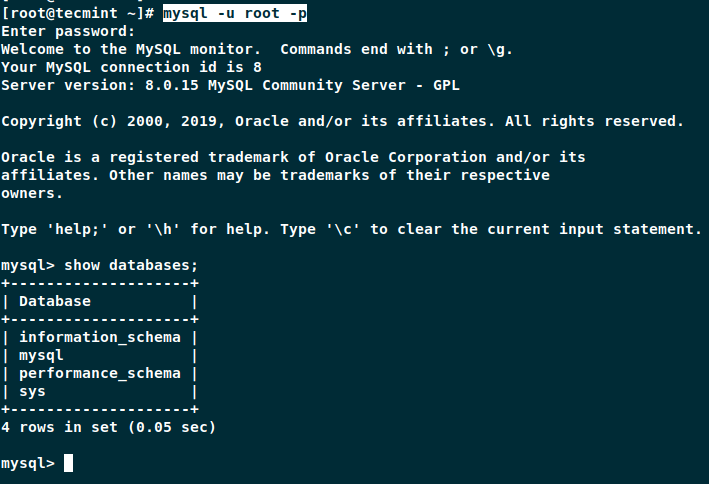
mysql -u root -pWhen prompted, type your new root password. Press Enter. If you see the MySQL prompt, the login succeeded. If not, recheck the password reset steps.
Test Database Access
After login, test your access by running a simple query. For example:
SHOW DATABASES;This command lists all databases. If it shows results without errors, your root user has proper access. You can now manage your MySQL server securely with the new password.

Reset Root Password On Windows
Resetting the MySQL root password on Windows is essential when access is lost. This process involves stopping the MySQL service, creating a reset file, restarting MySQL with this file, and finally removing the reset file. Each step is simple and safe if followed carefully.
Stop Mysql Service
Open the Services app from the Start menu. Find the MySQL service in the list. Right-click it and select “Stop”. Wait until the service completely stops. This step frees the database for password reset tasks.
Create Password Reset File
Open Notepad or any text editor. Write the following line exactly: ALTER USER 'root'@'localhost' IDENTIFIED BY 'NewPassword';. Replace NewPassword with your new root password. Save the file as reset.sql in a safe folder, like C:mysql.
Start Mysql With Reset File
Open Command Prompt as Administrator. Navigate to the MySQL bin directory, usually C:Program FilesMySQLMySQL Server X.Xbin. Run this command:
mysqld --init-file=C:\mysql\reset.sql --consoleThis starts MySQL and executes the reset script. Wait for the process to complete. Then, close the Command Prompt window.
Remove Reset File
Go to the folder where you saved reset.sql. Delete the file to keep your system secure. Restart the MySQL service from the Services app. Now, you can log in using your new root password.
Troubleshooting Tips
Resetting the root password in MySQL can sometimes lead to issues. Troubleshooting these problems quickly helps restore access and avoid downtime. This section covers common errors and how to solve them step-by-step.
Fixing Access Denied Errors
Access denied errors usually mean MySQL did not accept the new password. Check if the MySQL service is fully stopped before resetting the password. Restarting the server without stopping it can cause conflicts. Also, ensure you run the reset commands with proper user permissions, such as using sudo or running as root.
Clear any cached credentials. Sometimes MySQL stores old passwords in memory, causing repeated denial. After resetting the password, restart the MySQL service to apply changes. Confirm the username and host match the account you changed.
Checking Mysql Error Logs
Error logs contain valuable details about what went wrong. Locate the MySQL error log, usually found in /var/log/mysql or /var/lib/mysql directories. Review the latest entries for warnings or errors related to authentication or startup.
Look for lines mentioning ‘Access denied’ or ‘Authentication plugin.’ These clues can guide you to the exact problem. If logs show permission issues on files, adjust file ownership and permissions. Proper log review helps pinpoint issues faster.
Handling Plugin Authentication
MySQL uses authentication plugins that can block password changes. For example, the caching_sha2_password or auth_socket plugins may interfere with resets. Check which plugin your root user uses by running:
SELECT user, host, plugin FROM mysql.user WHERE user='root';
If the plugin is auth_socket, MySQL expects login via the system user, not a password. Change the plugin to mysql_native_password to allow password authentication:
ALTER USER 'root'@'localhost' IDENTIFIED WITH mysql_native_password BY 'new_password';
Flush privileges after changes to apply them immediately:
FLUSH PRIVILEGES;
This step ensures the root user can log in with the new password and avoids plugin conflicts.
Frequently Asked Questions
How Do I Reset My Mysql Root Password?
Stop the MySQL server. Start it with skip-grant-tables option. Connect using mysql client. Run ALTER USER ‘root’@’localhost’ IDENTIFIED BY ‘new_password’; Flush privileges. Restart MySQL normally.
How Do I Reset My Root Password?
Reboot your system and access the GRUB menu by pressing Shift or Esc. Edit the kernel line, add init=/bin/bash, then boot. Use the passwd command to set a new root password. Finally, reboot to apply changes.
How To Reset Password For A User In Mysql?
Log in to MySQL as root. Run: ALTER USER ‘username’@’host’ IDENTIFIED BY ‘new_password’; then flush privileges with FLUSH PRIVILEGES;.
How Do I Login As Root In Mysql With Password?
Open your terminal and run: mysql -u root -p. Enter your root password when prompted to login successfully.
How Do I Reset The Mysql Root Password Safely?
Stop the MySQL server, start it with skip-grant-tables, then update the root password and restart.
Conclusion
Resetting the MySQL root password is straightforward when you follow the right steps. Always stop the MySQL server before making changes. Use simple commands to set a new password safely. Remember to restart the server after resetting the password. This process helps keep your database secure and accessible.
Practice these steps carefully to avoid errors. Keeping your root password updated protects your data effectively. Now, you can manage MySQL with confidence and ease.