
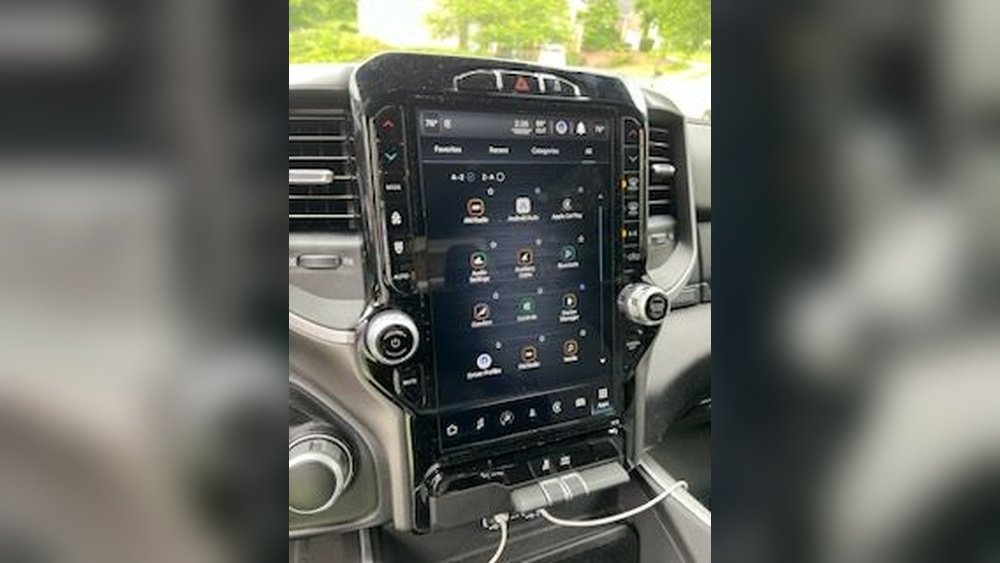
Is your Uconnect 12-inch screen acting up or freezing at the worst moment? You’re not alone, and the good news is that resetting it is easier than you might think.
Whether your screen is unresponsive, slow, or glitching, knowing how to reset your Uconnect system can save you time and frustration. In this guide, you’ll discover simple, clear steps to perform both soft and factory resets on your Uconnect screen.
By the end, you’ll be back in control of your infotainment system and ready to enjoy a smooth, hassle-free driving experience. Keep reading—you’ll find the quick fixes you need right here.
Soft Reset Steps
Soft reset steps help fix minor glitches on the Uconnect 12-inch screen. This process restarts the system without deleting your settings or data. It’s quick and easy, often restoring normal function.
Follow the simple steps below to complete a soft reset safely and effectively.
Prepare The Vehicle
First, park your vehicle in a safe spot. Turn the ignition to the “Run” position. The engine can be on or in accessory mode. Avoid turning off the car during the reset. Make sure your screen is on and responsive before starting.
Performing The Reset
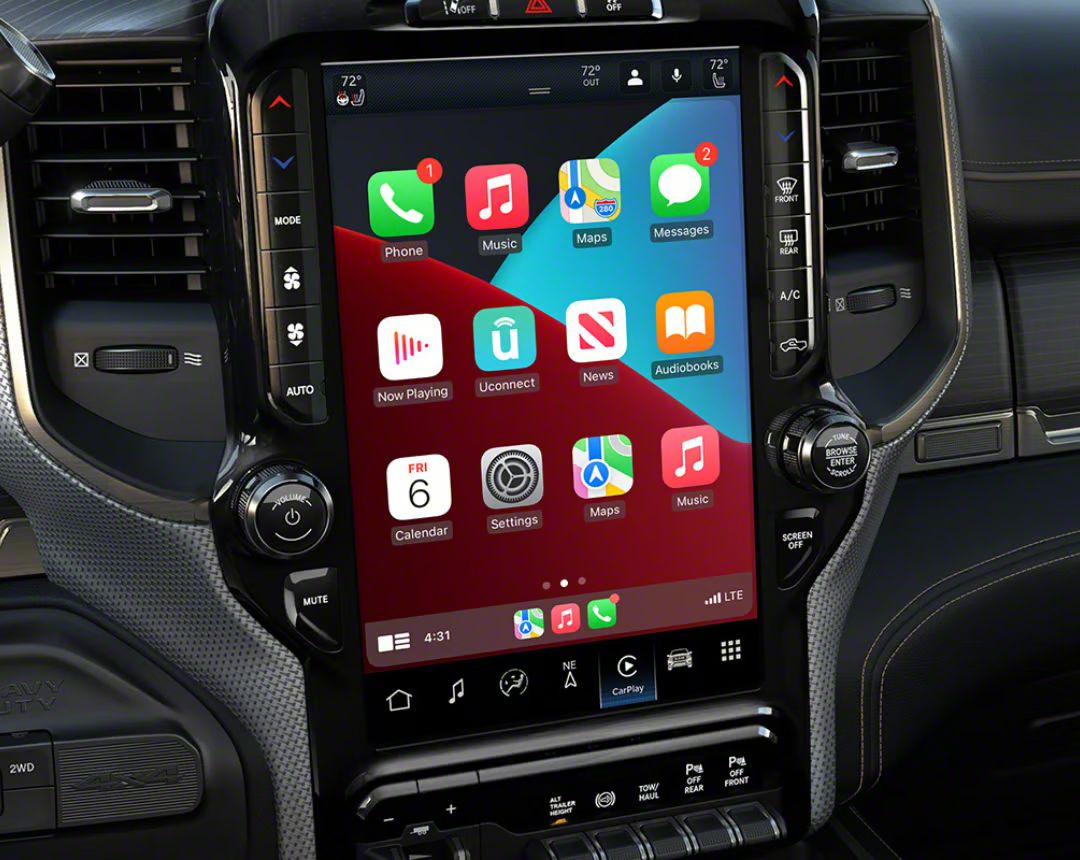
Press and hold the volume and tuner knobs at the same time. Keep holding for about 10 seconds. The screen will go black and then show the vehicle logo. Wait for the system to reboot fully. Do not press any buttons during this time.
Common Issues Fixed
Soft reset clears frozen screens and unresponsive touch controls. It also fixes audio glitches and connection problems with Bluetooth. Minor software bugs often resolve after this reset. Use this step before trying more complex fixes.

Credit: www.youtube.com
Factory Reset Procedure
The factory reset procedure restores your Uconnect 12-inch screen to its original settings. This action clears all personalized data and fixes many system issues. Follow the steps carefully to complete the reset without problems.
Accessing Reset Options
First, ensure your vehicle is in “Run” mode, with the engine on or accessory power active. On the Uconnect screen, tap the Settings icon. Then, select System or find the Vehicle app. Look for Reset Options or System Information within the menu.
Choose the option labeled Factory Reset or Reset to Factory Settings. This will begin the reset process.
Confirming The Reset
The system will ask you to confirm the reset before proceeding. Read the message carefully. Press Yes or Confirm to start the factory reset. The screen may go dark or flash the vehicle logo during the reset.
Wait for the system to reboot completely. Do not turn off the vehicle or touch the screen while it resets.
Data Loss Warning
Resetting to factory settings deletes all your saved data. This includes radio presets, Bluetooth connections, navigation routes, and personal preferences. Back up any important information before starting the reset.
Once the reset is complete, you must set up your Uconnect system again from scratch.
Hard Reset Variations
Hard reset variations for the Uconnect 12 inch screen differ by method and model. Understanding these can help fix glitches or unresponsive screens effectively. Some resets keep your settings, while others erase all data. Choosing the right reset method matters for your needs.
Button-press Reboot Method
This method forces the system to restart without deleting settings. Press and hold the volume and tuner knobs together for about 10 seconds. The screen will go dark and then reboot. This quick fix can solve minor freezes or lag. No data or preferences will be lost.
Factory Reset Confusion
Factory reset wipes all saved data and returns the system to default. Access the Settings menu on your Uconnect screen. Navigate to System or Vehicle app, then find Reset Options. Confirm the Factory Reset to begin. Use this only if you want to erase all personal data and start fresh.
Model-specific Instructions
Reset steps vary between Chrysler, Dodge, Jeep, and Ram models. Some older models use button combinations like holding temperature controls. Newer models rely on touchscreen menus for resets. Check your vehicle manual or support site for exact instructions. Following model-specific steps ensures the reset works correctly.
Troubleshooting Tips
Troubleshooting your Uconnect 12 inch screen can fix many common issues. Simple checks often save time and effort. Follow these tips to identify and resolve problems quickly. Understanding the basics helps you avoid unnecessary resets or repairs.
Battery Voltage Check
Low battery voltage can cause screen malfunctions. Use a multimeter to test your car battery. Voltage below 12 volts may affect the Uconnect system. Charge or replace the battery if needed. A stable power supply ensures the system runs smoothly.
Connectivity Issues
Check all cables and connections behind the screen. Loose or damaged wires often cause display or touch problems. Restart your phone or device connected via Bluetooth. Delete and re-pair devices if connections fail. Clear any USB ports of dust or debris. Good connections keep your Uconnect responsive.
When To Seek Professional Help
If the screen remains unresponsive after resets, consult a technician. Persistent errors or blank displays may require advanced diagnostics. Avoid attempting complex repairs yourself. Professionals have the right tools and knowledge. Early expert help can prevent costly damages.
Additional Reset Methods
Sometimes, the usual reset steps may not work for the Uconnect 12 inch screen. Other ways exist to reboot or refresh the system. These additional reset methods can fix glitches and improve performance. They are simple and quick to try. Use them to restore your screen without losing all your settings.
Using Physical Reset Button
Some Uconnect models have a small physical reset button. It is often hidden near the screen or dashboard. Use a pointed object like a paperclip to press it. Hold the button for about 10 seconds. The screen will turn off and restart. This method works well for frozen or unresponsive screens. It does not erase your saved data.
Temperature Button Combination
Pressing temperature control buttons can trigger a reset. Hold both the temperature up and down buttons at the same time. Keep them pressed for at least five seconds. The screen will display a reset menu or reboot automatically. This trick helps with minor software bugs. It is easy to do and keeps your settings intact.
Infotainment System Tricks
Try turning off the vehicle and opening and closing the driver’s door quickly. This can cause the Uconnect system to reset itself. Another trick is pressing and holding the volume and tuner knobs simultaneously. Hold for about 10 seconds. The screen will go dark and then restart. These simple actions can clear small errors fast.
Credit: www.americantrucks.com

Credit: www.gm-navigation.com
Frequently Asked Questions
How Do I Do A Hard Reset On Uconnect?
To hard reset UConnect, turn your vehicle to “Run” mode. Press and hold the volume and tuner knobs simultaneously for 10 seconds until the screen reboots. For a factory reset, go to Settings > System > Reset, then select Factory Reset and confirm.
How Do I Unfreeze My Ram Screen?
Press and hold the volume and tuner knobs simultaneously for 10 seconds. The RAM screen will reboot and unfreeze. If this fails, perform a factory reset via Settings > System > Reset.
How Can I Reset My Car Screen?
To reset your car screen, press and hold the power button and volume knob simultaneously for 5-10 seconds. Alternatively, locate a reset hole near the volume knob and press it with a paperclip. For factory reset, access system settings and select “Reset to Factory Settings.
“
How Do You Restart The Ram Screen?
To restart the RAM screen, turn the vehicle on. Press and hold the volume and tuner knobs simultaneously for 10 seconds. The screen will go dark, then reboot automatically. This soft reset resolves minor issues without erasing your settings.
How Do I Perform A Soft Reset On Uconnect 12 Inch Screen?
Turn the vehicle on. Press and hold the volume and tuner knobs together for 10 seconds. The screen will reboot.
Conclusion
Resetting your Uconnect 12 inch screen can fix many common issues quickly. Choose a soft reset to keep your settings safe. Use a factory reset only when necessary, as it erases all data. Always follow the steps carefully for a smooth reset process.
Regular resets help maintain your system’s performance. Keep your vehicle in “Run” mode during the reset. Troubleshooting your Uconnect screen becomes easier with these simple methods. Stay calm and patient while performing the reset. Your screen should work properly after completing these steps.