
Is your DISH remote volume acting up or completely unresponsive? It can be frustrating when you can’t adjust the sound during your favorite show or movie.
But don’t worry—resetting the volume on your DISH remote is easier than you might think. Whether the buttons aren’t working or the volume controls seem out of sync, this guide will walk you through simple steps to get your remote back in perfect working order.
Keep reading, and you’ll have full control over your audio again in no time.
Quick Volume Fixes
Quick volume fixes help solve common issues fast. These simple steps restore sound without delay. Check basic settings and remote conditions first. Small problems often cause volume troubles. Fix these quickly to enjoy your Dish TV again.
Check Mute And Volume Levels
Press the Mute button once to toggle sound on or off. Then, press the Volume Up button to increase sound. Sometimes volume is just turned down very low. Make sure the TV or receiver volume is not muted or set to zero.
Replace Remote Batteries
Old or weak batteries cause the remote to lose signal strength. Open the battery compartment and remove old batteries. Insert fresh, high-quality batteries matching the remote’s specifications. Test the volume buttons again to see if they work properly.
Remove Obstructions
Objects blocking the remote’s signal path can stop volume control. Clear any items between the remote and the Dish receiver or TV. Even small objects or dust can interrupt signals. Ensure a clear line of sight for the remote to work well.
Resetting The Receiver
Resetting the receiver is a key step to fix volume control problems with your DISH remote. The receiver manages signals between your remote and TV or audio device. Sometimes, the receiver’s settings can cause volume issues. Resetting it clears temporary errors and restores normal function.
This process is simple and does not affect your saved recordings or settings. It helps ensure the remote and receiver communicate correctly. Follow the steps below to reset your DISH receiver and improve volume control.
Power Cycle The Receiver
First, unplug the receiver from the power outlet. Leave it unplugged for about 10 seconds. This allows the receiver to fully power down.
Plug the receiver back in and wait for it to restart. This refreshes the system and may fix volume problems.
Use The Receiver’s Reset Button
Locate the reset button on the receiver. It is usually small and may require a paperclip to press.
Press and hold the reset button for 5 seconds. Release it and wait for the receiver to reboot. This resets the receiver without deleting your settings.
Check Receiver Settings After Reset
Once the receiver restarts, use the remote to open the menu. Navigate to audio or volume settings.
Make sure the volume control is set to the correct device. This ensures the remote controls your TV or audio device volume properly.
Reprogram Volume Buttons
Reprogramming the volume buttons on your Dish remote can fix many sound control issues. This process syncs your remote with your TV or audio device. It helps your remote send the correct signals for volume adjustment. Follow these simple steps to reprogram your remote and regain volume control.
Access Remote Settings
Start by pressing the MENU button on your Dish remote. Some models require pressing the HOME button twice instead. This opens the main settings menu on your screen. Use the arrow keys to find the “Settings” option. Select “Remote Control” to access remote programming options.
Navigate To Pairing Wizard
Inside the remote control menu, look for “Volume & Mute Buttons.” Select this option to begin the pairing process. Choose the “Pairing Wizard” to start reprogramming your volume buttons. The wizard will guide you through selecting your device type and brand.
Test Volume Codes
The Pairing Wizard will show a list of volume codes for your device brand. Test each code by pressing the volume up and down buttons. If the volume changes on your TV or audio device, the code works. Confirm the code to save it. If not, try the next code on the list.
Set Volume Control Device
After finding the correct code, set the volume control device in the remote settings. Choose whether the remote controls your TV or an audio accessory. This ensures the volume buttons send commands to the right device. Save the setting before exiting the menu.
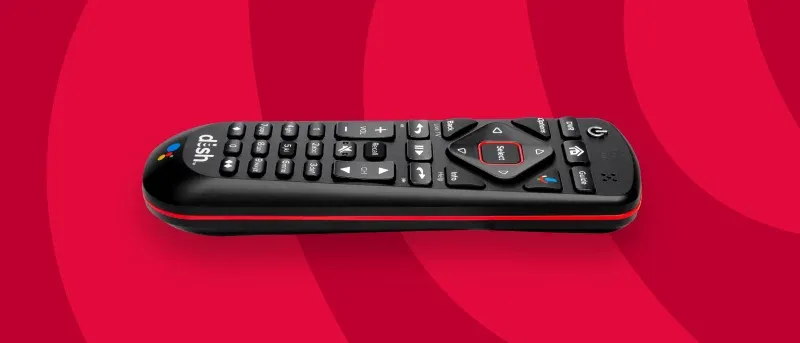
Advanced Troubleshooting
Advanced troubleshooting helps fix volume problems beyond basic steps. It targets hidden causes that simple fixes miss. Follow these tips to resolve stubborn volume issues on your DISH remote.
Clean Sticky Volume Buttons
Sticky buttons often block proper remote signals. Use a cotton swab dipped in isopropyl alcohol. Gently clean around the volume buttons. Remove any dirt or grime. Let the remote dry before testing it. This can restore button function and smooth operation.
Check Audio And Video Cables
Loose or damaged cables disrupt sound signals. Examine all cables connecting your receiver and TV. Firmly push each cable into its port. Replace any frayed or broken cables. Secure connections ensure clear audio transmission and better volume control.
Verify Tv Speaker Settings
TV speaker settings affect volume control via remote. Use your TV remote to access audio settings. Confirm the TV speakers are turned on. Check the volume level is above zero. Disable external speakers if needed. Correct settings allow the DISH remote to control sound properly.
Re-linking The Remote
Re-linking the Dish remote helps restore volume control. Sometimes, the remote loses connection with the receiver. This leads to volume buttons not working. Re-linking ensures the remote talks properly with your Dish system again. Follow these simple steps for a quick fix.
Use System Info Button
Press and hold the System Info button on your remote. Keep it pressed until the LED light blinks twice. This signals the remote is ready to re-link. Then, point the remote at the receiver and press the Mute button. Wait a few seconds. The remote should now be connected and volume control restored.
Press Sat Button Sequence
Start by pressing and holding the SAT button on the remote. While holding it, press and release the Power button. Keep holding the SAT button for about 5 seconds. Release both buttons once the LED blinks. This sequence resets the remote’s link to your Dish receiver. Test volume buttons to confirm the fix.
When To Replace The Remote
Sometimes resetting the volume on your Dish remote does not fix the problem. The remote may have issues that cannot be repaired. Knowing when to replace the remote saves time and frustration.
Look for signs that the remote is failing. Some problems mean the remote is beyond simple fixes. Replacing it ensures smooth control of your Dish system.
Unresponsive Volume Buttons
Volume buttons stop working even after resetting. Pressing them shows no change on the screen. This means the remote’s internal switches may be broken.
Frequent Signal Loss
The remote often loses connection with the receiver. You have to press buttons multiple times to get a response. This can mean the remote’s signal transmitter is weak.
Physical Damage
Cracks, broken parts, or water damage affect the remote’s function. Damaged remotes may work poorly or not at all. Replacing it is the best option in such cases.
Battery Drain Issues
The remote uses batteries very fast. Even new batteries die quickly. This can happen if internal circuits have a short or fault.
Incompatibility With New Devices
New TVs or audio devices may not work well with older remotes. The remote may not control volume properly. Getting a remote that matches your devices helps avoid issues.
Frequently Asked Questions
How Do I Get My Volume To Work On My Dish Remote?
Press Mute, then Volume Up to check sound. Replace batteries and clear obstructions. Reprogram remote via MENU > Settings > Remote Control > Pairing Wizard. Ensure volume control targets TV or audio device. Clean sticky buttons and check cables. Replace remote if issues persist.
How Do I Get Sound Back On Dish?
Press Mute to unmute, then raise volume using the remote. Replace batteries if needed. Clear obstructions between remote and receiver. Reprogram remote via Settings > Remote Control > Pairing Wizard. Check TV speakers and cables. Clean sticky buttons gently. Replace remote if issues persist.
How Do I Reset A Dish Remote Control?
To reset a DISH remote, press MENU or HOME twice, go to Settings > Remote Control, select Pairing Wizard, then follow on-screen prompts to reprogram volume controls. Ensure volume control targets your TV or audio device, not the receiver. Replace batteries if needed.
How Do I Program My Dish Remote To My Sound System?
Press MENU on your DISH remote, go to Settings > Remote Control. Select Pairing Wizard, choose Audio Device, and follow prompts to program. Test volume buttons until they work with your sound system.
How Do I Reset Volume On My Dish Remote?
Press the MENU button, go to Settings > Remote Control, then run the Pairing Wizard to reset volume.
Conclusion
Resetting the volume on your DISH remote can fix many common sound issues. Start with simple steps like checking the mute and battery status. If that does not work, reprogram the remote using the pairing wizard in the settings menu.
Always ensure your remote controls the correct device, whether your TV or an audio accessory. Cleaning the buttons and checking cable connections can also help. If volume problems persist, consider replacing the remote. Following these steps makes volume control easy and keeps your DISH setup working smoothly.