
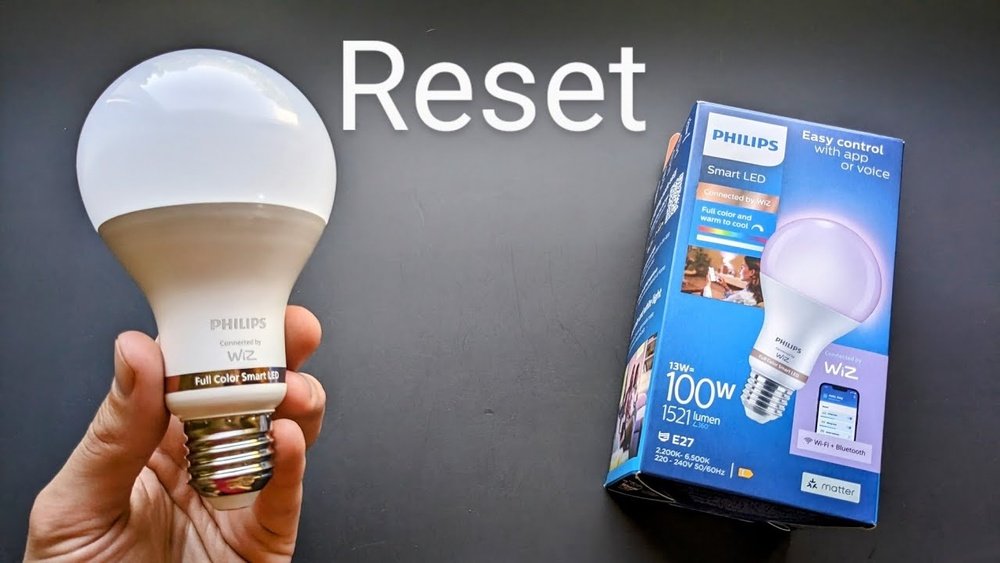
Are your WiZ lights acting up or refusing to connect? Don’t worry—you’re not alone.
Sometimes, smart bulbs need a quick reset to clear glitches or to reconnect to your Wi-Fi network. Knowing how to reset your Wiz lights can save you time and frustration, helping you get back to enjoying perfect lighting in your home.
In this guide, you’ll learn simple, step-by-step methods to reset your Wiz lights quickly and easily, whether you need to fix connection issues or start fresh. Stick with us, and by the end, you’ll have full control over your smart lighting again.
Basic Troubleshooting
Basic troubleshooting helps fix common problems with Wiz lights. It saves time and avoids complex steps. Start with simple checks before trying advanced fixes.
Follow these easy steps to ensure your Wiz lights work smoothly again.
Restart The App
Close the WiZ app completely on your phone. Then open it again. This refreshes the app and clears minor bugs. It often fixes connection issues quickly.
Check Wi-fi Connection
Make sure your Wi-Fi is working well. Test other devices to see if they connect. Avoid too many devices on the same network. Slow or unstable Wi-Fi can cause Wiz lights to stop responding.
Verify Firmware Updates
Check if your Wiz lights are updating their firmware. Sometimes lights go offline during updates. This is normal and should end soon. Keep the lights powered and wait for updates to finish.
Resetting Wiz Lights
Resetting WiZ lights is a simple way to fix connection issues or prepare the lights for a new network. This process clears old settings and helps the lights connect smoothly again. Follow these steps carefully to reset your WiZ lights and restore full control.
Power Cycle The Light Switch
Start by turning the light switch off. Wait for about five seconds. Then, turn the switch back on. This quick power cycle often solves minor glitches. If the light does not respond, repeat this step two more times. This action refreshes the light’s power state without erasing settings.
Identify Pairing Mode Signals
Look for the light’s pairing mode signals. After power cycling, the bulb should flash white or blue. A pulsing light means it is ready to connect to your Wi-Fi. If the light stays steady or off, repeat the power cycle quickly five times. The blinking confirms the bulb entered pairing mode successfully.
Re-pair Using The Wiz App
Open the WiZ app on your smartphone. Select the option to add a new device. Follow the on-screen instructions to connect the bulb to your Wi-Fi network. Enter your current Wi-Fi name and password carefully. The app will guide you through the pairing process step-by-step. Once done, the light should respond to app commands again.
Handling Wi-fi Changes
Handling Wi-Fi changes is crucial for keeping your Wiz lights connected and working smoothly. Changes like a new router or updated password can interrupt the connection. You need to reset the lights properly to restore communication with your network.
This section guides you through the steps to reset your Wiz lights after Wi-Fi changes. It also explains how to check your network for stability before reconnecting.
Reset After Router Or Password Update
Start by turning your Wiz light off and on quickly five times. Use a pattern like ON-OFF-ON-OFF-ON-OFF-ON-OFF-ON-OFF. The bulb will begin to pulse white or blue, showing it is in pairing mode.
Next, open the Wiz app on your phone. Follow the instructions to add a new device. Enter your new Wi-Fi name (SSID) and password carefully. This step links your light to the updated network.
Confirm Network Stability
Before pairing, check that your Wi-Fi network is working well. Test other devices to see if they connect without issues. A weak or unstable network can cause your Wiz lights to lose connection again.
Restart your router if needed. Wait a few minutes for it to fully reboot. Stable internet is key to keeping your smart lights online and responsive.
Advanced Troubleshooting
Advanced troubleshooting helps fix stubborn issues with WiZ lights. Basic fixes may not solve all problems. This section shows steps to handle complex situations. Follow these carefully to restore your smart lights.
Restart Your Router
Unstable Wi-Fi often causes connection problems. Restart your router to refresh the network. Unplug it from power, wait 30 seconds, then plug it back in. This resets the router’s system. Wait until all lights on the router are stable. Try reconnecting your WiZ lights after this process. A fresh network start often clears hidden errors.
Contact Wiz Support
If issues persist, reach out to WiZ support for help. Use the in-app chat or visit their official website. Provide details like model number, issue description, and steps tried. Support can guide you through advanced fixes or replace faulty devices. Getting expert advice saves time and avoids further complications.
Tips For Smooth Setup
Setting up your Wiz Lights can be easy with the right approach. Following simple tips helps avoid common issues. It ensures your smart lights work perfectly from the start.
Focus on keeping everything updated and stable. These points improve the setup experience and save time. Let’s explore key tips for a smooth setup.
Keep Firmware Updated
Firmware updates fix bugs and add new features. Always check for the latest update in the Wiz app. Updated firmware helps your lights connect and run better. Skipping updates may cause setup problems or slow response times. Set your app to notify you when updates are available. This keeps your lights running smoothly.
Maintain Strong Wi-fi Signal
A strong Wi-Fi signal is crucial for connecting Wiz Lights. Place bulbs near your router during setup. Walls and distance can weaken the signal. Avoid crowded Wi-Fi channels to reduce interference. Use a Wi-Fi extender if needed for better coverage. Stable internet helps the lights stay connected and responsive. Check your signal strength before starting the setup.

Frequently Asked Questions
How Do I Reconnect My Wiz Lights To Wi-fi?
Turn the light switch off and on five times quickly. The bulb will pulse white or blue, indicating pairing mode. Open the WiZ app, add the device, and enter your Wi-Fi details to reconnect your WiZ lights.
How Do You Put A Wiz Light Bulb In Pairing Mode?
Turn the WiZ light bulb off and on five times quickly. The bulb will pulse white or blue, indicating pairing mode. Open the WiZ app and add the device to connect it to your Wi-Fi.
How To Get Wiz Lights Back Online?
To get WiZ lights back online, toggle the light switch off/on five times quickly. The bulb will pulse, indicating pairing mode. Then, open the WiZ app and reconnect using your Wi-Fi credentials. Restart the app and router if needed. Contact support for persistent issues.
How To Factory Reset A Smart Light?
To factory reset a smart light, toggle its power switch off and on five times quickly. The bulb will flash or pulse, signaling reset and pairing mode. Then, reconnect the light via its app using your Wi-Fi details.
How Do I Reset My Wiz Light Bulb To Factory Settings?
Turn the light switch off and on five times quickly. The bulb will pulse, showing reset success.
Conclusion
Resetting your Wiz lights is simple and quick. Just follow the steps carefully. Turning the switch on and off five times puts the bulb into pairing mode. Use the WiZ app to reconnect your light to Wi-Fi. Always check your router if issues persist.
Restarting the router often fixes network problems. Contact Wiz support if you need extra help. Keeping your lights updated ensures smooth operation. Now you can enjoy your smart lights without hassle.