
If you’ve just moved into a new home or received a Yale smart lock from a previous owner, the first thing you want is full control over your security. Resetting your Yale lock is key to making it truly yours.
But how do you do it without hassle or confusion? In this guide, you’ll discover simple, step-by-step instructions to reset your Yale lock quickly and safely. Whether you have a Nest × Yale model or an Assure series, you’ll learn exactly what to do to erase old codes and set up your new master key.
Keep reading to take charge of your lock and protect your home with confidence!
Prepare For Reset
Resetting a Yale lock for a new owner starts by removing the battery cover. Press and hold the reset button while reinserting the batteries to clear old settings. This simple step ensures the lock is ready for new user codes and fresh setup.
Preparing your Yale lock for reset is the first step for new owners. It ensures the process goes smoothly. A proper setup helps avoid errors during reset.
Gathering the right tools and knowing where to find the battery cover are key. These simple tasks save time and effort.
Gather Necessary Tools
Before you start, collect all tools needed for the reset. A small screwdriver is often required. Some models may need a paperclip or pin to press the reset button.
Keep fresh batteries handy. Replacing old batteries during reset avoids interruptions. Having everything ready makes the reset quick and easy.
Locate Battery Cover
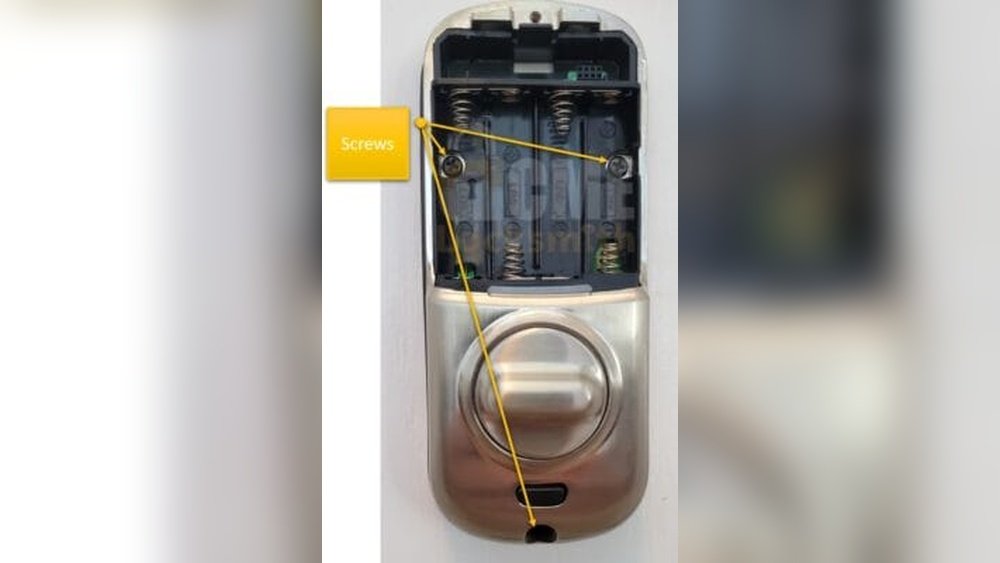
Find the battery cover on the inside part of the lock. Usually, it is on the interior side of the door. Slide or lift the cover gently to avoid damage.
Removing the battery cover reveals the batteries and the reset button. This step is essential to access the reset controls. Handle the lock carefully during this process.
Remove Batteries
Removing the batteries is the first step to reset your Yale lock for a new owner. This step ensures the lock powers down completely. It allows you to start fresh with the reset process. Handle the batteries carefully to avoid damage to the lock or battery compartment.
Slide Off Battery Cover
Locate the battery cover on the inside part of the lock. It usually slides down or lifts off easily. Use your fingers to slide the cover gently. Avoid using sharp tools to prevent scratching or breaking the cover. Set the cover aside safely for later use.
Take Out All Batteries
Once the battery cover is removed, you will see the batteries inside. Carefully lift each battery out, one by one. Make sure to remove all batteries to cut the power completely. Check the battery compartment for any dirt or corrosion. Clean it if needed before reinserting new batteries or performing a reset.
Access Reset Button
Accessing the reset button is the first key step to reset your Yale lock for a new owner. The reset button allows you to clear old settings and prepare the lock for new programming. It is usually hidden to prevent accidental resets. Knowing its exact location and how to use it helps you reset your lock quickly and safely.
Most Yale locks require a physical interaction with the reset button, often found inside the lock’s interior side. This process involves pressing and holding the button while powering the lock, ensuring it enters the reset mode. Follow these simple steps to find and use the reset button correctly.
Find Button Location
Remove the battery cover on the inside of the lock. Look for a small round button near the battery compartment. This button is often labeled “Reset” or is recessed to avoid accidental pressing. Some models place it near the cable connector or under a small flap. Use a flashlight if needed to spot it clearly.
Press And Hold Reset Button
Press and hold the reset button firmly with a pointed object like a pen. While holding it, insert the batteries back into the compartment. Keep holding the button for about 10 to 15 seconds until the lock beeps or flashes. This indicates the lock is resetting. Release the button and wait for the lock to complete the reset process.
Credit: www.gearbrain.com
Reinsert Batteries
Reinserting the batteries is a key step in resetting your Yale lock for a new owner. This process helps the lock recognize the reset command and prepares it for new settings. Always use fresh batteries to avoid any power issues during reset. Proper battery reinsertion ensures the lock powers on correctly and responds to reset instructions.
Hold Reset Button While Reinstalling
Locate the reset button inside the battery compartment of your Yale lock. Press and hold this button firmly. While holding the reset button, carefully place the batteries back into their slots. Keep the button pressed until the lock begins the reset process. This step clears previous owner settings and prepares the lock for new use.
Listen For Confirmation Sound
After reinserting the batteries and holding the reset button, listen closely. A beep or chime signals the lock has accepted the reset command. This sound confirms the lock is now ready for new programming. If you do not hear the sound, repeat the process to ensure the reset completes properly.
Reassemble Lock
After completing the reset process, reassembling the Yale lock is essential. This step ensures the lock functions correctly for the new owner. Proper reassembly protects internal parts and maintains the lock’s security features. Take your time to fit all components carefully. Avoid forcing parts together to prevent damage.
Replace Battery Cover
Start by placing the battery cover back onto the lock. Align it properly with the battery compartment. Press gently until it clicks or fits snugly. The cover keeps the batteries secure and protects them from dust. A loose cover can cause power issues or damage.
Secure Screws If Needed
Check if your lock model uses screws to hold the cover in place. If yes, use a screwdriver to tighten them carefully. Do not overtighten, as this may strip the screw holes. Tight screws keep the lock stable and prevent parts from shifting. Confirm all screws are in place before finishing.
Set New Master Code
Setting a new master code is essential for securing your Yale lock after resetting it. This code controls access and manages other user codes. Choose a code that only you know and can easily remember.
The process to set the new code is simple. The lock will guide you through each step with clear prompts. Pay close attention to these prompts to avoid mistakes.
Follow Lock Prompt
Turn on the keypad by pressing any button. The lock will display instructions on the screen. Enter the current master code if required. Next, press the “” key to start setting a new code. Follow each step shown on the screen carefully. The lock will ask you to enter the new code twice. This confirms you entered it correctly.
Do not rush the process. Take your time to avoid errors. If you make a mistake, the lock will notify you to try again. After confirmation, the lock saves your new master code securely.
Create Strong Master Code
Use a code with at least six digits. Avoid simple numbers like 123456 or repeating digits. Mix different numbers to make it harder to guess. Do not use your birthdate or common sequences. A strong code protects your home better.
Write down your new code and keep it in a safe place. Share it only with trusted people. Change your master code regularly for extra security.
Reset Using Yale Access App
Resetting your Yale lock using the Yale Access App is an easy and quick way to prepare it for a new owner. The app guides you through the process with clear steps. This method removes all previous settings and codes, allowing the new user to start fresh.
Using the app means you do not need to open the lock or find the reset button manually. It is all done via your smartphone, making it convenient and safe.
Open App And Select Lock
Start by opening the Yale Access App on your phone. Make sure you are logged in with the owner’s account. From the home screen, find your lock listed under “My Locks” or “Keychain.” Tap on the lock you want to reset.
Navigate To Factory Reset Option
Inside the lock’s settings menu, look for an option called “Factory Reset” or “Reset Lock.” This setting may be under “Advanced Settings” or “Lock Settings.” Select the factory reset option to proceed.
Confirm Reset
The app will ask you to confirm the factory reset. Confirm your choice carefully. The lock will erase all user codes and settings. After confirmation, wait for the app to complete the reset process. The lock is now ready for the new owner.

Credit: www.youtube.com
Transfer Ownership Tips
Transferring ownership of a Yale lock requires careful preparation. This ensures the new owner gains full control without issues. Follow these tips to reset the lock properly and avoid access problems. Clear previous settings and remove old accounts first. This keeps the lock secure and ready for new use.
Factory Reset Before Transfer
Perform a factory reset to erase all previous data. Locate the reset button inside the lock, usually behind the battery cover. Hold this button while reinserting the batteries. Keep it pressed for about 10 seconds until the lock beeps. This step clears all user codes and settings. The lock returns to its original factory condition. It is essential before handing over the lock to a new owner. Without this, previous users might still have access.
Remove Lock From Previous Account
Remove the lock from the original owner’s app account. Open the Yale Access app and select the lock device. Navigate to the lock’s settings or keychain section. Choose the option to unregister or remove the lock. This disconnects the lock from the old owner’s digital profile. The new owner can then add the lock to their account easily. This step prevents confusion and access conflicts. Always verify the lock shows as unregistered before transfer.
Model-specific Instructions
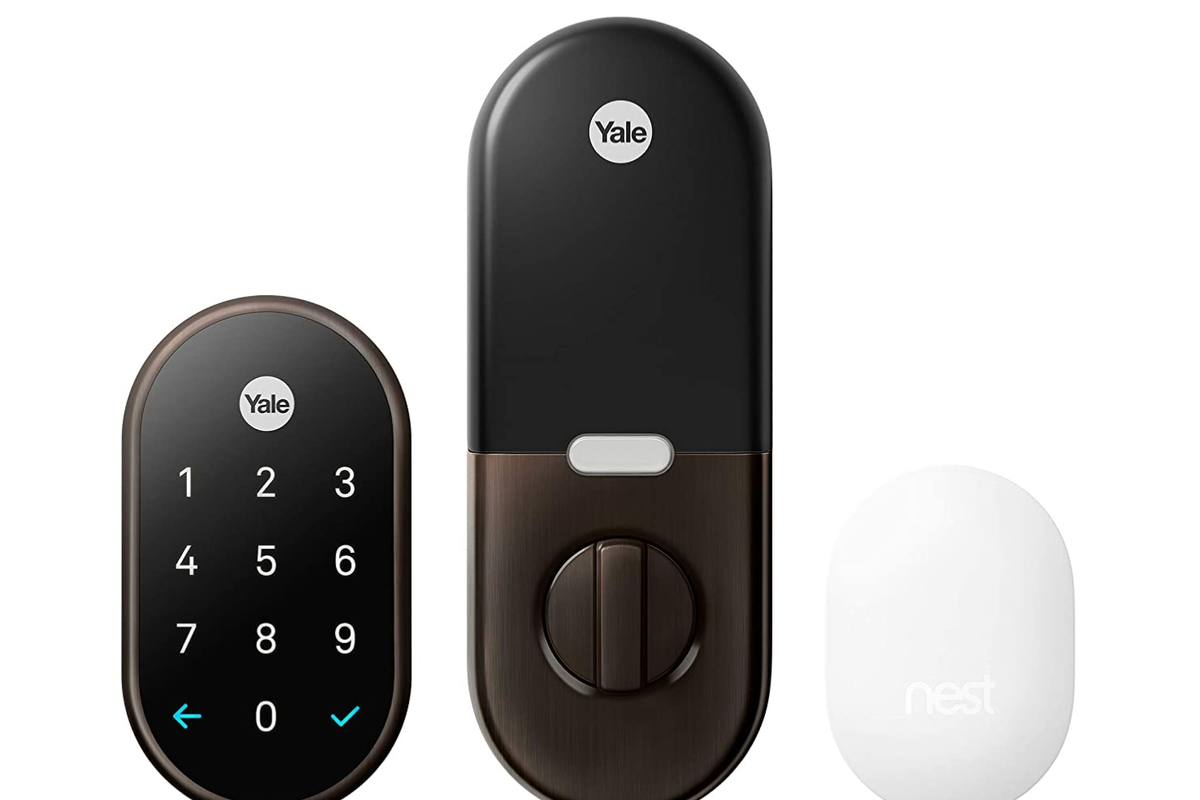
Resetting a Yale lock varies by model. Each model has its own reset steps. Following the right instructions ensures a smooth reset. This section covers key Yale lock models. Learn how to reset Nest x Yale, Yale Assure, and Z-Wave locks.
Nest X Yale Lock Reset
Remove the battery cover on the inside of the lock. Find the small reset button near the cable connector. Hold the reset button down. While holding it, reinsert the batteries carefully. Keep pressing the button for about 10 seconds. The lock will beep, confirming the reset. Release the button and wait for the lock to restart. The lock is now reset and ready for new setup.
Yale Assure Lock Reset
Open the battery compartment on the interior side. Locate the reset button inside, near the batteries. Press and hold the reset button. While holding, insert the batteries back. Continue holding the button until you hear a beep. The lock will flash to show it reset. Release the button and close the battery cover. Your Yale Assure lock is reset to factory settings.
Z-wave Lock Reset
Access the inside of the lock by removing the battery cover. Look for the reset button near the battery pack. Press and hold the reset button firmly. Insert the batteries while holding the button down. Keep holding for 10 seconds or until a beep sounds. The lock will restart and reset itself. Let go of the button and close the cover. Your Z-Wave lock has been reset successfully.

Credit: www.ebay.com
Troubleshooting Reset Issues
Resetting a Yale lock can sometimes be tricky for new owners. Troubleshooting reset problems helps ensure a smooth setup. This section covers common reset issues and simple fixes. Follow these steps to solve typical problems fast and easy.
Reset Button Not Responding
Check the battery power first. Low battery can stop the reset button from working. Remove and replace with fresh batteries. Make sure you press the reset button firmly and hold it for the full time. The button is often inside the lock, under the battery cover. Clean the area if dirt blocks the button. If the button still does not work, try a soft reset by removing batteries for a few minutes.
Lock Not Prompting For Code
Ensure the lock is in reset mode. Press the reset button while reinserting batteries to enter reset mode. If the lock does not beep or flash lights, the reset did not start. Double-check battery placement and contact points. Sometimes, the lock needs a few seconds after power on. Try pressing the reset button again. If no prompt appears, the lock may need a full factory reset using the manual method from the user guide.
App Reset Fails
Confirm the lock is connected to the app via Bluetooth or Wi-Fi. A weak connection can cause reset failure. Restart your phone and the Yale app. Log out and log back in before retrying the reset. Delete and reinstall the app if problems continue. Make sure the lock firmware is updated in the app. If reset still fails, use the physical reset button on the lock as a backup method.
Frequently Asked Questions
How Do I Reset My Yale Lock From Previous Owner?
Remove the battery cover and batteries. Hold the reset button inside while reinserting batteries. Replace cover and set a new master code. Use Yale Access app for factory reset if linked to your account.
How Do I Transfer My Yale Lock To A New Owner?
To transfer your Yale lock, perform a factory reset first. Remove batteries, hold the reset button, reinsert batteries, then set a new master code. This clears previous data, allowing the new owner to register the lock. Use the Yale Access app if the lock is linked to your account.
How To Unregister Yale Lock?
Open the Yale Access app and select your lock. Go to Guest List and tap “REMOVE SELF” to unregister the lock from your account.
How To Reset Yale Lock For New Owner Reddit?
To reset a Yale lock for a new owner, remove batteries and hold the reset button. Reinsert batteries while holding it. Release button after hearing a confirmation tone. The lock resets and prompts for a new master code. Use the Yale Access app for app-based reset if linked.
How Do I Reset A Yale Lock For A New Owner?
Remove the battery cover, press and hold the reset button, then reinsert the batteries until it resets.
Conclusion
Resetting a Yale lock for a new owner is simple and quick. Follow the steps carefully to ensure success. Removing old settings protects your security. Always double-check the reset before handing over the lock. This process helps the new owner set up their own codes.
Keep your instructions handy for future reference. A properly reset lock means peace of mind for everyone.