
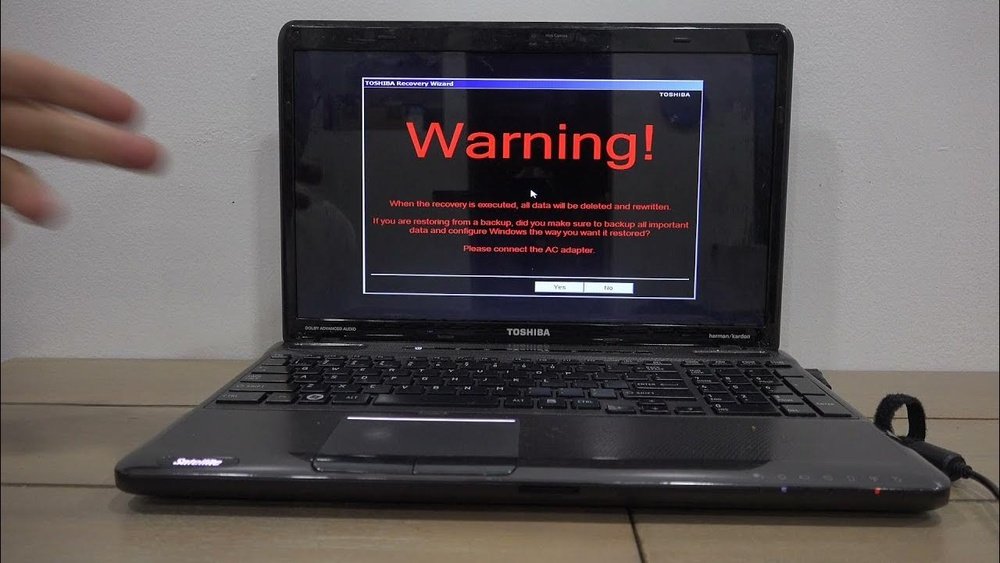
Is your Toshiba laptop running slow, freezing, or cluttered with files you no longer need? Resetting it to factory settings can breathe new life into your device, making it run like new again.
But how exactly do you do that without losing important data or causing more problems? In this guide, you’ll discover simple, step-by-step instructions to safely reset your Toshiba laptop back to its original state. Whether you want to fix issues, prepare your laptop for a fresh start, or get it ready for a new owner, this article will walk you through everything you need to know.
Keep reading to regain full control of your Toshiba laptop today!
Prepare For Reset
Before resetting your Toshiba laptop to factory settings, some key steps are necessary. Preparing properly ensures a smooth and safe reset process. These steps help protect your data and avoid interruptions during reset.
Backing up important files is crucial. Also, check that your laptop has a steady power connection. These simple actions save time and prevent problems.
Backup Important Files
Factory reset deletes all data on your laptop. Save important documents, photos, and videos first. Use an external hard drive or cloud storage for backups. Double-check that all critical files are copied. This step prevents loss of valuable information.
Ensure Power Connection
Connect your Toshiba laptop to a power source before starting. A full battery might not last through the reset. Power loss during reset can cause errors or damage. Use the original charger and a reliable outlet. This keeps the reset process stable and safe.
Credit: www.drivereasy.com
Using Toshiba Recovery Partition
The Toshiba Recovery Partition offers a simple way to reset your laptop. It restores the device to its original factory condition. This method does not need any external media like DVDs or USB drives. The recovery partition stores all necessary files for the reset process. Using it can fix software problems or prepare your laptop for a fresh start.
Access Recovery Mode
Turn off your Toshiba laptop completely. Press the power button, then immediately press and hold the 0 (zero) key. Keep holding it until the recovery screen appears. This step opens the Toshiba Recovery environment safely.
Select Language And Keyboard
On the recovery screen, choose your preferred language. Select the keyboard layout that matches your device. This ensures all instructions and inputs work correctly during the reset process.
Launch Recovery Wizard
Look for the option named “Toshiba Recovery Wizard” or similar. Click it to start the recovery process. The wizard will guide you through the steps needed to reset your laptop.
Choose Factory Reset Option
In the wizard, pick the option to restore your laptop to factory settings. This choice deletes all personal data and reinstalls the original software. Confirm your selection to continue.
Follow On-screen Instructions
Carefully read and follow each instruction shown on the screen. The process may take some time to complete. Do not turn off the laptop until the reset finishes. After completion, your Toshiba laptop will restart like new.
Reset Via Windows Settings
Resetting your Toshiba laptop via Windows Settings is a simple and effective way to restore your device. This method uses built-in Windows tools to return the laptop to its original factory condition. It wipes out personal files and apps, so save important data first. Follow these steps carefully to complete the reset safely.
Open Advanced Startup
Click the Start menu on your Toshiba laptop. Select the Power button. Hold down the Shift key and click Restart. Your laptop will reboot into the Advanced Startup options. This menu offers several recovery tools.
Navigate To Troubleshoot Menu
In the Advanced Startup screen, choose the Troubleshoot option. This menu helps fix problems or reset your PC. It gives access to reset and recovery features for your laptop.
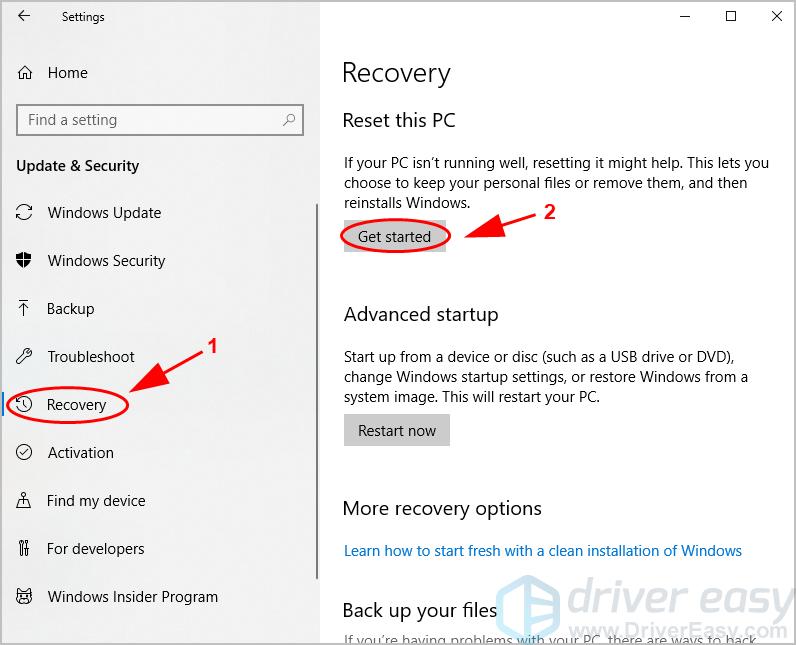
Select Reset This Pc
Inside the Troubleshoot menu, click Reset This PC. This option starts the process of restoring your laptop. You will be able to decide how much data to remove next.
Pick Full Reset Option
Choose Remove Everything to perform a full reset. This deletes all your files, apps, and settings. It restores the laptop to factory condition. This is ideal if you want a clean start.
Complete Reset Process
Follow the on-screen instructions to finish the reset. The laptop will restart several times. Do not turn off your device during this process. Once done, your Toshiba laptop will be like new.
:max_bytes(150000):strip_icc()/A2-FactoryResetaToshibaLaptop-annotated-8238d4bf28114b2d8f2a5d7bff482be8.jpg)
Credit: www.lifewire.com
Reset Without Login Access
Resetting your Toshiba laptop without login access is possible. This method helps if you forget your password or Windows won’t start properly. It allows you to restore your laptop to factory settings without signing in.
Using built-in recovery options, you can reset the device safely. Follow the steps carefully to avoid data loss. Always back up important files if possible before starting the reset.
Use Shift + Restart Method
Press and hold the Shift key on your keyboard. While holding it, click the Power icon on the login screen. Select Restart while still holding the Shift key. This will open the Windows Recovery Environment.
In the recovery menu, choose Troubleshoot. Then click on Reset this PC. Pick Remove everything to erase all personal files and settings. Follow the on-screen instructions to complete the factory reset.
Trigger Automatic Repair Screen
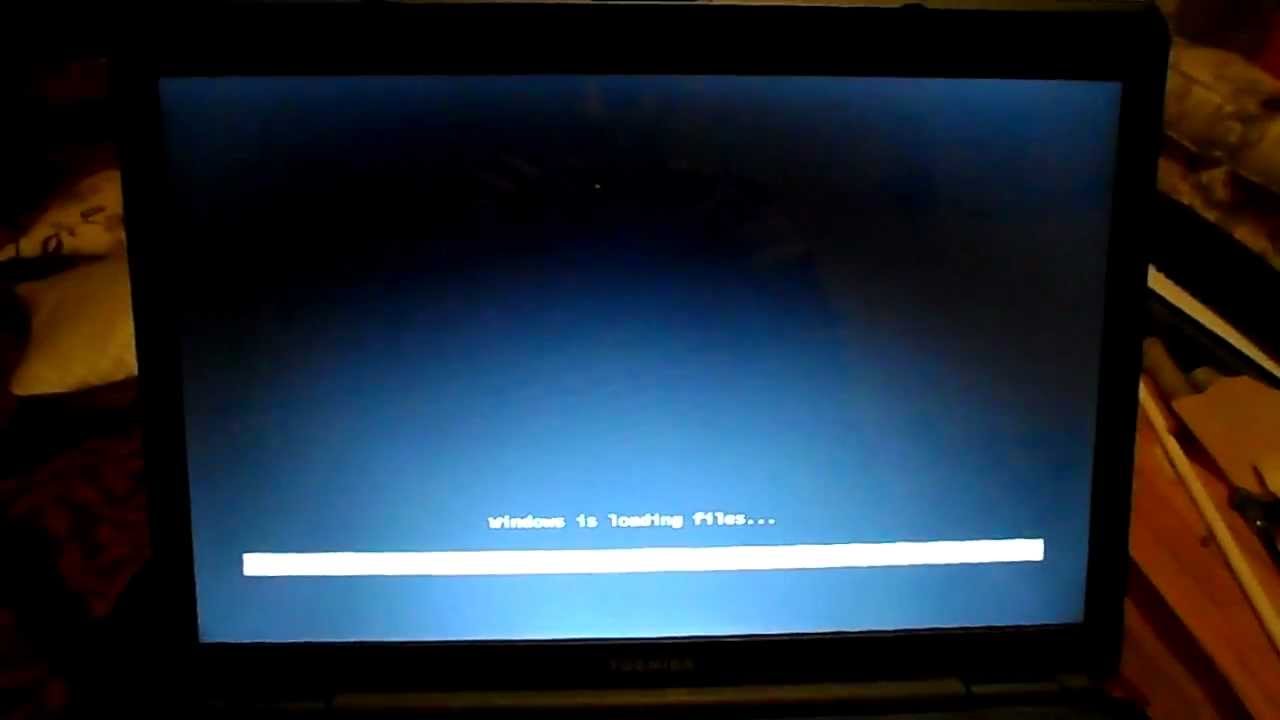
Turn off your Toshiba laptop completely. Turn it on and force shut down by holding the power button as soon as Windows starts loading. Repeat this two or three times. After repeated failures, Windows will enter Automatic Repair mode.
On the Automatic Repair screen, select Advanced options. Next, choose Troubleshoot and then Reset this PC. Select Remove everything to restore factory settings. Follow the prompts to finish the reset process.
Troubleshooting Reset Issues
Resetting a Toshiba laptop to factory settings usually runs smoothly. Sometimes, problems happen during the reset process. Troubleshooting reset issues can save time and avoid frustration. This section guides you through common problems and simple fixes. Follow these steps to get your laptop back to normal.
Fix Zero Key Boot Access
The Zero Key method helps start recovery on some Toshiba laptops. Pressing the “0” key while turning on the laptop triggers this mode. Sometimes, this method does not work. Check if the keyboard is connected properly. Use an external keyboard if needed.
Try holding the “0” key before pressing the power button. Keep holding it until the recovery screen appears. If nothing happens, reset the laptop by unplugging and removing the battery. Wait a few minutes, then try again.
Make sure the recovery partition is not deleted or damaged. Without this partition, the Zero Key method will fail. In that case, use recovery media like a USB or DVD created earlier. Contact Toshiba support for recovery media if you do not have one.
Handle Failed Reset Attempts
Failed reset attempts can occur for many reasons. Corrupted system files or hardware issues often cause failure. Restart your laptop and try the reset process again. Sometimes, a simple restart fixes the problem.
Run a disk check to repair damaged files. Use Command Prompt and type “chkdsk /f /r” to scan the hard drive. If errors are found, the tool will try to fix them.
Try booting into Safe Mode and perform the reset from there. To enter Safe Mode, press F8 or Shift + F8 during startup. Select “Safe Mode with Networking” and retry the reset.
If all else fails, use Toshiba recovery media or Windows installation media to reinstall the system. Remember to back up important files before starting any reset or reinstall process.
Post-reset Setup
After resetting your Toshiba laptop to factory settings, the post-reset setup is crucial. It prepares your device for regular use and restores your personal environment. This stage ensures your laptop runs smoothly and securely.
Completing the post-reset setup correctly saves time and avoids future issues. Focus on restoring your data and updating essential software. These steps bring your laptop back to full functionality.
Restore Backed-up Data
Begin by transferring your saved files back to the laptop. Use external drives or cloud storage to restore documents, photos, and videos. Check that all important files are correctly copied.
Reinstall applications you need for work or leisure. Avoid restoring unnecessary programs that might slow down your system. Organize files in folders for easy access.
Update Windows And Drivers
Next, update Windows to the latest version. Go to Settings > Update & Security > Windows Update and check for updates. Installing updates improves system security and performance.
Update device drivers for hardware like graphics cards, sound, and network adapters. Visit Toshiba’s support website to download official driver updates. Updated drivers help hardware work without errors.
Credit: www.youtube.com
Frequently Asked Questions
How Do I Reset A Toshiba Laptop To Factory Settings?
Back up your data and plug in the laptop. Restart and press 0 during boot. Follow Toshiba Recovery Wizard prompts to restore factory settings. Alternatively, use Windows Settings > Recovery > Reset this PC > Remove everything to factory reset your Toshiba laptop.
Is F11 Or F12 Factory Reset?
F11 key initiates a factory reset on many laptops, including some Toshiba models. F12 typically opens the boot menu, not reset.
How Do I Force My Laptop To Factory Reset?
To force a factory reset, back up data, plug in your laptop, then access recovery via Shift + Restart. Choose “Reset this PC,” select “Remove everything,” and follow prompts to restore factory settings.
Does Toshiba Have A Reset Button?
Toshiba devices generally do not have a dedicated reset button. Use system settings or recovery options to reset. For TVs, unplugging and holding the power button may perform a hard reset. Always back up data before resetting your Toshiba device.
How Do I Start A Factory Reset On My Toshiba Laptop?
Press the F8 key during startup, then select “Repair Your Computer” to access recovery options.
Conclusion
Resetting your Toshiba laptop to factory settings can fix many problems. Always back up your important files before starting. Keep your laptop plugged in during the process to avoid interruptions. Follow the recovery steps carefully to restore your device safely.
This method helps refresh your laptop and improve performance. Take your time and read each prompt on the screen. A factory reset gives your Toshiba a fresh start without extra tools. Now you are ready to reset with confidence and ease.