
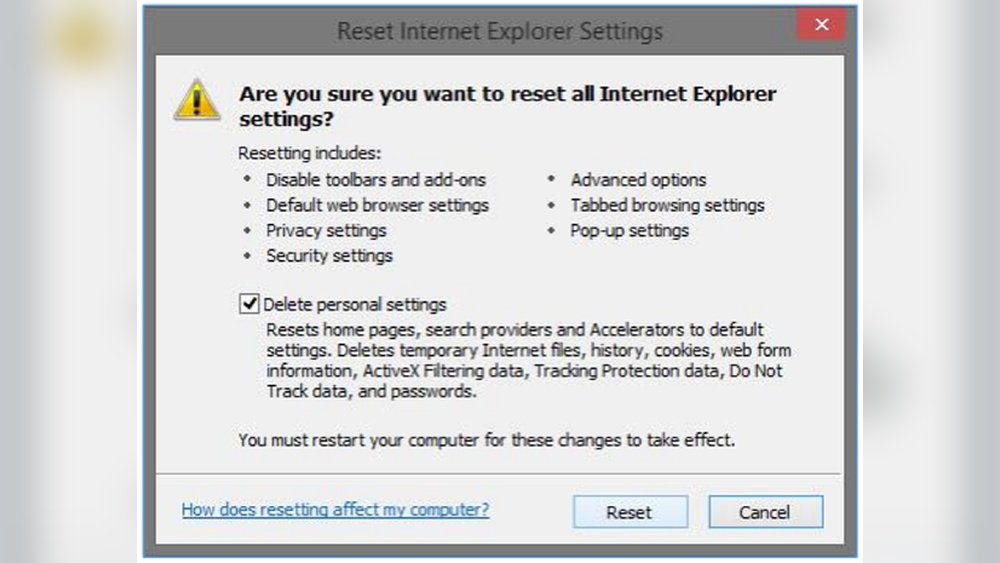
Is your web browser acting slow, freezing, or showing strange errors? Sometimes, the best way to fix these issues is to reset your browser to its original settings.
Resetting clears out unwanted changes, removes pesky extensions, and refreshes everything so your browser works like new again. In this guide, you’ll learn simple and effective steps to reset your web browser quickly and safely. Whether you use Chrome, Firefox, Safari, or Edge, following these tips will help you regain control and enjoy a smoother browsing experience.
Ready to fix your browser and get back to what matters? Let’s dive in!

Credit: www.wikihow.com
Resetting Browser Settings
Resetting browser settings can fix many issues like slow loading or unwanted toolbars. It returns your browser to the original state without deleting bookmarks or saved passwords. This helps remove errors caused by changed settings or extensions. Below are simple steps to reset popular browsers.
Resetting Chrome To Defaults
Open Chrome and click the three dots in the top-right corner. Select Settings from the menu. Scroll down and click Reset settings. Choose Restore settings to their original defaults. Confirm by clicking Reset settings. Chrome will reset homepage, new tab page, search engine, and pinned tabs.
Resetting Firefox And Edge
For Firefox, click the three horizontal lines in the top-right corner. Select Help then click Troubleshooting Information. Press the Refresh Firefox button. Confirm the reset to restore default settings.
In Edge, click the three dots in the top-right corner. Choose Settings and then Reset settings. Click Restore settings to their default values and confirm. Edge will reset startup page, new tab, search engine, and pinned tabs.
Resetting Safari
Open Safari and click Safari in the top menu bar. Choose Preferences and go to the Privacy tab. Click Manage Website Data and then Remove All. This clears cookies and cache. To reset other settings, go to the Extensions tab and uninstall unwanted extensions.

Credit: www.wikihow.com
Restarting Your Browser
Restarting your browser can fix many common issues like slow loading or page errors. It refreshes the browser’s memory and clears temporary problems. This process helps your browser run smoothly again. Below are simple methods to restart your browser on different systems and situations.
Full Restart On Windows And Mac
To fully restart your browser, close it completely first. On Windows, click the menu button and select Exit or Quit. Then, open the browser again from the Start menu or taskbar.
On a Mac, click the browser name in the top menu bar. Choose Quit, then reopen the browser from the Dock or Applications folder.
This method closes all tabs and clears temporary data. It is helpful for fixing many browser issues.
Fast Restart In Chrome
Chrome offers a quick way to restart without losing your open tabs. Type chrome://restart in the address bar and press Enter. Chrome will close and reopen all tabs automatically.
This fast restart saves time and keeps your browsing session intact. Use it whenever Chrome feels slow or unresponsive.
Force Quit For Frozen Browsers
If your browser freezes and does not respond, you may need to force quit it. On Windows, press Ctrl + Shift + Esc to open Task Manager. Find your browser in the list, select it, and click End Task.
On a Mac, press Cmd + Option + Esc to open Force Quit Applications. Select the browser and click Force Quit.
Force quitting stops the browser immediately, allowing you to restart it fresh. Use this only when the browser is unresponsive.
Refreshing Browser Pages
Refreshing browser pages helps load the latest content from websites. It clears temporary data stored by the browser. This action is useful when pages do not display updates or load incorrectly. Different types of refreshes exist to serve specific needs.
Normal Reload Vs Hard Refresh
A normal reload loads the page using stored cache files. Cached files make loading faster but may show outdated content. A hard refresh forces the browser to ignore cache and download fresh files. Hard refresh ensures you see the most recent version of a webpage.
Keyboard Shortcuts For Hard Refresh
Hard refresh shortcuts vary by browser and device. On Windows, press Ctrl + F5 or Ctrl + Shift + R. On Mac, use Cmd + Shift + R. These shortcuts quickly reload the page without using cache. They save time and avoid manual clearing of browser data.
Benefits Of Hard Refresh
Hard refresh solves issues with outdated or broken pages. It helps fix loading errors caused by corrupted cache files. Developers use it to test changes on websites instantly. Users get accurate and updated content without delay. This simple step improves browsing experience significantly.
Restoring Closed Tabs
Accidentally closing important tabs can disrupt your browsing flow. Restoring closed tabs brings back your lost pages fast. Browsers offer several ways to reopen tabs and recover your session. These methods save time and keep your work intact.
Keyboard Shortcuts To Reopen Tabs
Most browsers let you reopen a closed tab with simple keys. On Windows, press Ctrl + Shift + T. Mac users press Cmd + Shift + T. Each time you use this shortcut, the last closed tab appears. Repeat the shortcut to open multiple tabs in order. This quick trick works in Chrome, Firefox, Edge, and Safari.
Using History To Restore Sessions
Your browser records all visited pages in history. Open the history menu to find recently closed tabs and windows. In Chrome or Firefox, press Ctrl + H or Cmd + Y on Mac to open history. Select any page to reopen it. Some browsers also let you restore entire browsing sessions from history. This helps if you closed many tabs by mistake.
Setting Auto-restore On Startup
Browsers can reload your last session automatically. In Chrome, go to Settings > On Startup > Continue where you left off. Firefox has a similar option under Preferences > General > Restore previous session. Edge users find this in Settings > On Startup. Enable this to open your closed tabs every time you start the browser. This setting prevents losing tabs after restarting or crashes.
Improving Speed And Privacy
Resetting your web browser can greatly improve its speed and protect your privacy. Over time, browsers collect data and add extensions that slow down performance. Clearing this clutter helps the browser run smoother. Adjusting privacy settings also limits tracking and enhances security.
Clearing Cache And Cookies
Cache stores website data to load pages faster. Too much cached data can slow your browser. Cookies save your preferences but can track your activity. Clearing both frees space and removes tracking files. This simple step often speeds up browsing and protects privacy.
Managing Extensions And Plugins
Extensions add features but may use resources. Some can slow your browser or collect data. Review your extensions regularly and remove those you do not need. Disable or delete unwanted plugins to improve speed and reduce privacy risks.
Adjusting Privacy Settings
Browsers offer settings to control data sharing. You can block trackers, prevent third-party cookies, and enable Do Not Track requests. Tightening these settings limits who can see your online activity. This protects your information and can also speed up browsing by blocking unwanted content.

Credit: support.intego.com
Frequently Asked Questions
How Do You Reset Your Web Browser?
To reset your web browser, open Settings, find Reset options, select “Restore settings to default,” and confirm the reset.
How Do You Refresh And Reset The Browser?
To refresh, press Ctrl+R (Windows) or Cmd+R (Mac). For a hard refresh, use Ctrl+Shift+R or Cmd+Shift+R. To reset, open Settings > Reset > Restore settings to default, then confirm. Restart the browser to apply changes.
How Do You Restart Your Web Browser?
To restart your web browser, close it completely and reopen it. For Chrome, type chrome://restart in the address bar and press Enter to restart without losing tabs.
How To Restore Web Browsing?
Use Ctrl+Shift+T (Windows/Linux) or Cmd+Shift+T (Mac) to reopen closed tabs. Check History for “Restore Session. ” Enable auto-restore in Settings for recovering tabs after crashes or restarts.
How Do I Reset My Web Browser To Default Settings?
Open your browser settings, find the reset option, and select “Restore settings to default. ”
Conclusion
Resetting your web browser can fix many common issues quickly. It clears unwanted settings and speeds up browsing. Follow the simple steps outlined to restore default settings. This process helps protect your privacy and improve performance. Remember to back up important data before resetting.
Keep your browser updated for the best experience. A clean browser means smoother, safer internet use every day. Try resetting your browser when problems arise. It’s an easy way to start fresh and browse with confidence.