
To complete how to factory reset hp chromebook, sign out, hold Ctrl + Alt + Shift + R on the login screen, click Restart, then select Powerwash and click Continue. This wipe erases all local accounts and offline files in about two to five minutes, restoring your computer to its original factory state.
A reliable Wi-Fi network and a full battery decide whether this reset finishes smoothly. If your battery dies mid-wipe, the operating system can corrupt, leaving you with a blank screen. The single biggest mistake is forgetting to copy offline files. Anything saved inside your local “Downloads” folder disappears forever during the process.
This process isn’t for managed devices owned by a school or employer, since administrative restrictions block local wipes.
Steps to Factory Reset Your Chromebook

- Sign out of your current profile by clicking the bottom-right clock and selecting Sign out.
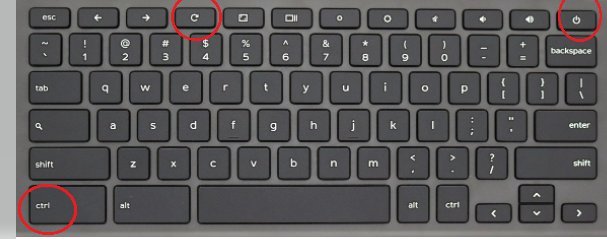
- Press and hold Ctrl + Alt + Shift + R together on your keyboard until a reset prompt appears on the display.
- Click Restart on the screen prompt to reboot the system into the wipe utility.
- Select Powerwash inside the center dialog box that appears after the restart. Tip: If you plan to sell the laptop, select the checkbox to update firmware if prompted.
- Click Continue to confirm the action and begin the internal storage wipe. Tip: Keep the power cable plugged in during the entire wipe to prevent sudden shutdowns.
- Wait 2 minutes while the system formats the drive and reboots into the initial setup screen.
If your Chromebook has a broken screen or damaged motherboard components, stop here and contact HP customer support or an authorized technician instead of attempting repeated system resets.
How Long It Takes
A standard reset takes just a few minutes, though the overall time depends on your machine’s hardware and drive capacity.
| Situation | How long | What changes it | What to watch for |
|---|---|---|---|
| Standard 32GB or 64GB HP Chromebook | 2 to 5 minutes | Internal eMMC storage speed | Screen flashing black briefly during reboot |
| Device with low remaining battery | 5 to 10 minutes | Charger output rate | Low-battery warning icon before reboot |
| Recovery mode via external USB drive | 10 to 15 minutes | USB drive read speed | Progress bar pausing near completion |
If the reset screen freezes for more than 20 minutes, hold down the physical Power button for 10 seconds to force a shut down, then restart the machine.
How to Tell When It’s Done

The process finishes when the screen displays the bright white “Welcome!” screen asking you to select your language and keyboard layout.
The one test that settles whether the wipe worked is checking the user list. If the screen shows previous user profile icons or saved network connections, the wipe didn’t complete. If it asks you to choose a network from scratch, the system is fully reset. Note that menu options vary slightly by model year—check your HP model label on the bottom case if buttons respond differently.
Mistakes That Ruin It
- Leaving files in the Downloads folder: Local files get permanently deleted because Powerwash purges internal storage drives entirely. Move important documents to Google Drive or an external flash drive before you begin.
- Resetting without connecting the charger: A sudden loss of battery power corrupts the system partition during formatting. Plug your HP laptop into wall power before pressing the shortcut keys.
- Confusing a normal restart with a hard reset: Clicking the restart button in the menu only reboots ChromeOS without clearing your personal data. You must use the shortcut keys or choose Powerwash in settings to wipe user accounts.
Frequently Asked Questions
Can I Factory Reset an HP Chromebook Without a Password?
Yes, you can do this from the initial login screen. Sign out of any active profile, press Ctrl + Alt + Shift + R, select Restart, and click Powerwash. This bypasses the account login entirely, wiping all existing accounts and stored files from the internal drive.
Why Does My HP Chromebook Say Reset Is Unavailable?
Your device is likely managed by an administrator at a school or company. Managed Chromebooks often have the Powerwash feature locked in their administrative policy. If you see an enterprise icon at the bottom of the sign-in screen, you must contact your organization’s IT administrator to unenroll it.
What Happens to Files Saved in Google Drive After a Reset?
Nothing happens to them because your Google Drive files live in cloud storage. A factory reset only erases local data stored inside the laptop’s internal hard drive, such as items in your “Downloads” folder. Once you sign back into your Google account, all cloud files reappear automatically.
Is It Safe to Factory Reset an HP Chromebook to Sell It?
Yes, it’s completely safe. Running a full Powerwash removes your personal information, saved browser passwords, cache, and profile tokens from the machine. Once the welcome screen appears, turn off the device so the new buyer can complete their own initial account setup.
How Do I Reset Using the Physical Buttons If My Keys Fail?
Turn off your device, hold down the Refresh key (circular arrow), and press the Power button. Release Refresh when the laptop boots up. When a recovery message appears on the screen, press Ctrl + D to enter recovery mode, then follow the prompts to complete the device wipe.
Related guides

1 thought on “How to Factory Reset HP Chromebook: Powerwash Your Device”