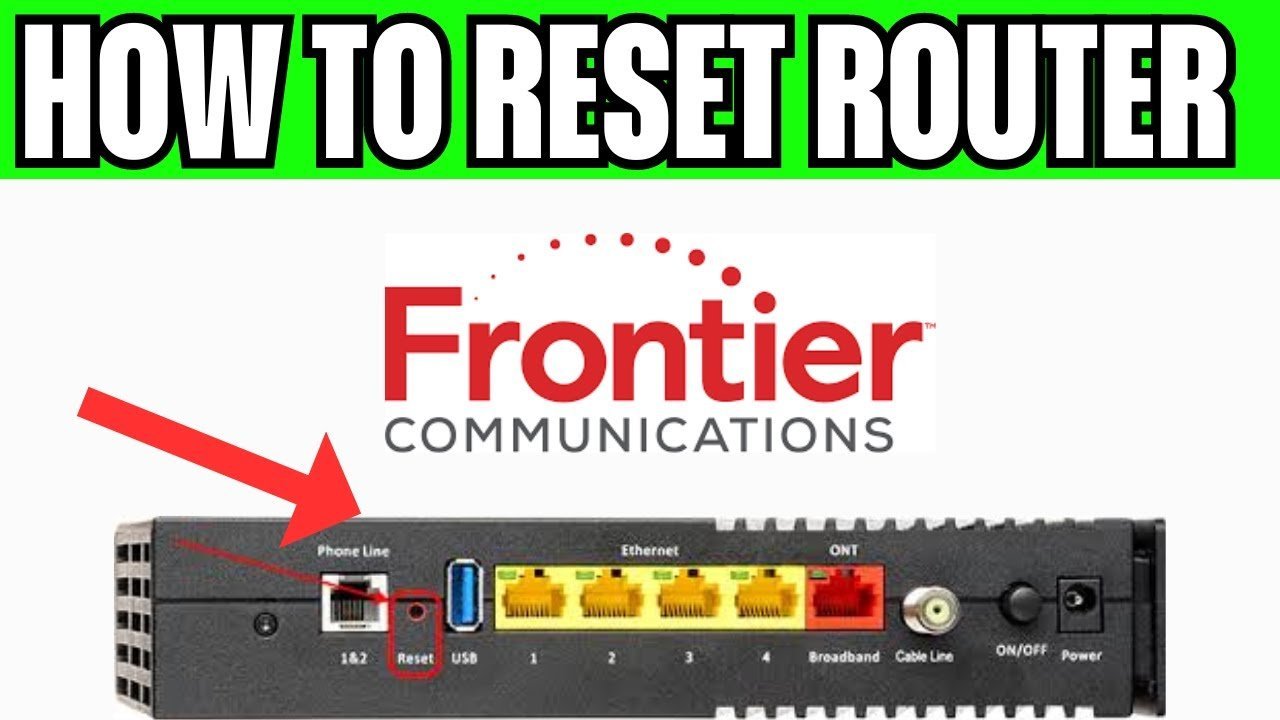
To perform how to reset frontier router equipment back to factory defaults, press and hold the pinhole Reset button on the back of the device for 10 to 15 seconds using a paperclip. Release the pinhole button once the front lights shut off, then wait roughly 3 to 5 minutes for the device to restart.
A factory reset wipes everything you configured: your custom Wi-Fi network name, your Wi-Fi password, and any custom firewall settings. If you only want to clear a temporary glitch, do a simple reboot instead by pulling the power plug; if you forgot the admin password, do the full reset.
This process isn’t for people with custom static IPs assigned by work IT departments who can’t set them up again. The biggest mistake is letting go of the button too early, which just restarts the device without clearing bad settings.
Steps to Reset Your Frontier Router

- Keep the Frontier router plugged into its power outlet with the power light glowing solid before you touch anything else.
- Locate the small hole labeled “Reset” on the back or bottom panel, beside the Ethernet ports. Tip: If you can’t find a straightened paperclip, use a standard SIM card ejector tool or a sturdy sewing pin instead.
- Push the tip of the tool into the reset hole until you feel the small internal switch click down and hold it firmly for 10 to 15 seconds.
- Release the button immediately when the status lights on the front panel blink together and shut off. Tip: Never unplug the power cable while the lights are flashing during the boot cycle, or you risk corrupting the firmware.
- Wait between 3 and 5 minutes while the router reloads its original software and locks on to your broadband connection.
- Check the factory sticker on the side of the unit to read your default Wi-Fi network name and pre-shared password to reconnect.
The trade-off here is clear: you fix connection bugs, but you’ll have to manually reconnect every phone, smart plug, and television in the house.
How Long It Takes
The table below covers typical wait times based on your starting setup and the hardware generation.
| Situation | How long | What changes it | What to watch for |
|---|---|---|---|
| Standard Fiber Gateway | 3 to 5 minutes | Fiber optical signal speed | Internet light turning solid green |
| Older DSL Gateway (e.g., Arris NVG) | 5 to 7 minutes | Copper line synchronization | Broadband light steady after slow red blink |
| Mesh Extender paired to router | 6 to 8 minutes | Wireless pairing handshakes | Status LED turning white or green |
If your status light continues blinking red after 10 minutes, verify your physical connection or follow the Frontier router setup steps to confirm the service line is active.
How to Tell When It’s Done
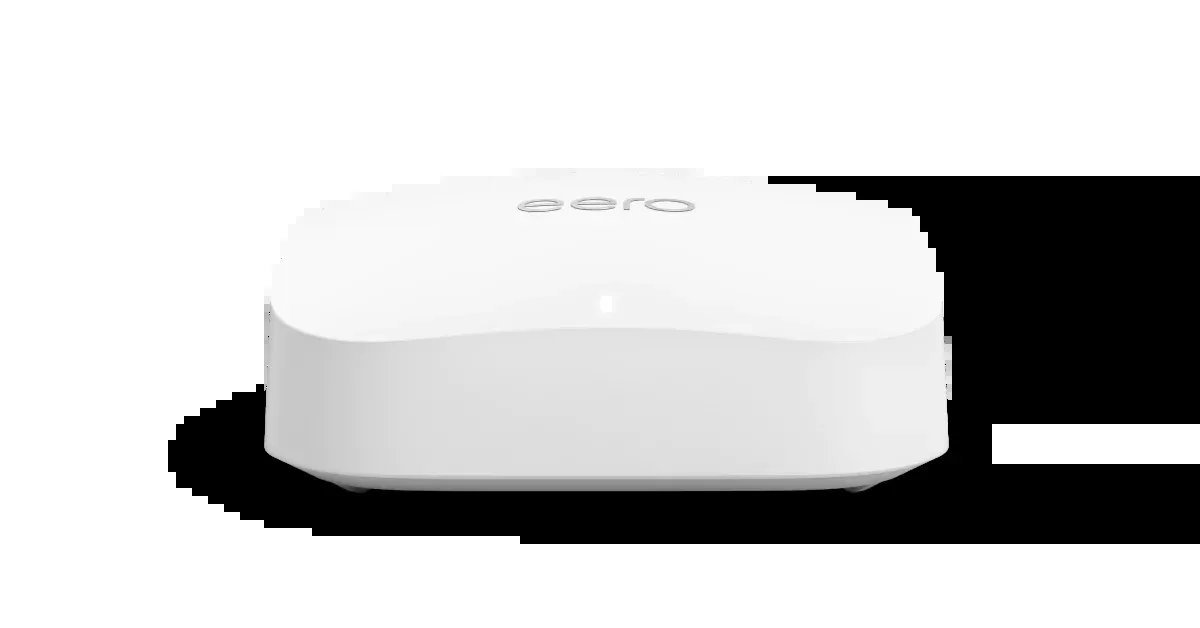
You know the reset finished when the power and internet status lights change from flashing orange or amber to solid green (or solid white on newer eero-based Frontier devices). This varies by model — check the label on your casing for the specific LED chart. The final test that settles whether the reset succeeded is checking your phone’s Wi-Fi list: your old personalized network name will disappear, and the original Frontier network name printed on the unit’s barcode label will appear.
Mistakes That Ruin It
- Pressing the button for only two seconds: The gateway simply reboots its active memory without erasing problematic settings. Hold the pin steady for a full 10 to 15 seconds so the factory restore triggers.
- Pulling the power cord during the restart: This interrupts the device while it writes core configuration files, potentially bricking the hardware. Leave the power cord untouched until all status LEDs settle into their final states.
- Losing the factory sticker details: You won’t be able to log back in if the original serial and password label is scratched off or unreadable. Take a clear photo of the factory sticker on the back before starting the wipe.
Can You Reset a Frontier Router Using the Admin Page?
Yes, you can initiate a reset through a web browser. Log in to the router’s local address (typically 192.168.254.254) using your current admin credentials, go to the Advanced or Utilities menu, and click the Restore Defaults button.
What Happens If the Internet Light Stays Red After Resetting?
A steady red light means the router can’t detect an incoming signal from the wall jack or Optical Network Terminal. Double-check that your Ethernet or coaxial cables are firmly clicked into place before calling technical support.
Is It Safe to Reset a Frontier Router During a Storm?
No, it isn’t recommended during active lightning storms. If your home loses electrical power while the router writes internal memory files during a reset, the firmware can become permanently damaged and require hardware replacement.
Why Won’t the Paperclip Press the Internal Button?
You may have missed the internal switch inside the casing. Angle your tool straight into the center of the opening until you feel a spring-like click; if you feel hard plastic with no give, adjust the angle.
Do You Have to Reconfigure Wi-Fi Passwords After a Reset?
Yes, all custom passwords revert to the factory-assigned key. You must either enter the original default password printed on the equipment label into your devices or log in to the admin panel to rebuild your previous network settings.
Related guides
- How to Reset PS Vita System to Factory Defaults Fast
- How to Reset TI 84 Plus CE: Simple Factory Default Guide
- How to Reset Computer From BIOS: Restore Factory Defaults