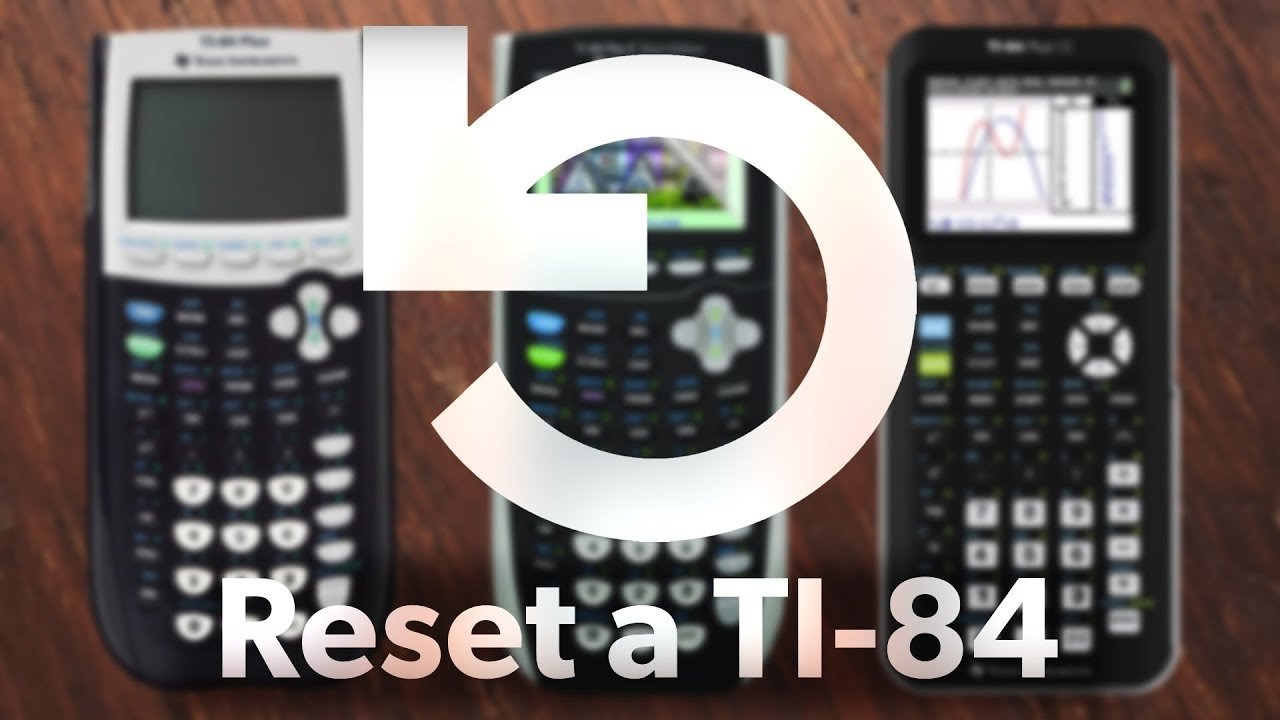
To reset graphing calculator devices like the TI-84 Plus, press the 2nd key, press the + key to open the memory menu, choose option 7 for Reset, select option 1 for All RAM, and press 2 to confirm. This clears stored variables and resets all system settings in about five seconds.
A RAM reset deletes your saved lists, matrices, and functions, but it leaves your installed applications safe. If you clear the entire archive memory instead, you wipe every third-party program and study app you downloaded, which costs you hours to reinstall.
This guide isn’t for people using basic four-function or standard scientific calculators, which just need a simple pinhole button press on the back. Remember that menus vary by brand and model, so always check your device’s casing if your screens don’t match these exact names.
Safely Resetting Your Graphing Calculator Memory

- Turn on the device by pressing the
ONbutton once at the bottom-left corner of the keypad. - Press the
2ndkey at the top left, then press the+key (which accessesMEM) to open the memory management menu. - Press
7on the numeric keypad to jump directly to the Reset submenu. - Press
1to select All RAM if you want to wipe working memory, or press the right arrow twice to select All if you need to wipe both RAM and ROM archive memory completely. Tip: If you need to clear the device for a standardized test, choose All RAM to keep your permitted operating apps safe while wiping forbidden cheat notes. - Press
2to select Reset from the confirmation prompt on the screen. Tip: The screen defaults to option1: NOto prevent accidents, so you must specifically select2to run the wipe. - Check official test guidelines from the College Board calculator policy before your exam, because test proctors require a full reset before you enter the testing room.
How Long It Takes
A standard reset takes only a few seconds, though restoring full factory defaults takes slightly longer.
| Situation | How long | What changes it | What to watch for |
|---|---|---|---|
| Standard RAM wipe | 3 to 5 seconds | Number of stored lists and variables | “RAM Cleared” message |
| Full factory memory wipe | 10 to 20 seconds | Total size of archived apps | Black progress bar on screen |
| Physical pinhole hardware reset | 2 to 4 seconds | How long you hold down the button | Brief screen flash and reboot |
If your screen freezes or stays blank for more than two minutes during a reset, remove one AAA battery, hold down the DEL key while putting the battery back in, and turn the unit on again.
How to Tell When It’s Done
The screen gives you an unmistakable visual confirmation when the process finishes successfully. On Texas Instruments units, the display shows the text “RAM Cleared” in clear black letters directly across the top half of the screen. Casio models show a simple “Reset!” or “Complete” alert. If your previous graph screen had a custom zoom, an easy test settles it: press WINDOW and verify the axis values have returned to the default -10 to 10 scale.
Mistakes That Ruin It

- Picking “All Memory” when you only need to clear RAM: This wipes your expensive purchased apps and custom programs, which costs you hours of downloading and cable syncing later. If you want a fast cleanup, pick RAM only; if you plan to sell the device, wipe All.
- Resetting with dying batteries: A power cut during a factory archive wipe can corrupt the base operating system and brick the device completely. Replace all four AAA cells or plug into a wall charger if the low-battery warning appears.
- Forgetting the contrast setting: After a deep hardware wipe, the screen contrast often drops to near zero, making the screen look dead. Press and release
2nd, then press and hold (or repeatedly press) theUParrow to darken the display again.
Frequently Asked Questions
Will Resetting Delete My Downloaded Games?
Yes, if you choose the full archive reset. A basic RAM reset preserves installed applications stored in the flash ROM archive. If you select “All Memory”, the unit wipes every game, app, and custom formula permanently from the device.
Can a Reset Damage the Operating System?
No, standard menu resets can’t damage the factory OS files. The built-in software protects the core system files from accidental removal. A problem only happens if the batteries die mid-wipe while writing new archive blocks.
Why Is My Screen Blank After a Reset?
Your screen contrast likely dropped to the lowest level during the memory wipe. The calculator is running, but the pixels are too light to see. Press and release the 2nd button, then press and hold the UP arrow key until text appears.
How Do I Reset a Casio Graphing Calculator?
Turn on the calculator and tap the MENU button. Use the arrow keys to highlight the SYSTEM icon, press EXE, press the F5 function key for reset, select F2 for main memory, and press F1 to confirm your choice.
What Happens to Angle Settings During a Reset?
The calculator returns to default factory mode instantly, which means angle settings revert to Radians instead of Degrees. You must press the MODE button, move down to the angle line, and manually switch back to Degree before math class.
Does My Graphing Calculator Have a Physical Reset Button on the Back?
Some models, like the TI-84 Plus CE and certain Casio units, feature a tiny reset button recessed on the back casing, though standard TI-84 Plus models do not. You need a paperclip or a mechanical pencil tip. Press and hold that button for two seconds to force a hardware restart when buttons freeze.