To reset an AT&T router, press and hold the red Reset button on the back of the gateway for at least 15 seconds until the front indicator lights turn off and flash. Release the button immediately, then wait up to 10 minutes for your broadband connection to reconnect fully.
A factory reset wipes your custom Wi-Fi name, network password, and port settings back to original factory defaults. If you only have slow speeds or temporary glitches, a simple power reboot is safer.
Holding that reset button erases every custom setup you built. This guide isn’t for people who need to keep static IP addresses or port-forwarding rules for home servers without a written backup.
Performing the Reset
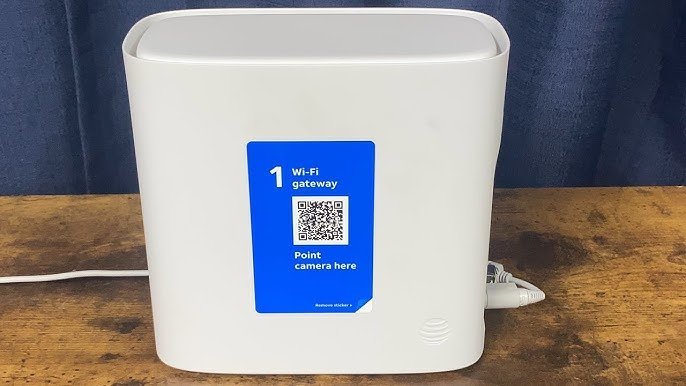
Follow these instructions to restore your gateway back to its original factory settings:
- Locate the red button marked Reset on the lower back panel of your Wi-Fi gateway.
- Press and hold the button down using an unfolded paperclip or pen tip for 15 seconds. Tip: If you let go before 15 seconds pass, the device only reboots instead of clearing its saved settings.
- Release the button once the status lights flash off and begin cycling through their reboot phase.
- Leave the device completely untouched for 10 to 15 minutes while the internal software reloads.
- Check the green or white Broadband and Service lights to confirm your connection is active again. Tip: Look at the sticker on your unit’s side to find the original factory Wi-Fi name and default security key.
- Reconnect your phone or computer to the default wireless network using the printed gateway credentials.
If your gateway lights stay solid red after 20 minutes, stop troubleshooting and contact AT&T support to replace a failed gateway or repair a damaged outside fiber line.
How Long It Takes
The complete restore process takes between 5 and 15 minutes depending on your hardware model and line connection type.
| Situation | How long | What changes it | What to watch for |
|---|---|---|---|
| Standard fiber gateway (e.g., BGW320) | 5 to 7 minutes | Optical network terminal sync speed | Solid white light on front panel |
| Older copper DSL gateway (e.g., NVG589) | 10 to 15 minutes | Dual-line broadband training time | Solid green Broadband 1 and 2 lights |
| Soft reboot via power cord pull | 3 to 5 minutes | Memory clearing without system wipe | Normal flashing before steady green |
If the setup takes longer than 20 minutes, unplug the black power cable for 20 seconds, plug it back in, and test your wall outlet.
How to Tell When It’s Done

You know the device finished its startup cycle when the front indicator lights stop blinking rapidly and settle into a continuous state. On modern BGW320 gateways, the light shines solid white. On older black gateways like the BGW200 or NVG series, both the Broadband and Service indicators glow solid green. You can verify your connection status by checking the official AT&T gateway reset steps to match specific LED patterns. Open a web browser on any connected phone or tablet; if a website loads without sending you to an activation portal, the task is complete.
Mistakes That Ruin It

- Releasing the reset button too early. Holding it for just 5 seconds restarts the power instead of wiping memory, which leaves persistent software bugs intact; press down for the full 15 seconds using a continuous push.
- Pulling the power cord during the wipe cycle. Interrupting a live system reset corrupts the firmware and can permanently break the unit; keep the electrical cord firmly connected until the front lights turn steady.
- Forgetting to record your custom Wi-Fi network name. When the router resets, every smart television, thermostat, and printer drops offline immediately; write down your existing network name and password first so you can rename the fresh network to match.
Frequently Asked Questions
Will Resetting My At&t Router Change My Wi-Fi Password?
Yes, it changes your password immediately back to the factory key printed on the gateway’s sticker. Any custom passwords you chose in the system app will disappear. You must reconnect all wireless devices using that printed default password, or log in to the admin panel to change it back.
What Happens If I Hold the Reset Button for 30 Seconds?
Holding the button for 30 seconds does the exact same thing as holding it for 15 seconds. It forces a complete factory restore without damaging the gateway hardware. The unit clears saved profiles, reloads standard factory settings, and downloads the newest firmware available from the network.
Why Is My At&t Router Light Blinking Red After a Reset?
A blinking red light means the gateway can’t detect a broadband signal from the wall jack. First, check that the green data cable or red ONT cable fits securely in the correct port. If the cables are tight and the light stays red after 15 minutes, AT&T has a service outage in your neighborhood.
Can I Reset My At&t Router Using the Smart Home Manager App?
Yes, you can restart your gateway directly through the Smart Home Manager app on your smartphone. Open the app, select the Network tab, choose your gateway, and tap Restart. This performs a basic power refresh, which fixes minor slowdowns without deleting your custom passwords or network settings.
Do I Need to Reactivate Service After a Factory Reset?
No, you don’t need to register your account again after a standard factory reset. The unit pulls your account authentication automatically through the broadband line. Once the status lights turn steady green or white, open your browser and use the internet normally.