Factory resetting a Dell computer takes about 30 to 60 minutes using the built-in Windows Recovery tool, and it completely wipes your system clean. This standard path suits owners who can still log into Windows and want to fix software bugs or wipe personal files before passing the PC to someone else.
What You Need Before Resetting Your Dell Computer
- Your official Dell AC power adapter (don’t attempt this on battery alone).
- An external USB flash drive or hard drive with at least 32 GB of space to store personal files you want to keep.
- Your Microsoft account email and password, which you must enter during the setup screen.
- A stable home Wi-Fi network or an active Ethernet cable plugged directly into the machine.
- Any active BitLocker recovery key, printed out or saved on another device like your phone.
Using Dell’s built-in SupportAssist OS Recovery works if you can’t boot Windows, but running a third-party drive wiper doesn’t preserve your original factory drivers.
Step-by-Step
- Back up every essential file to your external drive or cloud storage before you touch any settings, because this process permanently wipes your personal data.
- Plug your computer into wall power using its official adapter so the machine doesn’t die mid-process. Careful: If the battery runs out during the wipe, the operating system can corrupt completely and force a manual drive replacement.
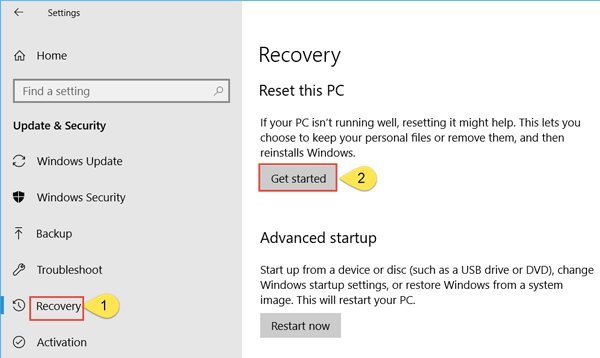
- Click the Start button, select the Settings gear, click on System, and choose Recovery from the right-hand menu.
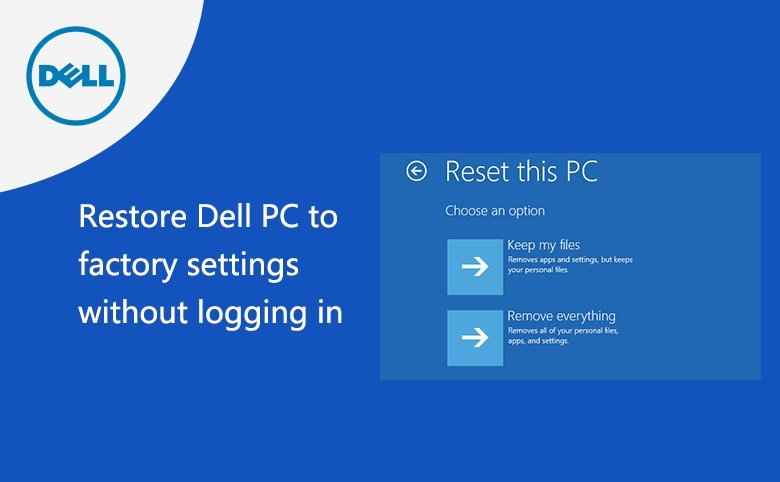
- Select the Reset PC button located next to the “Reset this PC” option to open the blue recovery window.
- Choose Remove everything to clean the drive entirely, which is the necessary choice if you plan to sell or donate the computer.
- Select Local reinstall to reinstall Windows directly from your local system drive in about 30 minutes, or pick Cloud download to fetch a fresh 4 GB copy if your current system files are badly damaged. Tip: If you pick Cloud download, expect it to take about 20 minutes longer depending on your internet speed.
- Click Change settings and switch “Clean data?” to Yes if you’re giving the PC away, then click Confirm.
- Review the final warning screen carefully, then click Reset to begin the wipe. This varies by model — check the label on older machines running Windows 10, where you must go to Update & Security instead of System. If your machine shuts down completely and won’t load any recovery screen, stop immediately and contact Dell Technical Support, as your internal storage drive may have failed physically.
Resetting Across Different Drive Conditions
The condition of your operating system changes how long the reset takes and which recovery tool you should launch.
| Situation | Estimated Time | What Changes | Watch Closely |
|---|---|---|---|
| Clean Windows login | 30 to 45 minutes | Uses standard local Windows settings | The reboot counter reaching 100% |
| System won’t boot | 45 to 60 minutes | Requires pressing F12 for SupportAssist | Storage self-test error codes |
| Cloud download reinstall | 50 to 80 minutes | Downloads 4 GB of fresh system files | Network dropouts during download |
| Full drive drive sanitization | 2 to 4 hours | Overwrites every sector with zeroes | Slow progress between 30% and 70% |
It’s safer to run a standard local reset first and verify system stability than to spend four hours overwriting sectors unless you’re actively handing the computer over to a stranger.
How to Tell You Did It Right
A successful reset finishes at the initial regional setup screen, commonly called the out-of-box experience, asking you to choose your country and keyboard layout. A failed reset loops back into the automatic repair screen or displays a blue screen error stating that a critical file is missing. Drive read errors cause this failure when Windows tries to write fresh files over damaged sectors. You can prevent this failure by running Dell’s hardware diagnostic scan before wiping, keeping the machine plugged into wall power, and removing all unnecessary external thumb drives or printers before clicking the final button.
Managing Data and System Standards
To ensure your personal files can’t be recovered by future owners, follow the media sanitization guidelines from the National Institute of Standards and Technology, which recommends a cryptographic erase or full drive overwrite for modern solid-state drives. Once Windows finishes reinstalling, shut down the computer directly at the setup screen if you plan to sell it. If you plan to keep using the PC, log in, open Dell Command | Update, and install any missing chipset drivers. A fresh install stays clean for years until software conflicts or clutter slow it down again.
Alternative Reset Methods
Dell Supportassist OS Recovery
Restart your PC and tap the F12 key repeatedly when the Dell logo appears. Select SupportAssist OS Recovery from the boot menu. This built-in hardware tool repairs startup files or downloads original factory drivers without booting into Windows, taking about 45 minutes.
Windows Recovery Environment
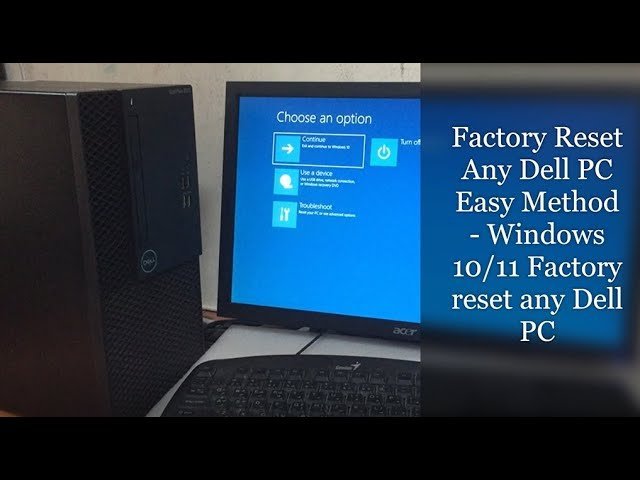
Hold the Shift key while clicking “Restart” on the Windows login screen. Your PC reboots into a blue troubleshooting menu. This method lets you run System Restore or access Command Prompt without using third-party software, usually taking 30 minutes to complete.
Clean Install via USB Media
Use Microsoft’s official Media Creation Tool on a separate PC to create a bootable 8 GB flash drive. This route wipes the entire drive, including manufacturer bloatware, giving you a completely pure Windows installation. It takes about an hour to configure drivers afterward.
Frequently Asked Questions
Will a Factory Reset Remove All My Personal Files?
Yes. If you choose the “Remove everything” option, the computer wipes your documents, photos, downloads, and custom settings. If you want to keep your documents while removing apps, select “Keep my files” instead during the reset prompt.
Can I Factory Reset a Dell Computer Without the Administrator Password?
Yes. Hold down the Shift key while clicking “Restart” on the login screen. When the blue options screen appears, select Troubleshoot, click Reset this PC, and pick Remove everything to wipe the machine without entering the old Windows password.
How Long Does a Dell Factory Reset Usually Take?
Between 30 and 60 minutes on most modern machines with solid-state drives. The process takes up to three hours if you enable the full drive-cleaning toggle, or if your machine uses an older mechanical hard drive.
Is It Safe to Turn Off My Dell During a Reset?
No. Cutting the power while Windows writes system files corrupts the boot partition. That mistake leaves you with an unbootable machine that requires a separate USB recovery drive to fix, costing you extra recovery time.
What Happens If the Reset Gets Stuck at a Certain Percentage?
Wait at least two hours before touching the PC, as complex drive operations can pause visually. If the screen stays frozen on the exact same number past two hours, hold the power button for 15 seconds to hard-reset the machine.
Does a Factory Reset Remove Computer Viruses?
Yes, in almost every normal situation. Wiping the drive removes malicious scripts, hidden trojans, and corrupted system files. Only rare, specialized firmware malware that infects the motherboard BIOS can survive a full drive wipe.