Press and hold Esc + Refresh + Power, tap Ctrl + D on the recovery screen, and press Enter to factory reset a school Chromebook and wipe the local drive in under 5 minutes. This keyboard shortcut clears offline files and local accounts immediately, returning the device to its factory software state.
The success of this reset depends on whether your school’s IT department left enrollment controls active. If the district manages the serial number through Google Workspace, the laptop automatically re-enrolls the moment it connects to Wi-Fi.
The biggest mistake is wiping the machine before copying local downloads to an external flash drive or Google Drive. A factory reset permanently erases every un-synced file in the internal storage, and nobody can recover those files afterward.
Resetting the Chromebook Hardware
- Turn off the Chromebook completely by holding down the Power button for 3 seconds.
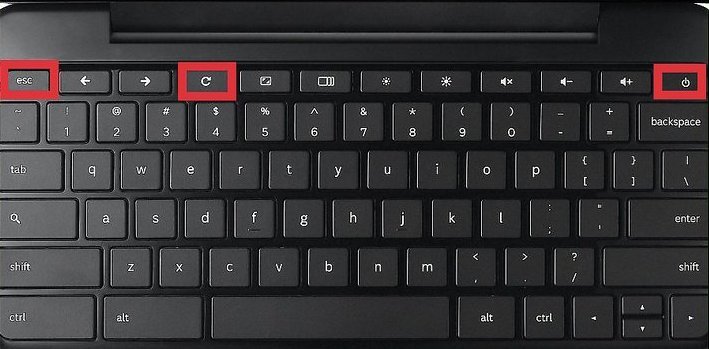
- Press and hold the Esc key and the Refresh key (the circular arrow), then press the Power button once while keeping the first two held down.
- Release all three keys when the screen turns on and displays a warning message that ChromeOS is missing or damaged.
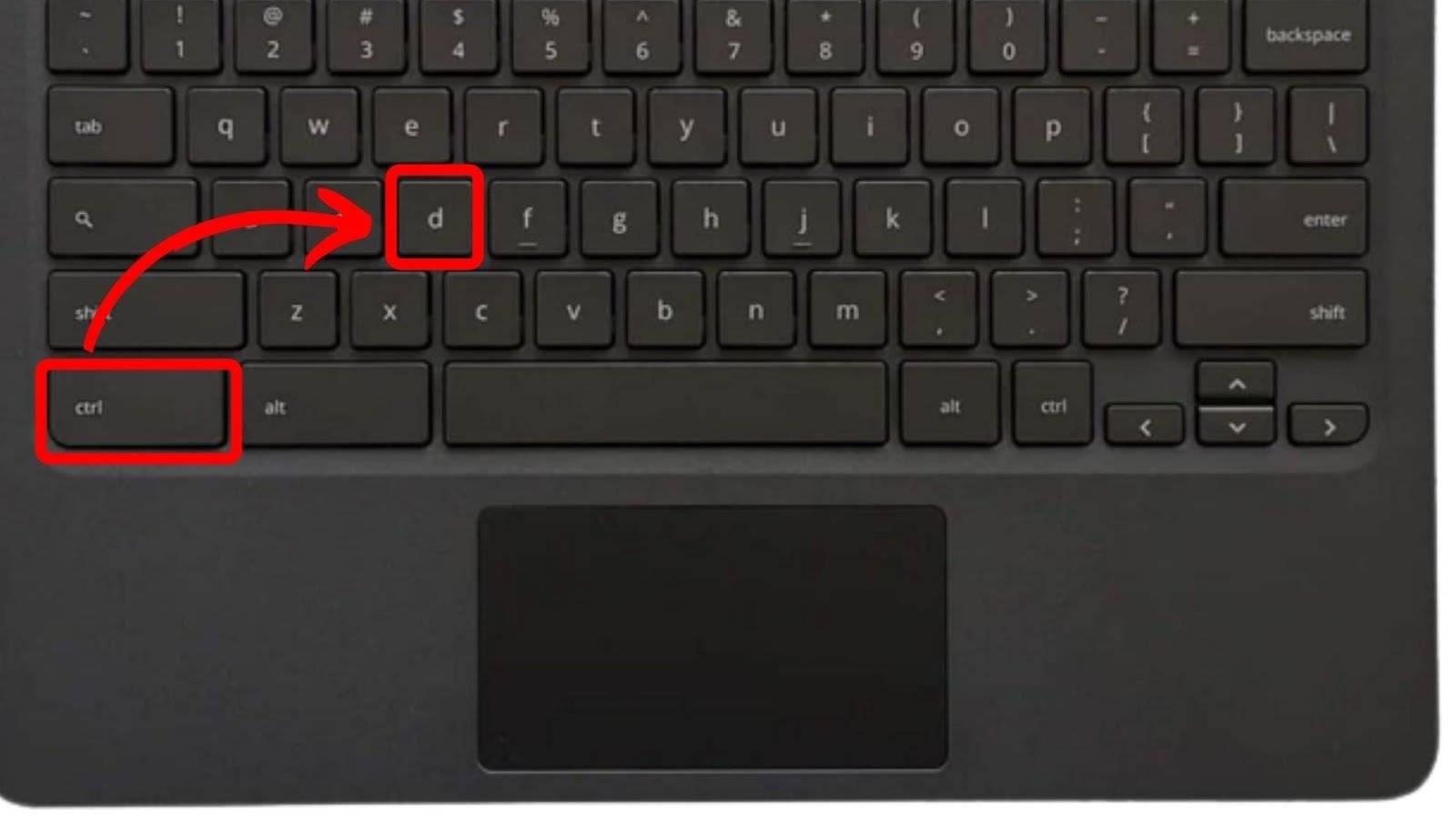
- Press Ctrl + D together on the keyboard at this warning screen to open developer options. Tip: If nothing happens when you press these keys, your school’s administrative policy has completely blocked manual developer access on hardware level.
- Press Enter when the screen asks you to confirm OS verification, which starts the data wipe process. Tip: Don’t close the lid or touch the power button during this transition, or you risk corrupting the internal flash storage.
- Press the Spacebar, then press Enter once the device restarts to turn OS verification back on and complete the setup.
If the school’s enrollment lock blocks you at step four, stop attempting hardware bypasses; take the laptop directly to your school’s IT administrator to request an official unenrollment.
How Long It Takes
A standard wipe runs quickly, though network speeds change how long setup takes after the reboot.
| Situation | How long | What changes it | What to watch for |
|---|---|---|---|
| Standard local wipe | 2 to 4 minutes | Internal drive read/write speed | Black screen during the auto-reboot |
| Wi-Fi re-enrollment | 1 to 3 minutes | School server response and signal strength | “Enterprise enrollment” prompt on screen |
| Full USB OS recovery | 10 to 15 minutes | USB drive speed and image download time | Progress bar stalling past 50 percent |
If the reset hangs on a blank screen for more than 15 minutes, plug in the original wall charger and perform a hard restart by holding Refresh and Power for 10 seconds.
How to Tell When It’s Done
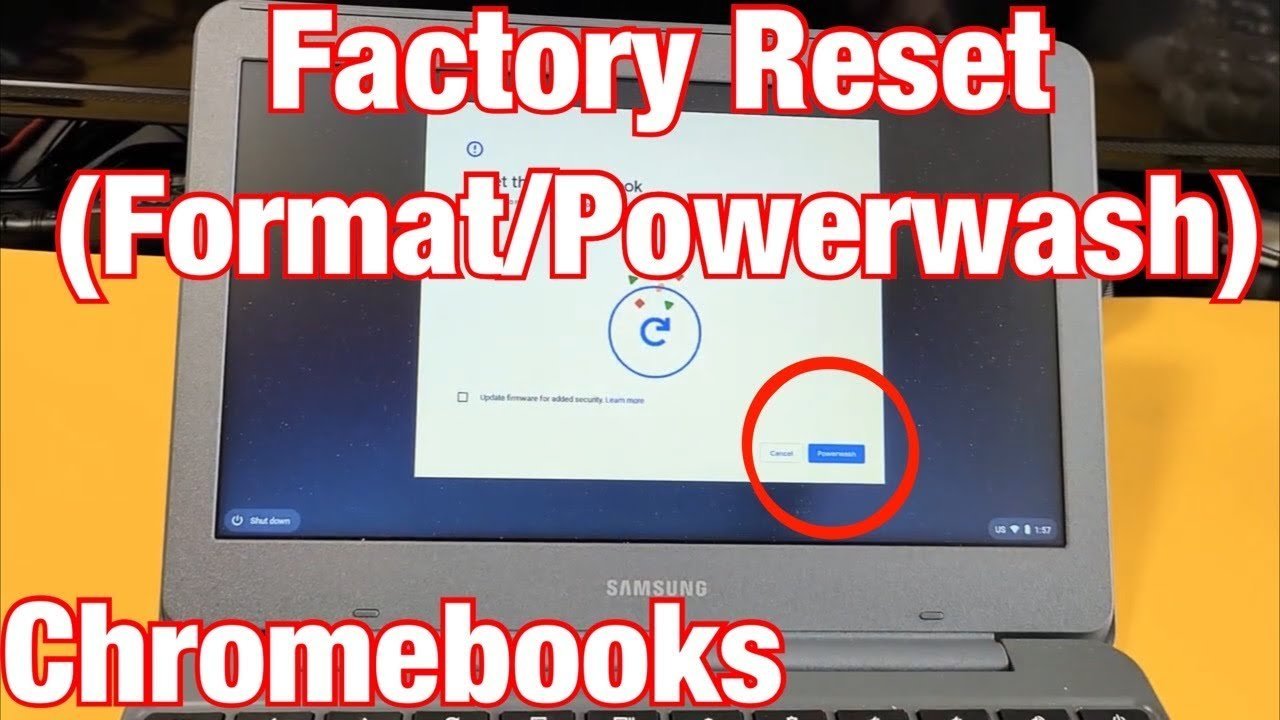
A successful reset lands directly on the initial “Welcome!” setup screen where ChromeOS asks for language and network options. If the school released ownership, you’ll see a normal personal Google login prompt after connecting to the internet. If the machine remains managed, a screen reading “Enterprise Enrollment” will appear automatically, requiring a district username and password to proceed.
Mistakes That Ruin It
- Wiping without checking for enterprise management: Students often reset a device expecting full freedom, but forced re-enrollment immediately locks them out of personal accounts. Check your lock screen for building management notices first, or you’ll lose access to your offline homework without gaining any system privileges.
- Interrupting power during the OS transition: Pulling the plug or letting the battery die while the drive wipes corrupts the system partition. Keep the device plugged into wall power so the reset finishes without bricking the motherboard.
- Skipping the local backup: Resetting clears the entire local “Downloads” folder without sending anything to the cloud. Move files to an external thumb drive before starting the wipe to avoid losing projects permanently.
Can You Remove School Management with a Factory Reset?
No. Factory resets clear only local user files and cached settings. The serial number remains registered with the school district’s management server, which forces the device to download management policies the second it connects to the internet.
Why Is Developer Mode Blocked on My Chromebook?
School administrators usually disable developer mode inside the central Google Admin console to keep systems secure. When this policy is active, the Esc + Refresh + Power shortcut either fails or displays a message saying the action is blocked by policy.
Is It Safe to Reset a School Chromebook at Home?
Yes, it’s physically safe, but it won’t bypass school firewalls or content filters. Once reconnected to your home network, the Chromebook downloads district settings, so you won’t gain unrestricted web access or permission to use personal accounts.
What Happens to My Google Drive Files After a Reset?
Nothing happens to files stored in Google Drive. A factory wipe only removes items kept inside the Chromebook’s internal “Downloads” folder, while all cloud documents, emails, and synced browser bookmarks reappear once you log back in.
Who Is This Reset Procedure Not For?
This process isn’t for students using active district laptops for everyday classwork. Resetting trades quick troubleshooting for lost local files, and it won’t remove district supervision. This method is only useful for fixing software bugs or preparing an officially purchased device for personal use.
Once the screen lights back up, you’ll need to reconnect to your home Wi-Fi and sign in with your personal Google account. If your school still manages the laptop, don’t worry. Just reach out to their IT help desk, and they’ll happily unenroll the device from their system for you.
Related guides