
Press and hold the front Xbox button for 6 seconds until the guide light shuts completely off. Release it, wait 5 seconds, and tap the button once to power it back up. This soft cycle clears temporary freeze states and resets the internal logic board.
A standard reset cuts the power feed to internal memory, clearing frozen logic loops without erasing custom profiles. It won’t fix worn plastic or stick drift from broken sensors; if your analog stick leans mechanically, you need hardware repair instead of software steps.
Skipping a clean console restart often ruins the process because the Xbox holds bad pairing data. If the wireless light keeps blinking after a cycle, you must pair the hardware again through the front sync buttons.
Resetting and Re-Pairing the Hardware
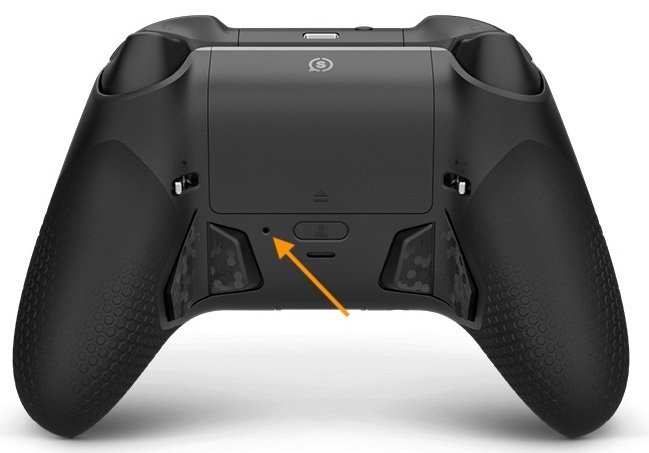
- Press and hold the Xbox button on the front face for 6 seconds until the central light turns dark.
- Remove the battery pack or AA batteries from the rear compartment and wait for 15 seconds. Tip: On Elite Series 2 controllers with built-in cells, skip removing the pack and simply leave the unit off for 15 seconds.
- Replace the batteries, then press the Xbox button once to power the pad back on.
- Press and hold the small circular Pair button on the top edge for 3 seconds until the Xbox symbol flashes rapidly.
- Press the matching Pair button on your console within 20 seconds to establish a fresh connection.
- Plug the controller into the Xbox using a USB-C cable if the wireless signal refuses to link, as detailed on the official Xbox support connection guide. Tip: If internal stick parts snap or buttons stick from spills, stop here because home resetting can’t repair mechanical damage; send it to Microsoft or an electronics repair shop.
How Long It Takes
Resetting takes under two minutes, though older hardware and weak batteries can stretch this process out.
| Situation | How long | What changes it | What to watch for |
|---|---|---|---|
| Power cycle | 15 to 25 seconds | Battery compartment access speed | Guide light going completely dark |
| Wireless re-sync | 10 to 30 seconds | Distance and radio interference | Slow flashing changing to rapid blinks |
| USB cable link | 5 to 10 seconds | Cable data rating and port wear | Solid glow without any button presses |
If the controller spends over three minutes flashing rapidly without finding your Xbox, power the main console down completely by holding its power button for 10 seconds.
How to Tell When It’s Done

A successful reset ends with a steady, solid white glow on the circular Xbox guide button. When the light stops flashing and stays lit, the controller communicates with the system. Move the left thumbstick across your dashboard tiles; if the selection box moves instantly across the screen with zero input lag, the link works. When the guide light stays solid but your on-screen cursor refuses to move, test the pad on a PC or check the Xbox Accessories app to confirm whether the device registers physical inputs.
Mistakes That Ruin It

- Leaving the battery pack inserted during a power cycle: Residual charge stays trapped inside the internal capacitors and stops the memory from clearing properly. Pull the battery doors and remove the cells for at least 15 seconds to drain remaining power.
- Using a charge-only USB cable for syncing: Cheap cords often lack data wires, which blocks the controller from passing setup tokens to the console. Swap to a tested USB data cable that supports file transfers.
- Ignoring low AA battery voltage: Low voltage drops the wireless signal mid-pairing and causes confusing light sequences. Insert brand-new alkaline batteries before you attempt a factory sync.
Frequently Asked Questions
Does Resetting the Controller Delete My Button Mappings?
No, a basic power reset doesn’t wipe button assignments. The Xbox Accessories app saves your button profiles directly to your console profile and cloud storage. Custom paddle layouts reload automatically the moment your gamepad establishes a fresh connection with the system.
Why Does My Controller Keep Blinking After a Reset?
Your controller blinks because it can’t locate a paired console signal. This happens when the console cache holds old connection data or local Wi-Fi causes radio interference. Tap the small sync buttons on both devices to rebuild the link.
Is There a Pinhole Reset Button on Modern Controllers?
No, standard Xbox wireless controllers don’t feature a physical pinhole reset button. You must hold the main guide button down for six seconds to force a power cut. Only select third-party wired controllers carry dedicated pinhole switches beneath their plastic shells.
Can a Firmware Update Reset a Controller?
Yes, running a firmware check often resolves deep software glitches that normal resets miss. Open your console settings, select Devices & Connections, and open the Xbox Accessories app. Connect a USB cable to update the controller software safely to the newest build.
What Happens If the Controller Vibrates Continuously?
A controller that vibrates non-stop suffers from a locked rumble command or water damage. Pull the batteries out immediately to prevent motor burnout. Allow the unit to sit unpowered for five minutes before inserting fresh batteries to clear the motor state.
1 thought on “How to Reset a Xbox Controller: Fix Connection Issues Fast”