To reset Anki deck cards, open the card browser, select your cards, and click “Forget” to turn them back into new cards within 10 seconds. This action clears review schedules immediately without touching card text. It suits learners who took an extended study break or inherited a pre-made collection.
What You’ll Need

- Anki desktop app, version 2.1.50 or newer, installed on Windows, macOS, or Linux.
- Your current card collection loaded in a working profile.
- An active keyboard with functional shortcut keys (Ctrl+A or Cmd+A).
- A fresh manual backup file exported to your local drive before you start.
Using Anki desktop works reliably for mass changes, but the mobile web interface doesn’t support bulk card state resets.
Step-by-Step
- Click Browse at the top of the main window or press the B key on your keyboard to open the card browser.
- Select your target deck from the left sidebar list by clicking its name once.
- Click inside the central card list area and press Ctrl+A on Windows or Cmd+A on Mac to select every single card in that deck.
- Click Cards in the top menu bar, then choose Forget from the dropdown menu (or press Ctrl+Alt+N on Windows, Cmd+Option+N on Mac). Tip: If you only want to clear review dates but keep your original card creation order, leave the “Restore original position” box checked inside the prompt dialog.
- Choose whether to reset the card ease factors back to the default 250% level, then click OK to apply the command immediately. Careful: Forgetting cards strips away all interval spacing; if you reset thousands of cards at once, your daily new card backlog will grow very fast.
- Click the close button in the top corner of the browser window to return to your main deck overview screen.
- Click Sync at the top right of your home screen to push the new scheduling status directly to your AnkiWeb cloud account.
Deck Size and Study Load
Resetting cards changes your daily study schedule depending on your collection size and current backlog.
| Study situation | Time to reset | Workflow difference | Metric to watch |
|---|---|---|---|
| Small vocabulary deck (under 300 cards) | 15 seconds | Resets in one batch without UI delay | New cards per day limit |
| Large exam deck (over 2,000 cards) | 1 to 2 minutes | Takes several seconds to process the batch | Daily review buildup |
| Lapsed card queue (long break) | 30 seconds | Targets only overdue cards using search filters | Ease factor percentage |
| Shared downloaded deck | 20 seconds | Clears previous owner history completely | Starting order queue |
It’s safer to reset 50 cards first to check your layout than to clear 5,000 cards at once and ruin your pace.
How to Tell You Did It Right
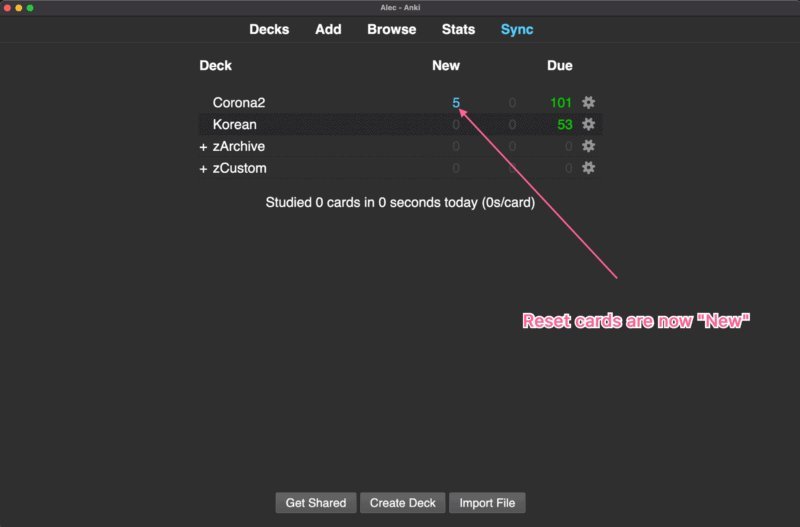
A successful reset turns all review intervals back to zero days, and their status changes to “New” with blue numbering on your main dashboard screen. An unsuccessful reset leaves cards in green “Review” or red “Learn” columns with old due dates attached. A frequent quality issue is card bunching, where hundreds of newly forgotten cards flood your daily study sessions simultaneously. This happens because the reset tool strips away learning intervals and dumps everything straight into your new card queue. To prevent this clutter, set a firm limit of 15 to 20 new cards per day in your deck options, tag difficult cards before resetting, and suspend cards you don’t plan to study this week.
Maintenance and Official Rules
The Anki manual explains that the Forget command changes cards back to new cards while preserving your past review logs in the collection statistics. This feature variation depends on your software version, so check your installed build under Help > About. Once you reset your cards, open the main menu, select Tools, and click Check Database to rebuild your collection indexes. You only need to run this complete reset procedure once per study cycle or after returning from an unmanaged multi-month break.
Alternative Card Management Routes

Suspend Unneeded Cards
Select your cards in the browser and press Ctrl+J to suspend them instead of clearing history. This hides difficult cards from daily study queues without erasing your spacing intervals or review stats, taking only 5 seconds.
Move Cards to a Sub-Deck
Create a temporary archive deck and drag the hardest cards into it. This isolates overwhelming reviews instantly, keeps your main deck clean, and lets you pull cards back slowly whenever your daily study schedule has room.
Change Maximum Review Intervals
Lower the maximum interval setting inside your deck options menu to 30 days. This forces overdue cards to appear more frequently without deleting their past ease factors or turning your entire deck back into new cards.
Frequently Asked Questions
Can I Undo an Anki Deck Reset?
Yes, you can undo it immediately by pressing Ctrl+Z on Windows or Cmd+Z on Mac right after using the browser tool. If you closed the application, restore your automatic backup via File > Switch Profile > Open Backup.
Will Resetting an Anki Deck Delete My Card Notes?
No, resetting only changes scheduling metadata and review intervals. Your card text, images, tags, audio files, and custom formatting remain intact inside your collection database.
What Is the Shortcut to Forget Cards in Anki?
Press Ctrl+Alt+N on Windows or Cmd+Option+N on Mac while your desired cards are selected inside the Anki card browser. A dialog box will pop up instantly to confirm your choice.
Does Resetting Cards Wipe My Study Heatmaps?
No, the action keeps your past review history logs saved in the database. Add-ons like Review Heatmap still count your previous study days, though the specific card intervals reset to zero.
Should I Reset Ease Factor When Forgetting Cards?
Yes, if you struggled with hard cards before taking a long break. Resetting the ease factor restores the default 250% interval multiplier, keeping cards from becoming permanently stuck in short review loops.
Can I Reset an Anki Deck on Ankimobile?
Yes, tap Browse, tap Select, choose your target cards, tap Actions at the bottom, and select Reset or Forget. It resets card scheduling immediately on your phone.
Give yourself a fresh start by setting a small daily goal in your options menu. It’s much easier to stick with your habit when you aren’t overwhelmed on day one. Take your time, enjoy the quiet routine, and let your memory build naturally as you move forward.