To complete how to factory reset ring doorbell, hold down the setup button for 20 seconds, release it, and wait about 60 seconds for the device light to flash and reboot. This clears your Wi-Fi details, clears custom settings, and returns the device to factory defaults.
The button location decides whether this goes smoothly. On older models, the orange button sits on the back of the casing, while newer battery versions place an orange or black button on the right side under the faceplate.
A frequent mistake is resetting the doorbell before removing it from your account. The reset erases local memory, but it doesn’t remove ownership, which prevents another person from setting it up until you release it.
Resetting the Doorbell Hardware

- Unscrew the security screw at the bottom using the star-shaped Ring screwdriver and remove the faceplate or the entire doorbell from the wall bracket.
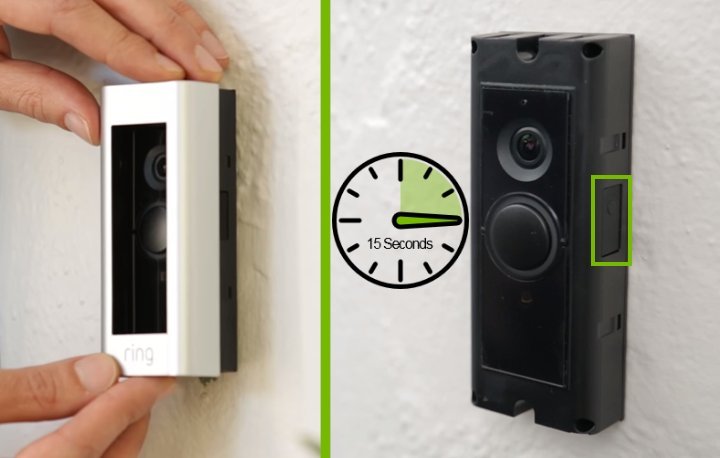
- Locate the setup button, which is orange on the back for original models, or on the right side under the faceplate for modern models like the Doorbell 2, 3, 4, and Battery Plus.
- Press and hold this setup button firmly for 20 seconds without letting go. Tip: If you let go before 20 seconds pass, the unit only enters setup mode instead of wiping its data.
- Release the button and watch the front light circle flash blue four times to show it’s restarting.
- Wait about 60 seconds while the unit completes internal system checks and enters setup mode with a spinning white light.
- Open the Ring app, tap the gear icon for the device, select Device Settings, tap General Settings, and choose “Remove this Device” if you plan to sell or gift it. Tip: If you skip removing the device from your account, Ring’s theft protection policy will block a new owner from completing the initial setup.
How Long It Takes
The physical reset needs just over a minute, though reinstalling and updating the software adds extra time depending on your connection.
| Situation | How long | What changes it | What to watch for |
|---|---|---|---|
| Button press and reboot | 1 to 2 minutes | Exact model revision | Four blue flashes, then spinning white light |
| Full setup on current network | 5 to 7 minutes | Wi-Fi signal strength | App prompts and camera connection checks |
| Re-downloading firmware | 5 to 15 minutes | Home internet download speed | Slowly pulsing blue light on the front ring |
If the light ring stays completely dark for more than three minutes, reconnect the battery or charging cable because the power source dropped below working voltage.
How to Tell When It’s Done
The process is finished when the front light ring spins white, which shows the unit is waiting for fresh Wi-Fi credentials. If you’re unsure whether the wipe worked, look at your phone. When the doorbell no longer connects to your live video feed and prompts you to start new device setup, the reset succeeded. If you simply need to change your home network name, don’t wipe the hardware; update the connection inside the device health menu instead to avoid losing personal settings.
Mistakes That Ruin It

- Holding the button for less than 15 seconds: This only puts the unit into regular Wi-Fi pairing mode instead of wiping it. Hold the button for a full 20 seconds using a timer to trigger a true factory wipe.
- Skipping in-app account removal: A hardware wipe clears settings, but ownership remains locked to your Ring account for security. Remove the doorbell inside the app before selling it, or the buyer gets stuck.
- Attempting a reset on an empty battery: If the internal battery drops below sufficient charge, the unit shuts off mid-cycle and corrupts device data. Charge removable packs for at least four hours until the green indicator glows before resetting.
Frequently Asked Questions
Will a Factory Reset Delete My Ring Protect Videos?
No, resetting the doorbell won’t delete cloud video history saved under your account. Ring stores recorded events on cloud servers for the length of your plan, so existing clips stay safe in your account history until you delete them manually or your plan storage expires.
Can You Reset a Ring Doorbell Without Removing It from the Wall?
No, you can’t reach the reset button on most models while the unit is fully mounted. The physical button sits behind the front faceplate or flat against the back plate, meaning you must remove the security screw at the bottom to reach it.
Why Won’t My Ring Doorbell Reset When I Hold the Button?
Your battery might be completely drained, or you released the button too soon. Charge the device for a few hours using the micro-USB cable, hold the button for a full 20 seconds, and ensure the power contacts stay clean and undamaged during the reset attempt.
Can a New Owner Use My Ring Doorbell If I Reset It?
No, a new owner can’t register the doorbell if your account remains linked to it. The hardware reset wipes local settings, but Ring keeps the serial number assigned to your email address until you open the app, tap General Settings, and choose “Remove this Device.”
How Do I Reset a Ring Doorbell Without the App?
Press and hold the setup button on the physical unit for 20 seconds to clear network settings. This resets the hardware locally, but you can’t transfer ownership to someone else without accessing the app or contacting customer support with proof of original purchase.