To reset a Sonos Play:1 speaker, unplug the power cord from the wall or the back, hold down the Play/Pause button, plug the cord back in while holding that button, and keep pressing it until the light flashes amber and then green.
This procedure wipes all saved Wi-Fi details, custom equalizers, and system links from the unit’s internal memory. The trade-off is clear: you get a clean slate to fix stubborn connection bugs or transfer ownership, but you lose all speaker tuning and paired groupings. This process isn’t for owners who just want to clear a temporary music playback glitch or swap Wi-Fi networks quickly.
Many people make the mistake of pressing buttons after power is already connected. That only triggers playback or adjusts the volume instead of entering the hardware recovery mode. You must disconnect the electrical supply entirely before you initiate the button sequence.
Steps to Reset Your Sonos Play 1 Speaker
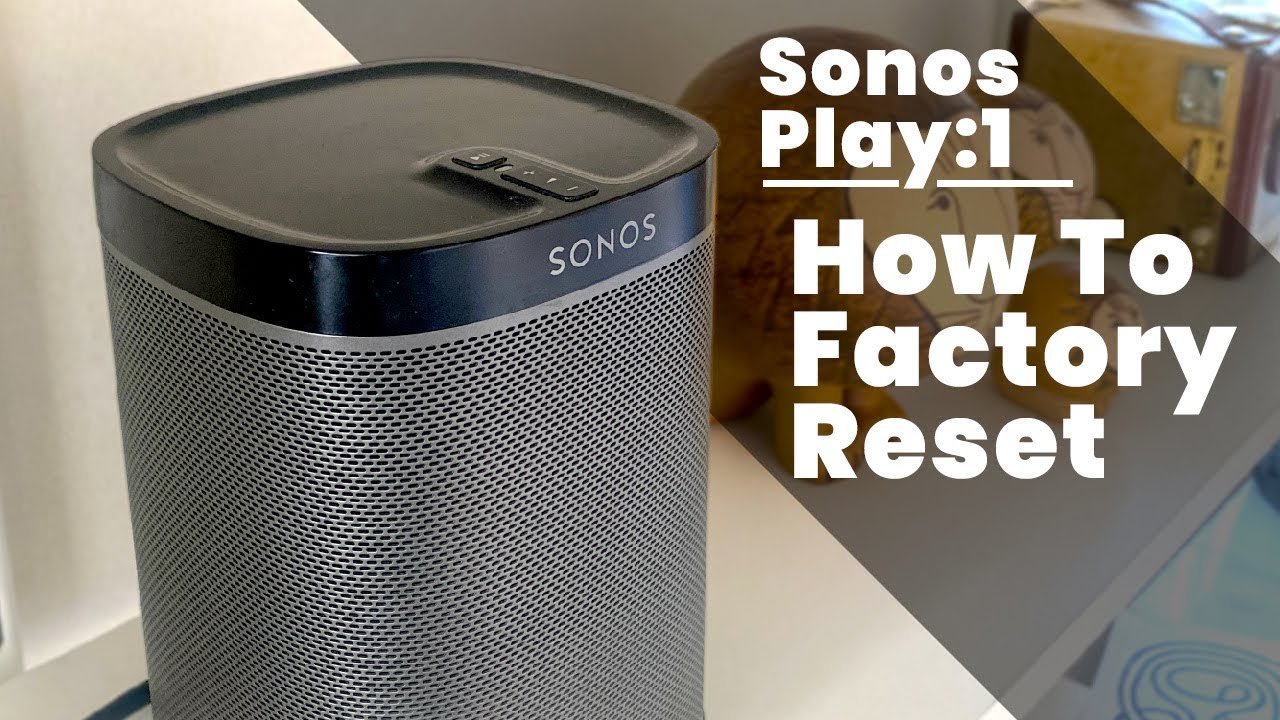
- Unplug the power cable from the wall outlet or straight from the bottom of your speaker.
- Press and hold down the Play/Pause button located on the top panel of the device.
- Plug the power cord back in while continuing to hold the Play/Pause button firmly. Tip: If you let go even for a fraction of a second while pushing the plug in, the process fails and the unit boots up normally.
- Keep holding the button down for roughly 10 to 15 seconds until the status indicator light starts flashing amber and white.
- Release the button once the light flashes amber and wait for the hardware to finish wiping the local memory. Tip: Sonos outlines these light sequences on the official Sonos factory reset support page to help verify hardware states.
How Long It Takes
A full hardware wipe is quick, but environmental factors like network reconnections can stretch the final setup time.
| Situation | How long | What changes it | What to watch for |
|---|---|---|---|
| Standard factory reset | 15–30 seconds | How fast you insert the power cord | Flashing amber transitioning to flashing green |
| Full system reconfiguration | 3–5 minutes | Wi-Fi strength and Sonos app response | Prompt in the app to add new hardware |
| Stuck boot cycle | Over 2 minutes | Corrupt local configuration or power fault | Solid white light that never blinks green |
If the indicator light keeps blinking amber past two full minutes, disconnect the power cable, leave it disconnected for 60 seconds, and run through the steps once more.
How to Tell When It’s Done
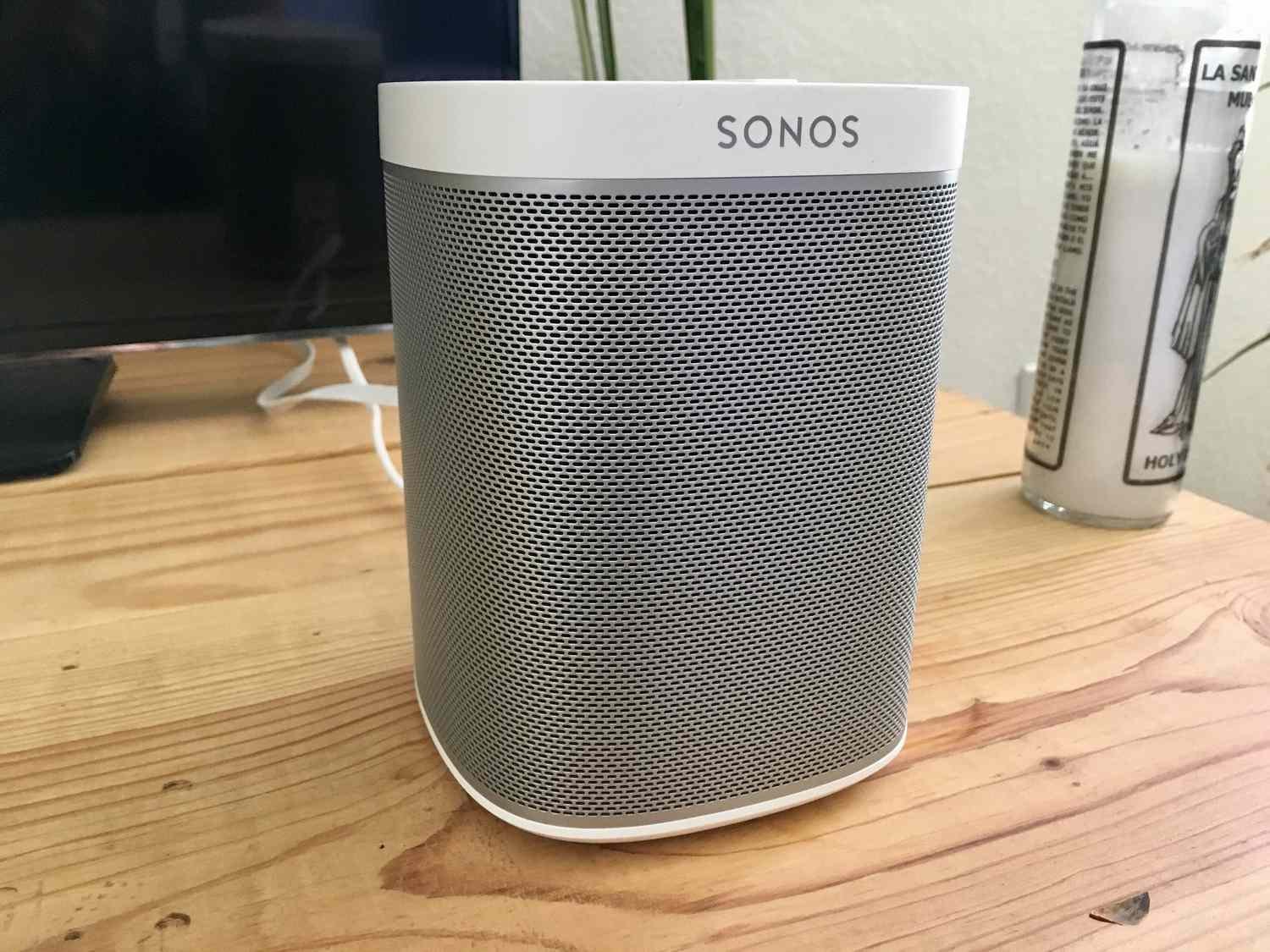
A successful reset shows a green flashing light on the top status panel. That green flash is the universal hardware signal defined by Sonos that the unit is wiped clean and ready to join an account. You won’t hear a chime or audio tone when it finishes. The only reliable proof is that green visual pattern. If you open your Sonos mobile app on the same Wi-Fi network, an automated banner will appear at the top of the screen asking to set up a nearby Play:1.
Mistakes That Ruin It
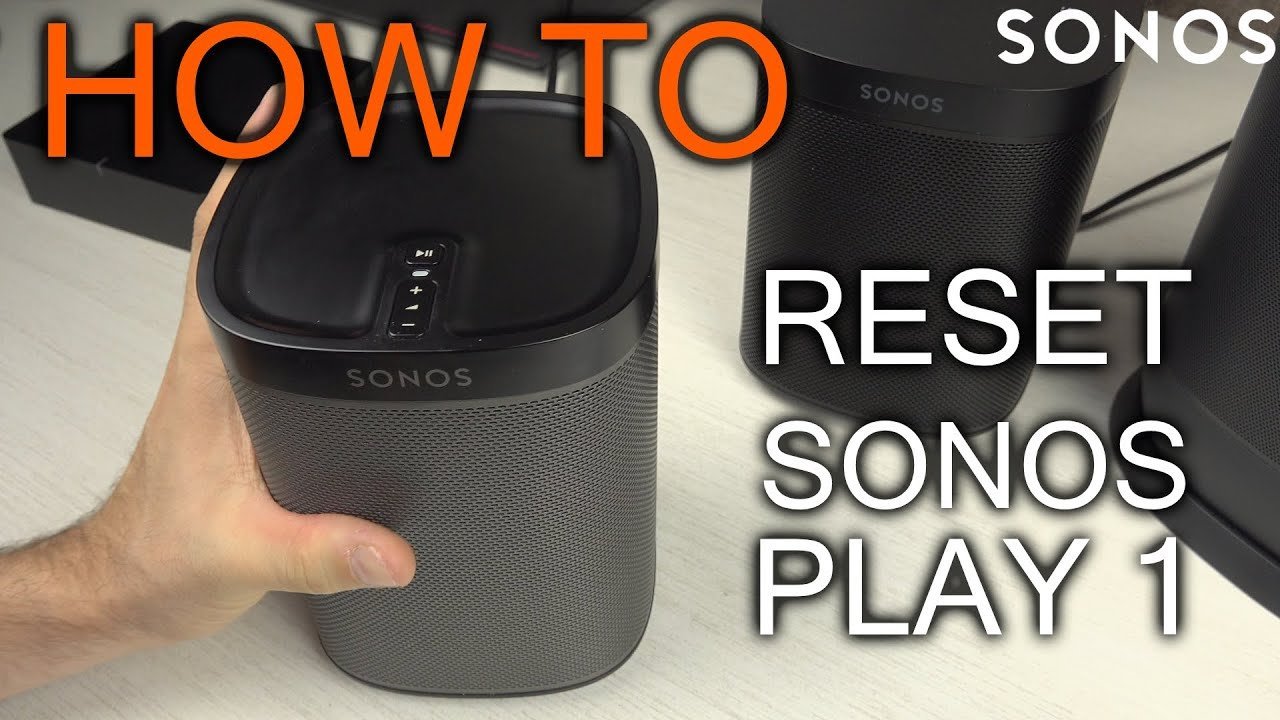
- Holding the Mute button instead of Play/Pause: Older Sonos models use a mute icon, but the Play:1 uses a play/pause symbol; if you press an invalid button combination, the hardware ignores the reset call entirely, forcing you to pull the cord again.
- Letting go of the button too early: Releasing your finger before the amber light flashes makes the speaker boot into its old settings, wasting your time and leaving your old data on the device.
- Resetting to solve basic router dropouts: Wiping the speaker forces you to rebuild your stereo pairs and Trueplay room tuning from scratch; if your speaker simply dropped Wi-Fi, reboot your router instead of wiping the speaker.
Frequently Asked Questions
Will Resetting Remove My Sonos Account from the Speaker?
Yes, a factory reset removes your Sonos account registration, your wireless network credentials, and any stored music service tokens. Once the LED flashes green, the device acts like a brand-new unit fresh out of the retail box.
Why Is My Play 1 Blinking Orange After a Reset?
A blinking orange light means the hardware reset failed or the speaker is experiencing a configuration timeout. If the light stays solid orange or won’t turn green, disconnect the electrical cord for 30 seconds and repeat the physical button steps.
Can I Reset the Speaker Using the Sonos App?
No, you can’t perform a true factory wipe from inside the Sonos app interface. The app allows you to remove products from a household, but erasing the physical board memory requires the manual power-cord and button procedure.
What Should I Do If the Light Stays Solid White?
Pull the power cord, wait 10 seconds, and try again while making sure to hold the Play/Pause button firmly before the metal prongs meet the wall socket. A solid white light means the speaker booted normally without reading your button press.
Does a Reset Delete My Saved Playlists and Favorites?
No, it won’t erase your saved cloud playlists or music favorites if you have other Sonos speakers still active on your system. Your music data lives inside your overall Sonos account profile, not on a single satellite speaker.
Once that green light shows up, you’re ready to set things up again. Open your Sonos app and let it find your fresh device. From there, you can connect it back to your Wi-Fi or pass it along to someone else. It’ll work just like it’s brand new.