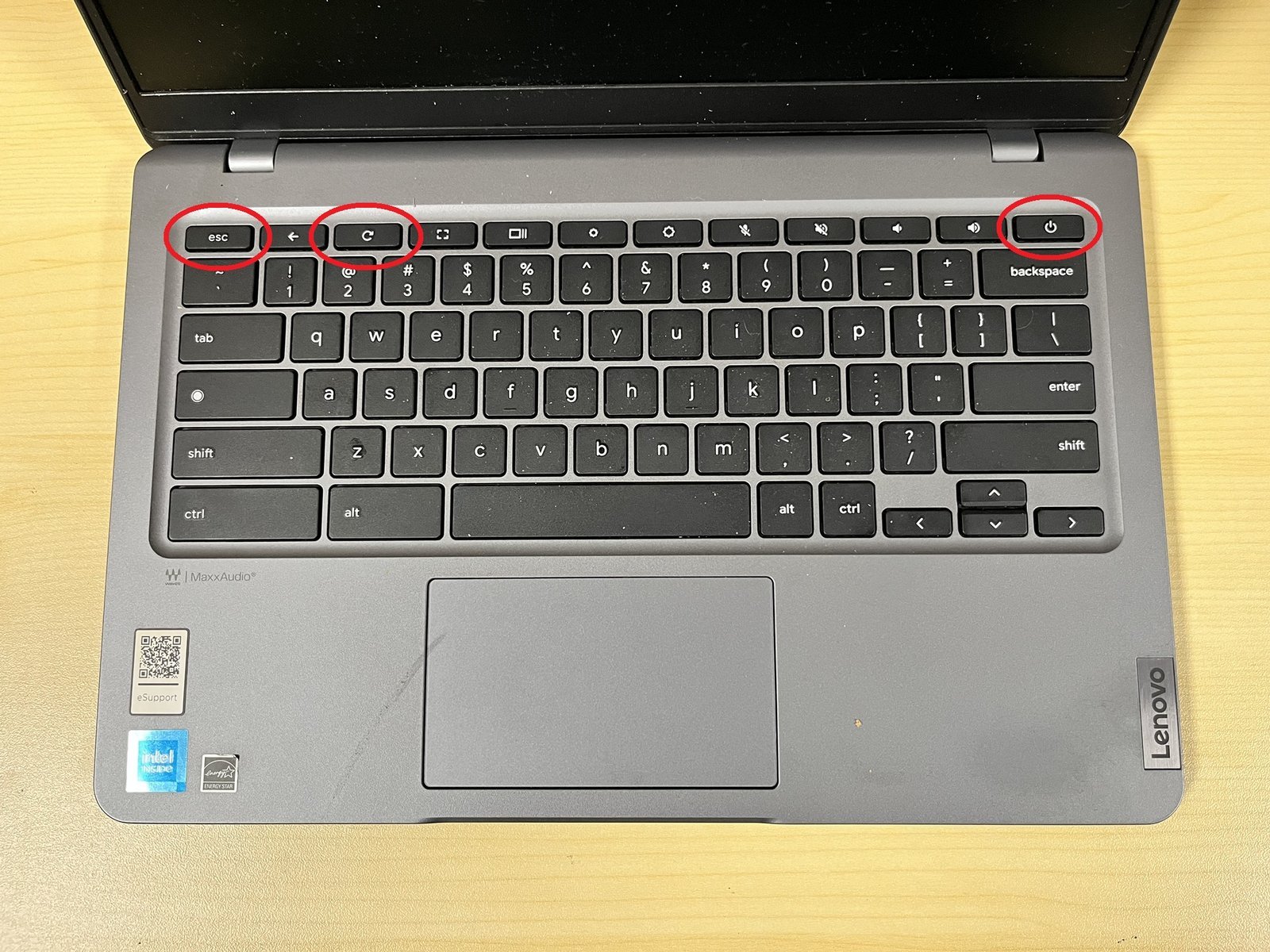
A hardware reset on a Chromebook takes just 10 seconds: turn off the laptop, press and hold the Refresh key, and tap the Power button once. Release Refresh when the machine boots up. This quick method suits anyone whose touchpad, keyboard, sound, or screen freezes suddenly during normal use.
What You’ll Need
Before you start, gather these items on your desk: * Your Chromebook with its original AC power adapter connected to a working wall outlet. * An external USB mouse if your trackpad stopped moving completely. * A paperclip if you use an older Chromebox or school-issued device with a dedicated pinhole reset switch. * Your Google account password to log back in after the system reboots.
Plugging in an official manufacturer charger works best, but a third-party USB-C charger rated for at least 45 watts will do; an underpowered 5-watt phone charger won’t work. If your school manages the laptop, administrators sometimes block local reset commands, so talk to your school’s IT support department instead of taking the laptop apart.
Step-by-Step
- Click the clock in the bottom-right corner of your screen and select Shut down to power off the laptop fully. Careful: Don’t just close the lid; closing the lid puts ChromeOS to sleep instead of turning it off, which ruins the hardware reset.
- Unplug external storage drives, headphones, and second monitors from the sides of the device to stop peripheral conflicts.
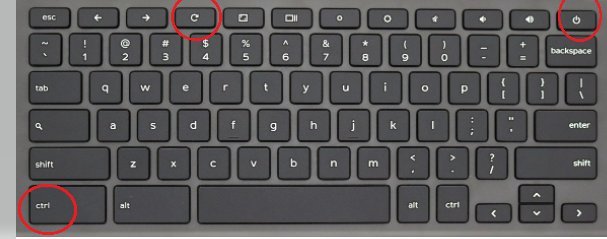
- Locate the Refresh key on the top row of your keyboard, which looks like an open circle with an arrowhead.
- Press and hold down the Refresh key firmly with one finger.
- Tap the Power button once for one second while continuing to hold the Refresh key down.
- Watch the screen or front LED light, and release the Refresh key the moment the screen lights up or the startup logo appears. Tip: If you hold Refresh for longer than 10 seconds, the device will shut down again without loading ChromeOS.
- Wait 5 to 10 seconds for the login screen to appear, then type your password to enter your desktop.
Hardware Reset Steps Across Devices
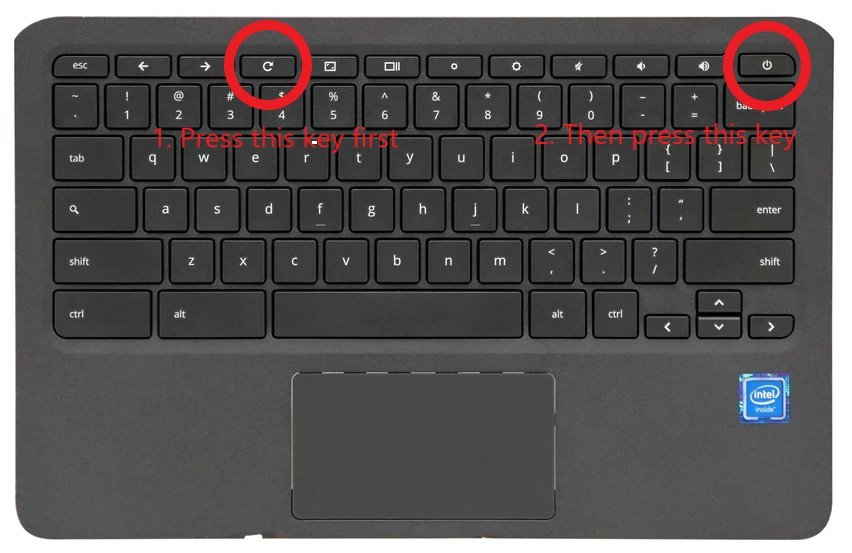
Different ChromeOS form factors use different physical controls to reset the embedded controller chip.
| Device type | Time required | Physical buttons used | What to monitor |
|---|---|---|---|
| Standard clamshell laptop | 10 seconds | Refresh key plus Power button | Screen flash and keyboard backlight |
| Convertible 2-in-1 tablet | 10 seconds | Volume Up button plus Power button | Startup screen display |
| Desktop Chromebox unit | 15 seconds | Paperclip in recovery pinhole plus Power cable | Status light turning solid white |
| Detachable keyboard slate | 10 seconds | Volume Up button held for 10 seconds | Screen brightness changing |
Starting with a basic 10-second button press is safer than opening cases or factory wiping data because it protects your local files from accidental deletion.
How to Tell You Did It Right
A successful reset brings you straight to your standard login screen with working keys and a moving cursor. A poor result leaves the screen black, shows a flashing battery light, or keeps the trackpad frozen. When hardware fails to respond after a reset, it usually means the embedded controller stayed stuck because the Power button was released too early. You can prevent this failure by keeping your charger plugged in, holding the auxiliary key flat against the keyboard base, and waiting until you see the Chrome logo before releasing your fingers. If your trackpad works, you did it; if the cursor remains dead, the internal ribbon cable may have disconnected physically.
Safe Handling and Next Actions
It doesn’t delete your saved files or clear browser history, but it does wipe temporary cache in your Downloads folder. Before running any system fix, back up your local files to Google Drive or an external thumb drive. Once the reset finishes, check the bottom system tray to make sure your Wi-Fi reconnects properly. A hardware reset lasts until a software crash or bad power surge freezes the hardware controller again; you don’t need to repeat it on a regular schedule.
Alternative Troubleshooting Methods
Software Restart
Click the time tray and tap the restart icon. This soft reboot costs zero dollars, finishes in under 20 seconds, and safely closes misbehaving browser tabs without touching device hardware controllers.
Powerwash Factory Reset
Open ChromeOS settings, choose Advanced, and run a Powerwash. This wipes all local accounts and user files in two minutes, giving you a fresh operating system when system settings get corrupted.
Full Chromeos Recovery
Plug in a USB recovery drive created with the Chromebook Recovery Utility tool. This re-installs the entire operating system in 15 minutes, which fixes damaged system files when normal hardware restarts fail to boot.
Frequently Asked Questions
Does a Hardware Reset Delete My Files on Chromebook?
No. A hardware reset doesn’t delete your Google Drive files, saved accounts, or browser bookmarks. However, it may clear temporary contents stored inside your local Downloads folder.
What Should I Do If My Chromebook Has No Refresh Key?
Hold the Volume Up button and the Power button together for 10 seconds. This combination works on tablets, detachables, and convertible laptops folded into tablet mode.
Why Is My Chromebook Screen Still Black After a Reset?
Plug your laptop into its charger and wait 20 minutes before trying again. If the battery dropped below 1%, the hardware reset can’t trigger the screen to turn on.
Is a Hardware Reset the Same as a Powerwash?
No. A hardware reset reboots internal hardware chips like the keyboard and screen. A Powerwash deletes all local hard drive accounts, settings, and files to return the laptop to factory state.
Can I Do a Hardware Reset with a Broken Keyboard?
Yes. Unplug the power cable, hold the external power button down for 30 seconds, plug the cord back in, and turn the laptop on normally to force the hardware controller to restart.