Resetting eufy doorbell units takes under one minute: hold the rear “Sync” or “Reset” button for exactly 10 seconds until you hear a clear chime and the front LED ring blinks. This complete restore suits owners fixing stubborn Wi-Fi drops, moving houses, or passing the doorbell to a new owner.
What You’ll Need

- A genuine eufy detachment pin, or a sturdy standard metal paper clip bent straight.
- Your current Wi-Fi network name (SSID) and password (2.4 GHz band credentials only).
- A smartphone with the official eufy Security app installed and logged into your admin account.
- A small Phillips-head screwdriver if your model uses security screws at the base bracket.
- A micro-USB or USB-C charging cable if working with a battery-powered unit that needs a boost.
A thin sewing needle works as a pin substitute, but a wooden toothpick doesn’t work because the tip snaps inside the release hole.
Step-by-Step
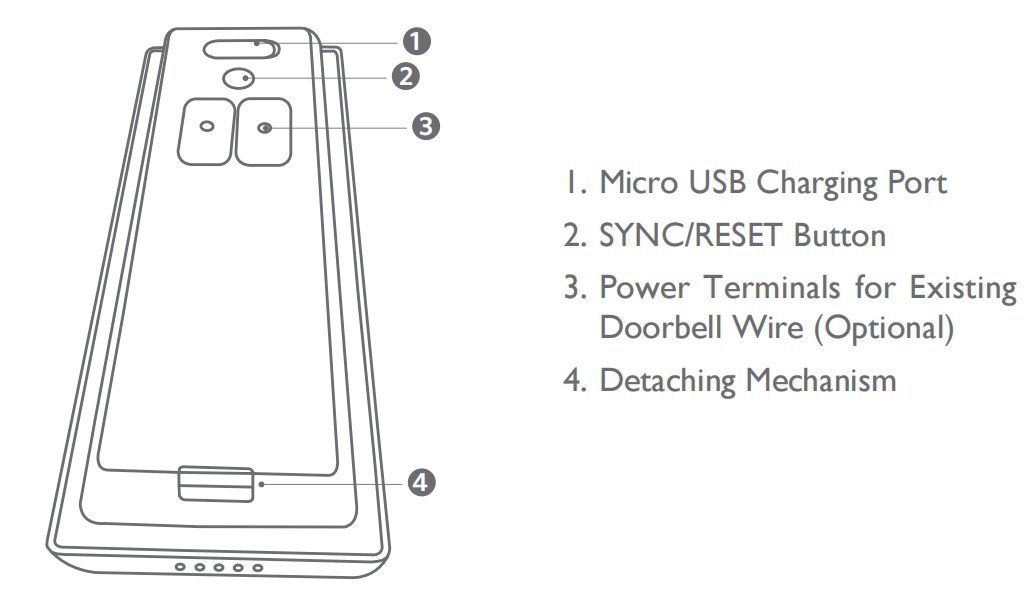
- Insert the detachment pin firmly into the small hole on the bottom edge of the doorbell casing until the mounting latch clicks open.
- Pull the doorbell body outward and lift it away from the wall bracket to access the rear panel.
- Locate the round “Sync” button (marked “Reset” on select wired units) positioned near the terminal screws.
- Press and hold this button down continuously for 10 seconds without lifting your finger.
- Release the button immediately when the unit plays a loud two-tone chime and the front LED flashes red or blue.
- Open the eufy Security app, open the “Doorbell Settings” menu, tap “Remove Device”, and confirm the choice.
- Walk inside next to your internet router to reconnect the unit on a 2.4 GHz network before snapping it back outside.
Careful: Releasing the button at 5 seconds only restarts the device instead of wiping it, which keeps the old corrupted network settings locked in place.
Tip: If you own a wired 2K model, leave the breaker turned on during the hold so the doorbell receives steady power while rewriting its system memory.
Careful: If you hear no chime after 15 seconds, your battery voltage dropped too low to wipe the internal flash storage, so plug it into a 5V charger for 30 minutes first.
Resetting Across Different Doorbell Setups

Every hardware revision changes how you reach the switch and how long setup takes.
If your connection acts up, do a quick router reboot first; if the app still says offline, do the full button reset. You’ll find that this varies by model — check the label on your rear casing for exact power inputs. It’s much safer to try a soft restart in the app first than to wipe your entire device and rebuild custom detection zones from scratch.
How to Tell You Did It Right
A successful reset shows a rapidly spinning or pulsing front LED light, followed by an audible chime that asks you to add the device in the app. A failed reset leaves the ring light solid or completely dark, meaning the doorbell retained its old configuration and won’t accept fresh pairing requests.
This failure usually happens because the button was released half a second before the internal timer cleared the cache. Pressing the button with steady pressure, keeping the device within 10 feet of your router during pairing, and using the original pin to avoid slipped contact prevent this lock-up every time. The trade-off is clear: you get a completely fresh operating system, but you lose your saved motion sensitivity settings and local event history immediately.
Device Standards and Cleanup Steps
Before handing your hardware to someone else, wipe your digital trail. The Federal Trade Commission consumer privacy guidance recommends removing personal network keys and shared accounts from internet-connected gear before you take it out of service.
After the tone sounds, unscrew the mounting plate from your doorframe, patch any wall anchor holes, and wipe grease off the camera lens with a dry microfiber cloth. Place the detachment tool inside the original packaging so the next user can mount it cleanly. A standard factory restore lasts indefinitely; your unit stays dormant in pairing mode until you manually join it to a wireless network again.
Other Ways to Clear the Doorbell
In-App Software Removal
Tap the gear icon on the camera screen, scroll to the bottom, and select “Remove Device” while connected to Wi-Fi. This wipes your cloud link in 30 seconds without taking the hardware off the wall, but it requires a working Wi-Fi connection.
Physical Power Cut
Shut off the main circuit breaker feeding your low-voltage doorbell chime transformer for 60 seconds, then flip it back on. This forces a clean hardware reboot in under 2 minutes without deleting your saved videos, network names, or detection zones.
Homebase Manual Unpairing
This clears every connected entry sensor and doorbell together in 3 minutes, but you must rebuild your whole home security system from scratch.
Frequently Asked Questions
Will Resetting Delete My Saved Video Clips?
Yes. A manual button reset wipes all locally stored video clips from the internal eMMc memory chip. If you store footage on a HomeBase instead, your recordings remain safe on the hub’s drive until you format that specific hard drive through the storage menu.
Why Won’t My Eufy Doorbell Chime After Holding the Button?
The button wasn’t pressed straight down, or the battery doesn’t hold enough charge to run the reset process. Plug the doorbell into a wall charger with a standard USB cable for 30 minutes, then press the pin firmly into the center of the switch again.
Can I Reset the Doorbell Without Taking It Off the Wall?
No, you can’t complete a full factory reset while the doorbell remains mounted. The physical reset button sits directly on the rear casing against the wall bracket. You must unlatch the unit with your pin tool to reach the button, unless you only want a soft in-app removal.
Who Is This Hard Reset Not For?
This method isn’t for people who forgot their account password. Resetting the outdoor doorbell doesn’t unlock a forgotten account; it only wipes the local camera. Instead, use the “Forgot Password” link on the app login screen to recover account access without climbing a ladder.
What Is the Biggest Mistake People Make During a Reset?
The biggest mistake is holding the button while the phone sits on a 5 GHz Wi-Fi frequency. People then spend hours trying to reconnect the doorbell, thinking it’s broken. Setting your phone to 2.4 GHz first prevents this headache and saves twenty minutes of failed pairing attempts.