Reset Outlook to default settings by creating a fresh mail profile through the Windows Control Panel, which takes about 3 minutes. This removes broken view rules, clears stuck account configurations, and restores standard toolbars without wiping your stored emails from the mail server.
The main thing that decides your success is closing the Outlook app completely before touching settings. If the process is still running silently in the background, Windows locks your configuration files and the reset fails.
This fix isn’t for people using the free web browser version at Outlook.com, since browser layouts don’t use local profile files. A common mistake is deleting data files before checking your account type, which destroys local calendars and contacts stored in offline folders.
Restoring Outlook to Factory Settings
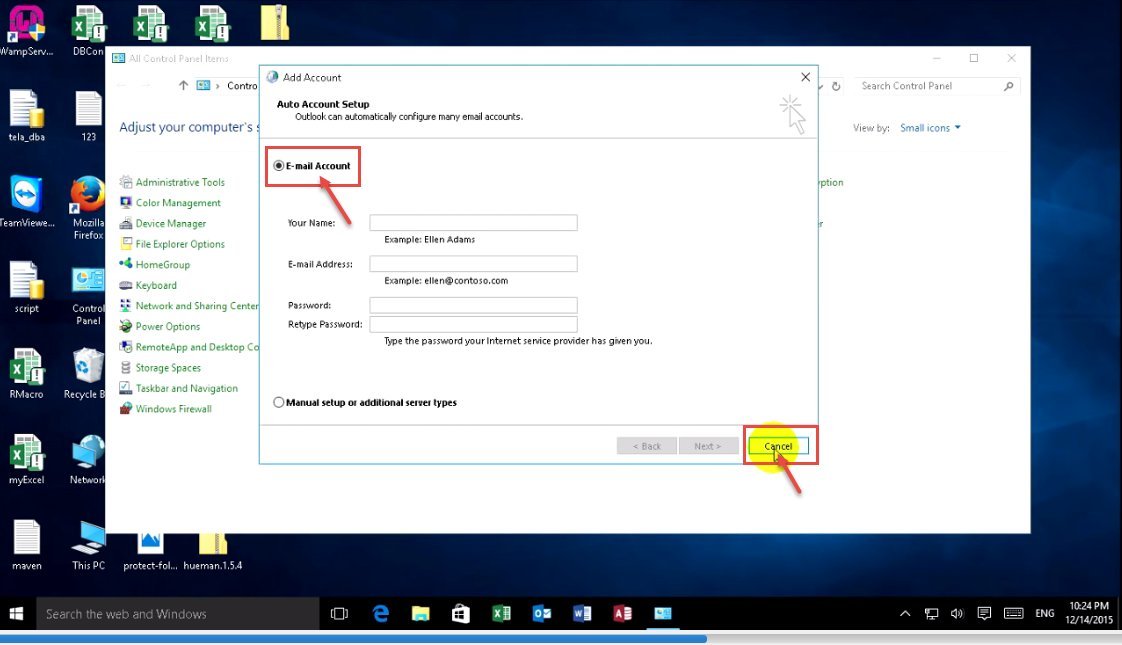
- Close Microsoft Outlook and press
Windows Key + Rto open the Run dialog box. - Type
controland press Enter to open the classic Windows Control Panel. - Switch the “View by” option in the top right corner to Large icons, then click Mail (Microsoft Outlook).
- Click the Show Profiles button located in the middle of the Mail Setup window.
- Click Add, type a name like
CleanOutlook, and click OK to build an untouched setup file. Tip: Don’t delete your old profile yet; keeping it allows you to recover missing offline contacts later. - Enter your email address and password, then let the auto-discovery tool connect your mailbox.
- Change the radio button at the bottom to Always use this profile, pick your new name, and click Apply. Tip: If you use two different accounts daily, select Prompt for a profile to be used instead.
For deeper troubleshooting when corrupted system registries prevent opening the Mail applet, follow Microsoft’s official profile guidance to repair office installations safely.
How Long It Takes
Resetting Outlook takes between 2 and 15 minutes depending on how many emails need to sync back down.
| Situation | How long | What changes it | What to watch for |
|---|---|---|---|
| IMAP or Exchange mailbox | 3 to 5 minutes | Internet download speed and total inbox volume | Folder hierarchy building slowly |
| POP3 with local PST file | 5 to 10 minutes | Size of the existing archive file on your hard drive | Time needed to link old data files |
| Multiple work accounts | 10 to 15 minutes | Multi-factor login steps and corporate tenant policies | Admin approval prompts stalling setup |
If the setup takes longer than 20 minutes, your security software might be blocking the local connection to the mail server.
How to Tell When It’s Done
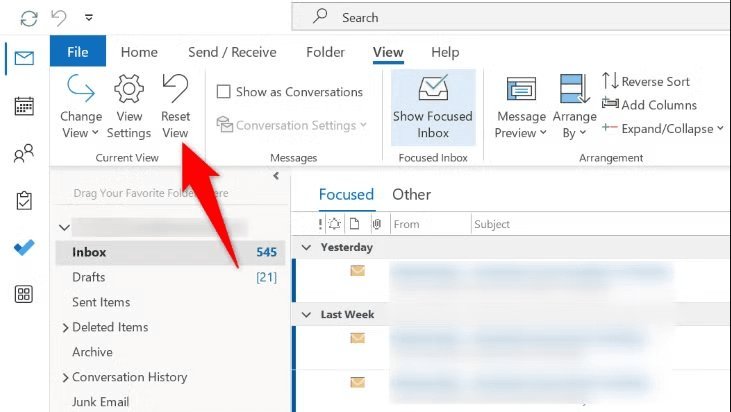
Open Outlook normally from your desktop shortcut. You’ll know the process finished when the reading pane returns to the right side, custom folder colors vanish, and the ribbon matches factory stock layout. Check the status bar at the very bottom right of the window. When it displays “Connected” alongside “All folders are up to date,” your mail server has completed its initial handshake. This trade-off means you get a fast, bug-free inbox, but you must manually rebuild personal email signatures and quick-access toolbars.
Mistakes That Ruin It
- Deleting the old profile immediately: You lose locally stored contact lists that didn’t sync up to the cloud. Keep the old profile saved for at least one week so you can export older items if needed.
- Skipping the Task Manager check: Outlook often keeps running background tasks even after you close the window. If you don’t kill the background task, the mail utility will freeze while saving changes.
- Using command switches blindly: Running clean commands like
/cleanviewsclears layout customizations across every mailbox folder without asking for confirmation. If you only have display issues, adjust folder view settings manually; if the whole client crashes, create a new profile.
Frequently Asked Questions
Will Resetting Outlook Delete My Emails?
No, it won’t delete emails if your account uses IMAP or Microsoft Exchange. Your messages, sent folders, and subfolders stay preserved on the remote server. They will download back to your machine as soon as your new profile signs into your account.
How Do I Reset Outlook View to Default?
Click the View tab at the top ribbon, click Reset View, and choose Yes. If that doesn’t fix every folder, close the app, press Windows Key + R, type outlook.exe /cleanviews, and hit Enter to clear all custom folder designs at once.
Can I Reset Outlook Without Opening the App?
Yes, you can do this through the Windows Control Panel. Search for Mail, click Show Profiles, and remove or swap the default profile without opening Outlook itself. This works well when Outlook crashes immediately upon launch.
What Happens to My Email Signatures?
Your saved signatures remain stored on your hard drive, but your new profile won’t attach them automatically. You must open File > Options > Mail > Signatures and re-assign your existing signature names to new outgoing emails and replies.
Why Is My New Outlook Profile Not Loading?
This varies by model — check the label or account configuration your company provides. If your network requires a proxy or strict firewall, automated setup fails. Enter the incoming and outgoing server hostnames by hand using the manual setup toggle.