To factory reset a MacBook Air without a password, shut down the laptop completely, boot into macOS Recovery, erase the internal startup disk using Disk Utility, and reinstall the operating system. This wipe deletes all personal files, accounts, and settings, returning the laptop to its clean factory state in about 30 to 60 minutes.
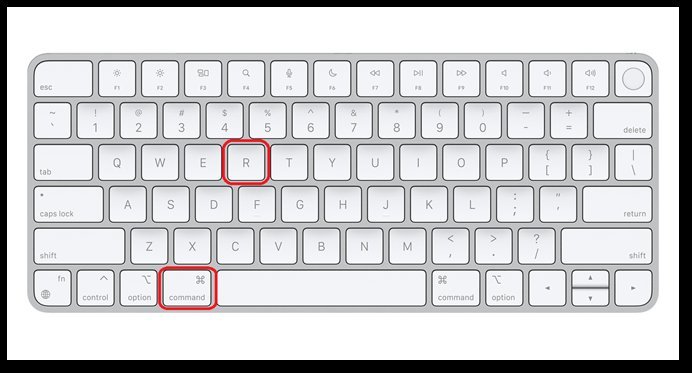
Your Mac processor decides which startup keys you need. If your MacBook Air has Apple silicon (M1, M2, or M3), you press and hold the power button; if it has an Intel chip, you hold Command and R right after pressing power.
The most common mistake happens before the reset starts: people forget to check for an active Apple Account lock. Erasing the drive removes the user login, but it doesn’t bypass an Activation Lock tied to an Apple ID.
Steps to Factory Reset Your Macbook Without the Password
- Shut down the MacBook Air completely by holding the power button for 10 seconds until the screen turns black and all lights turn off.
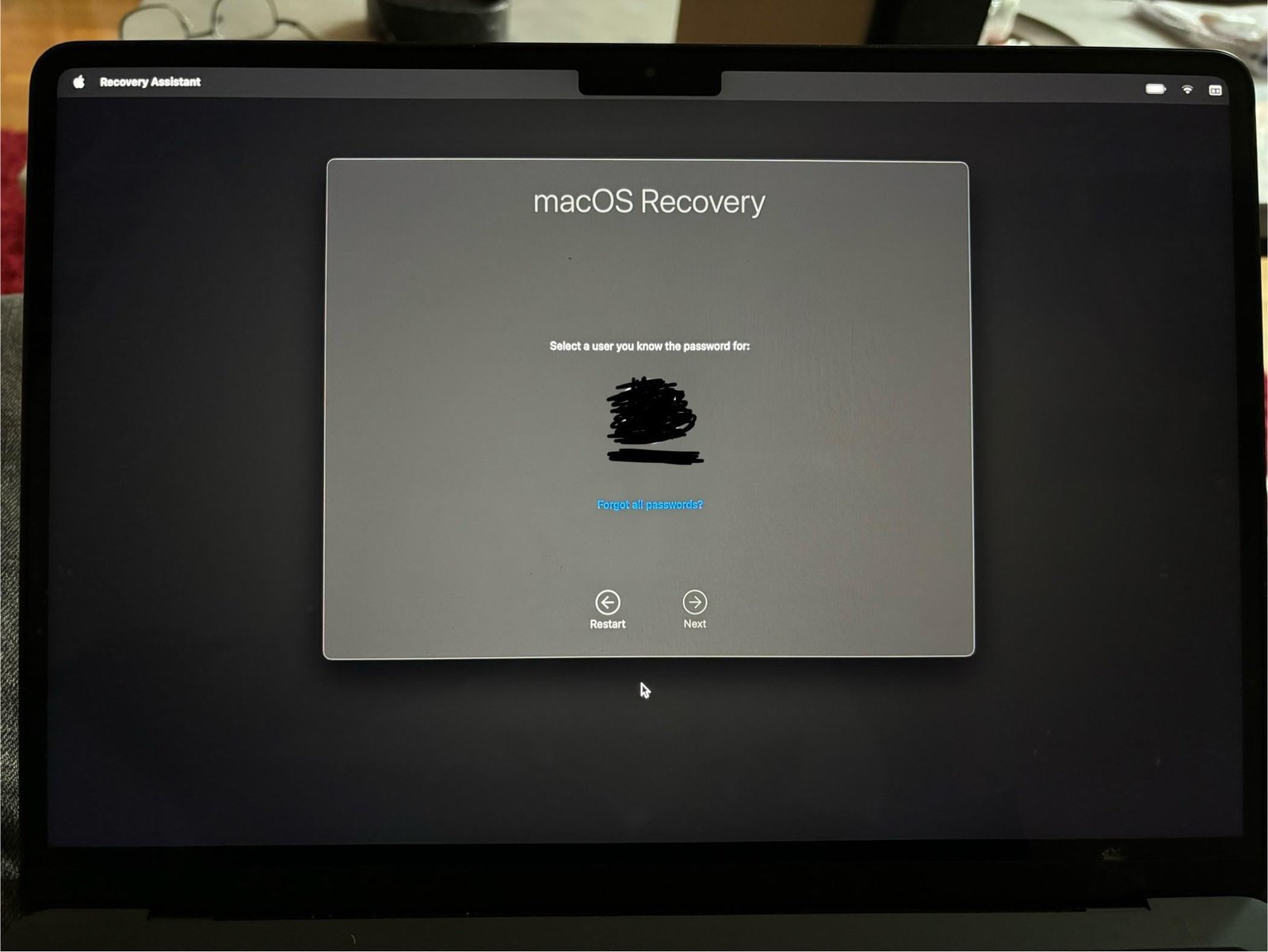
- Enter Recovery Mode based on your chip type: on Apple silicon models, press and hold the Touch ID button until “Loading startup options” appears; on Intel models, press power once and instantly hold Command + R until the Apple logo appears.
- Click Options and select Continue if prompted on an Apple silicon Mac, or pick your language to reach the macOS Utilities window.
- Select Disk Utility from the utility window, then click Continue to open your storage manager.
- Select Macintosh HD under the “Internal” heading on the left sidebar, click the Erase button at the top, choose APFS as the format, and confirm by clicking Erase Volume Group (or Erase on older systems). Tip: If you see both “Macintosh HD” and “Macintosh HD – Data”, erasing the volume group cleans both parts at once so you don’t leave ghost data behind.
- Close Disk Utility after the wipe finishes, choose Reinstall macOS from the main menu, click Continue, and accept the software terms to begin the download. Tip: Keep the laptop plugged into its official power adapter during the entire installation so it doesn’t shut down mid-write.
If the screen asks for an administrator password to open Recovery, this model has FileVault turned on or a firmware lock set; if you don’t have those credentials, Apple Support’s Activation Lock page explains the official proof-of-purchase process needed to request an unlock.
How Long It Takes
The total time depends on your internet speed and chip type, as a fresh operating system image must download directly from Apple servers.
| Situation | How long | What changes it | What to watch for |
|---|---|---|---|
| Apple silicon with fast Wi-Fi | 30 to 45 minutes | Internet download speed | Fast progress bar on the install screen |
| Intel MacBook Air on standard Wi-Fi | 45 to 75 minutes | Drive write speeds and network band | Spinning globe icon during initial boot |
| Slow or metered Wi-Fi connection | 2 to 4 hours | Network stability and server traffic | Time estimates jumping up and down |
If the download timer gets stuck on “About 2 hours remaining” for over an hour without moving, restart the router or switch to a stable 5 GHz Wi-Fi network.
How to Tell When It’s Done
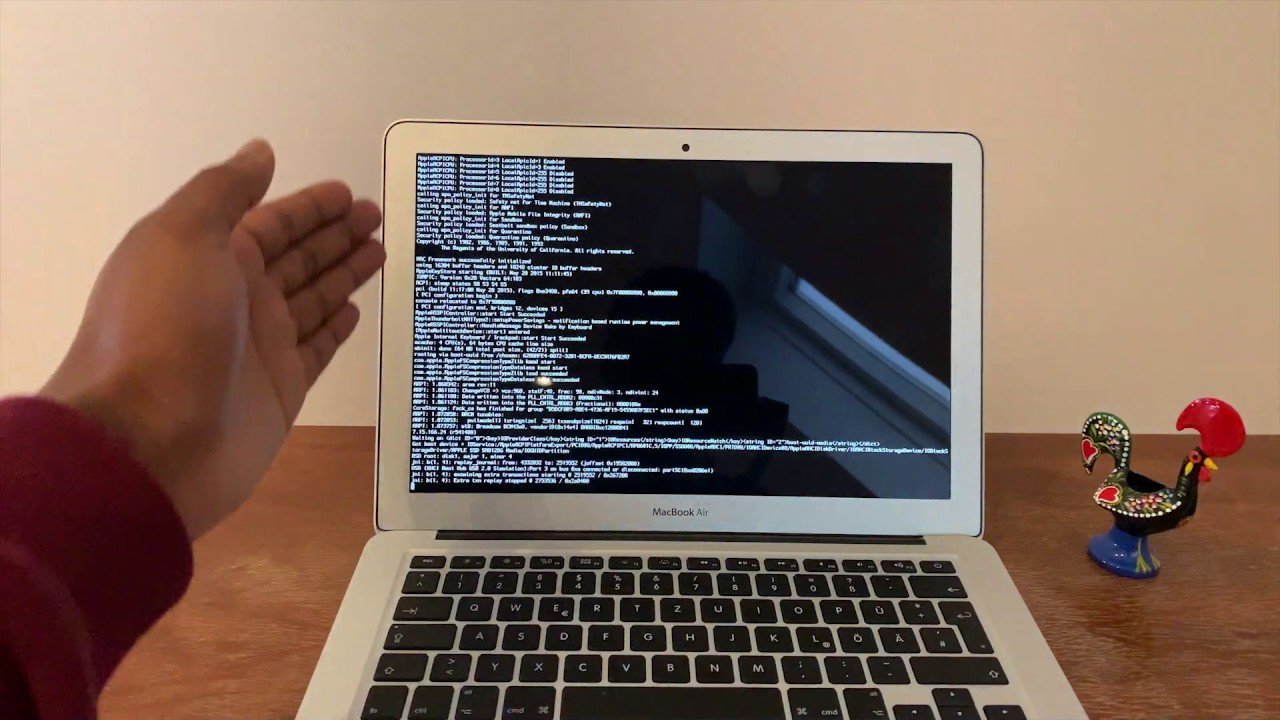
A successful reset ends on the official “Hello” setup screen with a white background and animated greetings in different languages. You’ll hear the startup chime, and the computer will wait for you to choose a country or region. The definitive test is turning the machine off directly at this screen: press Command + Q and click Shut Down. When the next user turns it on, it should open straight to that same setup screen without asking for any old username, local password, or previous disk account.
Mistakes That Ruin It
- Ignoring Activation Lock: Wiping the drive while Find My is still active leaves the Mac locked to the original Apple ID. Sign out of your account on iCloud.com under “Find Devices” before you sell or give away the device.
- Erasing the wrong drive: Selecting an external backup drive or an installer flash drive in Disk Utility wipes your safe backup instead of the laptop. Always check the “Internal” label to ensure you’re only wiping the built-in storage.
- Closing the laptop lid during reinstall: Shutting the display puts the machine to sleep and stops the system download. Leave the lid fully open and connected to wall power until the setup screen appears.
Frequently Asked Questions
Will a Factory Reset Remove an Icloud Activation Lock?
No, wiping the drive doesn’t remove an Activation Lock. The lock lives on Apple’s activation servers, not your local drive. You’ll need the original Apple ID password or proof of purchase to remove it.
Can I Reset My Macbook Air Without an Internet Connection?
No, you need an active internet connection to reinstall the operating system. Recovery mode must download a fresh copy of macOS directly from Apple’s servers after the internal disk is erased.
What Should I Do If Disk Utility Won’t Erase the Disk?
Restart your Mac into Internet Recovery by holding Option + Command + R on Intel models, or unmount the disk first inside Disk Utility before clicking the erase button.
Who Is This Reset Process Not For?
This process isn’t for people who need to save unbacked-up files. Erasing the startup drive destroys all stored photos, documents, and programs permanently.
Is It Safe to Buy a Locked Macbook Air and Reset It?
No, it’s not safe if the machine has an active Activation Lock or Mobile Device Management profile. If the seller can’t log out, you won’t be able to use the laptop.