
To reset your Aula F75 keyboard, hold the Fn key and the Spacebar together for 3 to 5 seconds while powered on. The backlights will flash three times to confirm your board is restored to factory defaults. This quick hardware fix suits anyone facing mixed-up key binds, broken lighting profiles, or dropped wireless connections.
What You Need to Reset Your Aula Keyboard
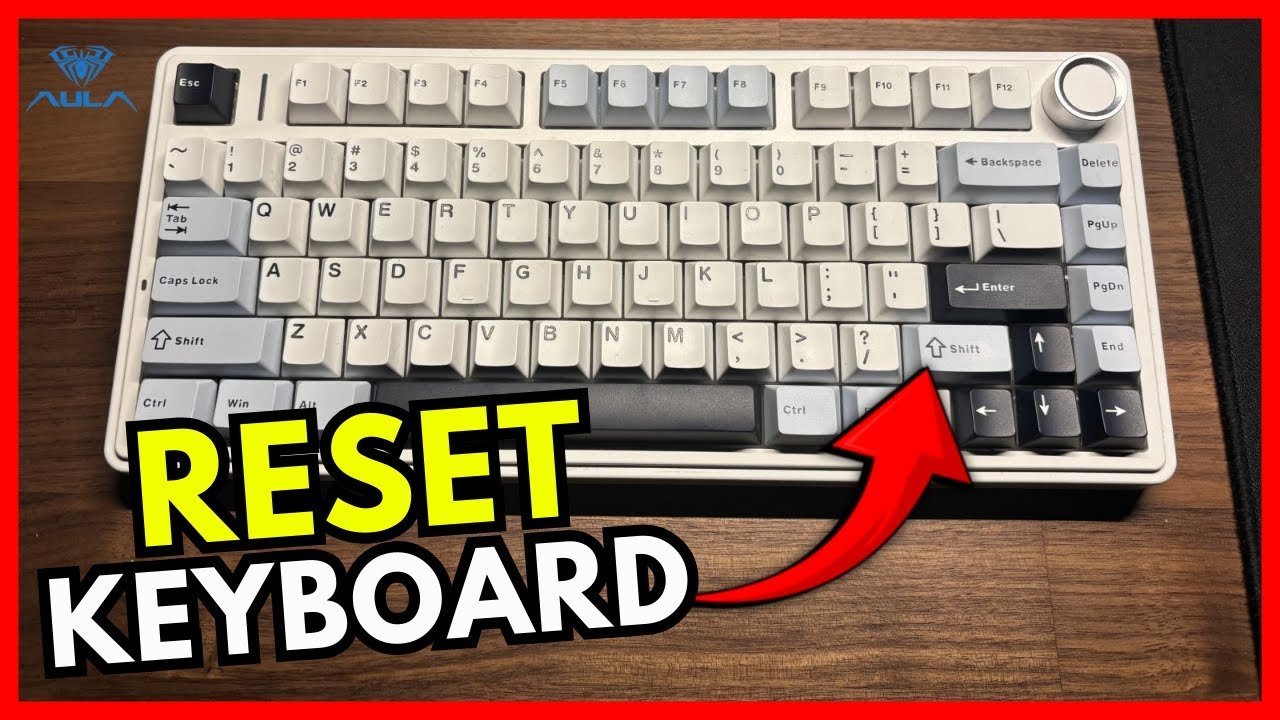
- Your AULA F75 keyboard with a charged battery (at least 20% power if working wirelessly).
- The original USB Type-C to Type-A cable that came in the retail box.
- A desktop or laptop running Windows 10 or Windows 11 if using the configuration suite.
- The official AULA companion software, downloaded only from the manufacturer portal.
- A thin, non-conductive pin or paperclip if your specific production batch includes a recessed pinhole reset.
A generic USB-C data cable works fine if you misplaced the original, but a charge-only cable won’t transmit data to desktop software.
Step-by-Step
- Slide the physical connection switch on the top edge of your keyboard to the center position to select USB wired mode. Careful: If you try resetting while switched to 2.4GHz wireless or Bluetooth mode, a weak battery can interrupt the cycle and freeze the onboard memory.
- Plug the USB-C end of your cable into the keyboard port and the USB-A end directly into your computer’s motherboard port.
- Press and hold down the Fn key and the Spacebar together for exactly 5 seconds. Tip: Keep even pressure on both keys; releasing the Spacebar a second too early simply types spaces instead of triggering the controller.
- Watch the keyboard backlight LEDs until they flash red or white 3 times across the entire layout.
- Release both keys immediately once the flashing stops and the default rainbow lighting effect reappears.
- Test the standard typing function by opening a blank text document and pressing the number row, navigation keys, and Spacebar.
- Turn the rotary knob clockwise to verify volume increases, then press it down once to ensure mute toggles normally.
Keyboard Recovery Options by Connection
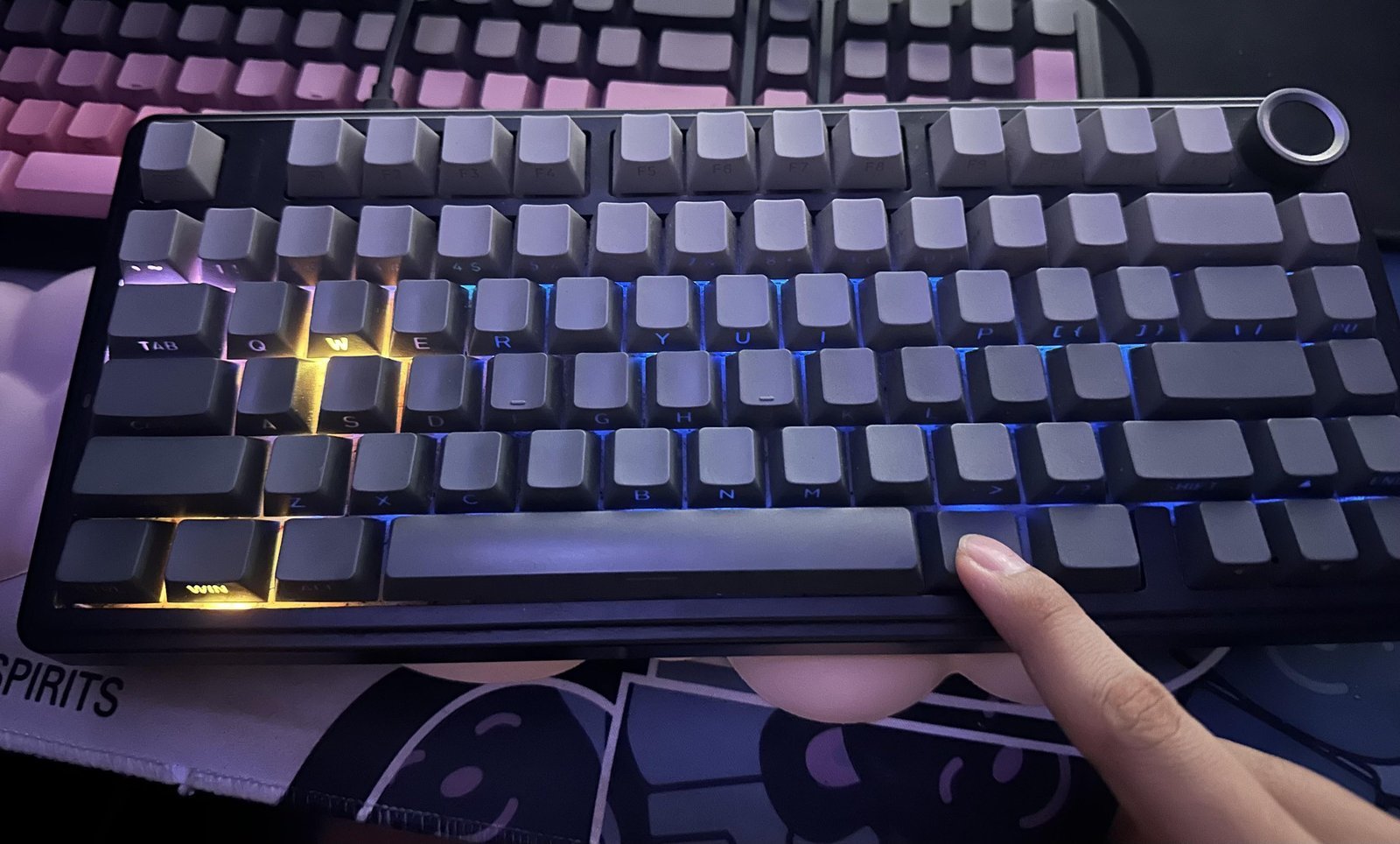
Here is how restoring your keyboard changes across different operational states and connection setups.
| Setup State | Reset Duration | Key Operational Difference | Primary Indicator to Watch |
|---|---|---|---|
| Wired USB Mode | 5 seconds | Direct board power prevents interruption during memory wipe | Backlight flashes 3 times, then loads default wave pattern |
| 2.4GHz Dongle Mode | 5 to 8 seconds | Controller must re-establish handshake with the USB receiver | Fast blinking on the number 4 key indicator |
| Bluetooth Channel (1-3) | 5 to 10 seconds | Clears saved host pairing slots across all three device channels | Fast blinking on keys 1, 2, or 3 |
| Desktop App Interface | 10 to 15 seconds | Overwrites custom profile files stored on your local drive | Progress bar on PC screen hits 100 percent |
It’s safer to start with the basic key combination before wiping your saved desktop layouts, because clearing the onboard profile can’t be undone.
How to Tell You Did It Right
A successful reset restores full key travel registration and defaults the RGB backlighting to its original factory brightness and wave animation. If the reset failed, keys might send duplicate letters, RGB zones might stay dark, or the volume knob will fail to respond. This quality issue happens because the onboard microcontroller maintains partial cache when power drops during a key-combo wipe. You can prevent this state by using a stable wired connection, keeping the board charged past 50%, and avoiding key presses while the lights flash. This varies by model — check the label on the board’s underside to confirm your hardware revision before opening flashing utilities.
Hardware Standards and Maintenance Rules
The Federal Communications Commission enforces wireless operation limits under FCC Part 15 rules, which govern how unlicensed radio devices manage interference and power output. If X applies and your keyboard drops wireless links, switch to wired mode; if Y occurs and your key mappings break, wipe the controller memory. A factory wipe deletes all stored macros, so you must reassign custom key layouts in your driver suite afterwards. The trade-off for wiping the hardware memory is losing your tailored layers in exchange for completely stable keystroke inputs. This procedure isn’t for users who only want to change their current RGB backlight pattern without losing their saved productivity macros.
Alternative Recovery Methods
Desktop Driver Restore
Open the official AULA F75 driver on Windows, click on device settings, and select the factory restore option. This wipes custom layers and macros through the software interface within 10 seconds without needing physical key holds.
USB Receiver Re-Pairing
Slide the top switch to 2.4GHz mode, unplug the small USB wireless dongle, hold Fn + 4 for 3 seconds, then insert the dongle into your PC. This rebuilds the wireless connection bridge without clearing your custom RGB settings.
Operating System Keymap Purge
People actually remap keys inside Windows PowerToys or macOS settings, forget the software is running, and assume the keyboard controller broke. Removing those third-party desktop remapping tools costs zero hardware downtime and immediately fixes supposed key arrangement bugs.
Frequently Asked Questions
Does Resetting the Keyboard Delete My Saved Macros?
Yes. Holding Fn and Spacebar clears the internal controller chip completely. You’ll lose all custom key remaps, onboard timing delays, and custom RGB lighting profiles. The board returns to the exact software state it had when you pulled it out of the box.
Can I Reset the Keyboard While Using Bluetooth Mode?
Yes, but wired mode is much safer. Resetting over Bluetooth clears all three host pairing profiles instantly. If the battery dies during the memory wipe, the controller chip can lock up, requiring you to plug the cable in anyway to wake the unit.
Why Is My Spacebar Not Flashing When Holding Fn?
You’re likely pressing the wrong modifier key or releasing too early. Make sure you hold both keys down firmly for 5 full seconds. Also, ensure your keyboard isn’t switched off via the top toggle, as unpowered boards won’t register the reset command.
Will a Factory Reset Fix Broken Hot-Swap Switch Sockets?
No. Resetting only restores the software instructions and microcontroller memory back to default settings. If a specific key doesn’t type because of a bent metal leaf or damaged solder point inside the socket, you must physically replace the switch mechanism.
How Do I Switch Between Windows and Mac Layouts After a Reset?
Press Fn + A to set the keyboard to Windows mode, or press Fn + S to switch over to macOS mode. A factory reset automatically defaults the board to the standard Windows layout, which reverses the Alt and Command key functions on Apple computers.

1 thought on “How to Reset Aula F75 Keyboard”