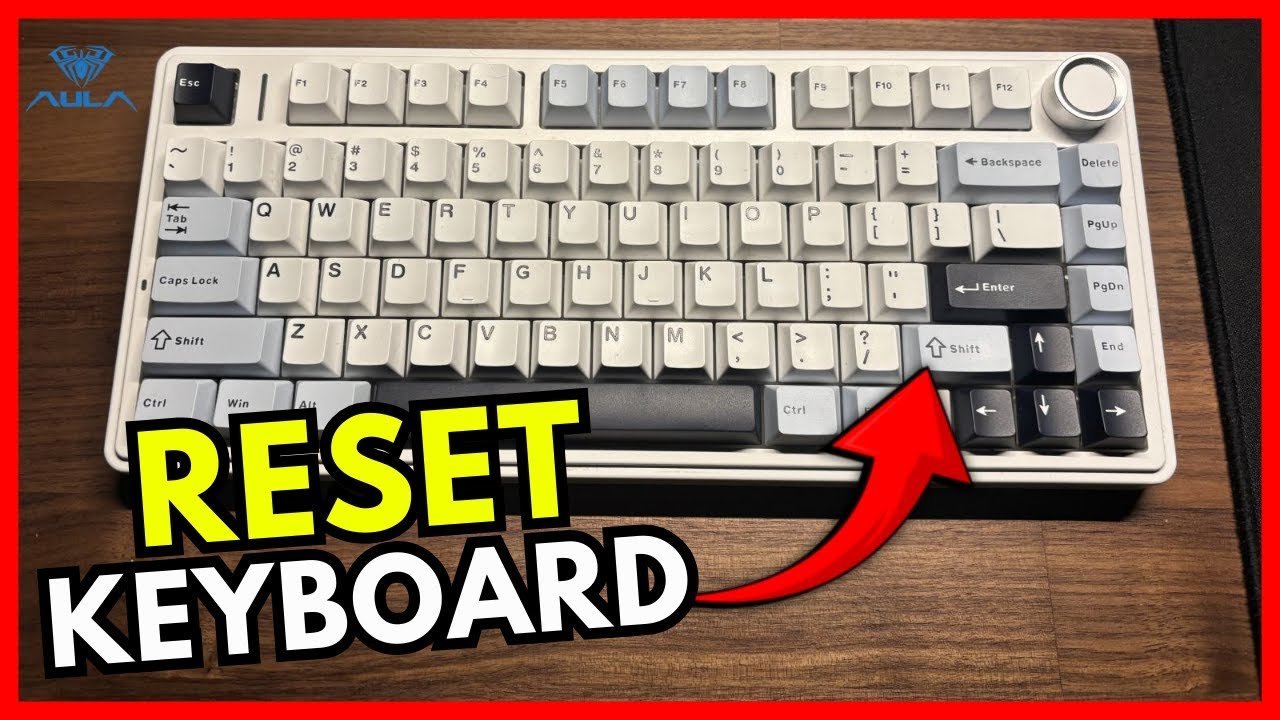
Pressing and holding FN + Spacebar for 3 to 5 seconds is how to reset aula keyboard hardware back to its original factory settings. The backlights will flash three times to confirm the memory wipe is complete. This quick shortcut suits anyone dealing with stuck lighting profiles, unresponsive keys, or messed-up custom macros.
Things You Need Before You Reset Your Aula Keyboard
- Your Aula keyboard plugged directly into a powered USB port.
- The original USB-C data cable (a charge-only cable won’t send the data signals you need).
- A small paperclip or SIM-eject tool if your specific board has a pinhole reset button underneath.
- A computer running Windows 10 or 11 if you prefer clearing settings through the desktop software.
- Your keyboard’s exact model number, which is printed on the barcode sticker under the base.
A regular paperclip works fine instead of a SIM tool, but using a sharp needle doesn’t because it can snap inside the housing. If the circuit board has physical water damage, stop now; you’ll need an authorized electronics repair shop rather than a simple reset.
Step-by-Step
- Switch the physical power toggle on the back or bottom of the keyboard to the “On” or “USB” position.
- Plug the USB cable directly into your computer’s motherboard port rather than a loose USB hub, which can drop power during a cycle.
- Hold down the FN key and the Spacebar together for exactly 5 seconds without releasing either key. Careful: If you release the keys before 5 seconds pass, the board won’t clear its onboard chip and nothing will change.
- Watch the RGB backlights across the keys; they’ll blink three times rapidly and then return to the default rainbow wave.
- Release both keys once the blinking stops completely.
- Unplug the USB cable from the keyboard, wait 5 seconds, and plug it back in to power-cycle the controller. Tip: If you use a wireless model like the F75, toggle the physical mode switch to 2.4GHz and then back to wired mode to lock in the reset.
- Open a plain text document and press several keys to confirm the standard layout now types correctly.
Reset Methods Across Models
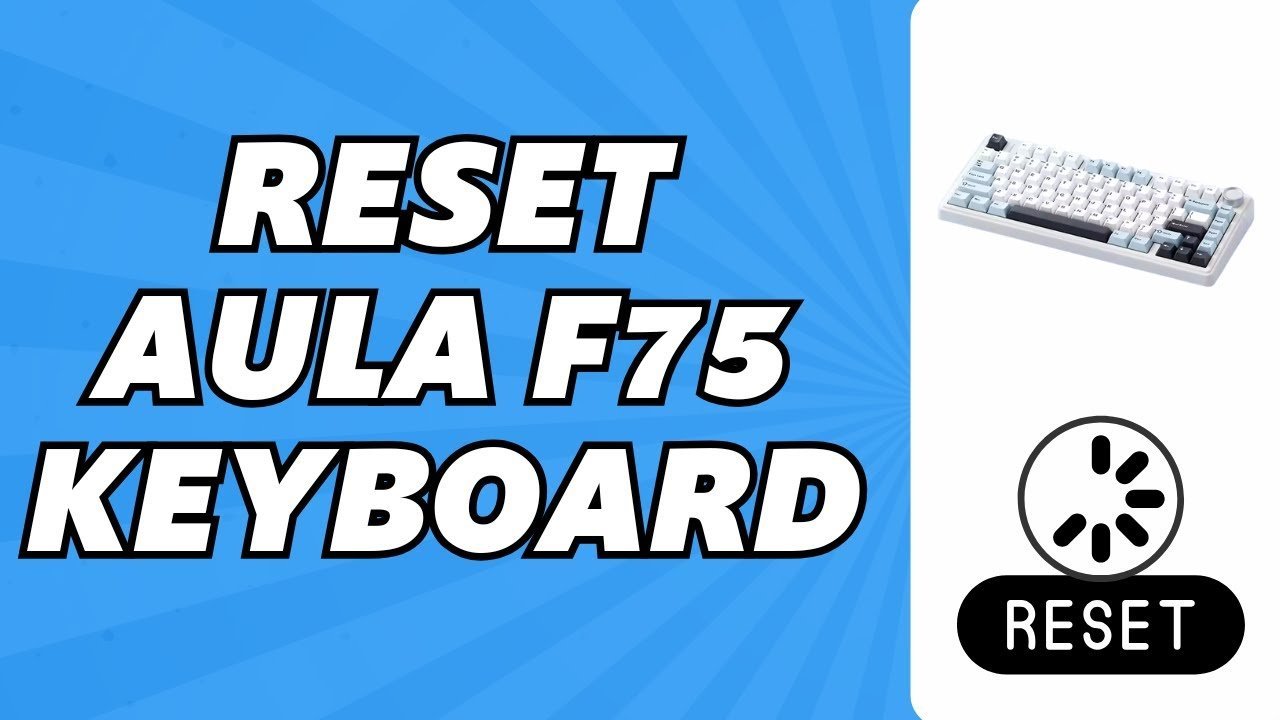
Different Aula boards handle a memory wipe in slightly different ways depending on their wireless chips, layout sizes, and physical switches.
| Keyboard Type | Time Needed | What Changes | What to Watch |
|---|---|---|---|
| Wired Only (like S2022) | 5 seconds | Clears all custom key bindings and lighting speeds | Full board blinks three times |
| Tri-Mode Wireless (like F75 / F87) | 10 to 15 seconds | Wipes Bluetooth device pairings and default profiles | Battery indicator LED color changes |
| Software Reset via Driver | 1 to 2 minutes | Overwrites stored EEPROM profiles from desktop app | Progress bar inside the app screen |
| Hardware Pinhole Models | 5 seconds | Cuts direct battery circuit to force cold boot | Pinhole switch click feel |
It’s safer to try the 5-second shortcut first before installing software, because adding extra background programs can sometimes create driver conflicts you don’t need.
How to Tell You Did It Right
A successful reset shows standard factory lighting immediately, usually a smooth rainbow flow or a static cool white, and your keys will type their printed characters. A failed reset leaves custom backlight layouts active or keeps your old custom macros tied to the keys. The most common quality problem after resetting is key chatter, where one key press registers two or three letters. This happens because factory debouncing algorithms revert to lower millisecond delays inside the firmware. If X causes repeated typing, increase your debounce time in the software; if Y causes the board to stay completely dark, reconnect the physical cable. Keep your USB connection steady during the process to avoid corrupting the onboard memory.
Factory Standards and Clean Up
Aula keyboards follow standard USB human interface device rules managed by the USB Implementers Forum. After the reset finishes, clear out your old custom profiles inside the official driver app so the software doesn’t push the bad settings right back to your board. If you use Bluetooth, delete the old keyboard profile from your operating system’s paired devices list and pair it fresh. A standard factory reset lasts indefinitely until you choose to remap a key, load a new lighting profile, or update the firmware again.
Other Ways to Do It
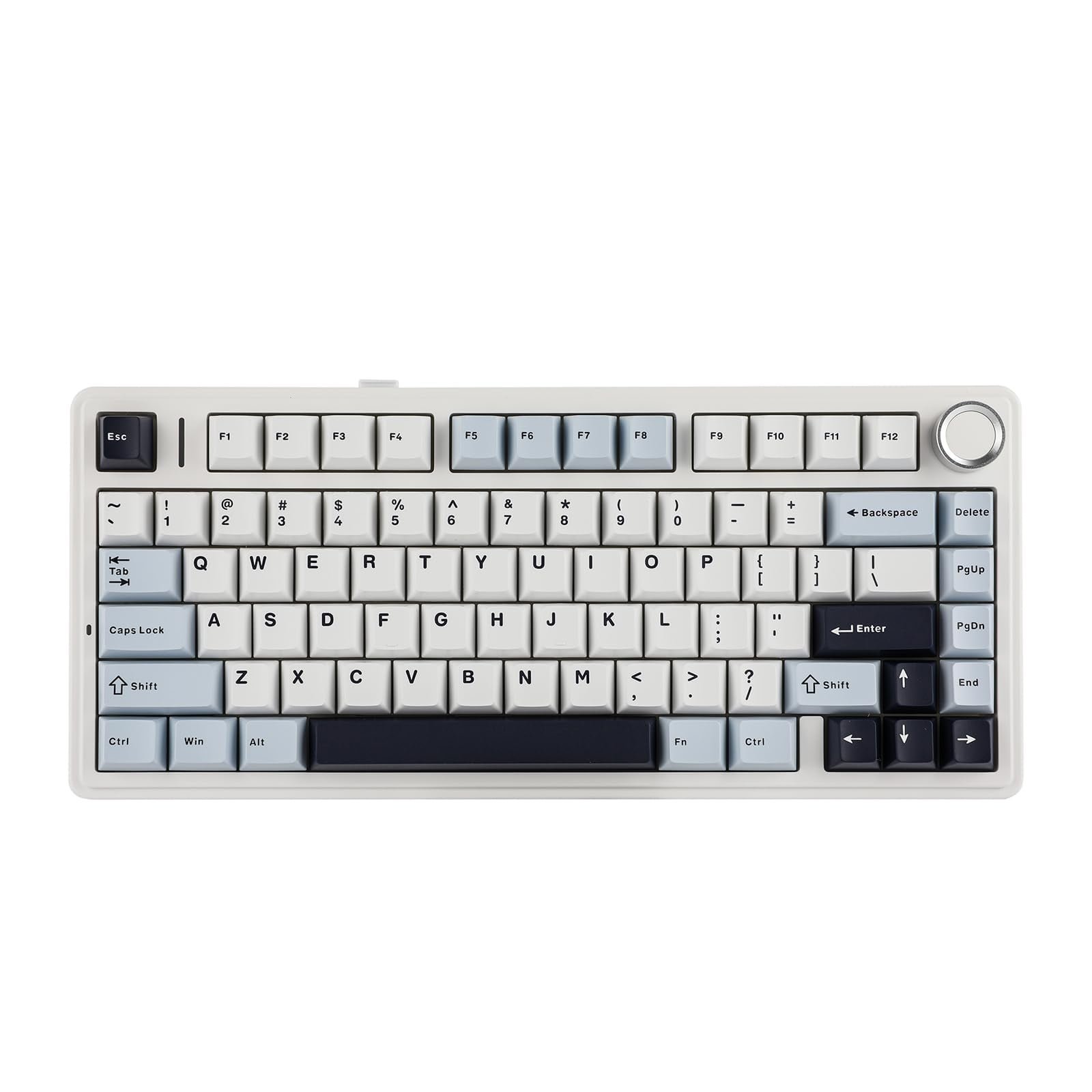
Use the Official Aula Driver Software
Install your specific model’s software from the maker, open the settings gear tab, and click “Restore Defaults.” This takes about two minutes and completely clears custom macros without touching hardware buttons.
Use the Bottom Pinhole Switch
On select wireless models, insert a straightened paperclip into the small hole beside the mode toggle and hold for 5 seconds. This forces a physical battery disconnect, fixing frozen units that ignore normal key presses.
Clear Device Drivers in Windows Device Manager
Open Device Manager, expand “Keyboards,” right-click each HID Keyboard entry, and choose “Uninstall device.” Restart your PC so Windows reinstalls clean generic USB drivers, which fixes computer-side registry errors without altering onboard memory.
Frequently Asked Questions
Will Resetting Delete My Saved Macros?
Yes, a factory reset clears all custom key remaps, lighting layers, and recorded macros stored directly on the keyboard’s memory chip. You’ll need to open the software and recreate your custom profiles once the reset finishes.
Why Won’t My Keyboard Reset Using Fn + Space?
Some compact models use FN + Esc or FN + Left Control + Esc instead of the Spacebar. Check your model’s exact key layout, because smaller 60% boards often remap secondary functions across different letter keys.
Does a Reset Fix Bluetooth Connection Drops?
Yes, it wipes the saved pairing table across all three wireless channels. You must also remove the keyboard from your phone or PC Bluetooth settings before attempting to pair them together again.
Can a Reset Fix a Physically Broken Switch?
No, resetting only restores the internal software and firmware controller settings. If dirt, dust, or bent switch pins block the circuit, you’ll need to pull the switch using a mechanical puller and replace it.
Is It Safe to Unplug the Keyboard While Resetting?
No, unplugging the cord during a memory clear can brick the microcontroller chip. Always wait until all backlights stop flashing before removing the cable or flipping the power switch on the base.
What Should I Do If the Keys Are Still Swapped?
Check whether the keyboard is stuck in macOS mode. Pressing FN + W or flipping the physical OS switch back to Windows usually fixes swapped Alt and Windows keys immediately.