To clear all local data, pressing Ctrl + Alt + Shift + R on the login screen is how to factory reset acer chromebook devices in under 5 minutes. This process, also called a Powerwash, wipes the internal drive and restores ChromeOS to factory settings. It suits personal laptop owners preparing to sell or give away their machine.
What to Prepare Before You Reset Your Acer Chromebook
- Your Acer Chromebook with at least 30% battery charge or connected directly to its original power adapter.
- Your Google account username and password to log back in after the wipe completes.
- An active Wi-Fi network connection to set up the device again.
- An external USB flash drive or Google Drive space to save personal files from the Downloads folder.
A standard USB-C charger rated for laptop power delivery works if the original brick isn’t nearby; standard 5-watt phone plugs don’t provide enough juice. Enterprise-enrolled laptops require network clearance from a system administrator because consumer reset methods won’t remove school or company management profiles.
Step-by-Step
- Back up all essential files from the local Downloads folder to Google Drive or an external thumb drive.
- Sign out of your profile to reach the main login screen showing your account picture and name.
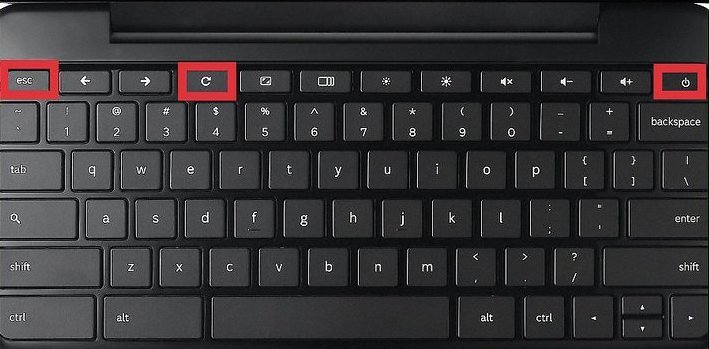
- Hold down Ctrl + Alt + Shift + R at the exact same time until the prompt box opens.
- Select Restart to reboot your computer into the reset utility.
- Click Powerwash in the center dialogue box, then click Continue to confirm the drive wipe.
- Wait 2 to 4 minutes while the system formats the local drive and reinstalls the base image.
- Click Get Started on the welcome screen, connect to your home Wi-Fi network, and sign in.
Careful: A Powerwash destroys local files permanently. If you forget to back up the Downloads folder, those offline documents can’t be recovered after the reboot.
Careful: If your Chromebook is enrolled in a school or workplace fleet, don’t attempt to bypass enrollment by force-resetting; you’ll need your organization’s IT department to de-provision the hardware.
Reset Methods Across Different Scenarios
The time and steps needed to wipe your system depend on whether the laptop can still open its normal desktop.
| Device Situation | Time Required | Key Difference | What to Watch |
|---|---|---|---|
| Normal desktop access | 3 to 5 minutes | Uses the internal Settings menu | Screen prompts for confirmation |
| Locked out / Forgot password | 2 to 4 minutes | Uses keyboard shortcuts at sign-in | Prompt asking for restart |
| Corrupted ChromeOS system | 15 to 20 minutes | Requires an external USB flash drive | Progress bar on recovery screen |
| School / Enterprise managed | Varies by admin | Factory wipe blocked by policy | Enrollment screen reappears |
It’s safer to run a standard soft reset via Settings first rather than jumping straight to full hardware recovery tools.
How to Tell You Did It Right
A clean wipe shows the original ChromeOS welcome screen asking you to select a language, keyboard layout, and Wi-Fi network. A failed attempt boots straight back to your old user login or retains saved offline files. Lingering accounts usually happen when a user selects a basic cache clear instead of confirming the Powerwash. For users keeping the laptop, the trade-off of this clean slate is reinstalling offline Android apps and re-downloading local media. You avoid boot loops by keeping the charger plugged in throughout the entire wipe cycle.
Factory Rules and Final Checks
Google establishes the official Chromebook reset instructions for all certified ChromeOS hardware. According to their technical documentation, a Powerwash completely erases user profiles, cached data, and local drive partitions. Afterwards, unplug any external drives, wipe the keyboard casing with an isopropyl cloth, and shut the machine down if you’re shipping it. A standard factory reset lasts until new accounts accumulate clutter, which varies by model — check the label on your chassis for specific system limits. Selling a laptop without completing this reset risks exposing local files to the next owner.
Alternate Chromeos Reset Paths
The Internal Settings Menu
Open the system tray, select the Settings gear, click Advanced, choose Reset settings, and tap Reset. This route takes 3 minutes and works best when you’re already logged into your active desktop.
Full System Recovery
Download the Chromebook Recovery Utility extension on a separate computer to flash a USB recovery drive. This method fixes broken operating systems, taking around 15 minutes to reflash the internal storage firmware.
Hardware Refresh Reset
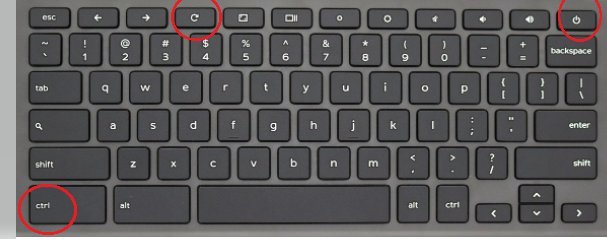
Hold the Refresh key and tap the Power button for 1 second. This simple hardware reboot doesn’t erase user files, but it clears frozen keyboard controllers and power management glitches in 10 seconds.
Frequently Asked Questions
Will a Factory Reset Remove Enterprise Enrollment?
No. Enterprise and school profiles remain permanently tied to the motherboard’s serial number on Google servers. The laptop connects back to the management domain automatically as soon as it touches an internet connection.
How Long Does a Normal Powerwash Take?
Between 2 and 5 minutes. The duration depends on the size of your internal eMMC or SSD storage and whether the computer needs to download minor configuration updates right after restarting.
Can I Recover My Files After Running Powerwash?
No. The system wipes encryption keys and cleans the local drive partition during the process. If you didn’t sync your files to Google Drive or copy them to a flash drive, they’re gone.
Why Won’t My Acer Chromebook Start the Reset?
Your battery might be lower than the required safety threshold. Connect your original AC power adapter directly to the wall outlet, wait 5 minutes, and try the key combination again.
What Happens If the Process Gets Interrupted?
The system may display a “ChromeOS is missing or damaged” screen. If this happens, you must build a ChromeOS recovery drive on another PC to rewrite the operating system.
Do I Lose My Google Drive Files?
No. A Powerwash only clears data stored physically on the internal drive. Everything stored on Google Drive, Google Docs, or cloud-synced Chrome bookmarks stays safe online.
Once the reboot finishes, you’ll see the welcome screen just like the day you unboxed it. If you’re passing the laptop to a new owner, you can safely shut it down here. Otherwise, go ahead and connect to your Wi-Fi network to set up your profile from scratch.