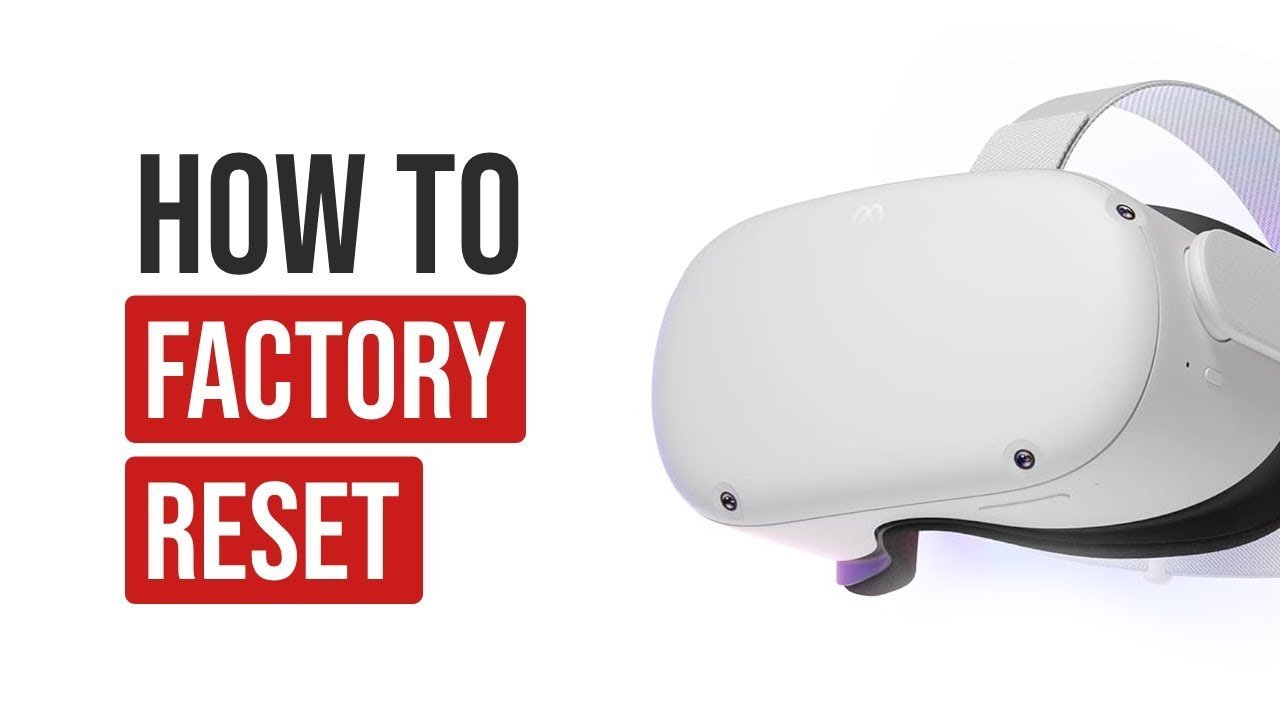
To factory reset an Oculus Quest 2, hold the power and volume down buttons together for about 15 seconds until the USB boot screen appears, then select “Factory Reset.” This wipes all downloaded games, account links, and saved files in under 5 minutes, returning the device to original setup.
A reset completely clears the internal drive so the next owner can’t see your data. However, the trade-off is losing all local progress: while purchased titles stay tied to your account, games without cloud backup support lose all save files permanently.
Ensure the headset has at least 50% battery before starting to prevent the system from shutting down during the wipe. If your headset turns on normally, you can use the mobile app; if the screen freezes or stays black, use the physical buttons instead.
How to Factory Reset Using the Quest Buttons

- Hold down the power button for 3 seconds, then select “Power Off” on the screen so the headset shuts down completely.
- Press and hold the power button and the volume down button at the same time for about 10 to 15 seconds until the USB update menu appears on the display. Tip: If you see the Meta logo and normal startup sounds, release both buttons, shut it down, and try pressing volume down slightly before the power button.
- Press the volume down button 2 times to move the green highlight down to the “Factory Reset” option.
- Tap the power button once to select the reset option.
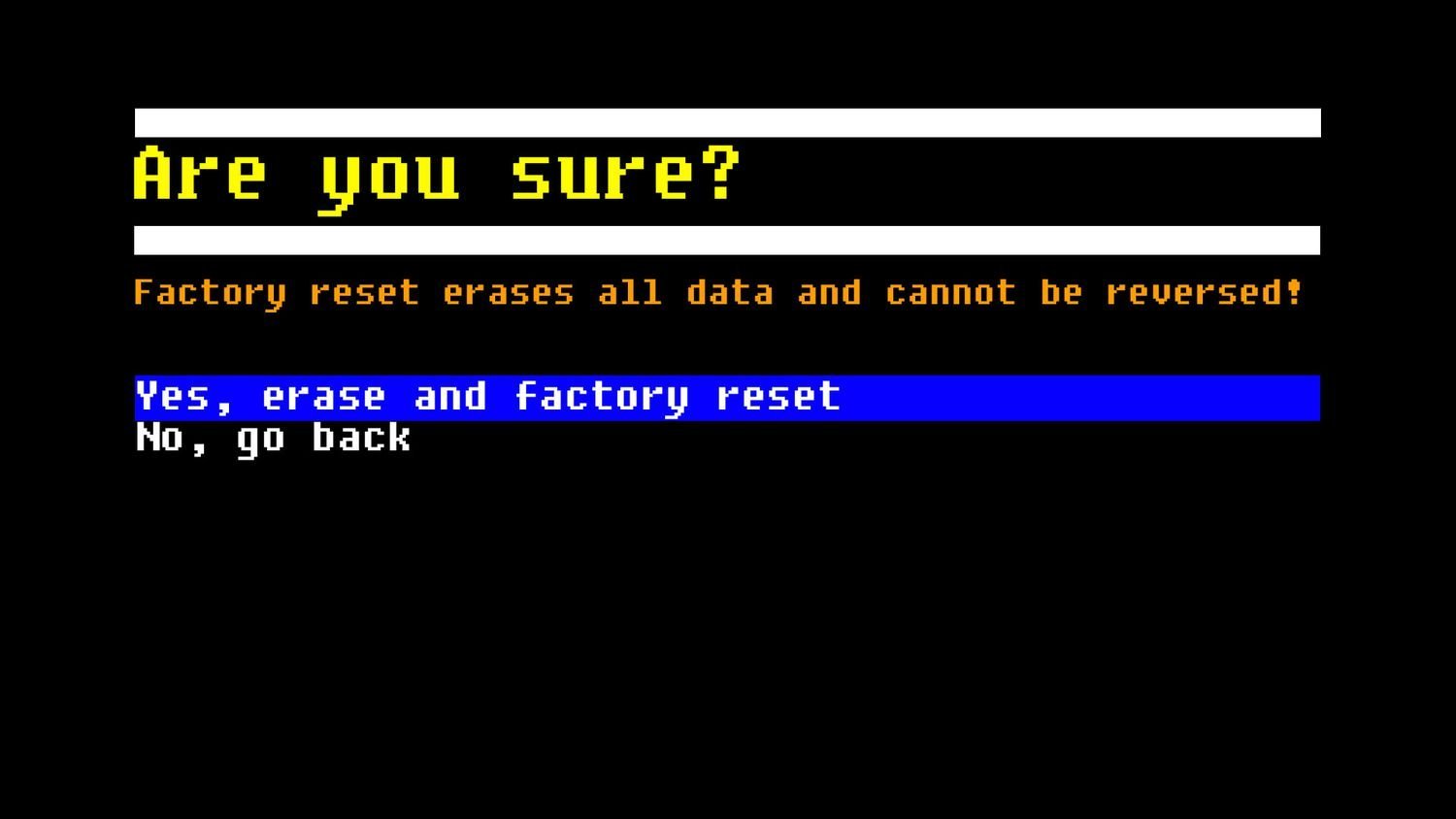
- Press the volume down button 1 time to highlight “Yes, erase and factory reset”, then tap the power button once to confirm the command. Tip: Don’t touch any buttons or unplug the headset while the loading bar runs, or you risk bricking the firmware.
This process isn’t for people who only want to clear a minor tracking glitch, as a simple restart fixes sensor drift without wiping your files. If the device freezes permanently on a blank command screen, stop manual attempts and contact Meta Support directly to avoid voiding warranty coverage.
How Long It Takes
The complete wipe takes roughly 3 to 10 minutes from the first button press to the welcome display.
| Situation | How long | What changes it | What to watch for |
|---|---|---|---|
| Using headset buttons | 3 to 5 minutes | Total amount of installed apps and media | Black screen lasting 60 to 90 seconds |
| Using Meta Quest phone app | 4 to 6 minutes | Wi-Fi speed and Bluetooth signal strength | App showing “Headset not found” alert |
| Wiping a full 256GB headset | 6 to 10 minutes | Internal storage capacity and read/write load | Meta logo pulsing repeatedly during wipe |
If the screen stays blank with no logo for over 15 minutes, plug the unit into its official wall charger and let it sit undisturbed for one hour.
How to Tell When It’s Done
The reset is finished when the internal fans quiet down and the screen displays the initial setup animation. You’ll see a visual prompt showing how to pull the plastic battery tabs from the controllers, followed by language selection options. The internal operating system has fully erased your profile once the device emits the rising power chime and prompts for a Wi-Fi connection. The one test that settles whether the data was wiped: look through the lenses without logging in; if the device asks you to pair the headset to the phone app, all user data is gone.
Mistakes That Ruin It
- Resetting during low battery: The device can shut off midway through overwriting system partitions, which permanently corrupts the bootloader. Charge the headset past 50% or keep the official charger connected the entire time.
- Skipping cloud save verification: Local data gets wiped immediately, costing you dozens of hours of offline game progress. Check your Meta account profile settings online to verify your game saves uploaded before you wipe.
- Letting go of buttons too early: Releasing buttons after 3 seconds simply restarts the headset into the normal home menu. Keep both fingers pressed firmly until the green-and-black USB boot menu renders clearly.
Frequently Asked Questions
Will I Lose My Purchased Games?
No, your games remain tied to your Meta account forever. Once the reset finishes, sign back in with your original username and password to download your full library again without paying anything extra.
Can I Factory Reset from My Phone?
Yes, open the Meta Quest mobile app, tap Menu, select Devices, choose your headset, tap Headset Settings, select Advanced Settings, and tap Factory Reset. This method only works if the headset is turned on and paired via Bluetooth.
Why Won’t the Boot Menu Appear?
This usually happens because the volume down button wasn’t held down firmly alongside the power button. Power down completely, then squeeze volume down a split second before pressing power, holding both until the green text appears.
Does a Factory Reset Delete Oculus Cloud Backup?
No, Meta Cloud Backup stores compatible save files on remote servers away from your physical headset. When you reinstall games on your refreshed device, supported titles automatically retrieve their progress from the cloud.
What Should I Do Before Selling My Headset?
Run the factory reset and wipe the physical casing and facial interface with a dry microfiber cloth. After the reset completes, turn the headset off immediately at the setup screen so the buyer receives a fresh machine.