To run a complete network wipe, performing a network reset requires opening Windows Settings, choosing Network & Internet, clicking Advanced network settings, selecting Network reset, and clicking Reset now. This built-in tool removes every network adapter, clears saved Wi-Fi passwords, and restarts your computer after a five-minute countdown.
This process reinstalls your original network hardware drivers and returns your TCP/IP stack to factory defaults. It fixes stubborn connection drops and corrupted driver files when basic router restarts fail to work.
The biggest mistake before starting is forgetting your Wi-Fi password. This reset deletes every saved network, so you’ll lose access immediately after the reboot if you don’t have that key written down.
Steps to Reset Your Windows Networking
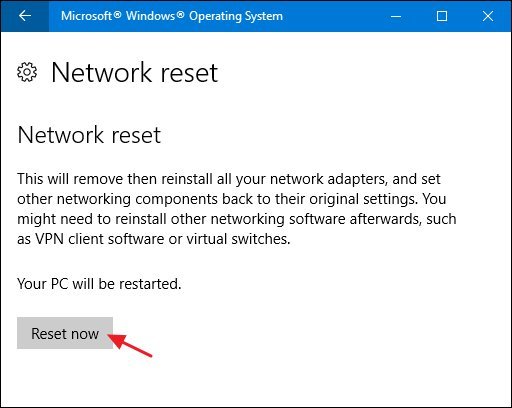
- Open the Settings app by pressing the Windows key and the letter I together.
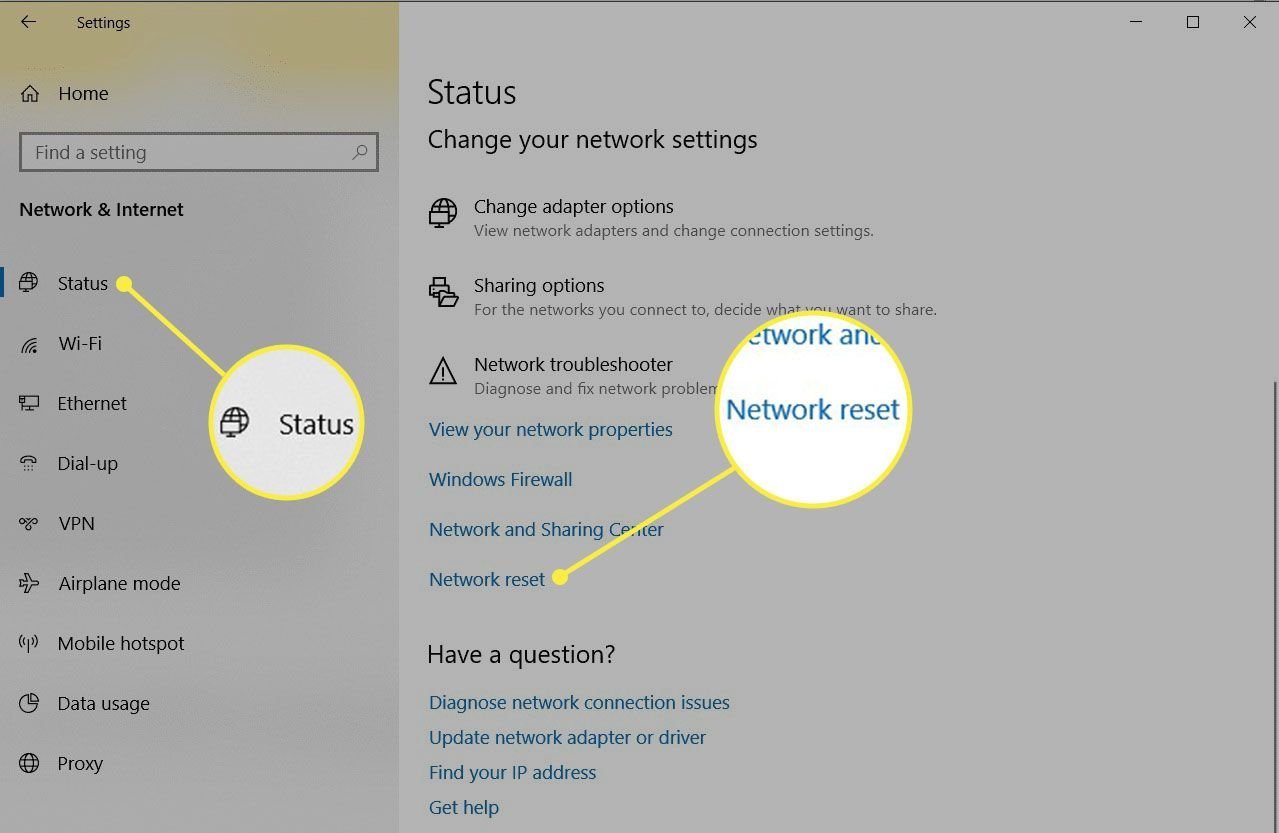
- Click on Network & Internet in the left menu.
- Scroll down and click Advanced network settings near the bottom of the right panel.
- Select Network reset under the More settings section.
- Click the Reset now button next to the network reset description.
- Click Yes when Windows asks if you’re sure you want to reset your network settings.
- Close your open files immediately before the five-minute shutdown timer ends, or restart the PC manually right away. Tip: If you use corporate software, this isn’t for company-managed laptops without talking to your IT helpdesk first, because it wipes custom VPN profiles.
How Long It Takes
The active reset takes under two minutes, but the automatic reboot countdown adds extra waiting time.
| Situation | How long | What changes it | What to watch for |
|---|---|---|---|
| Windows 11 default | 5 to 7 minutes | System reboot speed and drive type | The 5-minute restart warning prompt |
| Windows 10 default | 5 to 7 minutes | Background apps closing slowly | A popup saying your PC will restart |
| Manual quick restart | 1 to 2 minutes | How fast your PC shuts down | Windows desktop loading normally |
If your computer stays stuck on the restarting screen for more than ten minutes, hold the physical power button down for ten seconds to force a power cycle.
How to Tell When It’s Done
Your computer boots back to the desktop and displays the network icon in your system tray showing a small globe or disconnected symbol. Clicking that icon will open an empty list of nearby Wi-Fi networks without your old automatic connections.
If you plug in an Ethernet cable, a prompt will appear on the right side of the screen asking if you want your PC to be discoverable on the private network. The true test that settles it’s opening a command prompt, typing ping 8.8.8.8, and getting four successful replies back without packet loss.
Mistakes That Ruin It
- Ignoring saved credentials: You’ll lose access to hidden or complex home networks immediately after the restart. Write down your Wi-Fi name and password on paper before clicking the confirmation button.
- Skipping the reboot: The network drivers won’t reinstall cleanly while the previous operating system session remains active in memory. Restart the computer right away instead of waiting out the full five-minute warning timer.
- Forgetting third-party VPN software: The reset wipes virtual network adapters used by tools like WireGuard or OpenVPN. Download the original installer file before resetting so you don’t end up locked out of your remote work servers.
Frequently Asked Questions
Will a Network Reset Delete My Personal Files?
No, it never touches your documents, downloads, photos, or personal browser history. It only removes network adapters, resets your IP configuration, and clears stored Wi-Fi networks and Bluetooth pairings. Your installed desktop apps and personal data stay completely safe.
Do I Need to Reinstall My Wi-Fi Drivers After?
No, Windows automatically reinstalls your standard factory drivers during the reboot. The operating system uses its built-in driver cache to restore hardware functionality. This varies by model — check the label on custom network cards if you need proprietary vendor software.
Will This Fix My Slow Internet Speeds?
If the slowdown comes from corrupted TCP/IP stack settings, yes, it helps restore standard throughput. However, if your internet service provider has an outage or your physical router has problems, this computer reset won’t increase your speeds.
Can I Cancel the Five-Minute Restart Timer?
Yes, you can open Command Prompt and type shutdown /a to abort the automatic timer. However, you must still restart your computer manually within a few minutes to allow the operating system to reinstall your network components properly.
Does This Reset Remove My Ethernet Settings?
Yes, it removes static IP addresses, custom subnet masks, and manual DNS server numbers you typed in before. If your local office or school requires a manual IP setup, write those specific numbers down before starting.
Why Did My VPN Stop Working After the Reset?
The reset completely uninstalls virtual network adapters that VPN clients use to route encrypted traffic. You’ll need to open your VPN program and run its repair tool, or reinstall the software to rebuild the secure tunnel adapter.