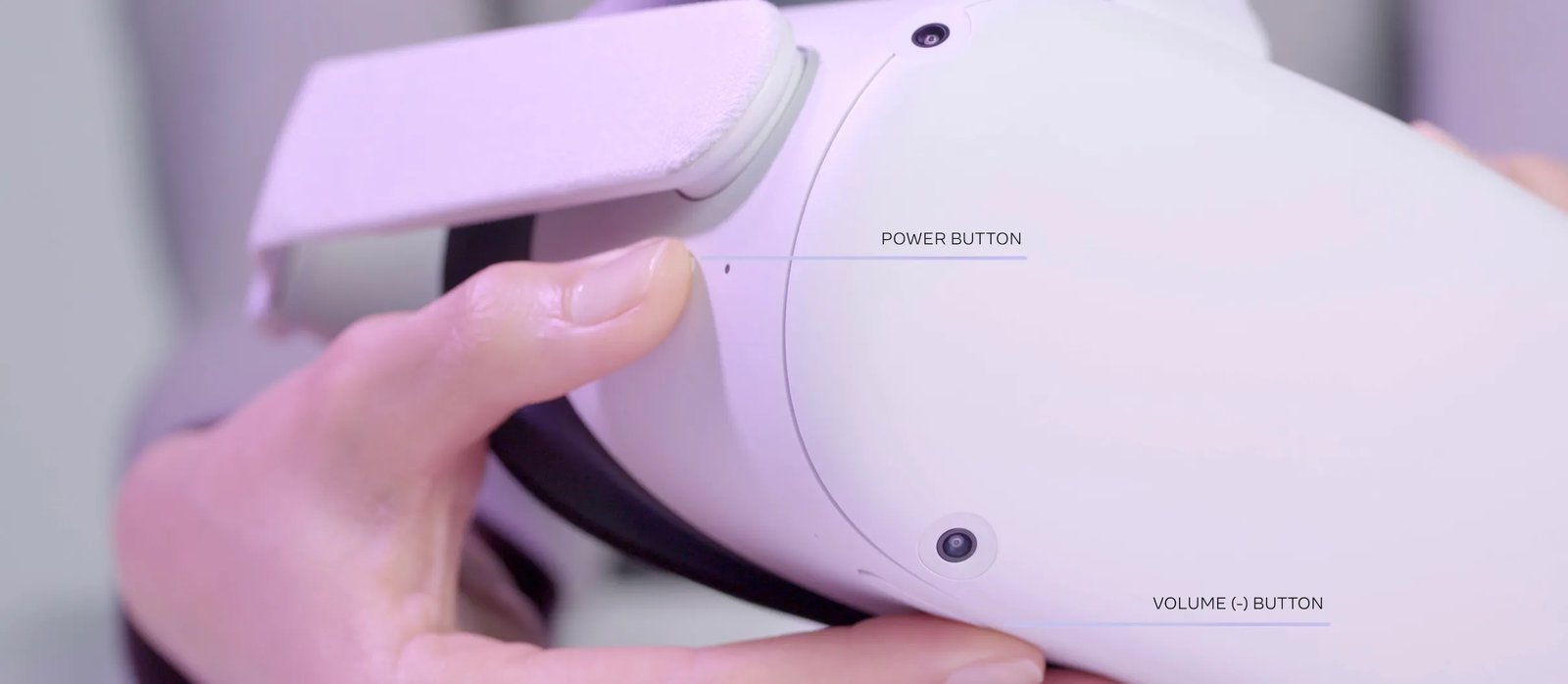
To factory reset a Quest Pro headset safely, hold the power and volume down buttons together for about 15 seconds until the boot screen appears, select the wipe option, and confirm. This process completely erases your downloaded apps, account logins, and saved files, returning the device to its original factory state immediately.
Battery level decides whether this wipe succeeds or bricks the system midway through writing firmware. If the battery sits below 50%, plug in the original wall charger before you begin so it doesn’t shut down mid-cycle.
People often forget that cloud saves aren’t automatic for every single title. If you don’t check your backup settings online first, you’ll lose custom sideloaded files and unbacked progress permanently, because this wipe completely clears the internal storage drive.
Resetting the Meta Quest Pro Hardware

- Turn off your device completely by holding the power button for 3 seconds and selecting the shutdown prompt.
- Hold down the power and volume down buttons at the exact same time for roughly 15 seconds until the USB boot menu lights up.
- Press the volume down button to highlight the text that reads “Factory Reset” on the dark screen.
- Press the power button once firmly to select that highlighted option.
- Highlight “Yes, erase and factory reset” using the volume buttons, then click the power button to confirm your final choice. Tip: If you let go of the volume rocker too early during startup, the device will simply boot normally into your standard home environment.
- Wait for the headset to wipe its internal drive and restart itself back into the initial pairing screen. Tip: If X buttons fail to respond due to stuck hardware, do A: use the Meta Quest phone app under Device Settings to trigger the wipe remotely; if Y occurs where the phone app won’t connect, do B: rely strictly on the physical hardware button combo above.
For steps on managing cloud backups before you start, review the Meta Store Help Center guide to see which app data is currently preserved on your account.
How Long It Takes
The complete wipe and initial restart take between three and seven minutes under normal operating conditions.
| Situation | How long | What changes it | What to watch for |
|---|---|---|---|
| Standard button reset (healthy unit) | 3 to 5 minutes | Amount of installed data | A brief flash of the Meta logo |
| Meta Quest mobile app remote wipe | 4 to 6 minutes | Wi-Fi connection speed | Phone app displaying “Headset Not Found” |
| Storage completely full (256 GB model) | 5 to 7 minutes | Large quantity of cached video files | Screen staying black longer during drive wipe |
If the screen stays totally dark for longer than 15 minutes, connect the charger and hold the power button for 30 seconds to force a fresh restart.
How to Tell When It’s Done

You know the factory wipe is fully done when the device restarts automatically and displays the initial setup animation. This screen asks you to pull the paper tabs from the Quest Touch Pro controllers and shows the familiar visual prompt to pair your mobile headset. You’ll hear the default startup chime play through the spatial audio speakers, and the external status LED will switch from flashing amber to solid white. If the lenses load directly back to your normal guardian boundary or account profile instead, the wipe failed to register, and you must run the boot sequence a second time.
Mistakes That Ruin It
- Resetting with low battery power: The system can freeze permanently if it loses power while rewriting base partitions, so keep your headset plugged into its wall adapter during the entire wipe.
- Skipping manual file transfers: Internal screenshots and custom recording folders don’t transfer to Meta’s servers, which means you’ll lose them forever unless you back them up via USB cable to a PC beforehand.
- Assuming software-only troubleshooting is needed: This wipe isn’t for people who just have an app crashing occasionally, as clearing the app cache or restarting normally fixes minor glitches without deleting all your saved games.
Frequently Asked Questions
Can I Undo a Factory Reset on Quest Pro?
No, you can’t undo this action once the wipe begins. The process erases all local cryptographic keys and partitions, which permanently clears your user accounts, photos, and game installations. You’ll need to sign back in and re-download your library from the Meta Store.
Will a Factory Reset Delete My Purchased Games?
No, it won’t delete games from your Meta account library. You own your purchased software permanently through your Meta profile, so you can re-download any title for free once you finish the initial setup wizard and connect your headset to your home Wi-Fi network.
What Happens If the Headset Dies During the Reset?
If your headset runs out of battery during the rewrite, the firmware may become corrupt. This can leave the device stuck in an endless bootloop, which requires a manual sideload via recovery mode or an official hardware replacement if recovery tools won’t load.
Why Won’t the Boot Menu Appear When Holding Buttons?
The boot menu won’t appear if you press the volume up button instead of volume down. Make sure the unit is totally powered off, press the lower volume button first, and then press and hold the power switch without releasing either for 15 seconds.
Does a Factory Reset Remove the Latest Firmware Update?
No, it doesn’t downgrade your operating system to an earlier version. The headset keeps the current core operating build that was already installed, but it strips away all added user configuration files, runtime logs, saved credentials, and user applications from storage.
Can I Reset the Quest Pro Without Using the Controllers?
Yes, you can navigate the entire recovery screen without touching the controllers at all. The physical volume down and volume up buttons move the text cursor across the list, and the physical power button acts as your enter key to execute the command.