To quickly reset a Fitbit Charge 6 tracker, swipe down on the home screen to open Settings, tap Device Info, select Clear User Data, and hold the button icon for 3 seconds. That full reset wipes personal files, while a basic restart using the charging cable preserves your daily stats.
A simple restart just turns the hardware off and back on without touching your health data. A factory reset wipes the device completely clean, which removes your saved credit cards, custom apps, and unsynced exercise records.
People often confuse these two actions and accidentally delete a whole day of fitness metrics. If your tracker only freezes, you want a restart; if you plan to sell the device, perform a factory wipe.
Steps to Reset Your Fitbit Charge 6
Follow these steps to safely restart or factory reset your tracker depending on your goal.
- Swipe down from the main clock screen until you reach the Settings app icon.
- Tap Settings, scroll down to the bottom of the menu, and select Device Info.
- Tap Clear User Data to start a full wipe, or choose Restart Device if you only want to fix a frozen screen. Tip: If you choose Clear User Data, this permanently deletes your saved wallet cards and local exercise history.
- Press and hold the on-screen confirmation button for 3 seconds until the tracker vibrates.
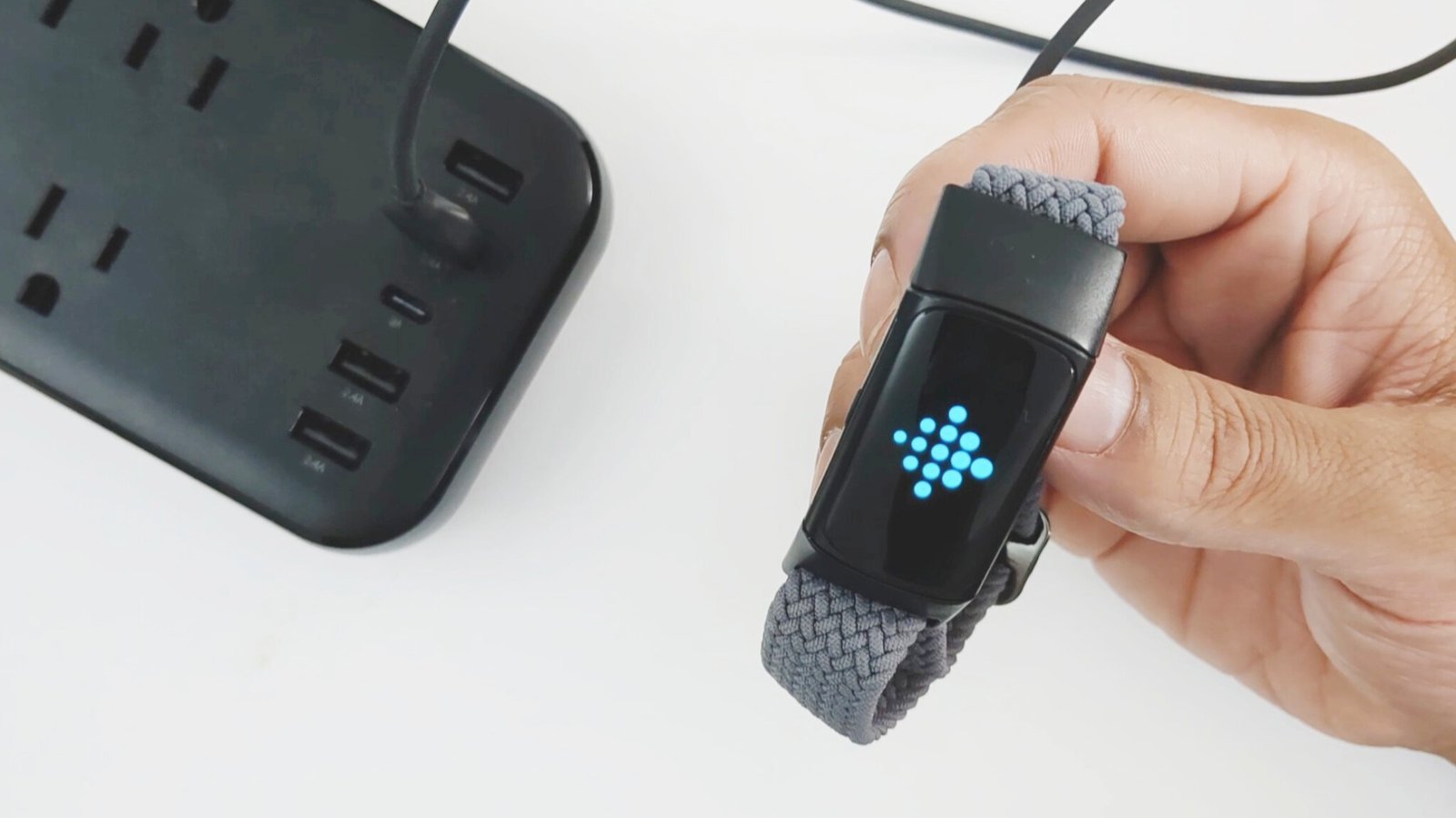
- Connect your device to the official charging cable if the screen stays black or fails to respond to your touch.
- Press the physical button located on the flat USB plug 3 times within 8 seconds, pausing for 1 second between each press, as outlined in the official Fitbit Help guide. Tip: Make sure the magnetic pins snap firmly into the tracker’s charging port before you begin pressing the cable button.
- Wait until the tracker buzzes and the manufacturer logo appears on the display.
How Long It Takes
The time needed to reset your fitness tracker depends on which method you use and how responsive the display remains.
| Situation | How long | What changes it | What to watch for |
|---|---|---|---|
| Settings menu soft restart | 1 to 2 minutes | Touchscreen responsiveness | Screen turns black then shows the logo |
| Settings menu factory wipe | 2 to 3 minutes | Amount of stored user data | A red circle with an X or a setup prompt |
| Hardware cable reset | 3 to 5 minutes | Accurate button press rhythm | Distinct vibration pulses after the third press |
If your device stays completely dark for more than 10 minutes, unplug the cable, clean the gold charging pins, and try the button sequence again.
How to Tell When It’s Done
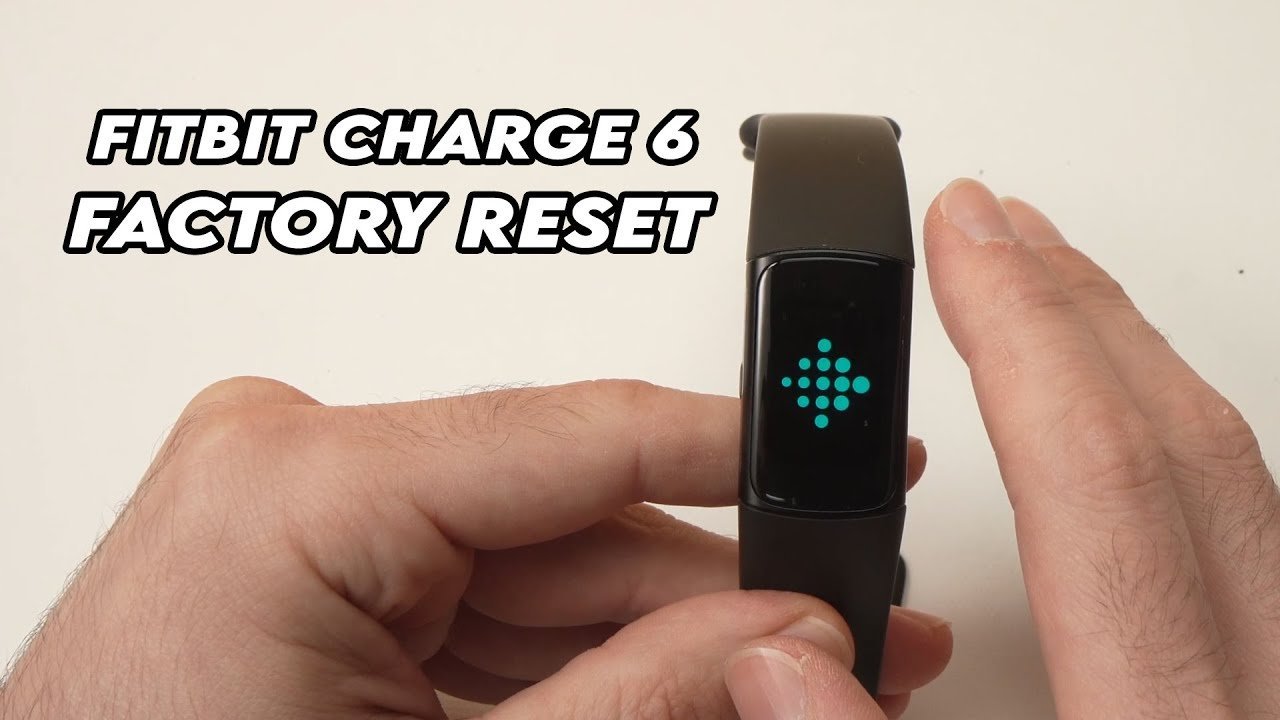
A successful reset gives clear visual and physical signals. The tracker vibrates firmly once, the screen goes dark, and a white brand logo appears in the center of the display. If you performed a soft restart, the screen returns directly to your normal clock face with all your steps intact. If you performed a factory reset, the tracker displays a phone pairing animation or asks you to open the mobile app. The one test that settles whether a factory reset finished is checking your phone’s Bluetooth menu: the tracker won’t connect automatically anymore until you set it up again as a brand-new device.
Mistakes That Ruin It
- Pressing the cable button too fast: The hardware sensor misses rapid taps and fails to trigger the reboot sequence. Space your 3 button presses out so that each press lasts 1 full second with a 1-second pause between them.
- Skipping the mobile app sync before resetting: Any workout metrics logged since your last sync get erased permanently during a factory wipe. Open your phone app and pull down on the dashboard to upload your recent data before touching any reset menus.
- Leaving Bluetooth connected on your phone: A wiped tracker often fails to pair again because the phone tries to use old security keys. Open your smartphone settings, find your fitness band under saved Bluetooth devices, and tap “Forget Device” before setting it up again.
Frequently Asked Questions
Will Resetting Delete My Step History?
No, a standard restart won’t delete your step count. A factory reset erases all unsynced steps stored directly on the tracker, but any health history already uploaded to your mobile profile remains completely safe in your account.
Why Is the Screen Black After a Reset?
Your battery might be fully drained. Connect the charging cable to a powered USB port for 15 minutes, check that the magnetic pins sit flush against the metal contacts, and repeat the 3-press sequence on the cable button.
Can I Reset the Tracker Without the Charging Cable?
Yes, you can reset it using the on-screen Settings menu. You only need the physical charging cable if the tracker screen freezes completely, turns entirely black, or stops responding to your finger swipes.
How Do I Remove My Payment Cards?
Performing a factory reset automatically deletes your digital wallet cards from the device. You can also open the mobile companion app, select Google Wallet under your device settings, and manually delete each card individually without wiping your tracker.
What Happens If I Reset Without Unpairing from My Phone?
Your phone gets confused by the old connection profile and blocks the tracker from syncing. If this happens, open your phone’s Bluetooth settings, delete the fitness band from your remembered hardware list, and pair it through the fitness app again.