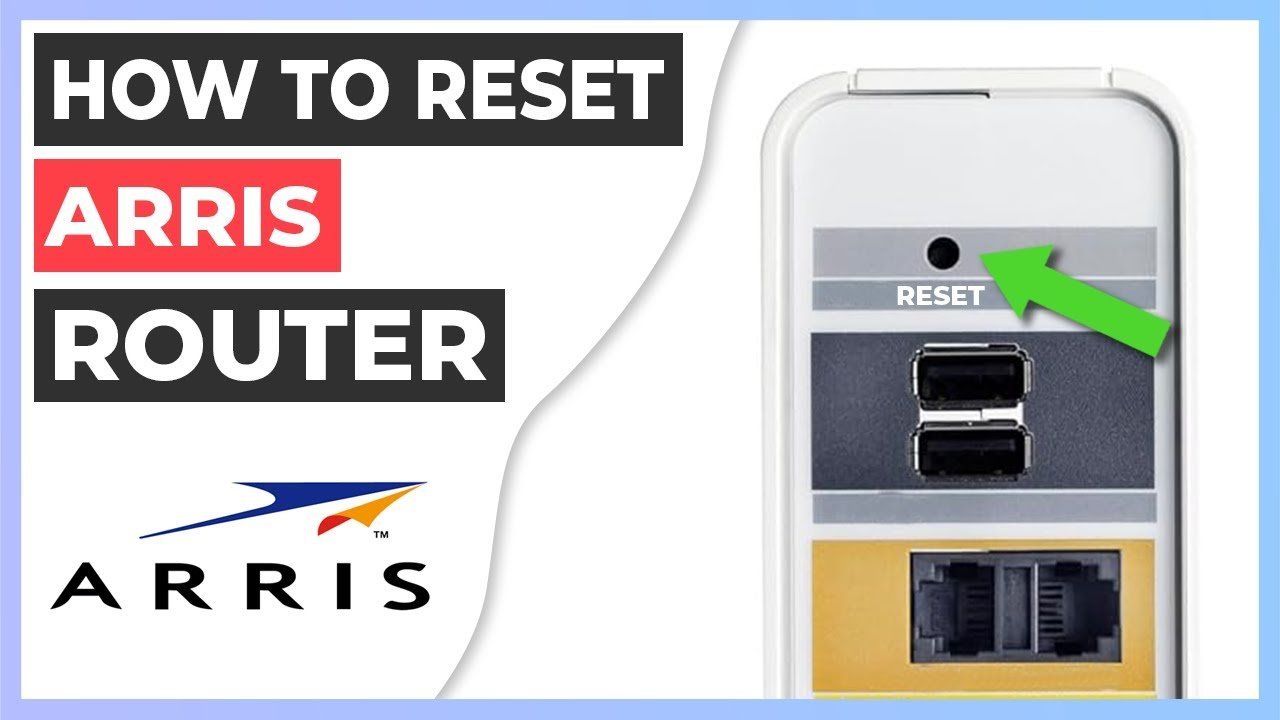
To complete how to reset arris router hardware back to factory defaults, press and hold the recessed Reset button on the back panel for 15 seconds using an unfolded paperclip while the power cord stays connected. Release the button, then wait 3 to 5 minutes for the front panel lights to turn solid green.
A factory reset wipes custom Wi-Fi network names, security passwords, parental controls, and custom DNS settings. It returns the unit to the original network credentials printed on its barcode sticker.
Forgetting to write down custom port forwarding rules or fixed IP addresses before clearing the memory costs 30 minutes of manual network reconfiguration later. If you only have minor internet lag, do a simple power reboot; if the admin password is lost or the unit is unresponsive, do the full reset. This process isn’t for people using rented gateway hardware from an ISP that blocks customer hardware resets—contact your provider directly instead.
Restoring Factory Defaults

- Leave the Arris unit plugged into wall power and verify that the Power light is on.
- Locate the pinhole labeled Reset on the rear port panel next to the ethernet jacks.
- Insert a straightened paperclip into the pinhole until you feel the small internal switch click down.
- Hold the switch firmly for 15 seconds without letting go. Tip: If you let go before 10 seconds pass, the unit only reboots normally and keeps your old settings intact.
- Release the pinhole switch once all front LED lights turn off or flash together in unison.
- Wait 3 minutes while the internal firmware reloads and the device renegotiates the signal with your service provider.
- Reconnect your computer to the default Wi-Fi network using the original Wi-Fi Passphrase shown on the bottom product label.
Tip: This varies by model — check the label on your specific device for the default admin URL, which is usually
192.168.0.1or192.168.100.1.
How Long It Takes
The table below shows expected times for clearing and rebooting typical Arris gateway models.
| Situation | How long | What changes it | What to watch for |
|---|---|---|---|
| Standard standalone cable modem (e.g., Surfboard SB6183) | 2 to 3 minutes | Downstream channel bonding lock speed | Send/Receive lights turning solid blue |
| Combined Wi-Fi router gateway (e.g., Surfboard SBG8300) | 4 to 6 minutes | Dual-band Wi-Fi radio boot routines | 2.4 GHz and 5 GHz LEDs blinking then solid |
| Touchstone telephone gateway (e.g., TG3452) | 5 to 8 minutes | Voice line registration with carrier | Tel 1 light staying green without blinking |
If the unit takes longer than 10 minutes to stabilize, pull the power plug for 30 seconds, plug it back in, and test the wall outlet for steady power.
How to Tell When It’s Done
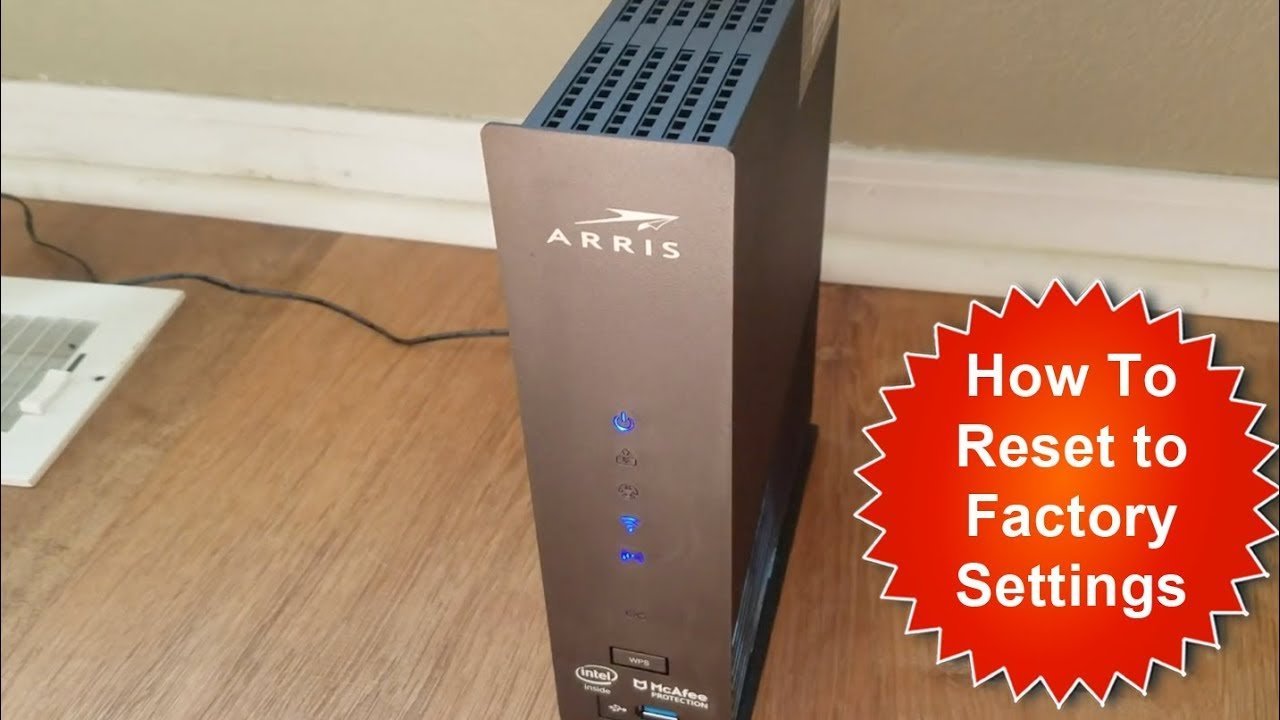
A successful reset shows visible changes across the front LEDs. The Power, Online, and Wi-Fi lights stop flashing and stay steady. A phone or computer searching for wireless signals will see the factory network name (SSID) from the product sticker instead of your old custom Wi-Fi name.
According to official ARRIS consumer support hardware guides, a steady green or blue “Online” globe icon indicates proper downstream and upstream registration with your cable company. The ultimate test is opening a web browser: if typing any website address directs you to the initial Arris gateway setup screen, the reset is complete.
Mistakes That Ruin It
- Releasing the reset switch too early: Releasing after 5 seconds triggers a basic reboot instead of wiping settings, leaving the device locked under your forgotten password. Always count a full 15 seconds using a watch before releasing the pin.
- Unplugging power while the lights are flashing: Pulling the power cord during the restart corrupts the internal firmware and permanently bricks the device. Leave the power cord untouched for at least 5 minutes after releasing the button.
- Using a graphite pencil tip to press the switch: The fragile graphite lead snaps off inside the tiny casing and jams the internal reset switch permanently. Always use an unfolded metal paperclip or an official mobile phone SIM-ejector tool.
Can I Reset My Arris Router from a Web Browser?
Yes. Open a web browser, enter 192.168.0.1 into the address bar, and log in with your current admin details. Navigate to the Configuration or Utilities menu, find the Restore Factory Defaults button, and click it. The gateway restarts itself automatically within 3 minutes.
What Is the Default Password for an Arris Router?
Look at the product barcode sticker on the bottom or back of your unit. On most modern Arris units, the default admin username is admin and the unique admin password is the serial number or printed “Pre-Shared Key.” Older models frequently used password as the factory default.
Why Won’t My Arris Router Connect to the Internet After a Reset?
Your Internet Service Provider may need to re-authorize the device on their network. A reset erases custom ISP configurations and sometimes forces the modem to re-register its MAC address. If the Online light flashes orange for over 15 minutes, call your internet provider to refresh your connection.
Does Resetting an Arris Router Erase the Firmware?
No. A factory reset erases user-created settings, custom passwords, and personal network names, but it keeps the core operating firmware intact. The router simply restores its default factory firmware values stored in protected memory. It won’t roll back necessary security updates installed by your service provider.
Is It Safe to Reset a Router While Devices Are Actively Downloading?
Yes, but all active downloads will drop instantly. Any active uploads, video calls, or downloads will terminate and lose unsaved progress immediately. Make sure to pause work files, warn family members, and save open online documents before you hold down the physical pinhole button.
Once your device finishes booting, look at the sticker underneath to find your network name and password. You’ll need these default details to log back in from your computer. From there, open any web browser to pick a new, secure password that’s easy for your family to remember.
Related guides