Resetting Hisense TV models takes about two minutes using the Settings menu and your standard factory PIN of 0000. You’ll clear all personal accounts, wipe downloaded apps, and return the display settings to original factory defaults. This standard method suits anyone keeping their working remote who wants a clean, fast start.
Items You Need to Reset Your Hisense TV
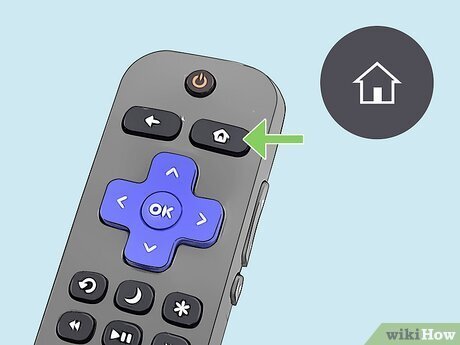
- Working Hisense remote control with functional navigation arrows and an OK button.
- Television powered on and plugged directly into a working 120V wall outlet.
- Four-digit system PIN (the default code from the factory is 0000 or 1234).
- Bent paperclip or ballpoint pen (only needed if your unit uses a recessed physical reset pinhole on the back panel).
- Home Wi-Fi network name and password ready for re-entering during setup.
A universal infrared remote programmed to your set works fine as a substitute, but a smartphone remote app won’t work once the television disconnects from your home network during the reboot. If the main board suffers internal component failure, hardware repairs need an authorized electronics technician.
Step-by-Step
- Press the Home button on your remote control once to open the main dashboard.
- Select the Settings gear icon in the top right corner of the screen using the arrow keys, then press OK.
- Scroll down the menu to highlight Device Preferences (on Hisense Android or Google TVs) or System (on VIDAA and Roku models).
- Select the option labeled Reset or About, then choose Factory Reset. Careful: If you choose a full wipe, you trade convenience for safety because it permanently erases your personal data, saved passwords, and downloaded applications.
- Enter your four-digit PIN; type 0000 on your remote’s number pad if you never changed the default security code. Tip: If 0000 fails, try entering 1234 or check your user manual, as Hisense models vary by operating system.
- Highlight Erase Everything and press OK to begin the wipe.
- Wait 60 to 90 seconds while the screen turns completely black and the television runs the internal restoration routine. Careful: Don’t unplug the power cord or press buttons on the chassis while the screen is black, or you risk corrupting the core firmware.
- Release all controls once the initial setup wizard appears on the screen, showing the language selection prompt.
Methods for Different Platforms
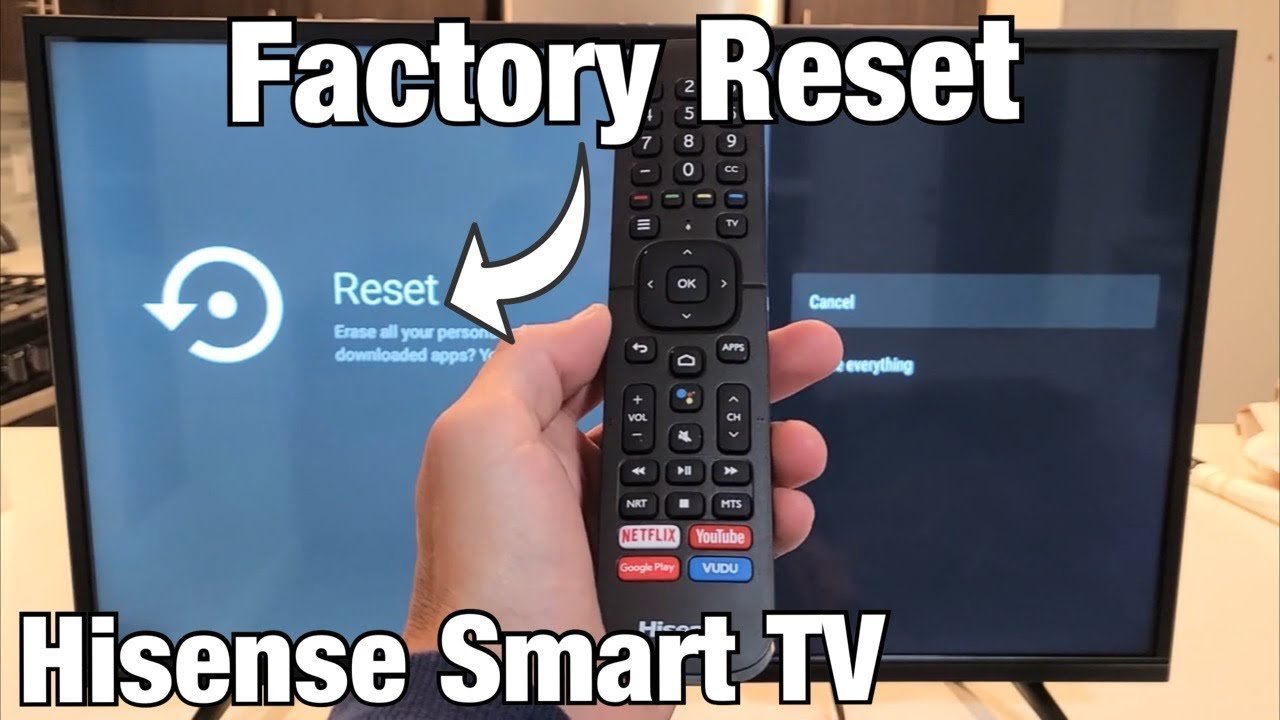
The exact path changes depending on which operating system powers your television set.
| Operating System | Process Duration | Navigation Difference | What to Monitor |
|---|---|---|---|
| Google TV | 2 to 3 minutes | Settings > System > About > Reset | White status LED blinking steadily |
| Roku TV | 1 to 2 minutes | Settings > System > Advanced system settings | Roku bouncing letters animation |
| VIDAA OS | 2 minutes | Settings > Support > Restore To Factory Default | On-screen progress percentage circle |
| Android TV | 2 to 4 minutes | Settings > Device Preferences > Reset | Android spinning color circles |
It’s safer to test a simple power drain first before jumping straight to a factory wipe that clears everything.
How to Tell You Did It Right
A successful restoration drops you immediately onto the initial setup screen, asking you to choose your language, region, and wireless connection. The interface responds smoothly to remote clicks without freezing or lagging. A bad attempt leaves the television stuck on the brand logo, displays a blank black screen for longer than five minutes, or boots directly back into your old personal profile without wiping anything. This failure usually happens because the operating system hung during storage partition formatting. Turning the unit off too soon causes incomplete file writes, so always give the television ample time to clear its flash memory.
Factory Rules and Post-Reset Steps
When dealing with network-enabled electronics, the Federal Trade Commission consumer guidance advises wiping all stored personal data and account tokens before selling or giving away any connected device. After the reboot completes, unplug the television, clean off dust along the rear vents, and plug it back in securely. An honest limit stated plainly: this varies by model — check the label on the back casing for your exact chassis number. A reset lasts indefinitely until you re-enter your private details or install new software updates. If your screen remains dark, a licensed repair shop must diagnose the power board.
Alternative Reset Techniques
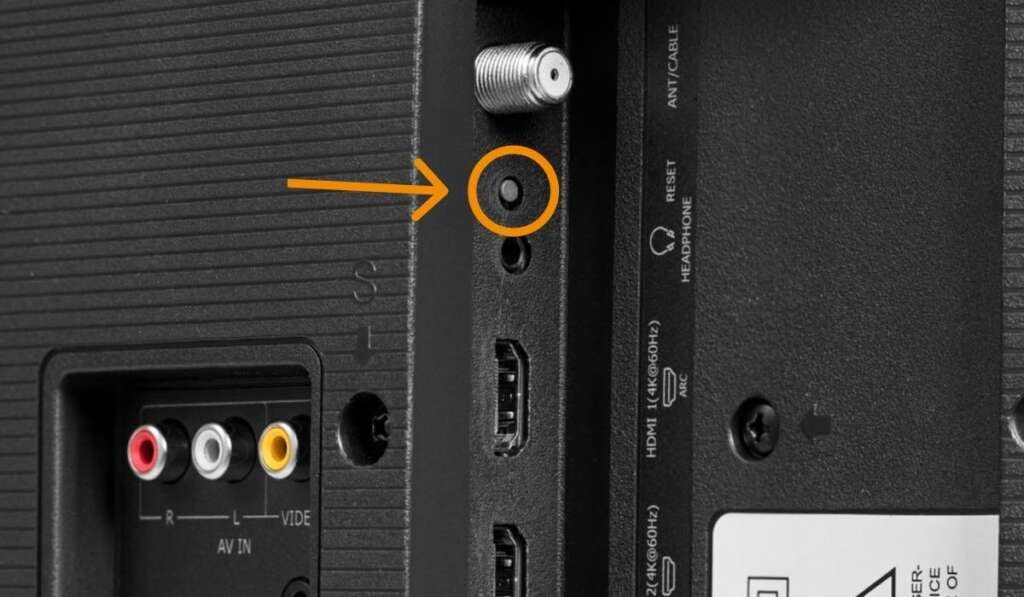
The Physical Reset Button
Locate the small hole labeled “Reset” near the HDMI ports on the rear panel. Press a bent paperclip firmly inside for 15 seconds until the power light flashes. This hardware shortcut skips the screen menus completely, taking under two minutes to restore the television without using a remote.
The Power Drain Cycle
Unplug the power cable from the wall outlet and hold the physical power button on the television frame for 60 seconds. Plug the cord back in and power it up. This soft reset drains residual energy from internal capacitors and clears memory errors without deleting your accounts or downloaded streaming apps.
Customer Service Remote Access
Contact brand support over phone or web chat to request a remote diagnostics run. A technician guides you through specialized service menu codes that standard consumer settings hide. This path takes 20 to 30 minutes, but it fixes deep software bugs without requiring manual hardware disassembly.
Frequently Asked Questions
Can You Reset a Hisense TV Without a Remote?
Yes, you can hold the physical reset pinhole button on the back of the set for 15 seconds using a paperclip. The TV will shut down, blink its power light, and reboot into the factory setup menu without needing an infrared remote.
How Do I Reset a Hisense TV with a Black Screen?
Unplug the television from the wall outlet, wait 60 seconds, press the physical power button on the frame for 30 seconds, and plug it back in. If the display stays dark, press the rear reset pinhole with a paperclip for 15 seconds.
What Is the Default 4 Digit Code for a Hisense Tv?
0000 is the standard master code across almost all modern sets. If that four-digit number fails, input 1234 or 0532, which serve as alternate fallback codes on older chassis boards.
Does Resetting Clear My Subscriptions?
No, a factory reset only removes your saved passwords and login sessions from the television’s internal flash storage. Your paid memberships with Netflix, Hulu, or Prime remain completely safe on their own servers, ready for you to log back in.
Who Is a Full Factory Reset Not For?
A factory reset isn’t for people dealing with simple remote control pairing dropouts or minor volume glitches. Running a full wipe creates unnecessary work because you must sign back into every streaming service, re-enter your network credentials, and recalibrate your picture settings.
What Happens If the TV Gets Unplugged During a Reset?
Unplugging the power cable mid-cycle corrupts the internal storage partitions. If the power cuts out while rewriting firmware, the television may become unresponsive, leading to an expensive motherboard replacement at a professional service center.