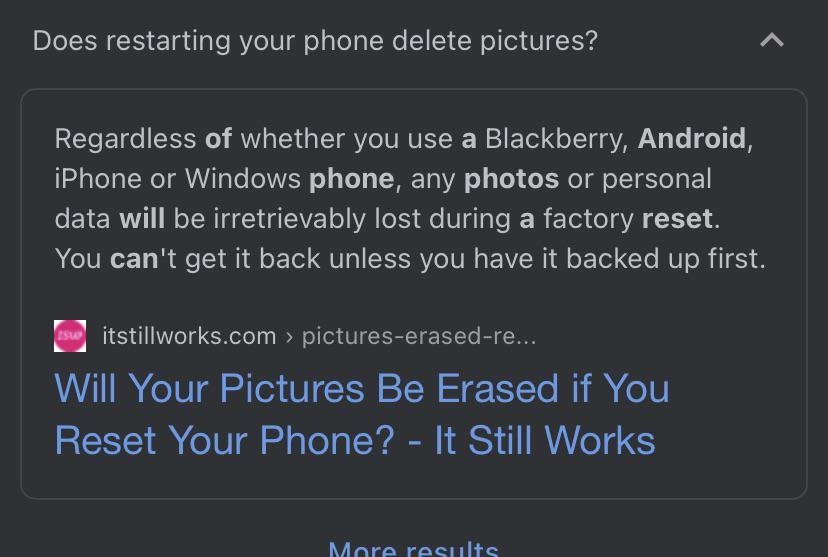
Yes, because a factory reset completely erases local data, so if I reset my phone will I lose everything stored on the internal drive that hasn’t been backed up elsewhere. The type of reset decides the final outcome. A basic settings reset keeps your personal files, but a full master reset permanently wipes photos, downloaded files, contacts, and text messages. If you wipe the handset without an external copy, those unlinked files are gone for good.
What You Lose and Keep When Resetting Your Phone
| Situation | Safe? | Why |
|---|---|---|
| Soft restart phone | Yes | Reboots system without deleting any files |
| Reset network settings | Yes | Clears Wi-Fi passwords but keeps files |
| Reset all settings | With care | Keeps photos but resets system preferences |
| Factory reset with backup | Yes | Cloud copy restores files after wipe |
| Factory reset without backup | No | Wipes internal storage permanently and instantly |
| Cloud-synced contacts and photos | Yes | Files download again after you log in |
| MicroSD card during reset | With care | Stays safe unless you format card |
What the Risk Actually Is
The true danger during a factory wipe is total personal data destruction. A factory wipe writes over the device encryption keys, which renders your personal documents, offline chat archives, local videos, and unsynced photos permanently unreadable. This process doesn’t damage the physical hardware or void your consumer rights, but it permanently erases unbacked items. A mistake people actually make is assuming chat applications copy files automatically, which costs them years of irreplaceable family photos and payment receipts when local databases vanish.
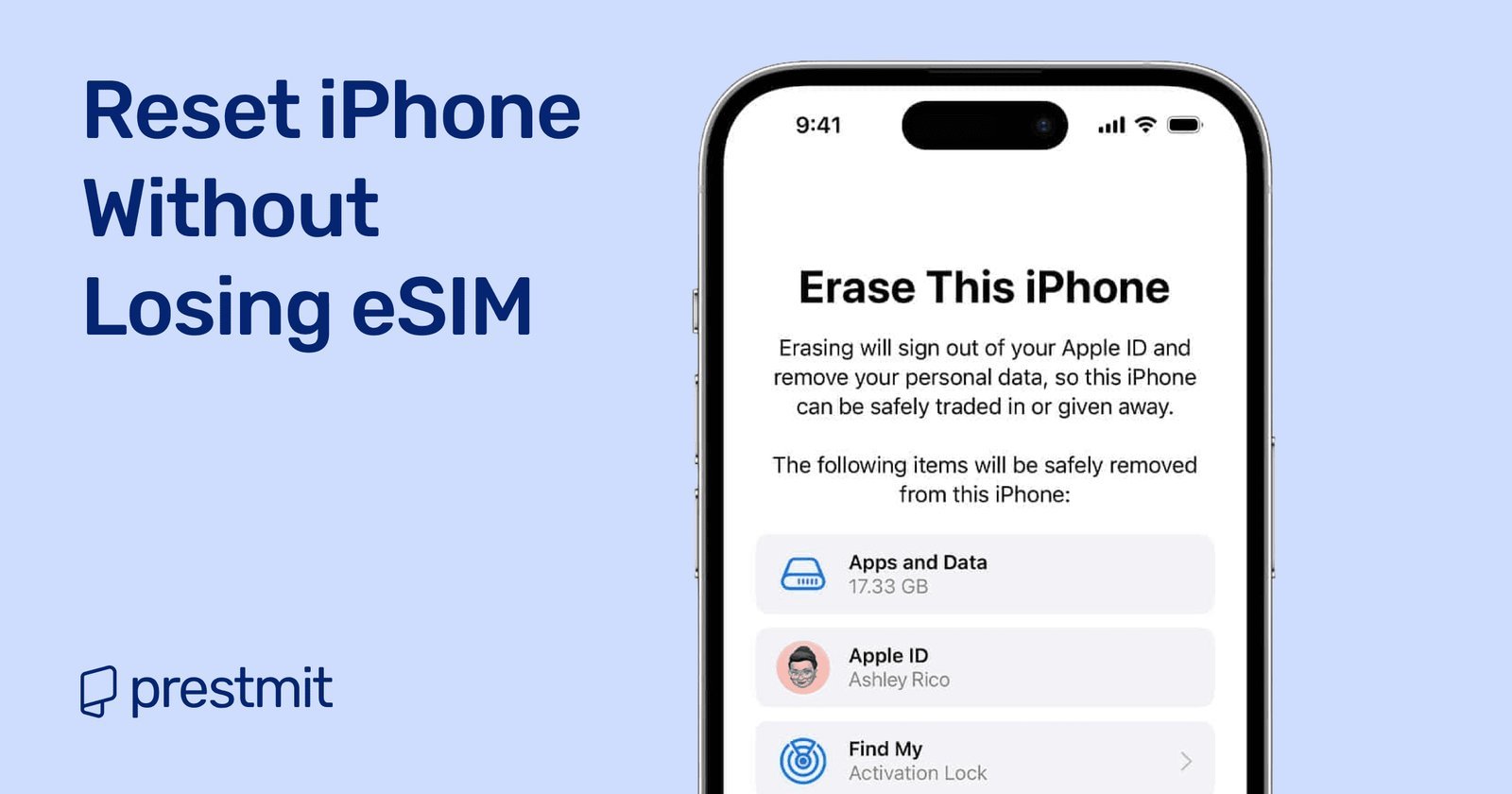
Another serious complication involves device protection software. Apple applies an identical shield called Activation Lock. If you forget your account email and password before wiping the device, the handset turns into a locked brick you can’t use. This process isn’t for anyone who can’t remember their account login details or who lacks a dependable internet connection to restore their data afterward.
The Signs to Stop Immediately
- A screen warning that cloud syncing is currently paused or failed.
- The battery icon shows less than 50% power remaining without a connected wall charger.
- The device prompts for an account password you don’t know.
- A message warns that local folders contain files not yet uploaded.
- The device screen flickers or freezes during daily use, which points to hardware breakdown.
When a phone suffers physical memory chip failure or liquid damage, a software reset won’t fix it and can destroy the remaining data. Take broken hardware to an authorized brand service center instead of running a wipe at home.
The Safer Way to Do It
- Check your total stored gigabytes under Settings, then confirm your cloud account holds enough free storage space to accept that exact amount.
- Connect your phone to home Wi-Fi and plug it directly into a wall power outlet so the battery doesn’t drain out.
- Open system settings, tap your account name, select your backup tool, and run a manual sync until the screen displays today’s exact time.
- Open your photo library app, tap your profile avatar, and confirm the screen displays a green checkmark showing all items are backed up.
- If your device holds an external microSD memory card, unmount the card in storage settings and slide the physical tray out of the phone.
- Write your account username and password on a piece of paper, then test that password on another computer to verify it works.
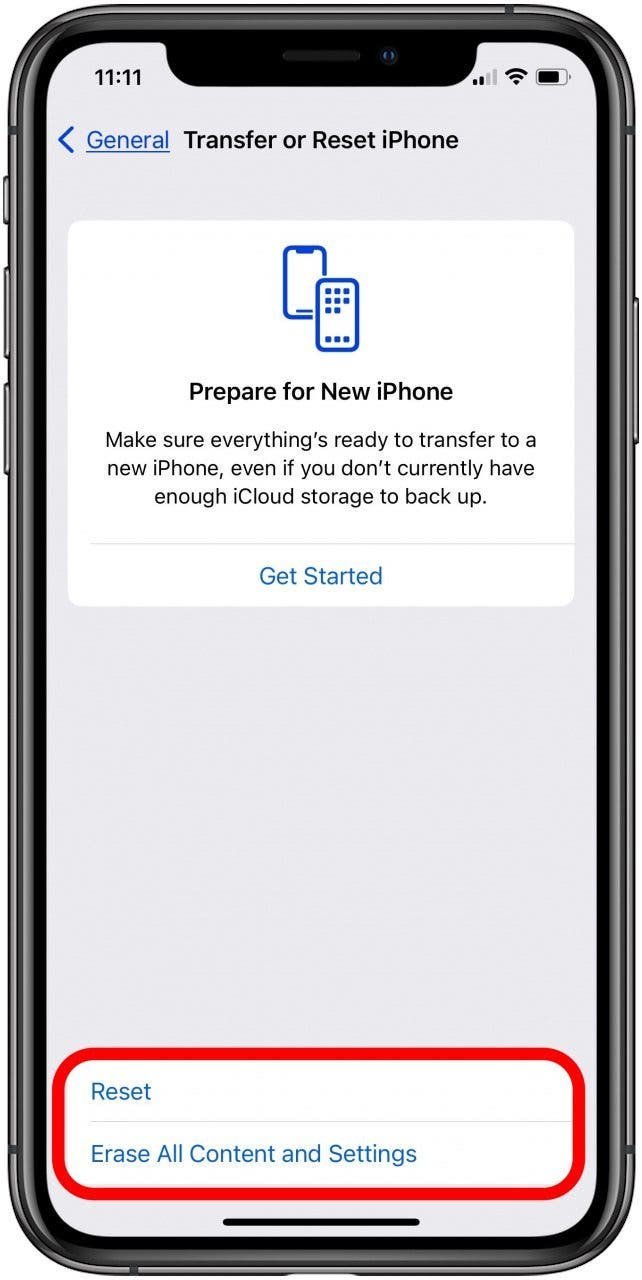
- Open Settings, navigate to System or General Management, choose Erase All Data, and confirm the action only after the manual backup finishes completely.
If It Has Already Happened
Check your primary cloud account from a computer browser immediately. Log into your Apple iCloud or Google Drive dashboard to see if your photos, contacts, and calendar entries remain safely stored online. If they show up there, simply sign into that same profile on your wiped phone, and the system will download your files automatically over Wi-Fi within one to two hours.
If no backup exists anywhere, stop downloading apps, taking photos, or writing files to the phone right away. This limits overwriting internal flash memory blocks. You can evaluate the trade-off between privacy and retrieval: free recovery utilities rarely recover encrypted mobile drives, while professional forensic shops charge substantial fees with zero guarantee of success. When cloud checks fail on modern encrypted smartphones, recovery is generally impossible because the encryption keys have been permanently destroyed.
Frequently Asked Questions
Will I Lose My Photos If I Reset My Phone?
Yes, unless you backed them up first. A factory reset permanently clears internal storage folders, but any photos already synced to iCloud, Google Photos, or a computer will download back onto your handset once you log in.
Does a Factory Reset Delete Sim Card Data?
No, a factory reset only erases the internal memory built into your handset. Contacts and telephone numbers saved directly onto a physical SIM card stay intact, although you must choose whether to remove an eSIM profile when prompted during the wipe.
How Long Does a Factory Reset Take?
About 10 to 20 minutes for the reset itself. The exact time varies by phone model and storage capacity, so check your device manual; restoring your cloud backup afterward will add another hour or two depending on home internet speeds.
Can I Undo a Factory Reset?
No, you can’t reverse the erase command once the reset begins. Modern mobile operating systems delete the device encryption keys right away, meaning your wiped files turn into random, unrecoverable code that can’t be undone without a previous backup.
What Happens to My Google or Apple Account?
Nothing happens to the account itself. The reset simply signs your phone out of the profile and cuts the link, leaving your purchases, synced mail, and drive files safe online until you enter your login credentials again.
Why Does My Phone Ask for a Password After a Reset?
Security features require your password to prevent thieves from reusing stolen hardware. If your phone asks for credentials during initial startup, type the original Google or Apple account details used on that specific handset right before the wipe took place.