To clear your network errors, resetting a CenturyLink router requires pressing the physical Reset button on the back of your gateway for 15 seconds while the power stays on. This method suits people who lost their admin password, deal with constant disconnects, or need to wipe custom settings before returning rented gear.
Things You Need to Reset Your Centurylink Router
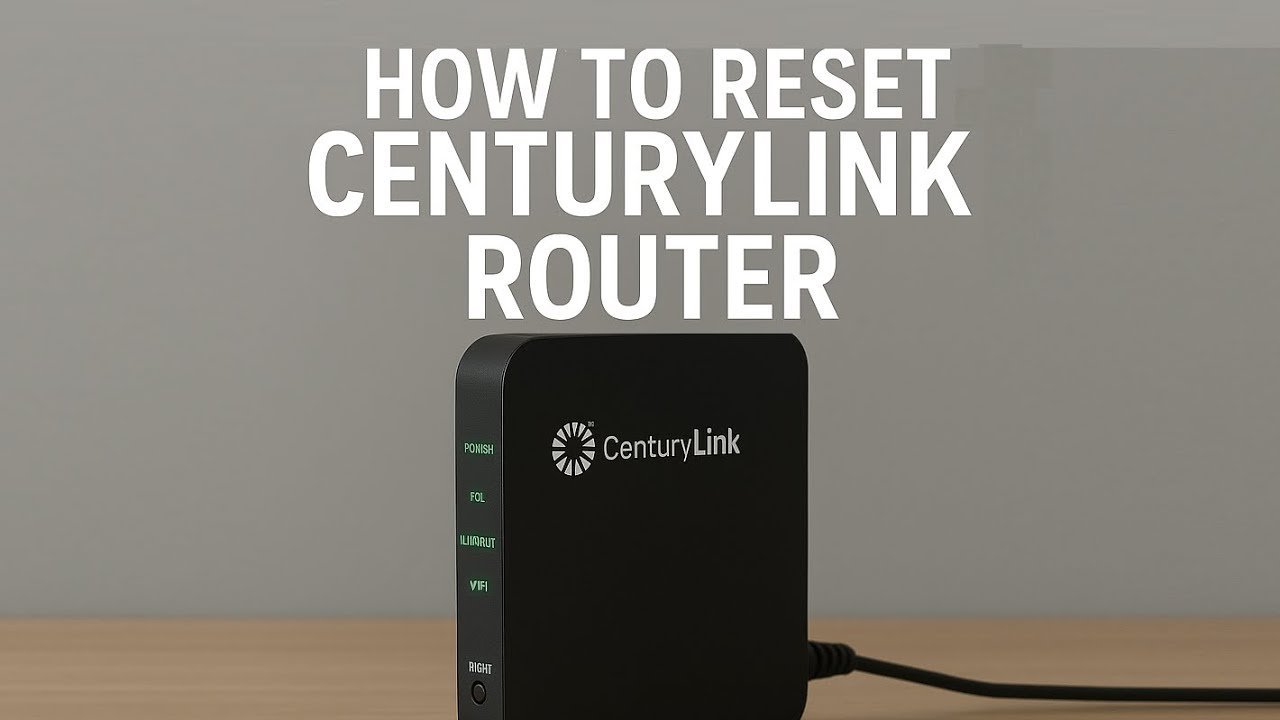
- A straightened metal paperclip or an unfolded staple (it fits the recessed hole cleanly, whereas a wooden toothpick snaps inside easily).
- The original CenturyLink equipment (this process works for common DSL or fiber gateways like the C4000 series, Actiontec C3000A, or Zyxel models, but not third-party mesh nodes).
- The equipment sticker on the side or bottom of your unit (keep this readable to find the factory network name, Wi-Fi key, and admin credentials).
- A working wall power outlet where the power cable stays fully seated.
- An optional Ethernet cable if you prefer configuring the local network without entering the Wi-Fi key.
An unfolded paperclip works well; a pen tip doesn’t work because it’s too thick to reach the switch.
Step-by-Step
- Verify the gateway is plugged in and has a steady power light before touching any controls.
- Turn the unit around to locate the tiny hole labeled “Reset” near the Ethernet ports.
- Push your straight paperclip into that hole until you feel a distinct mechanical click.
- Hold the button down for 15 seconds without releasing pressure, watching the front lights change.
- Release the paperclip once the status lights turn amber or shut off briefly.
- Wait 3 to 5 minutes while the internal system runs through its startup routine.
- Connect your phone or PC to the factory network name printed on the back label.
- Open an internet browser and head to the default local address (192.168.0.1) to configure your internet service credentials if they don’t load automatically.
Tip: If you release the button before 10 seconds pass, the gateway only reboots instead of performing a full restore.
Careful: If your household uses custom PPPoE broadband credentials, don’t proceed unless you have your CenturyLink account username and password written down, because this wipe removes them.
If the DSL or WAN light fails to light up after 10 minutes, the phone or fiber line outside might have physical damage, which requires a dispatch technician from CenturyLink customer service.
Matching the Reset to Your Issue
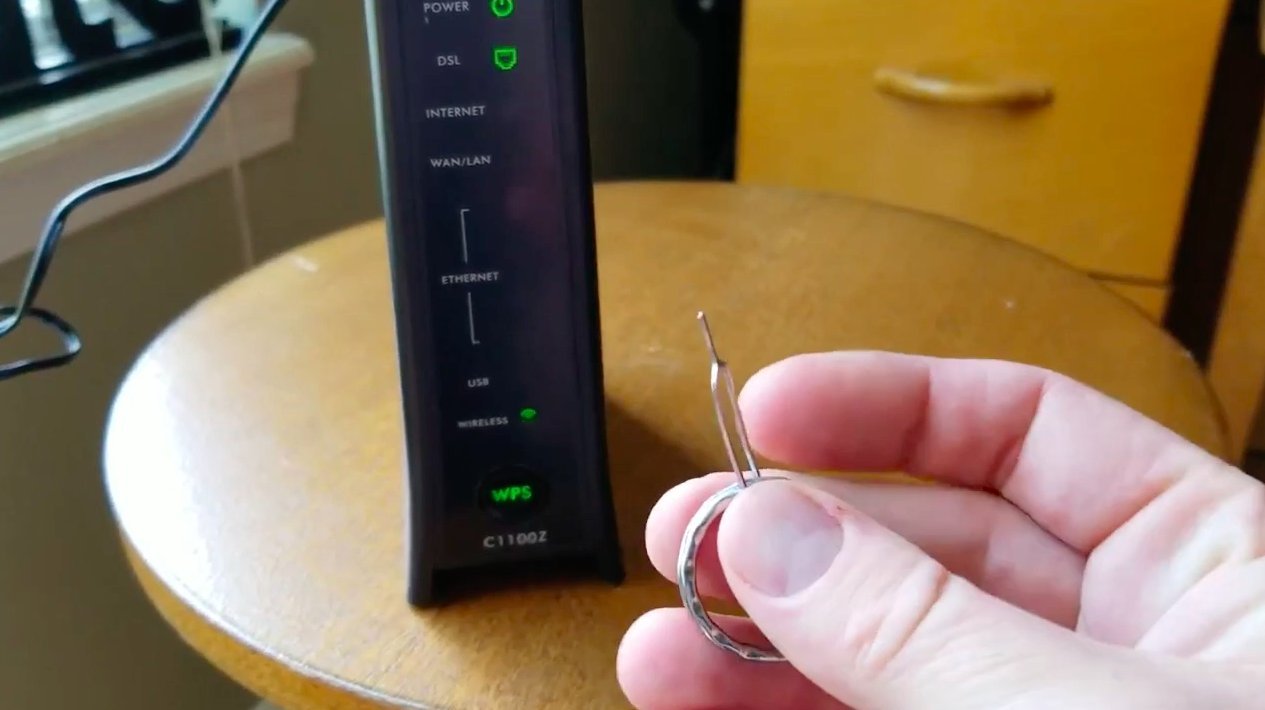
A simple power cycle fixes temporary software bugs, but a full reset solves stubborn configuration conflicts.
| Issue Type | Downtime | Key Difference | Watch This Indicator |
|---|---|---|---|
| Forgotten Admin Password | 5 to 7 minutes | Erases custom logins and restores sticker credentials | Power light returns to solid green or white |
| Slow or Dropped Wi-Fi | 1 to 2 minutes | Power cord removal preserves names; reset clears them | Internet light blinks amber then turns green |
| Returning Old Gateway | 5 minutes | Erases personal keys, security settings, and port rules | Wi-Fi light broadcasts factory SSID |
| Moving to New House | 10 to 15 minutes | Clears old line configurations so the unit detects new line | DSL or WAN light seeks connection sync |
It’s safer to start with a soft restart by pulling the power cord first, because a factory wipe forces you to reconnect every smart device in your home from scratch.
How to Tell You Did It Right
A successful reset shows a single, steady light on modern units (white or green depending on your model) or solid green lights across Power, DSL, and Internet on older models. If you see a flashing red or solid amber light after ten minutes, the router can’t authenticate with the local exchange. This connection drop happens because a full wipe removes your stored PPPoE account credentials on certain copper DSL lines. You can prevent this delay by saving your account details beforehand, keeping the power cord plugged in tightly during the reboot, and avoiding moving the equipment while the firmware reloads.
Post-Reset Setup and Official Guidelines
Follow the equipment standards outlined by the Federal Communications Commission regarding home broadband equipment to maintain reliable connectivity. Once the unit restarts, log into the local admin panel at 192.168.0.1, change the default admin password to keep intruders out, and put your old network name back so your phones reconnect automatically. If X happens and your lights stay red, do A: call the ISP to verify your line status; if Y happens and the lights turn solid green, do B: run a quick speed test and resume normal browsing. This clean state lasts until you change advanced network rules again or experience firmware corruption.
Alternative Ways to Restore Settings
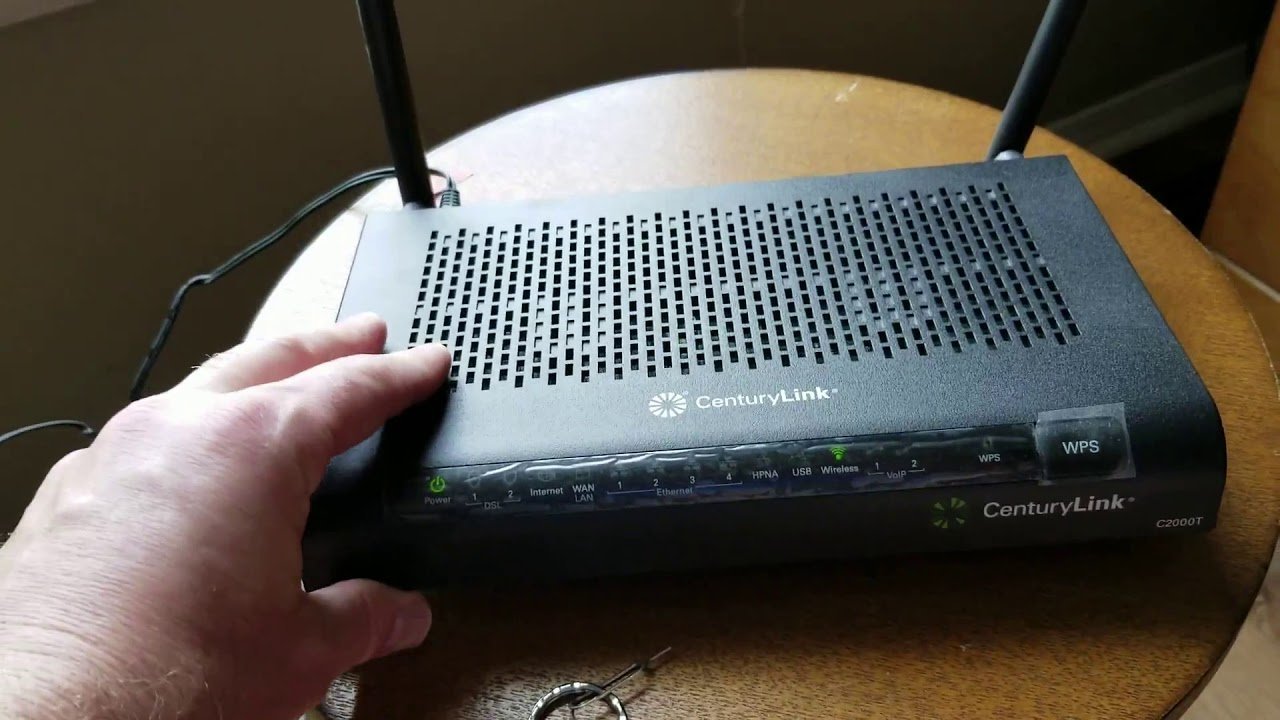
Using the Web Admin Panel
Log into 192.168.0.1 on an internet browser using the admin password from the label. Go to Utilities and select Restore Defaults. This method takes three minutes and saves you from finding a paperclip, but it requires you to know the current admin password.
Power Cycling the Hardware
Pull the black power cord directly from the back of the device. Wait 30 seconds, then push the cord back into the port firmly. This takes under two minutes, costs nothing, and clears temporary memory cache without losing your saved passwords or home automation connections.
Contacting Tech Support for a Remote Push
Call support or use the CenturyLink app to request a line test. An agent can send an over-the-air wipe command directly to your modem. This method takes 15 to 20 minutes, which helps when the physical reset button on your device is broken.
Frequently Asked Questions
Will Resetting My Centurylink Router Delete My Custom Wi-Fi Password?
Yes, it completely wipes all personalized settings. Your network name and password return to the default values printed on the router sticker. You must connect your devices using the original factory Wi-Fi key or enter the gateway settings page to type your custom password back in.
Why Is My Centurylink Router Blinking Blue After a Reset?
It blinks blue while it looks for a CenturyLink broadband connection and downloads firmware. The process usually wraps up within five minutes. If it blinks blue indefinitely, your line can’t find the central office, so check the green phone or white Ethernet cord connections.
Can I Reset My Centurylink Router Without a Paperclip?
Yes, you can use the web interface on your computer. Type 192.168.0.1 into your browser, sign in using the sticker credentials, click Utilities, and choose the Restore Defaults option. This triggers the exact same internal process as the physical button on the back of the case.
How Long Does a Centurylink Router Take to Reset?
About 3 to 5 minutes from the moment you release the button. The lights flash, switch off, and slowly turn back on as the system boots up. The exact duration varies by model — check the label to identify your specific gateway version before starting the clock.
What Should I Do If the Router Light Turns Solid Red?
Unplug the power cord for 30 seconds, reconnect it, and inspect the wall cable. A solid red light indicates a hardware failure or a completely dropped connection signal. If it stays red after another power restart, you need a replacement unit from your provider.
Once your gateway lights turn solid green again, grab the default Wi-Fi sticker on your device and reconnect your phone. It’s smart to open a browser right away to set up a fresh, personal password you’ll easily remember. That keeps your home network secure and ready for your daily use.
Related guides