To complete how to reset a fire tablet, swipe down from the top of the home screen, tap the Settings gear icon, open Device Options, and choose Reset to Factory Defaults. Tap Reset to confirm. The tablet wipes all personal data, turns off, and reboots in about five to ten minutes.
Battery level decides whether this process finishes cleanly or fails. Your Fire tablet needs at least 30 percent battery charge before starting, or it might shut down mid-wipe and freeze the operating system completely. Plug it into the wall charger first.
People often forget to remove their microSD card before starting. A factory wipe deletes downloaded media, personal files, and account logins from internal storage. If you want to keep your photos or side-loaded files, copy them to a computer or cloud storage beforehand.
Restoring Factory Settings Through the Menu
- Plug the tablet into its wall charger so the device stays above 30 percent power throughout the wipe.
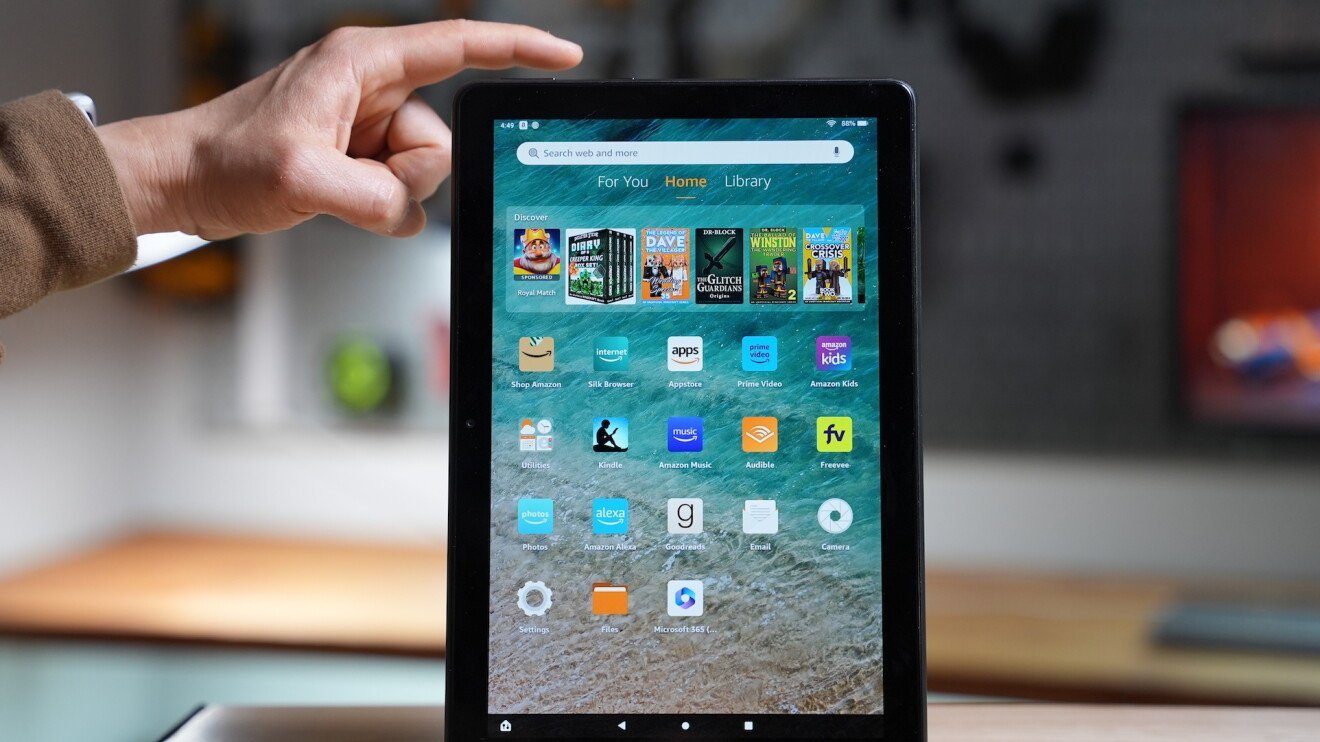
- Swipe down from the top edge of your screen and tap the Settings gear icon.
- Tap Device Options (on older Fire OS editions, this is labeled Device). Tip: If you see a menu item called Backup & Restore, tap it once to verify your settings are synced to your Amazon account before continuing.
- Tap Reset to Factory Defaults.
- Tap Reset to confirm the command. Tip: If you set a parental controls password or a lock screen PIN, enter the 4-digit code when prompted to allow the wipe.
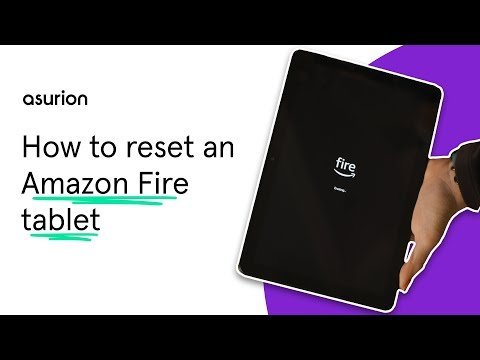
- Leave the screen alone while the Amazon logo displays; the device will erase user blocks, reboot, and load the welcome setup screen within 10 minutes.
If your touchscreen is completely unresponsive or the device refuses to boot past the logo, this menu path won’t work. In that situation, you must use the recovery buttons instead, which involves holding the Power and Volume Down (or Volume Up, depending on generation) buttons together until the system recovery menu appears.
How Long It Takes
The wipe duration depends on how much internal storage your model holds and how much data needs erasing.
If the screen stays stuck on the Amazon logo for longer than 20 minutes, hold down the power button for 40 seconds to force a hard shutoff, then power it back on.
How to Tell When It’s Done
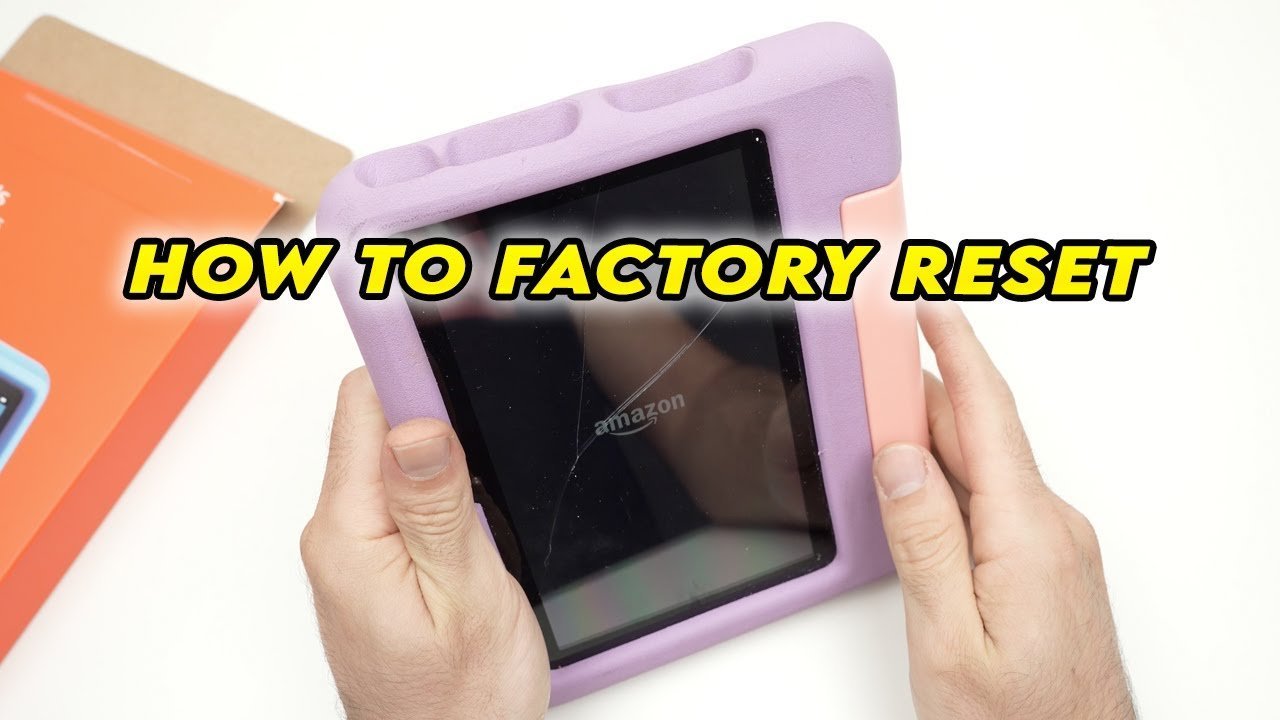
A successful reset always finishes at the multilingual “Fire” welcome screen, where you’re prompted to select a language like English or Spanish. You’ll hear no sound until you tap the screen, and all previous account information is gone.
To confirm the device is fully wiped before handing it to a buyer, turn it off right at this language screen. When the next person powers it on, it behaves like a new machine fresh out of the box. According to Amazon Device Support guidelines, the device also unlinks from your digital account registry once you complete the factory wipe on a connected network.
Mistakes That Ruin It
- Leaving the external microSD card inside: The reset tool asks if you want to erase the card, but selecting the wrong prompt wipes your stored photos and documents instantly. Take the physical card out with your fingernail before tapping the reset button.
- Running the wipe on low battery: If the tablet runs out of power while formatting the storage partitions, the core system files become corrupted and the screen won’t turn on again. Keep the tablet plugged directly into the wall adapter while resetting.
- Skipping account deregistration on an offline device: If you perform a hardware button wipe while airplane mode is on, Amazon’s servers may still list the tablet under your digital locker. Always reconnect to Wi-Fi to let the tablet tell the servers it’s cleared, or manually deregister the serial number from your account page online.
Frequently Asked Questions
Can I Reset My Fire Tablet If I Forgot My Pin?
Yes. Enter the wrong PIN five times on the lock screen. A pop-up will appear allowing a factory reset, or you can turn off the tablet and boot into the hardware recovery menu using the physical power and volume buttons.
Will a Factory Reset Remove My Amazon Account?
Yes. The reset unlinks your tablet from your Amazon profile, deletes your purchase history from the local storage, and removes payment methods stored on that specific device. You can log back into your Amazon account later to download your purchased books and apps again.
What Happens to My Books and Apps After a Reset?
Your digital purchases stay safe in your Amazon Cloud library. They vanish from the tablet’s local drive during the wipe, but you can redownload them from the “Library” tab at no extra charge once you sign back into your account.
Why Won’t My Fire Tablet Reset When I Tap the Button?
Low battery or active parental controls usually block the action. If the battery is under 30 percent, the tablet disables the final confirmation button. Plug it in, charge it for thirty minutes, and verify your parental control password to complete the command.
Does a Reset Delete Operating System Updates?
No. A factory reset clears user files, downloads, settings, and app data, but it leaves the current version of Fire OS intact. The device won’t roll back to an older operating system version that it used when you first bought it.
Related guides