To clear errors and restore factory settings, resetting Canon printer models takes just 2 minutes by using the device’s built-in Setup menu. Turn the unit on, press the gear or wrench button, select “Device settings,” scroll to “Reset setting,” and choose “Reset all.” Confirm with OK to finish.
The exact buttons depend on your display type. Small screen models use arrow keys, touchscreens let you tap the screen directly, and button-only models require holding physical keys. This process varies by model — check the label on your unit if your menu layout looks slightly different.
People often start pressing buttons while an active print job is still frozen in line. Always clear your computer’s print queue first so the PC doesn’t push the bad job right back.
Steps to Reset Your Canon Printer
- Turn on the printer and press the Setup button, which shows a small wrench or gear icon. If your printer has a touch display, tap the gear icon on the home screen instead.
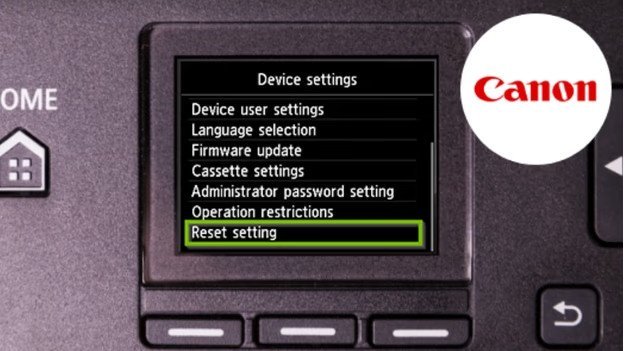
- Press the right arrow button until you reach Device settings, then press OK.
- Scroll down the list to Reset setting and press OK.
- Select Reset all using the arrow buttons and press OK. Tip: If you only want to fix Wi-Fi connection drops, choose “LAN settings only” instead so you don’t erase your paper size preferences.
- Highlight Yes on the confirmation screen and press OK to start the wipe.
- Wait 30 seconds for the internal memory to clear completely.
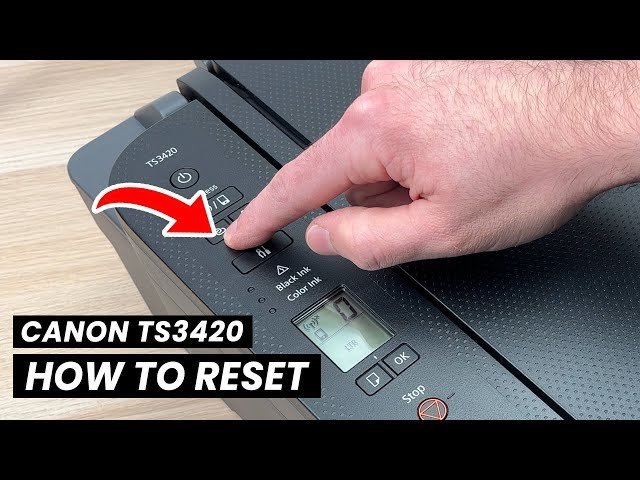
- Power the machine off, wait 10 seconds, and turn it back on to complete the cycle. Tip: For button-only models without screens like the Pixma MG2520, hold the Stop button for 5 seconds until the alarm lamp blinks 21 times, then release it to trigger a full reset.
If physical error lights stay solid orange after this sequence, you might face a worn internal ink pad. When that happens, this stops being a do-it-yourself job; contact an authorized Canon service and support provider to replace the hardware pads safely.
How Long It Takes
The time needed depends on which parts of the machine you choose to clear.
| Situation | How long | What changes it | What to watch for |
|---|---|---|---|
| Network reset (LAN only) | 1 to 2 minutes | Router reconnect speed | Flashing blue Wi-Fi light |
| Full factory wipe (Reset All) | 2 to 3 minutes | Model processor speed | Screen returning to language choice |
| Hardware power cycle | 5 to 10 minutes | Internal capacitor drain | Power light going completely dark |
| Button-only model manual reset | 1 minute | Counting button flash signals | Orange alarm light blinking patterns |
If the process takes longer than 15 minutes, unplug the main power cord directly from the wall socket and leave it disconnected for 20 minutes before trying again.
How to Tell When It’s Done
A successful reset brings the printer back to its original state out of the box. On models with a screen, you’ll see the initial setup prompt asking you to select your language and region. The flashing orange error lights will turn off, leaving only a solid green power light.
To settle any doubt, run a test print directly from the panel by pressing the Maintenance button and selecting a nozzle check. If the page feeds smoothly and prints standard lines without showing error numbers, the memory is cleared.
Mistakes That Ruin It
- Leaving the USB cable connected to your computer: A connected computer can immediately resend a stuck print job and lock the printer again. Disconnect all data cables from the back before starting the sequence.
- Pulling the power plug while lights are flashing: Cutting power during a memory wipe can corrupt the main logic board. Always wait until the screen goes black or the power light stops blinking before unplugging.
- Choosing Reset All when only the network changed: A full wipe deletes custom paper profiles and print head alignments. If you only bought a new router, reset the LAN settings instead to save setup time.
Frequently Asked Questions
Can a Factory Reset Fix a Paper Jam Error?
No, a reset won’t clear a paper jam code if physical paper or torn scraps remain inside the feed rollers. You must open the rear cover, remove the stuck sheets by hand, and close the access door before running any reset steps.
Why Is My Printer Still Offline After a Reset?
Your printer goes offline because a full wipe deletes your saved Wi-Fi name and password. You’ll need to open the network settings on the screen, select your home router, and enter your wireless password again so your computer can detect it.
Is It Safe to Reset a Printer with Low Ink?
Yes, resetting the memory won’t harm low cartridges. However, the machine will run an automatic head priming cycle right after turning back on, which uses a small amount of liquid ink. If a tank is bone dry, replace it first.
What Happens If I Use the Button Combination on the Wrong Model?
Nothing dangerous happens, but the printer will simply ignore the command or print a blank alignment page. If your model doesn’t respond to held buttons within 10 seconds, check your exact model number to verify the correct sequence.
Does Resetting Delete My Print History?
Yes, a full device reset wipes the internal log of recently printed documents and network traffic. It also clears any queued jobs waiting in the printer’s local temporary memory buffer.
Once your machine restarts, it’s ready for a fresh start. Go ahead and reconnect it to your home Wi-Fi network using the control panel, then print a quick test page. If you’re still seeing strange error codes after that, it’s a good idea to reach out to the manufacturer’s support team.